> ## Documentation Index
> Fetch the complete documentation index at: https://help.decodo.com/llms.txt
> Use this file to discover all available pages before exploring further.

# IP:端口格式

> 一个临时的解决方案，用于替代端点:端口格式

<Warning>
  ### 免责声明

  我们服务器的 IP 可能随时更改。

  我们不建议使用此格式，除非绝对必要（例如，如果您的应用程序不接受默认的 `端点:端口` 格式）。
</Warning>

对于 `IP:端口` 格式，您需要 ping 相关服务器以获取 IP 部分。端口保持与仪表板中提供的相同。

## Windows

<Steps>
  <Step title="打开 Windows 命令提示符">
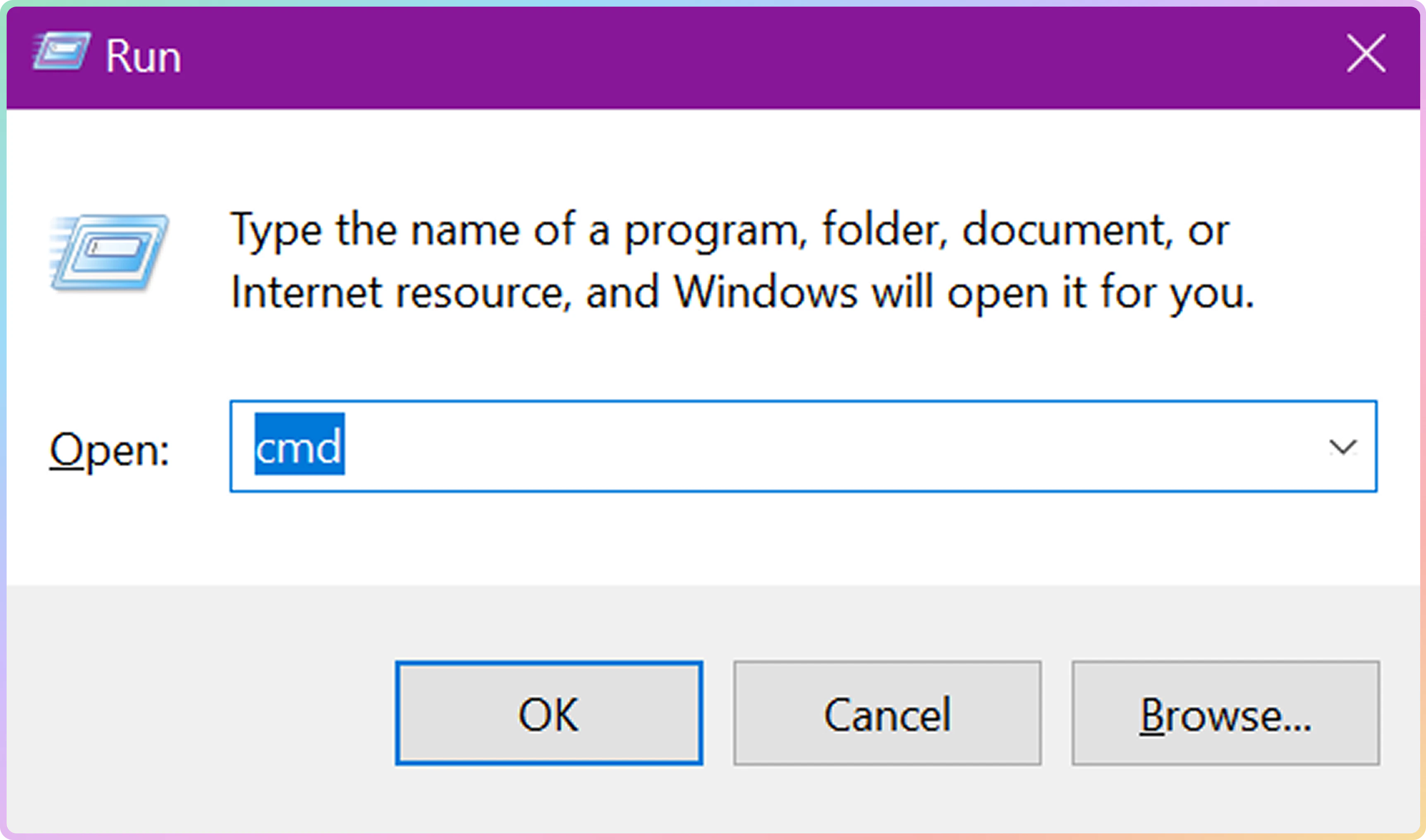
    打开命令行（快捷方式：按键盘上的 **Windows 徽标 + R**，然后输入 `cmd` 并按 **Enter**）：

    <img src="https://mintcdn.com/decodo/IsWPiMoisao6W8vC/images/docs/ec847945b27ad896dfb97ba63f36a62b297662ff602a14a041be4e63d4f974b1-Group_427323112.png?fit=max&auto=format&n=IsWPiMoisao6W8vC&q=85&s=6a58331f08daa45f5500352c6847d2ad" style={{ width:"64%" }} className="mx-auto" width="3448" height="2032" data-path="images/docs/ec847945b27ad896dfb97ba63f36a62b297662ff602a14a041be4e63d4f974b1-Group_427323112.png" />
  </Step>

  <Step title="Ping 端点">
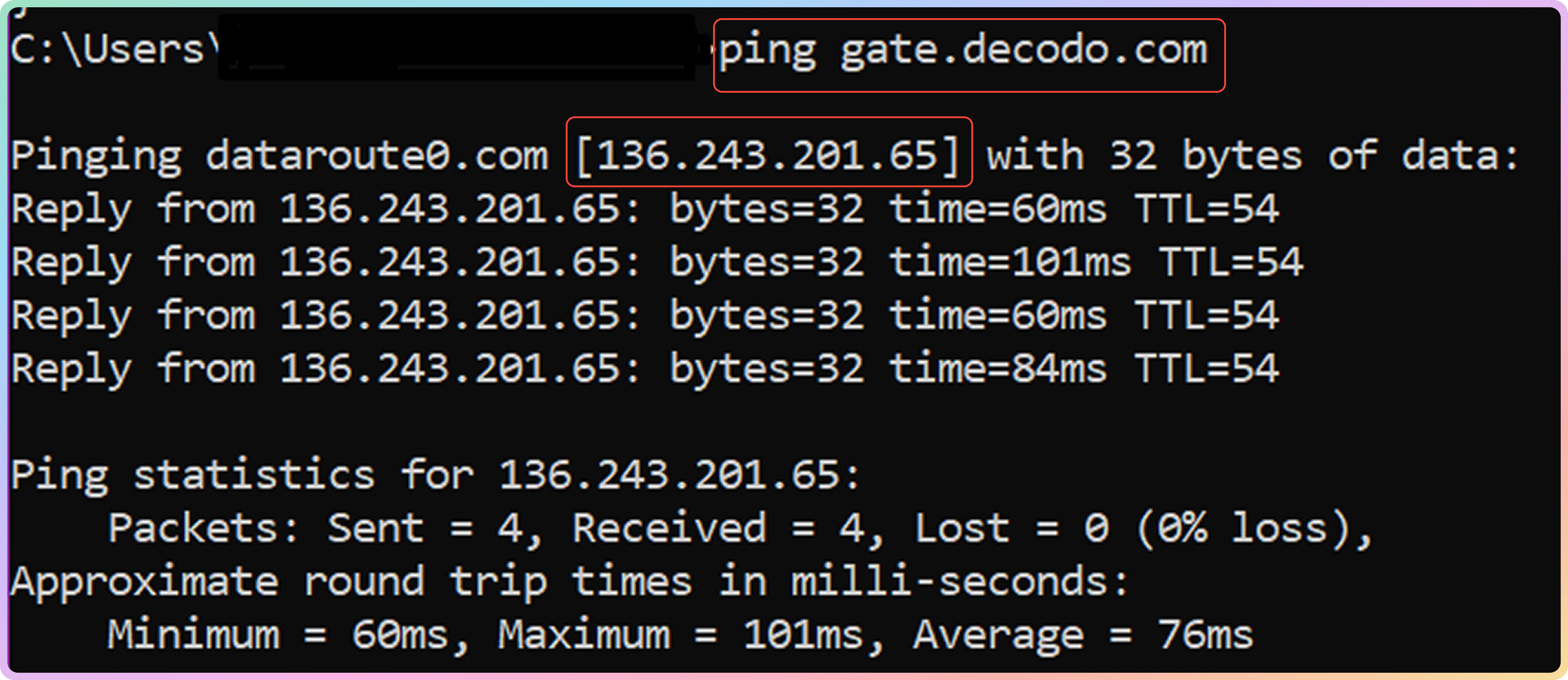
    在命令行中输入以下命令：

    <CodeGroup>
      ```text 要输入的命令行 theme={null}
      ping gate.decodo.com
      ```
    </CodeGroup>

    <Warning>
      `gate.decodo.com` 只是一个示例端点。输入您要使用的端点，因为每个端点都有不同的 IP。
    </Warning>

    <img src="https://mintcdn.com/decodo/7Hj3tfc-1rGMirwk/images/docs/b89f57b8839a6f2860fd807bc21d1f88a00f6a1f1f74b687bd87cac541a77811-Group_427323113.png?fit=max&auto=format&n=7Hj3tfc-1rGMirwk&q=85&s=8bc7de0f3e3e17bc6ed4a7aa5e284b78" style={{ width:"64%" }} className="mx-auto" width="3448" height="1496" data-path="images/docs/b89f57b8839a6f2860fd807bc21d1f88a00f6a1f1f74b687bd87cac541a77811-Group_427323113.png" />
  </Step>

  <Step title="获取端点 IP">
    根据上面的示例，您可以看到 `gate.decodo.com` 的 IP。现在您可以将其用于 `IP:端口` 格式（`95.216.50.111:7000` = `gate.decodo.com:7000`）。
  </Step>
</Steps>

## macOS

<Steps>
  <Step title="打开 macOS 终端">
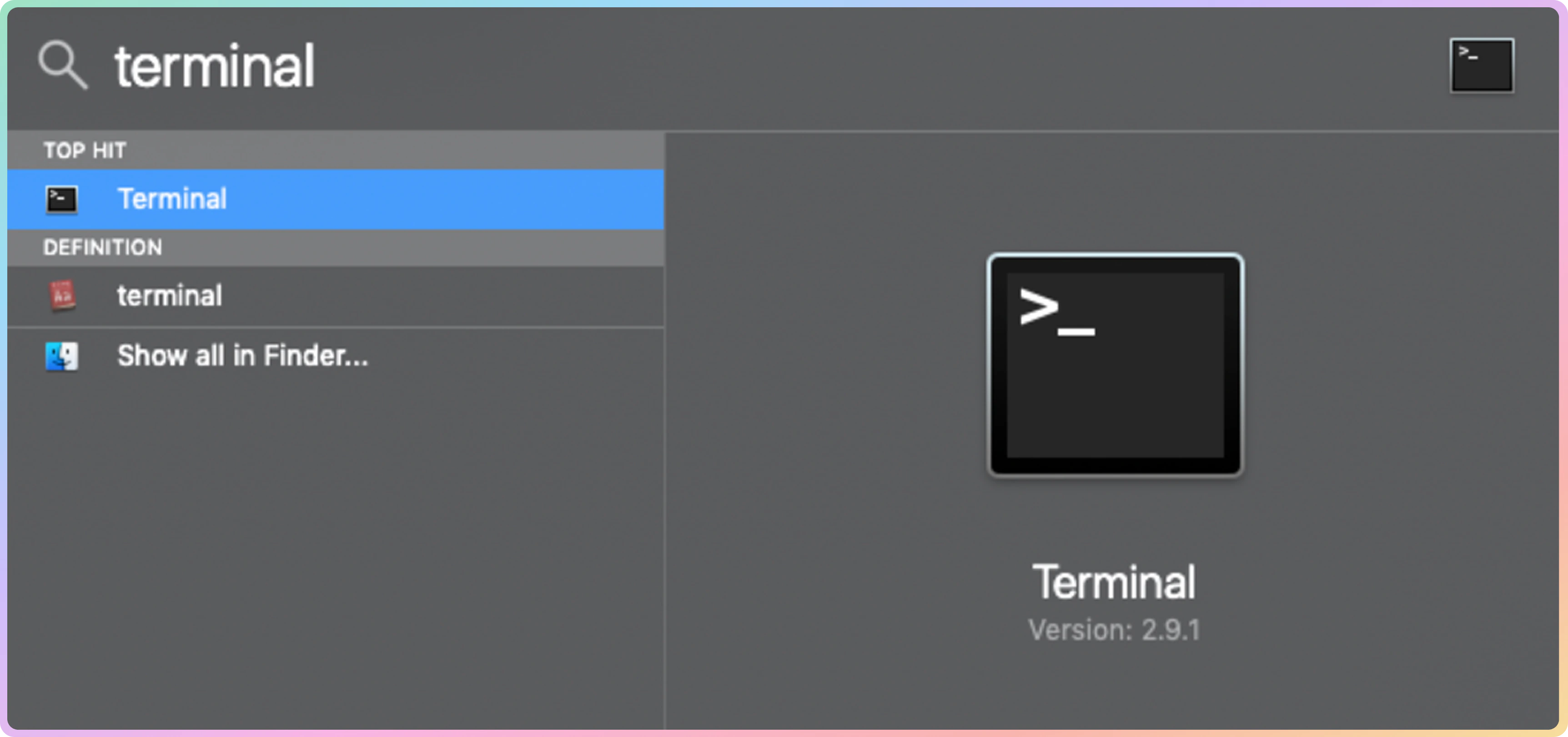
    打开 **终端**（只需按照下面的示例在 **Finder** 中搜索）：

    <img src="https://mintcdn.com/decodo/7Hj3tfc-1rGMirwk/images/docs/b0c95f25e992e1b6ce983d848497fbfa0df740049582757af0f59c384506d125-Group_427323115.png?fit=max&auto=format&n=7Hj3tfc-1rGMirwk&q=85&s=5a1e405e304ec88469bec26a564789e3" style={{ width:"64%" }} className="mx-auto" width="3448" height="1620" data-path="images/docs/b0c95f25e992e1b6ce983d848497fbfa0df740049582757af0f59c384506d125-Group_427323115.png" />
  </Step>

  <Step title="Ping 端点">
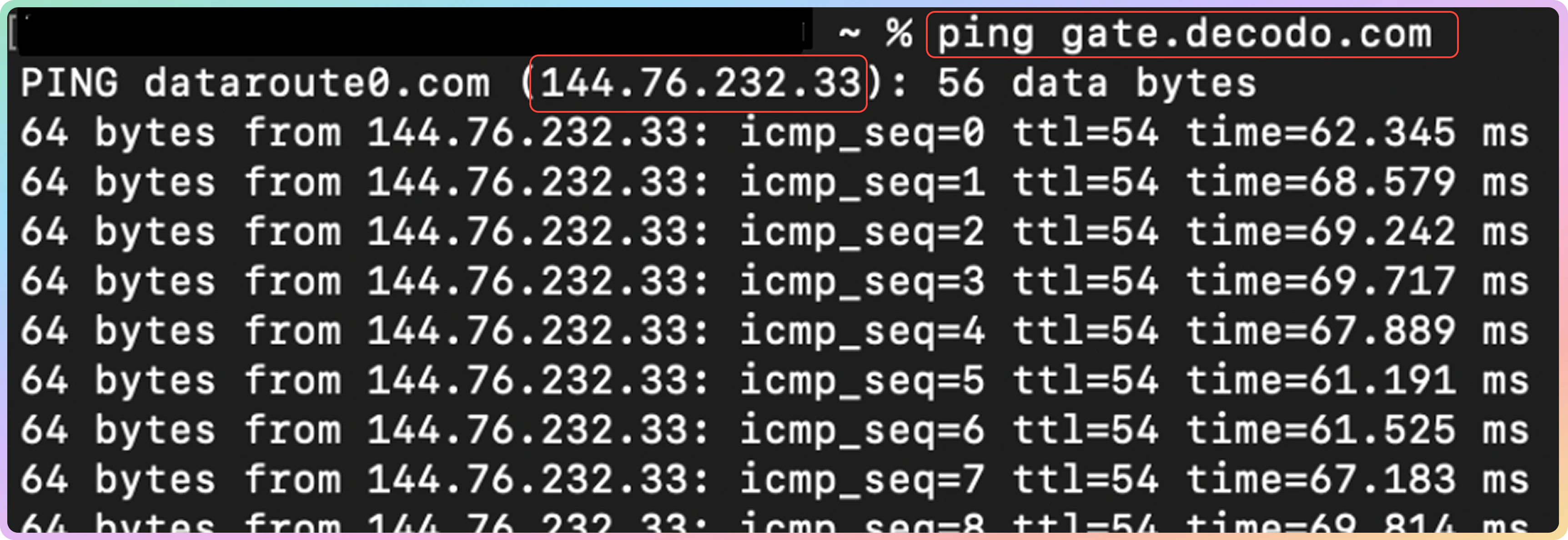
    在命令行中输入以下命令：

    <CodeGroup>
      ```text 要输入的命令行 theme={null}
      ping gate.decodo.com
      ```
    </CodeGroup>

    <Warning>
      `gate.decodo.com` 只是一个示例端点。输入您要使用的端点，因为每个端点都有不同的 IP。
    </Warning>

    <img src="https://mintcdn.com/decodo/eRLuBYAbadfvmqDE/images/docs/1892412d3eb74788b5010b581db96d1234ae0ed8081f46d25c7b3a1f02f5af6d-Group_427323114.png?fit=max&auto=format&n=eRLuBYAbadfvmqDE&q=85&s=964f0f0818ed63c00a43eaca4d284ae3" style={{ width:"64%" }} className="mx-auto" width="3448" height="1188" data-path="images/docs/1892412d3eb74788b5010b581db96d1234ae0ed8081f46d25c7b3a1f02f5af6d-Group_427323114.png" />
  </Step>

  <Step title="获取端点 IP">
    根据上面的示例，您可以看到 `gate.decodo.com` 的 IP。现在您可以将其用于 `IP:端口` 格式（`95.216.50.111:7000` = `gate.decodo.com:7000`）。
  </Step>
</Steps>

***

<Columns cols={2}>
  <Card title="支持" href="https://direct.lc.chat/12092754" cta="让我们聊聊！">
    需要帮助或只是想打个招呼？我们的支持团队全天候为您服务。 \
    您也可以随时通过电子邮件 [support@decodo.com](mailto:support@decodo.com) 联系我们。
  </Card>

  <Card title="反馈" href="mailto:feedback@decodo.com" cta="分享反馈">
    找不到您要找的内容？请求一篇文章！ \
    有反馈意见？分享您对我们如何改进的想法。
  </Card>
</Columns>