> ## Documentation Index
> Fetch the complete documentation index at: https://help.decodo.com/llms.txt
> Use this file to discover all available pages before exploring further.
# 存储设置
> 为视频下载器设置 Amazon S3 存储桶、Google Cloud Storage 或其他 S3 兼容提供商,并构建 upload_url。
## Amazon S3
您可以通过 `upload_url` 参数提供一些参数,将视频直接下载到您的 S3 存储桶中。在以下步骤中,我们将把示例视频上传到新存储桶。
如果可以的话,我们建议为视频下载创建一个新存储桶。不过,以下步骤也适用于现有存储桶。
要开始下载视频:
1. 使用默认设置和权限创建新的 S3 存储桶。
2. [创建新的 IAM 用户](https://docs.aws.amazon.com/IAM/latest/UserGuide/id_users_create.html)。
3. 在 IAM 用户上为您的存储桶附加 `PutObject` 权限:
1. 添加内联策略:
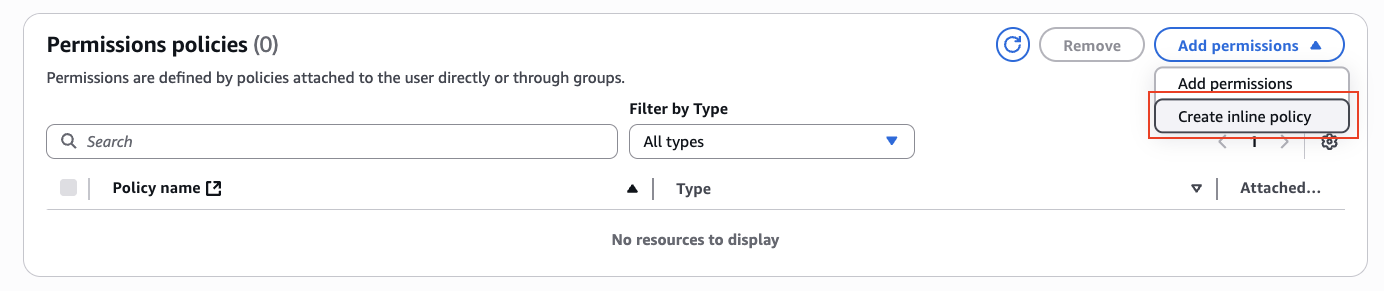 2. 在服务下,选择 S3。
3. 在操作下:
1. 需要将以下权限添加到存储桶:
* `GetBucketLocation`
2. 需要将以下权限添加到存储桶的文件夹:
* `PutObject`
* `PutObjectAcl`
4. 在资源下,选择特定,点击添加 ARN,添加您的存储桶名称和视频文件夹名称:
2. 在服务下,选择 S3。
3. 在操作下:
1. 需要将以下权限添加到存储桶:
* `GetBucketLocation`
2. 需要将以下权限添加到存储桶的文件夹:
* `PutObject`
* `PutObjectAcl`
4. 在资源下,选择特定,点击添加 ARN,添加您的存储桶名称和视频文件夹名称:
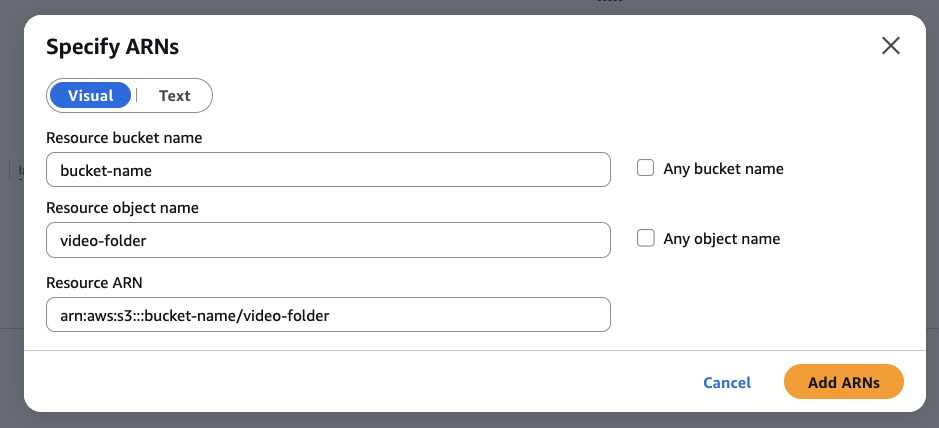 5. 您的最终策略声明应如下所示:
```text theme={null}
{
"Version": "2012-10-17",
"Statement": [
{
"Sid": "Statement01",
"Effect": "Allow",
"Action": "s3:GetBucketLocation",
"Resource": "arn:aws:s3:::your-bucket"
},
{
"Sid": "Statement02",
"Effect": "Allow",
"Action": [
"s3:PutObject",
"s3:PutObjectAcl"
],
"Resource": "arn:aws:s3:::your-bucket/*"
}
]
}
```
4. 为该用户[生成访问密钥和密钥](https://docs.aws.amazon.com/keyspaces/latest/devguide/create.keypair.html)。
1. 当询问用例时,选择其他。
发送给视频下载器的访问密钥不能包含任何可能与 `upload_url` 参数冲突的未经 URI 转义的字符,例如 `/` 或 `@`。如果 AWS 生成的密钥包含此类字符,请重新生成密钥。
5. 使用以下示例参数调用视频下载器:
```text theme={null}
{
"target": "youtube_video",
"query": "PFRn5zKJTD8",
"upload_url": "https://access_key:access_secret@s3.us-west-2.amazonaws.com/your-bucket/video-folder"
}
```
注意事项:
* `access_key` 和 `access_secret` 在第 4 步中生成。
* `us-west-2` 为示例区域,您的 AWS 区域可能不同。
* 必须提供 `/video-folder`。
* 如果您的密钥包含 `+`,请将其 URL 编码为 `%2B`。
## 其他 S3 兼容提供商
以下 S3 兼容提供商也可以直接使用:
* [MinIO](https://min.io)
* [Wasabi](https://wasabi.com)
* [DigitalOcean Spaces](https://www.digitalocean.com/products/spaces)
* [Backblaze B2](https://www.backblaze.com/b2/cloud-storage.html)
* [Scaleway Object Storage](https://www.scaleway.com/en/object-storage/)
* [Linode Object Storage](https://www.linode.com/products/object-storage/)
* [IBM Cloud Object Storage](https://www.ibm.com/cloud/object-storage)
* [Oracle Cloud Object Storage](https://www.oracle.com/cloud/storage/object-storage.html)
* [Hetzner Cloud Storage](https://www.hetzner.com/storage)
* [Google Cloud Storage](https://cloud.google.com/storage/docs/interoperability),需使用 HMAC 密钥:`https://:@storage.googleapis.com//`
***
需要帮助或只是想打个招呼?我们的支持团队全天候为您服务。 \
您也可以随时通过电子邮件 [support@decodo.com](mailto:support@decodo.com) 联系我们。
找不到您要找的内容?请求一篇文章! \
有反馈意见?分享您对我们如何改进的想法。
This documentation is built and hosted on [Mintlify](https://mintlify.com), a developer documentation platform.
5. 您的最终策略声明应如下所示:
```text theme={null}
{
"Version": "2012-10-17",
"Statement": [
{
"Sid": "Statement01",
"Effect": "Allow",
"Action": "s3:GetBucketLocation",
"Resource": "arn:aws:s3:::your-bucket"
},
{
"Sid": "Statement02",
"Effect": "Allow",
"Action": [
"s3:PutObject",
"s3:PutObjectAcl"
],
"Resource": "arn:aws:s3:::your-bucket/*"
}
]
}
```
4. 为该用户[生成访问密钥和密钥](https://docs.aws.amazon.com/keyspaces/latest/devguide/create.keypair.html)。
1. 当询问用例时,选择其他。
发送给视频下载器的访问密钥不能包含任何可能与 `upload_url` 参数冲突的未经 URI 转义的字符,例如 `/` 或 `@`。如果 AWS 生成的密钥包含此类字符,请重新生成密钥。
5. 使用以下示例参数调用视频下载器:
```text theme={null}
{
"target": "youtube_video",
"query": "PFRn5zKJTD8",
"upload_url": "https://access_key:access_secret@s3.us-west-2.amazonaws.com/your-bucket/video-folder"
}
```
注意事项:
* `access_key` 和 `access_secret` 在第 4 步中生成。
* `us-west-2` 为示例区域,您的 AWS 区域可能不同。
* 必须提供 `/video-folder`。
* 如果您的密钥包含 `+`,请将其 URL 编码为 `%2B`。
## 其他 S3 兼容提供商
以下 S3 兼容提供商也可以直接使用:
* [MinIO](https://min.io)
* [Wasabi](https://wasabi.com)
* [DigitalOcean Spaces](https://www.digitalocean.com/products/spaces)
* [Backblaze B2](https://www.backblaze.com/b2/cloud-storage.html)
* [Scaleway Object Storage](https://www.scaleway.com/en/object-storage/)
* [Linode Object Storage](https://www.linode.com/products/object-storage/)
* [IBM Cloud Object Storage](https://www.ibm.com/cloud/object-storage)
* [Oracle Cloud Object Storage](https://www.oracle.com/cloud/storage/object-storage.html)
* [Hetzner Cloud Storage](https://www.hetzner.com/storage)
* [Google Cloud Storage](https://cloud.google.com/storage/docs/interoperability),需使用 HMAC 密钥:`https://:@storage.googleapis.com//`
***
需要帮助或只是想打个招呼?我们的支持团队全天候为您服务。 \
您也可以随时通过电子邮件 [support@decodo.com](mailto:support@decodo.com) 联系我们。
找不到您要找的内容?请求一篇文章! \
有反馈意见?分享您对我们如何改进的想法。
This documentation is built and hosted on [Mintlify](https://mintlify.com), a developer documentation platform.