> ## Documentation Index
> Fetch the complete documentation index at: https://help.decodo.com/llms.txt
> Use this file to discover all available pages before exploring further.
# Accessing Your IP List
> Dedicated Datacenter My IP List Management
### IP configuration options
* If you'd like to understand how to replace your IP list, follow the **IP Replacement** article [**here**](https://help.decodo.com/docs/dedicated-datacenter-proxy-ip-replacement).
* If you want to learn about your **IP retention** during subscription changes, go to the article [**here**](https://help.decodo.com/docs/dedicated-datacenter-proxy-ip-retention).
## My IP List
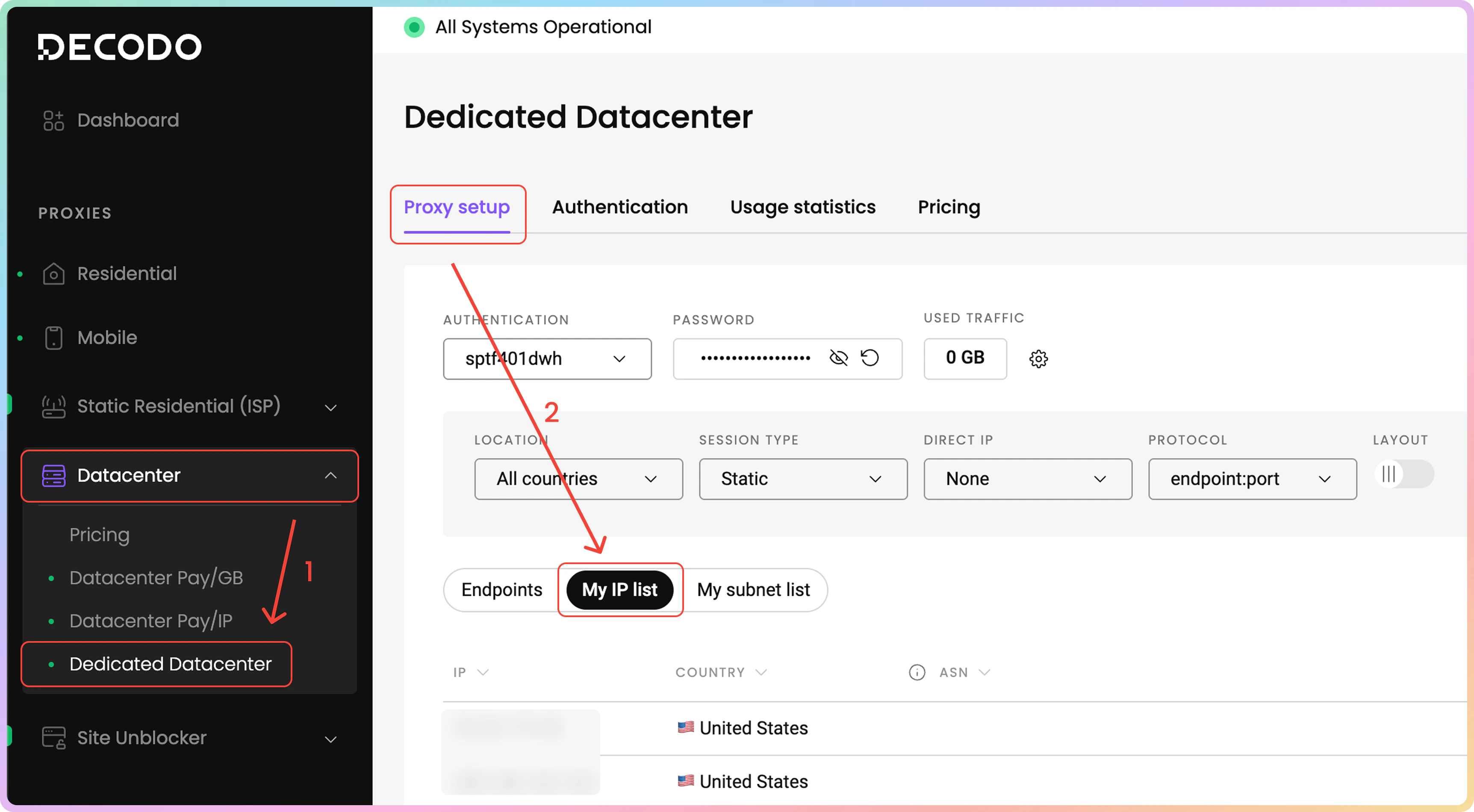
By default, the dashboard shows the proxy endpoints list. That means you would have to **navigate** to the **My IP list** section on the dashboard to view your purchased IP list.
1. Via the dashboard left panel, click on **Datacenter** → [**Dedicated Datacenter**](https://dashboard.decodo.com/dedicated-dc-ip-proxies/proxy-setup?tab=ips).
2. Now, you are in the **Proxy setup** page. Above the endpoint generator section, click on the **My IP list** section.
 In the **My IP list** section, you will find a list of your purchased IPs.
1. There are 3 columns: the **IP** address, the IP's **country** of origin, and its **ASN**.
2. You can filter the IP list by its **country** or search via **keywords**.
3. You can **copy** each of the table's values to your clipboard by clicking on them.
4. You can **export** the table's data directly or export the raw data in the following file formats: `.CSV`, .`TXT`, or `.JSON`. You can also copy the list of IPs to your clipboard.
In the **My IP list** section, you will find a list of your purchased IPs.
1. There are 3 columns: the **IP** address, the IP's **country** of origin, and its **ASN**.
2. You can filter the IP list by its **country** or search via **keywords**.
3. You can **copy** each of the table's values to your clipboard by clicking on them.
4. You can **export** the table's data directly or export the raw data in the following file formats: `.CSV`, .`TXT`, or `.JSON`. You can also copy the list of IPs to your clipboard.
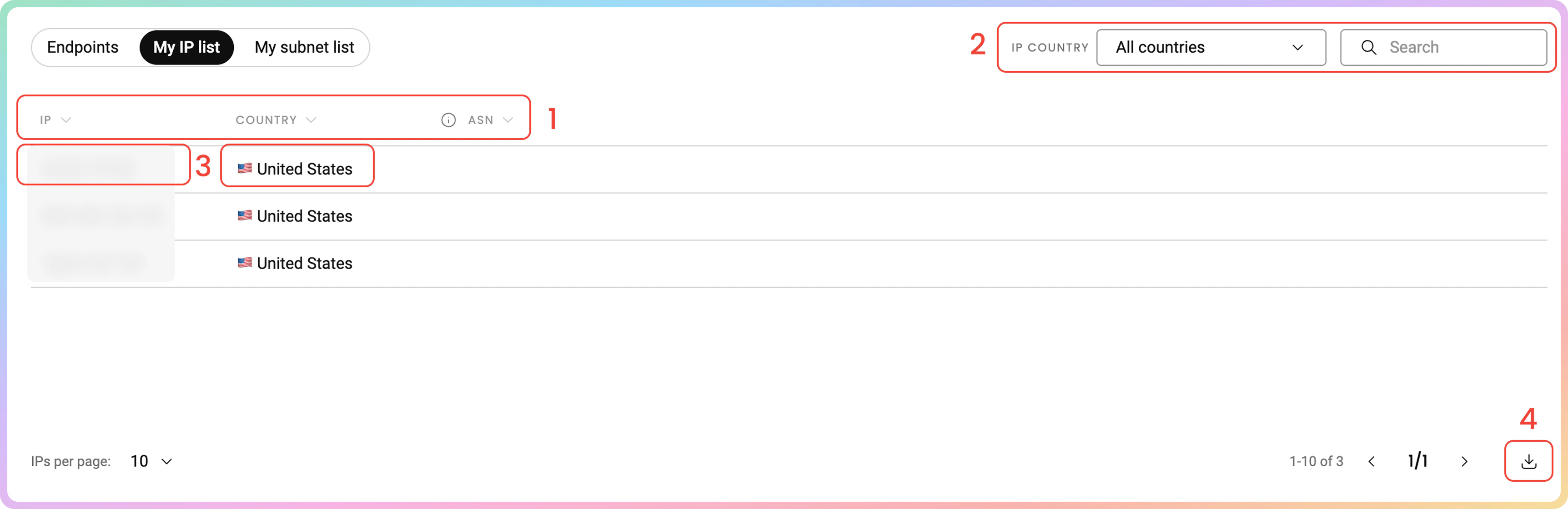 Keep in mind that some IPs listed may not have an associated ASN.
## My subnet list
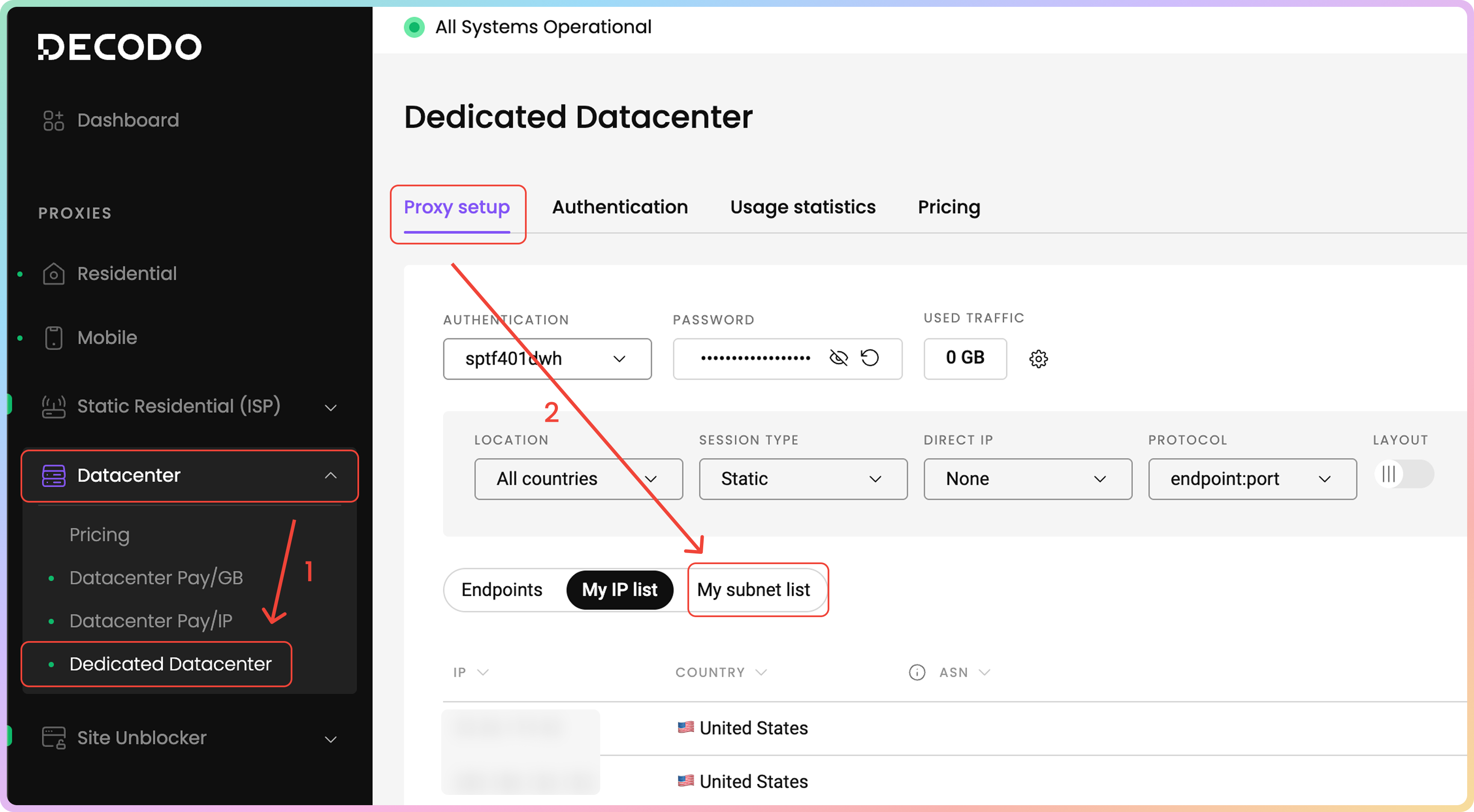
Similarly to the [**My IP list**](https://help.decodo.com/docs/dedicated-datacenter-proxy-ip-list-management#my-ip-list) access, you would have to **navigate** to the **My subnet list** section on the dashboard to view your purchased IP subnets list.
1. Via the dashboard left panel, click on **Datacenter** -> [**Dedicated Datacenter**](https://dashboard.decodo.com/dedicated-dc-ip-proxies/proxy-setup?tab=subnets).
2. Now, you are in the **Proxy setup** page. Above the endpoint generator section, click on the **My subnet list** section.
Keep in mind that some IPs listed may not have an associated ASN.
## My subnet list
Similarly to the [**My IP list**](https://help.decodo.com/docs/dedicated-datacenter-proxy-ip-list-management#my-ip-list) access, you would have to **navigate** to the **My subnet list** section on the dashboard to view your purchased IP subnets list.
1. Via the dashboard left panel, click on **Datacenter** -> [**Dedicated Datacenter**](https://dashboard.decodo.com/dedicated-dc-ip-proxies/proxy-setup?tab=subnets).
2. Now, you are in the **Proxy setup** page. Above the endpoint generator section, click on the **My subnet list** section.
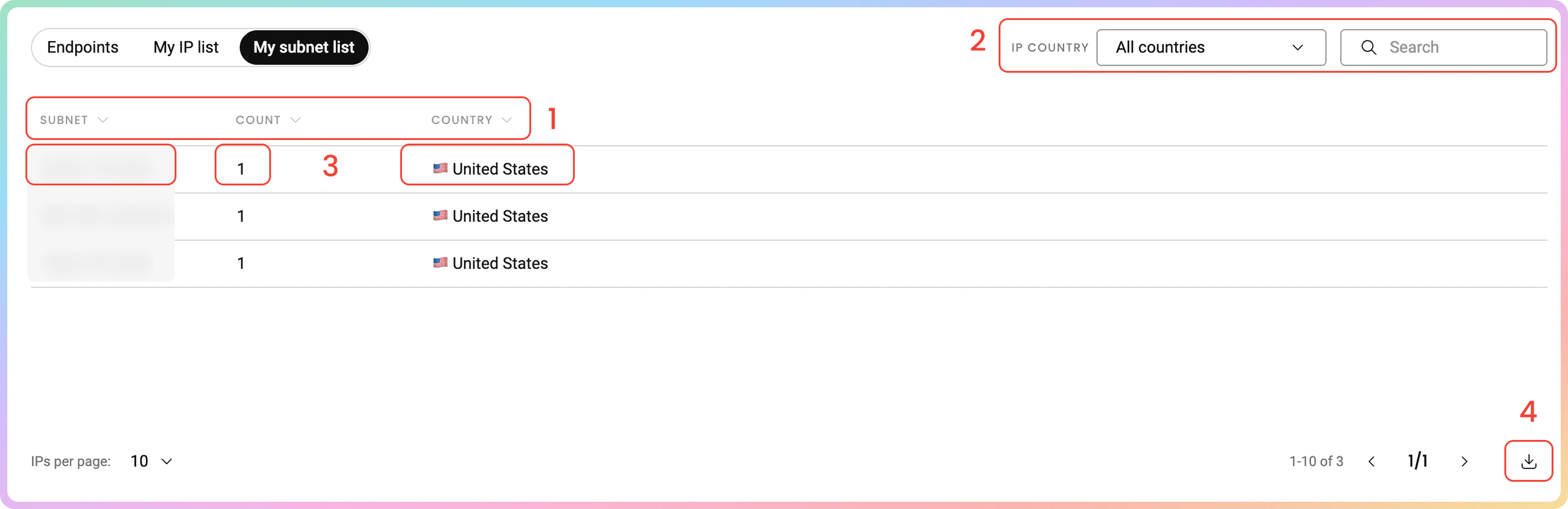
 In the **My subnet list** section, you will find a list of subnets that your purchased IPs are part of.
1. There are 3 columns: the **subnet**, the **count** of your purchased IPs that belong in that subnet, and the subnet's **country** of origin.
2. You can filter the IP list by its **country** or search via **keywords**.
3. You can **copy** each of the table's values to your clipboard by clicking on them.
4. You can **export** the table's data directly or export the raw data in the following file formats: `.CSV`, .`TXT`, or `.JSON`. You can also copy the list of subnets to your clipboard.
In the **My subnet list** section, you will find a list of subnets that your purchased IPs are part of.
1. There are 3 columns: the **subnet**, the **count** of your purchased IPs that belong in that subnet, and the subnet's **country** of origin.
2. You can filter the IP list by its **country** or search via **keywords**.
3. You can **copy** each of the table's values to your clipboard by clicking on them.
4. You can **export** the table's data directly or export the raw data in the following file formats: `.CSV`, .`TXT`, or `.JSON`. You can also copy the list of subnets to your clipboard.
 ***
Need help or just want to say hello? Our support is available 24/7. \
You can also reach us anytime via email at [support@decodo.com](mailto:support@decodo.com).
Can't find what you're looking for? Request an article! \
Have feedback? Share your thoughts on how we can improve.
***
Need help or just want to say hello? Our support is available 24/7. \
You can also reach us anytime via email at [support@decodo.com](mailto:support@decodo.com).
Can't find what you're looking for? Request an article! \
Have feedback? Share your thoughts on how we can improve.