> ## Documentation Index
> Fetch the complete documentation index at: https://help.decodo.com/llms.txt
> Use this file to discover all available pages before exploring further.
# DuoPlus Proxy Setup Guide
> Connect Decodo proxies to DuoPlus cloud phone for multi-accounting
## What is DuoPlus?
[**DuoPlus**](https://www.duoplus.net/) is a cloud phone platform that lets you create and manage virtual Android devices from your desktop. It helps businesses and individuals run multiple mobile environments without relying on physical phones. Each cloud phone can be configured with its own proxy, device profile, and settings.
DuoPlus is commonly used to manage multiple social media and e commerce accounts, automate repetitive mobile tasks, and isolate accounts across separate cloud devices. Pairing DuoPlus with Decodo proxies helps route each cloud phone's traffic through a different IP address, making it easier to manage multiple accounts and maintain consistent network identities.
***
## Getting started
Make sure you have:
* An active **DuoPlus** account.
* An active Decodo **proxy** subscription.
* Your Decodo **proxy endpoint** and **port** (e.g., `us.decodo.com:10001`).
* Your **proxy username** and **password** (or a **whitelisted IP** set).
**Proxy guides**
Visit our [quick start guides](https://help.decodo.com/docs/proxy-quick-start-guides) to learn how to find your proxy details in the Decodo dashboard for each proxy type.
***
## Add a proxy to DuoPlus
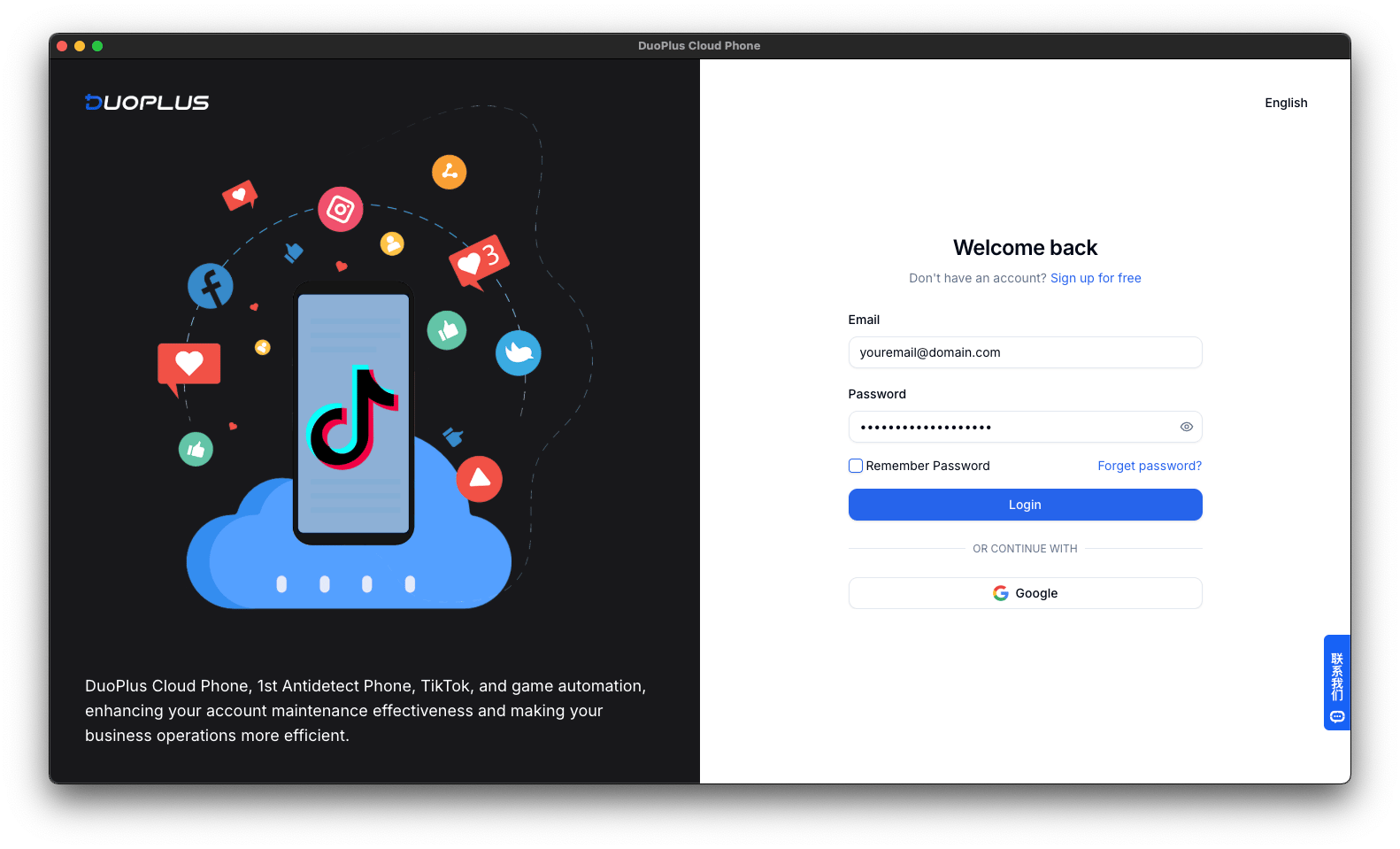
Sign up for **DuoPlus** and log in to your account.
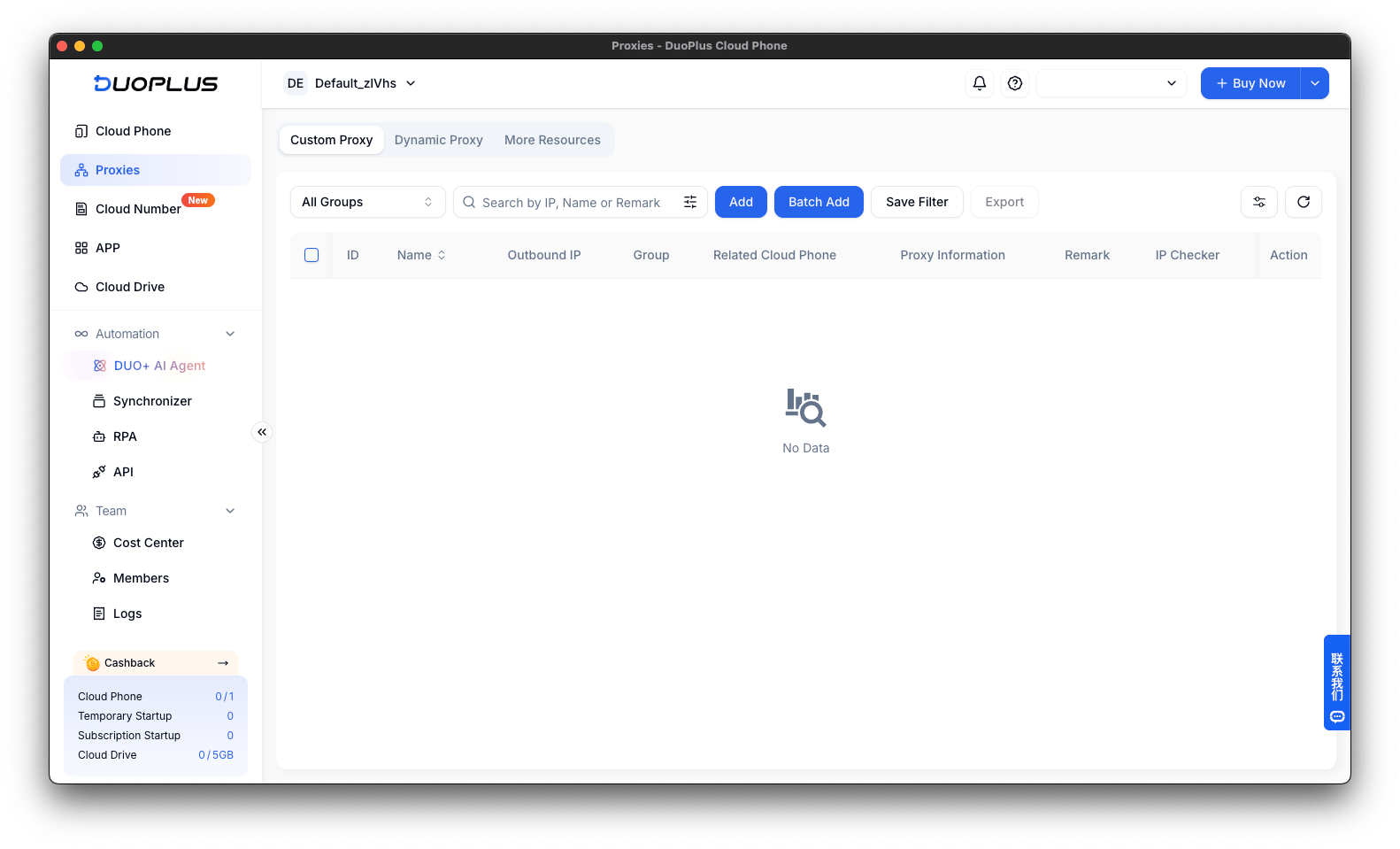
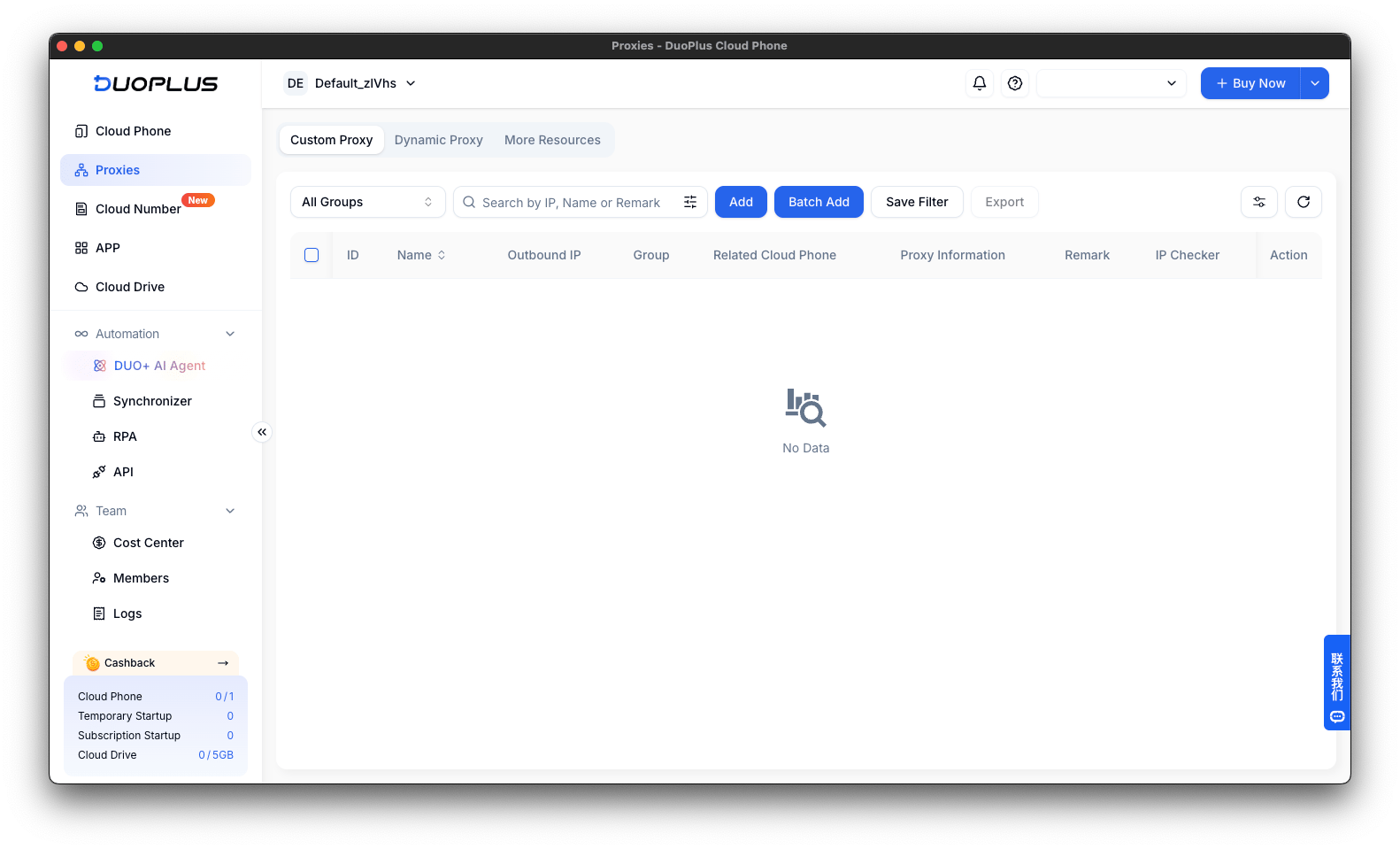
 In the left sidebar, open **Proxies**. Click **Add** to configure a single proxy or **Batch Add** to add multiple proxies at once.
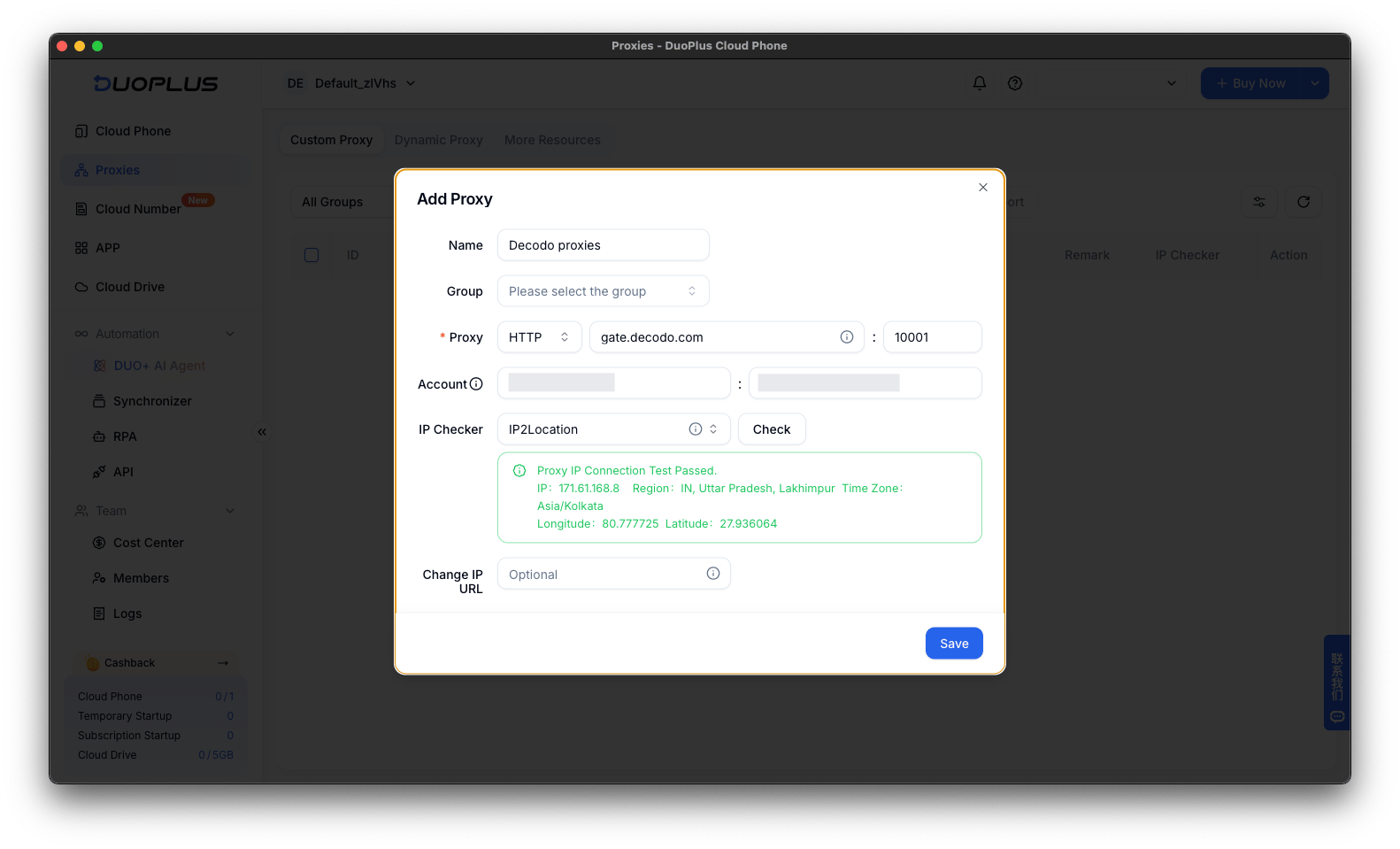
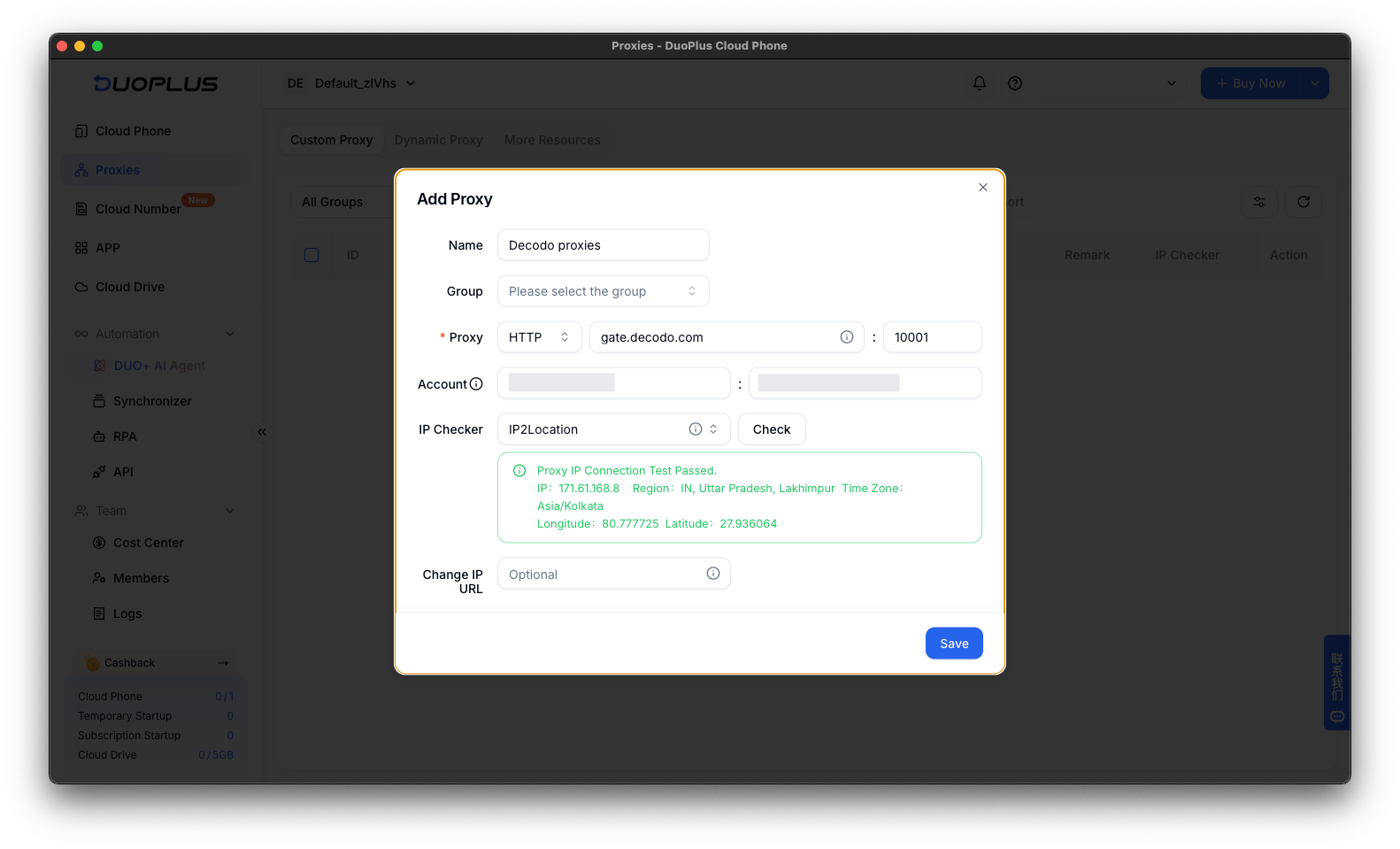
 For a single proxy, select HTTP, HTTPS, or SOCKS5 and enter your Decodo proxy host, port, username, and password.
Click **Check** to test the connection. If the test is successful, click **Save**.
For a single proxy, select HTTP, HTTPS, or SOCKS5 and enter your Decodo proxy host, port, username, and password.
Click **Check** to test the connection. If the test is successful, click **Save**.
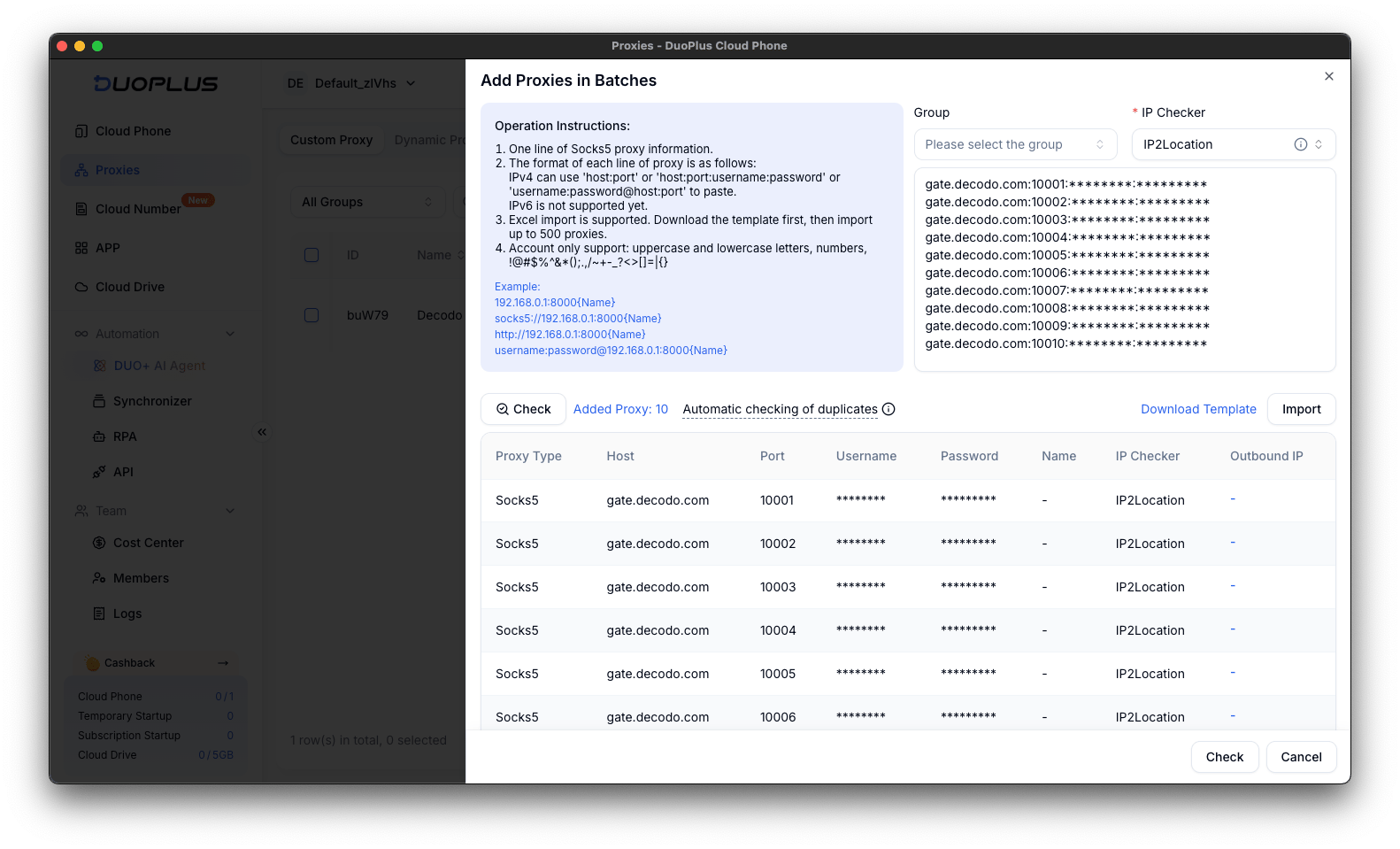
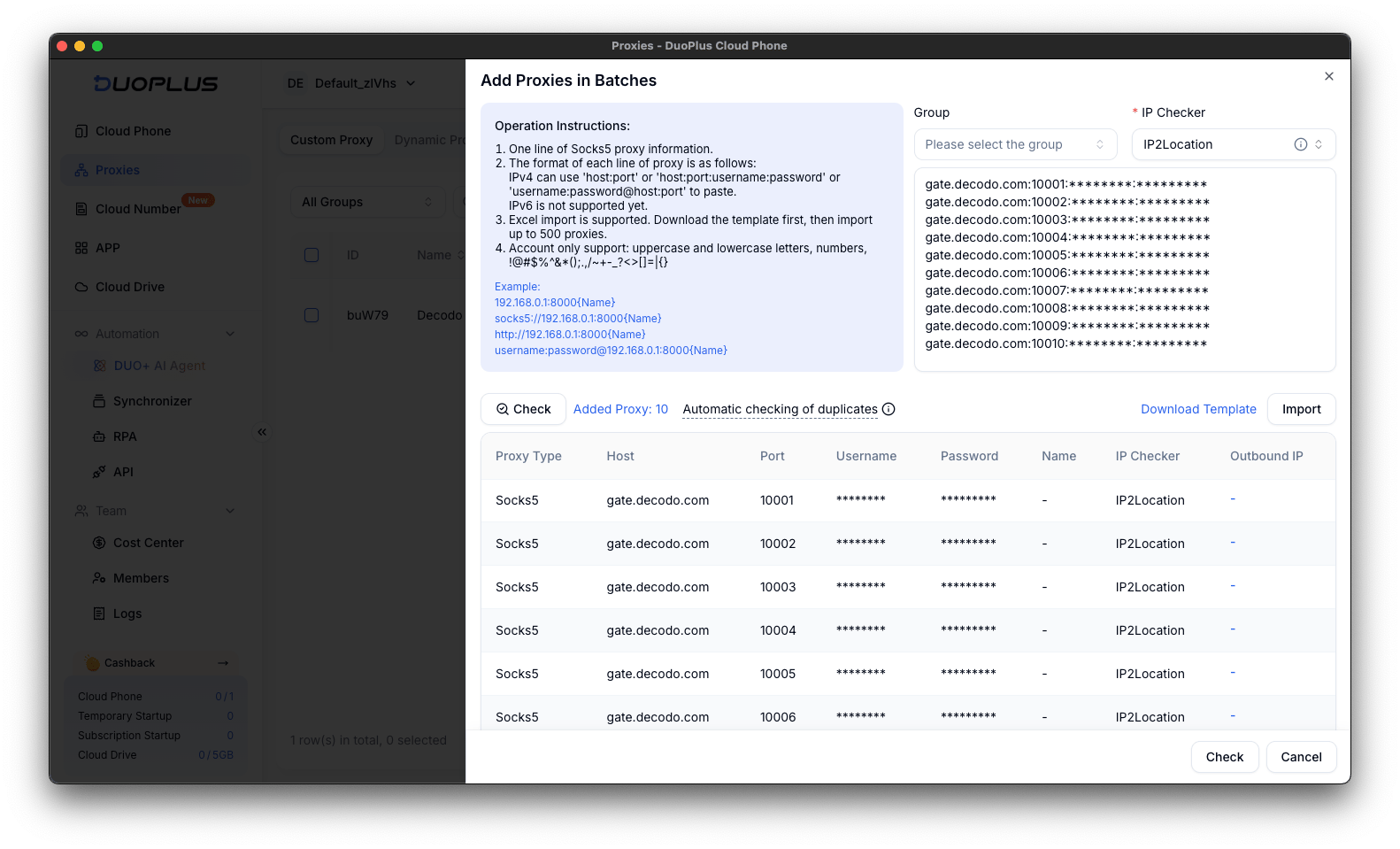
 To add multiple proxies at once, click **Batch Add** and paste your proxy endpoints in one of the supported formats shown in the window.
Click **Check** to test the proxies and **Import** to add them.
To add multiple proxies at once, click **Batch Add** and paste your proxy endpoints in one of the supported formats shown in the window.
Click **Check** to test the proxies and **Import** to add them.
 ***
## Assign the proxy to a cloud phone
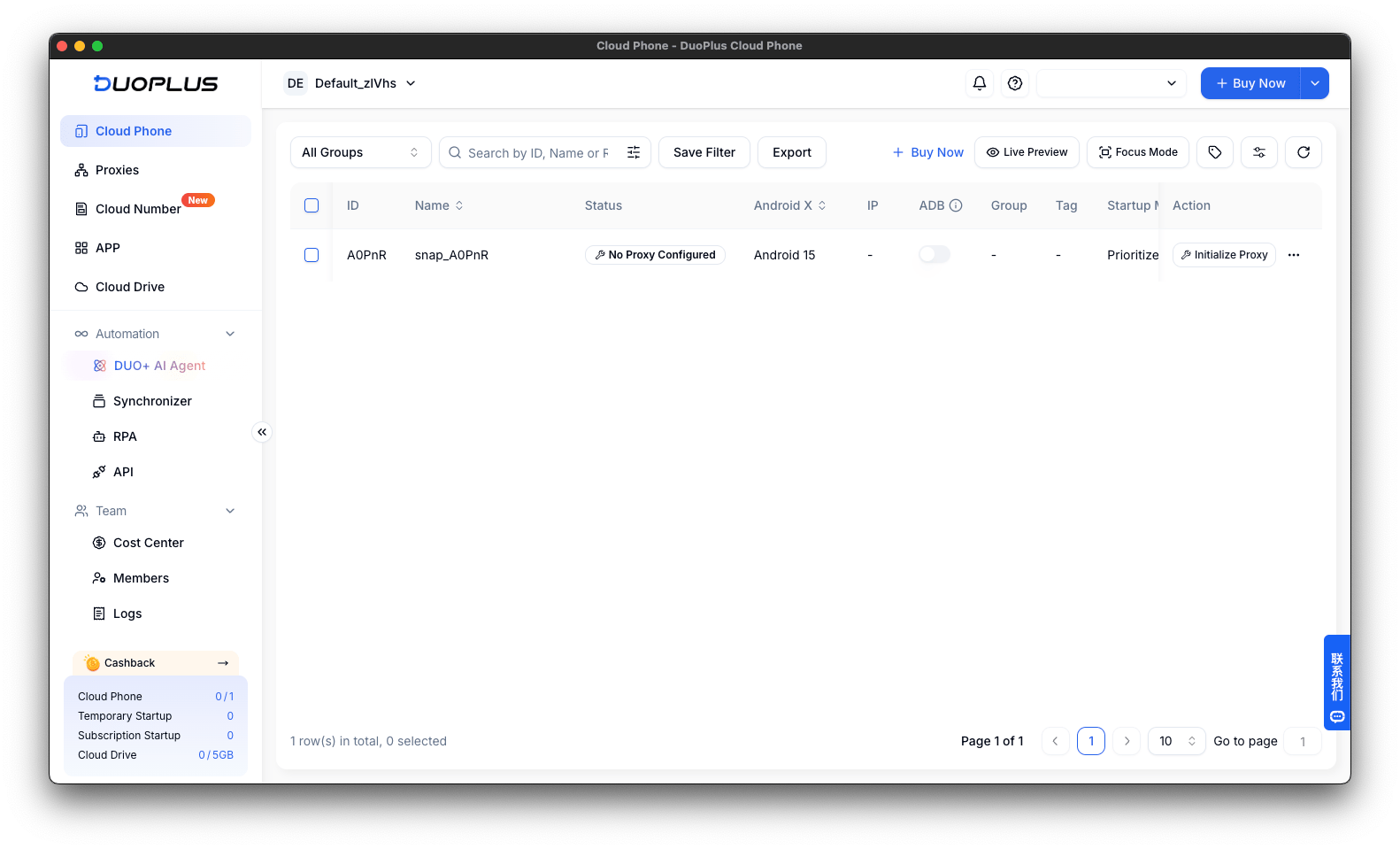
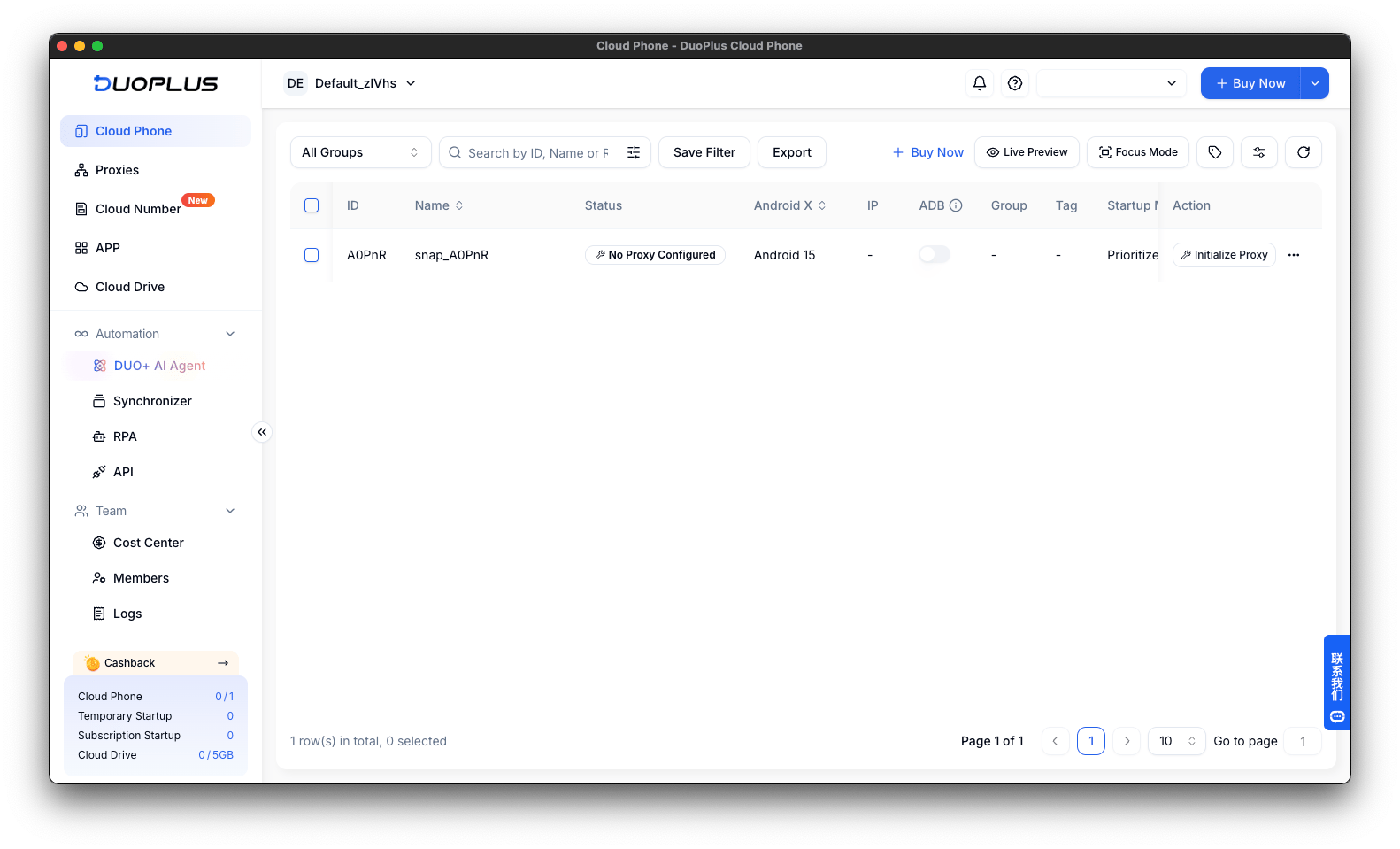
Open the **Cloud Phone** tab.
Create a new cloud phone or click **Initialize Proxy** next to an existing one.
***
## Assign the proxy to a cloud phone
Open the **Cloud Phone** tab.
Create a new cloud phone or click **Initialize Proxy** next to an existing one.
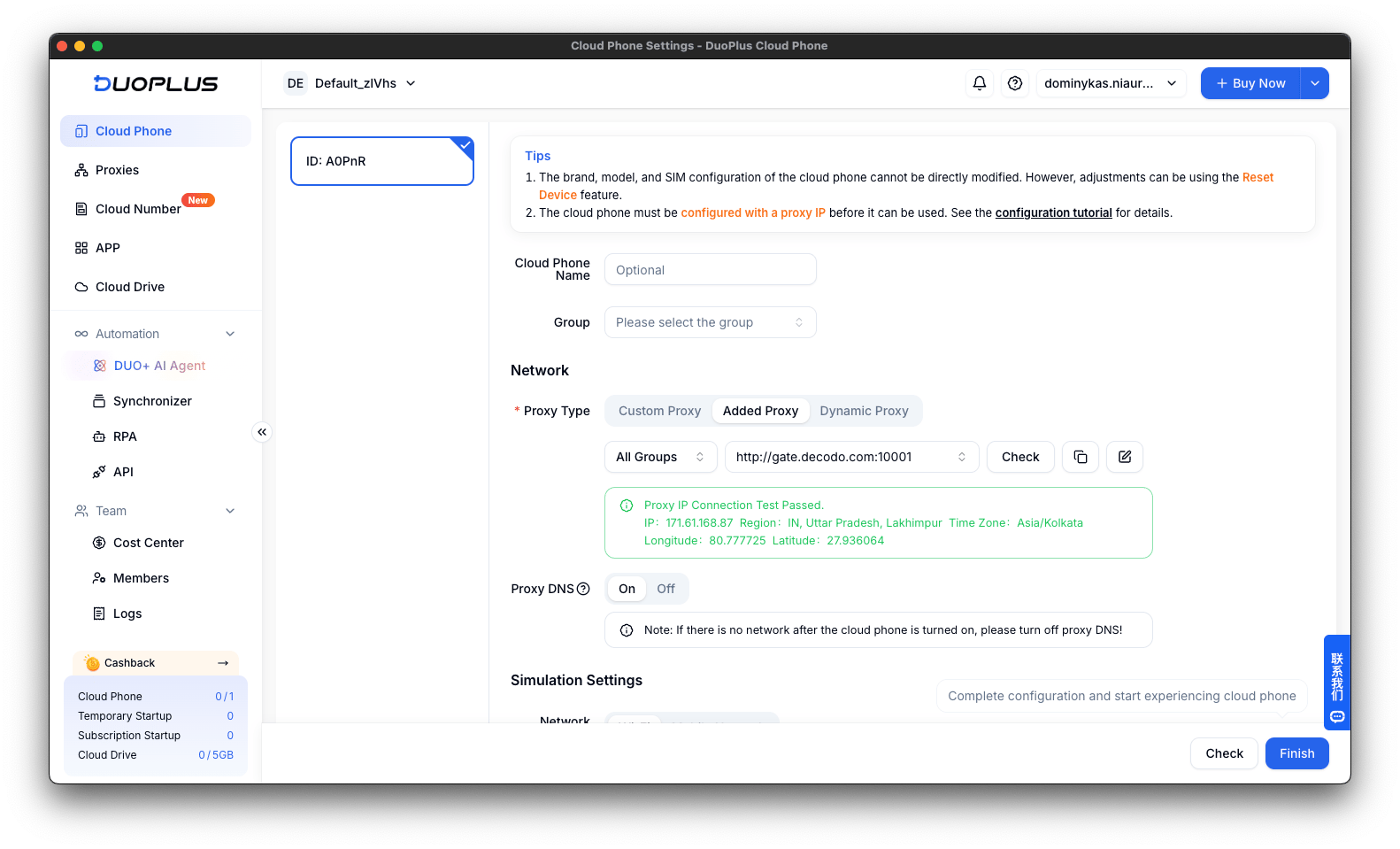
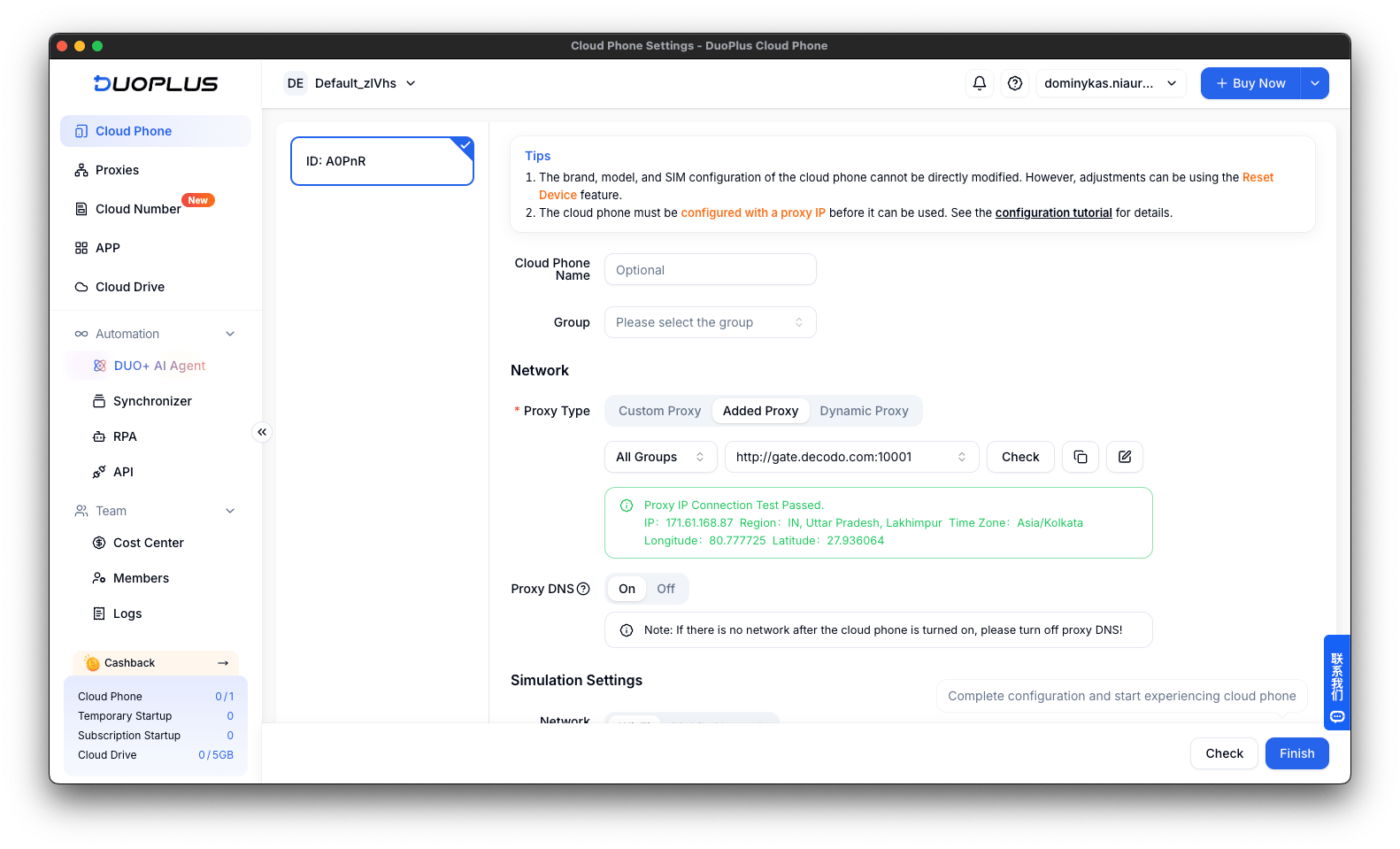
 Under **Network**, select **Added Proxy** and choose the proxy you configured in the previous section.
Click **Check** to test the connection. If the test is successful, click **Finish** to save the configuration.
Under **Network**, select **Added Proxy** and choose the proxy you configured in the previous section.
Click **Check** to test the connection. If the test is successful, click **Finish** to save the configuration.
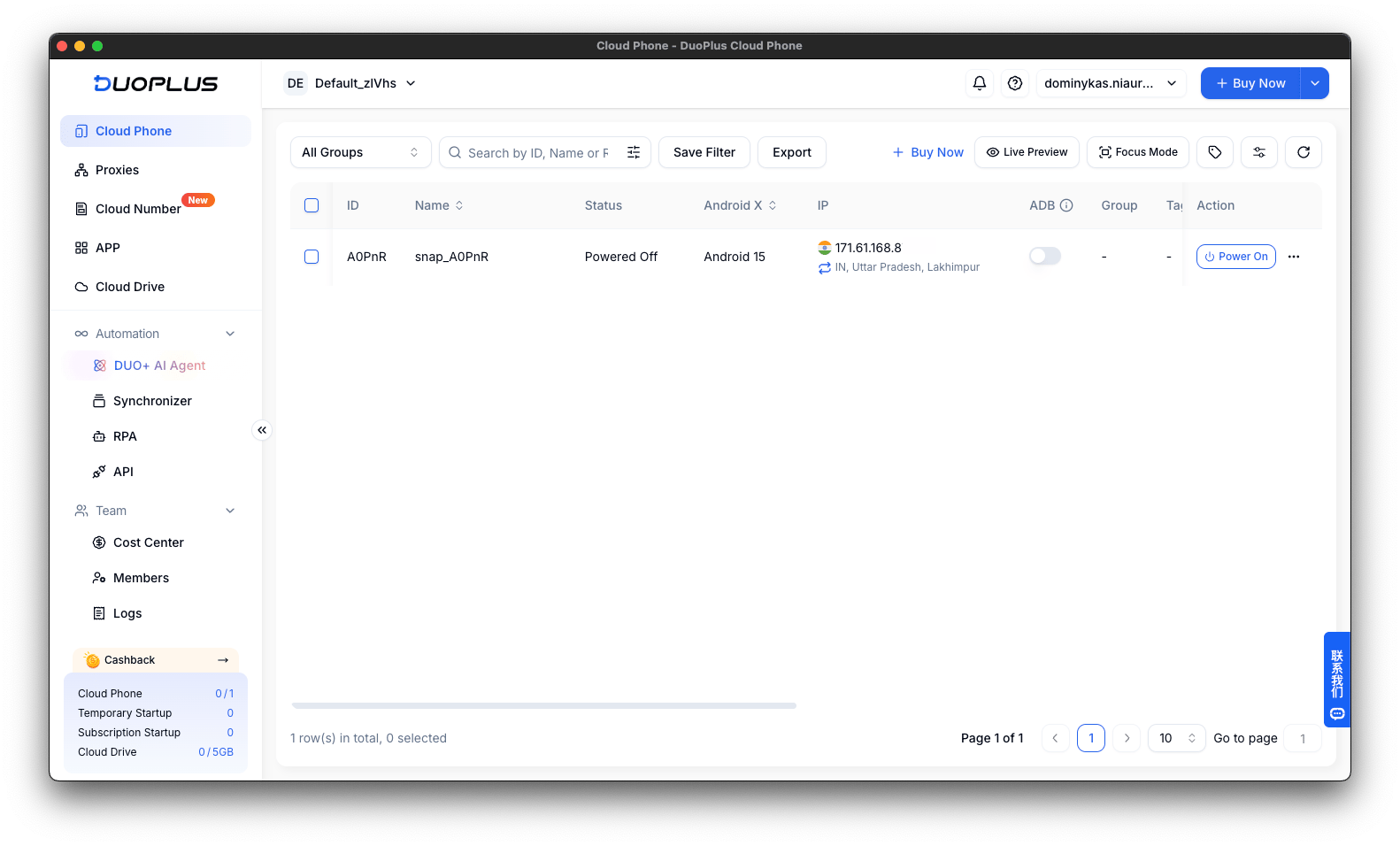
 Click the **Power On** in the **Action** column to start the cloud phone.
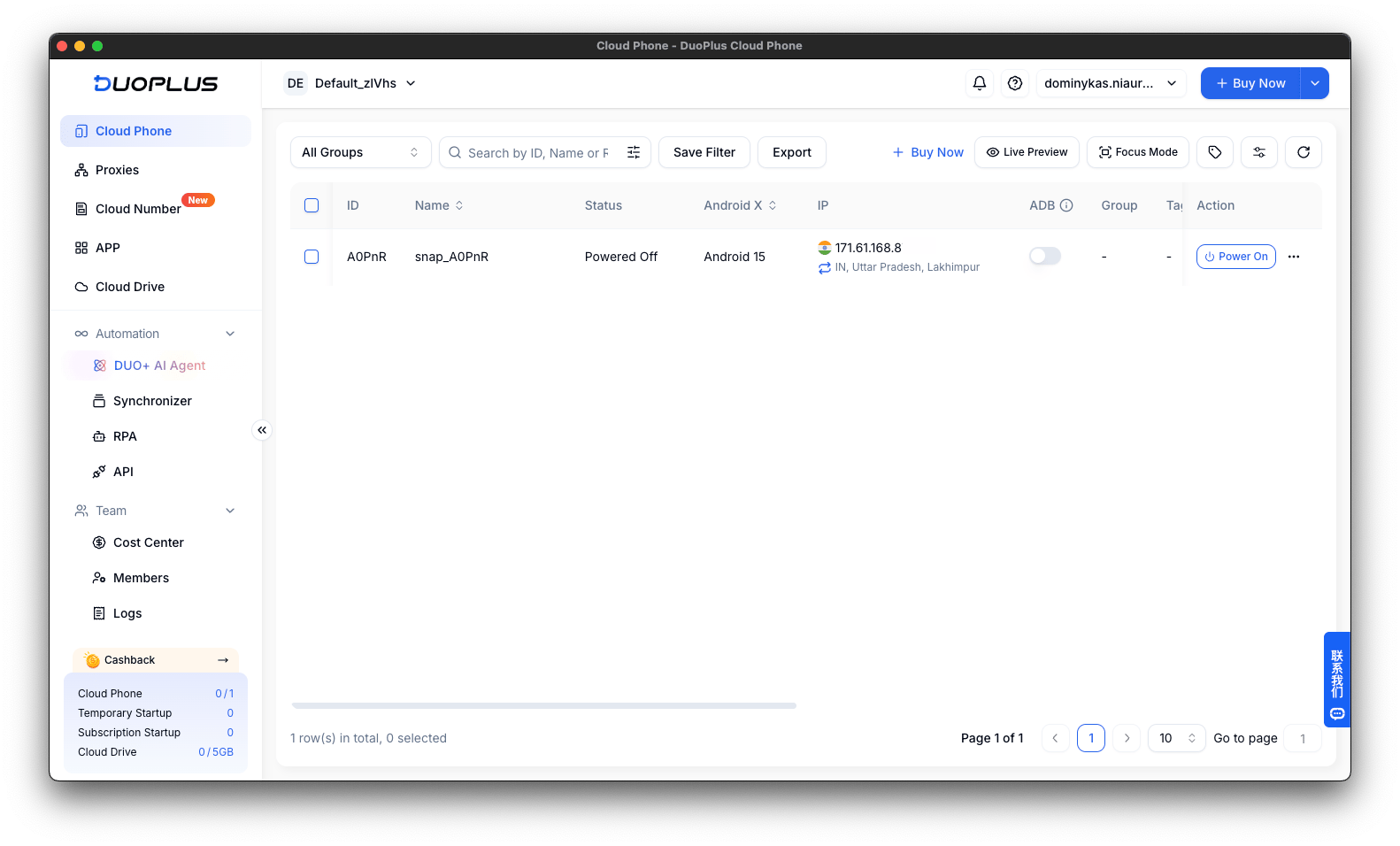
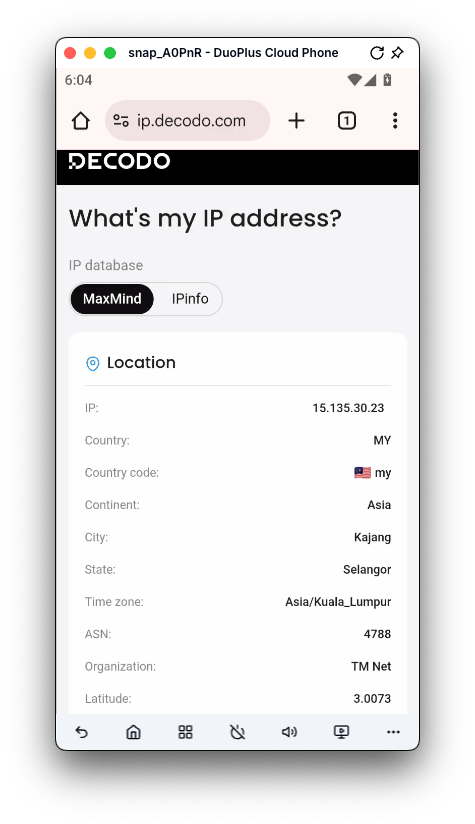
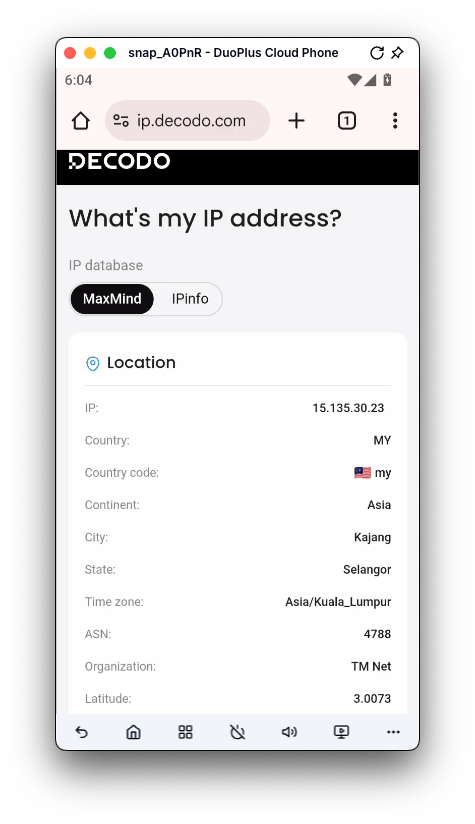
 Once the cloud phone launches, you can safely browse the web using the proxy connection.
 ***
## Common issues
#### Proxy check fails
Make sure:
* the connection type (**HTTP**, **HTTPS**, or **SOCKS5**) matches your Decodo proxy;
* the host, port, username, and password are entered correctly;
* there are no extra spaces in the proxy string;
* your Decodo authentication method (username:password or IP whitelisting) is configured correctly.
#### The proxy location is incorrect
If the test shows an unexpected location:
* verify the selected location in the Decodo dashboard;
* confirm your username includes any required location parameters;
* run the test again to refresh the result.
#### Blocklist
Please be aware that we restrict access to [certain websites](https://decodo.com/faq/general/do-you-have-any-blocked-sites).
#### SOCKS5 residential and mobile proxy support limitations
Residential and mobile proxies require some additional configuration when using the SOCKS5 protocol. Keep the following limitations in mind when setting them up:
Use the `gate.decodo.com` endpoint and port `7000` for SOCKS5 residential and mobile proxies. Note that country endpoints, such as `us.decodo.com`, won't work with SOCKS5 residential or mobile proxies.
Instead, to target a specific location, specify it in your username using [advanced parameters](https://help.decodo.com/docs/residential-proxy-advanced-parameters#/). For example, `user-username123-country-us` will connect to the USA pool.
To maintain a sticky SOCKS5 residential or mobile proxy session, include a session parameter in the username. Otherwise, the proxy will rotate, even if a `sessionduration` parameter is set.
For example, `user-username123-session-abc123-sessionduration-30` will connect to the same session. The session ID can be any string of your choice.
#### Direct IP
Some Decodo proxy products support connecting to a specific proxy IP directly. Keep the following requirements and limitations in mind when using this setup:
If you purchase an IP list, you can specify which IP to connect to using the `direct_ip` parameter in the proxy username, e.g., `user-username123-ip-x.x.x.x`.
Supported products include **datacenter Pay/IP**, **dedicated datacenter**, **ISP Pay/IP**, **dedicated ISP** plans.
Products that provide access to the full proxy pool, such as residential proxies, don't support this parameter.
By default, Decodo proxies don't support the `IP:port` format. Use the endpoint hostname instead, e.g, `us.decodo.com:10101`.
If needed, you can use the [IP:port workaround](https://help.decodo.com/docs/how-to-get-ip-port-format#/), but it's only a temporary solution and may need to be repeated after future setup changes.
***
## Troubleshooting
If you experience any other issues, visit our [troubleshooting](https://help.decodo.com/docs/proxy-troubleshooting) section or the [DuoPlus help center](https://help.duoplus.net/).
***
***
## Common issues
#### Proxy check fails
Make sure:
* the connection type (**HTTP**, **HTTPS**, or **SOCKS5**) matches your Decodo proxy;
* the host, port, username, and password are entered correctly;
* there are no extra spaces in the proxy string;
* your Decodo authentication method (username:password or IP whitelisting) is configured correctly.
#### The proxy location is incorrect
If the test shows an unexpected location:
* verify the selected location in the Decodo dashboard;
* confirm your username includes any required location parameters;
* run the test again to refresh the result.
#### Blocklist
Please be aware that we restrict access to [certain websites](https://decodo.com/faq/general/do-you-have-any-blocked-sites).
#### SOCKS5 residential and mobile proxy support limitations
Residential and mobile proxies require some additional configuration when using the SOCKS5 protocol. Keep the following limitations in mind when setting them up:
Use the `gate.decodo.com` endpoint and port `7000` for SOCKS5 residential and mobile proxies. Note that country endpoints, such as `us.decodo.com`, won't work with SOCKS5 residential or mobile proxies.
Instead, to target a specific location, specify it in your username using [advanced parameters](https://help.decodo.com/docs/residential-proxy-advanced-parameters#/). For example, `user-username123-country-us` will connect to the USA pool.
To maintain a sticky SOCKS5 residential or mobile proxy session, include a session parameter in the username. Otherwise, the proxy will rotate, even if a `sessionduration` parameter is set.
For example, `user-username123-session-abc123-sessionduration-30` will connect to the same session. The session ID can be any string of your choice.
#### Direct IP
Some Decodo proxy products support connecting to a specific proxy IP directly. Keep the following requirements and limitations in mind when using this setup:
If you purchase an IP list, you can specify which IP to connect to using the `direct_ip` parameter in the proxy username, e.g., `user-username123-ip-x.x.x.x`.
Supported products include **datacenter Pay/IP**, **dedicated datacenter**, **ISP Pay/IP**, **dedicated ISP** plans.
Products that provide access to the full proxy pool, such as residential proxies, don't support this parameter.
By default, Decodo proxies don't support the `IP:port` format. Use the endpoint hostname instead, e.g, `us.decodo.com:10101`.
If needed, you can use the [IP:port workaround](https://help.decodo.com/docs/how-to-get-ip-port-format#/), but it's only a temporary solution and may need to be repeated after future setup changes.
***
## Troubleshooting
If you experience any other issues, visit our [troubleshooting](https://help.decodo.com/docs/proxy-troubleshooting) section or the [DuoPlus help center](https://help.duoplus.net/).
***