> ## Documentation Index
> Fetch the complete documentation index at: https://help.decodo.com/llms.txt
> Use this file to discover all available pages before exploring further.
# Hidemyacc Proxy Setup Guide
## Getting Started
Before proceeding, ensure you have:
* No other VPN or proxy active.
* The **proxy endpoint** and **port** (e.g., `us.decodo.com:10101`).
* Your **proxy username** and **password** (or a **whitelisted IP** set).
**Proxy Guides**
Learn how to find **proxy details** in your dashboard for each proxy type [**here**](https://help.decodo.com/docs/proxy-quick-start-guides).
## Proxy Setup
First, [**download**](https://hidemyacc.com/download) the app and create an account with Hidemyacc. You must register the account directly on the app; it will not work via another browser.
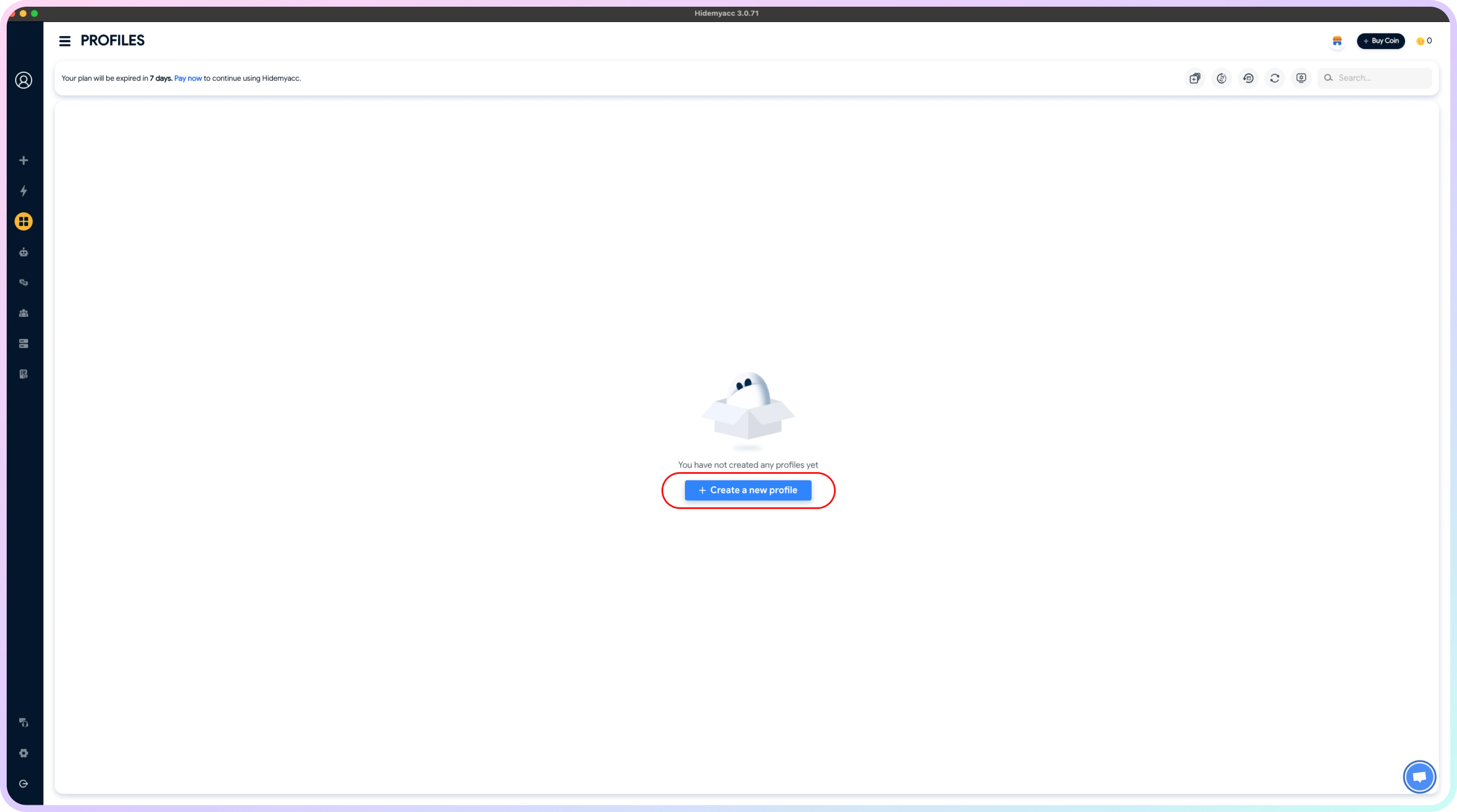
Open up the Hidemyacc app and log into your Hidemyacc account. Then click **Create new profile**:
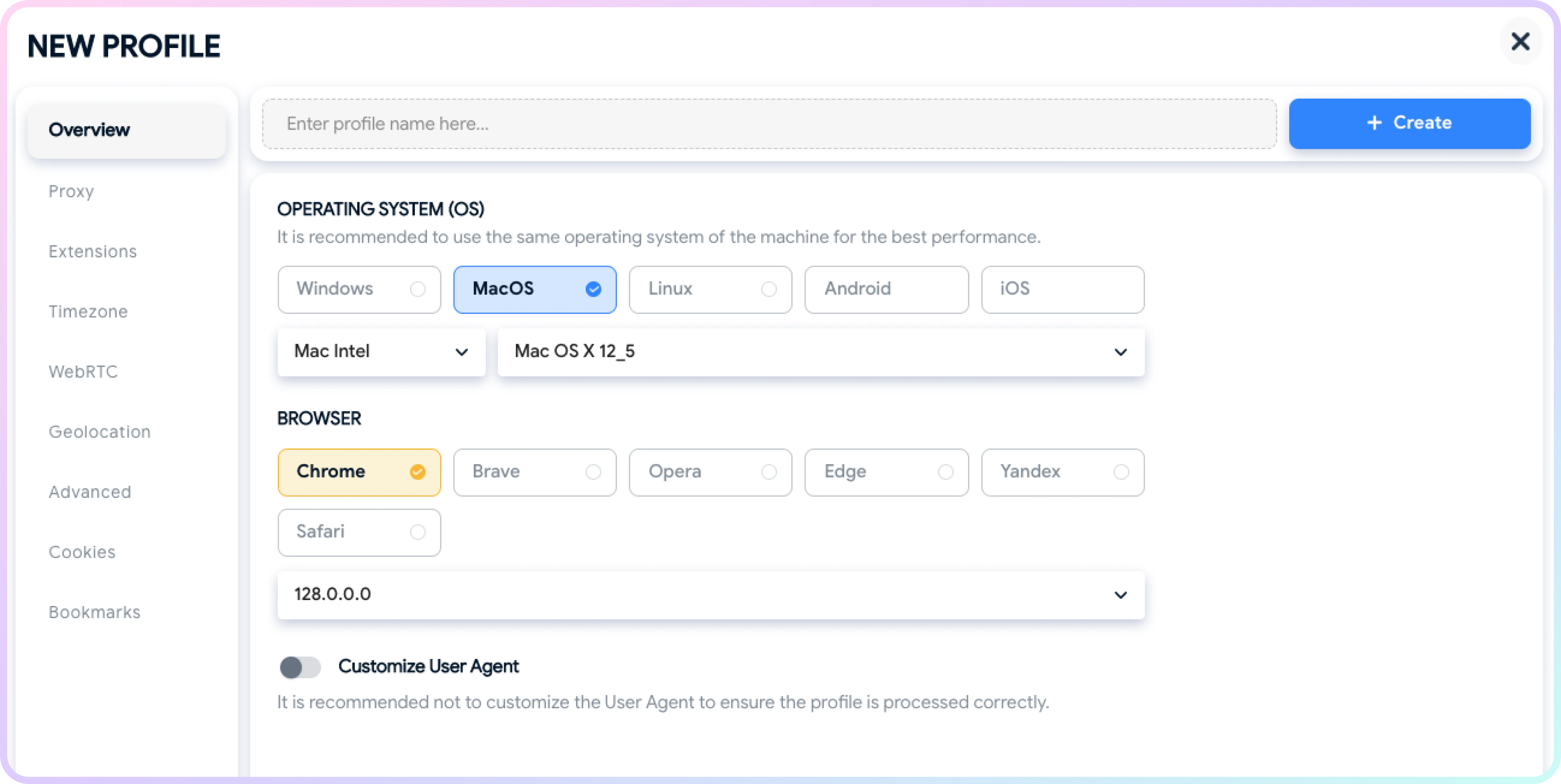
 It should take you to a page with all the settings for your new profile:
You can view all the special settings you can select for this browser [**here**](https://docs.hidemyacc.com/?_gl=1*33wbwq*_gcl_au*MzAwMTI1NDEuMTcyNjIwMTA3Nw..*_ga*NjA4MDk0NzM3LjE3MjYyMDEwNzc.*_ga_N9X6D2Y20T*MTcyODg3NjMzMi4yLjEuMTcyODg3Njk0NC41OS4wLjA.).
It should take you to a page with all the settings for your new profile:
You can view all the special settings you can select for this browser [**here**](https://docs.hidemyacc.com/?_gl=1*33wbwq*_gcl_au*MzAwMTI1NDEuMTcyNjIwMTA3Nw..*_ga*NjA4MDk0NzM3LjE3MjYyMDEwNzc.*_ga_N9X6D2Y20T*MTcyODg3NjMzMi4yLjEuMTcyODg3Njk0NC41OS4wLjA.).
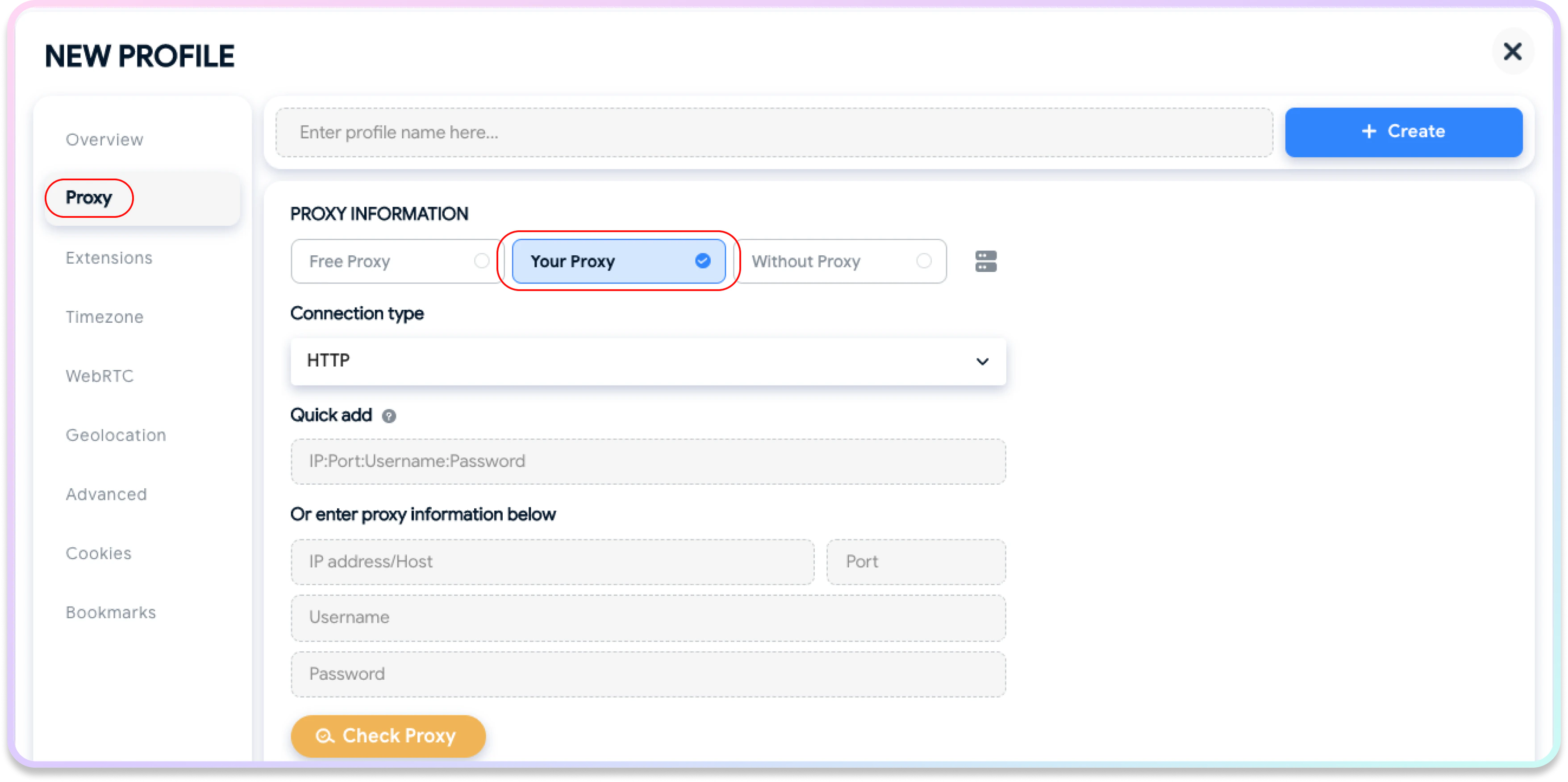
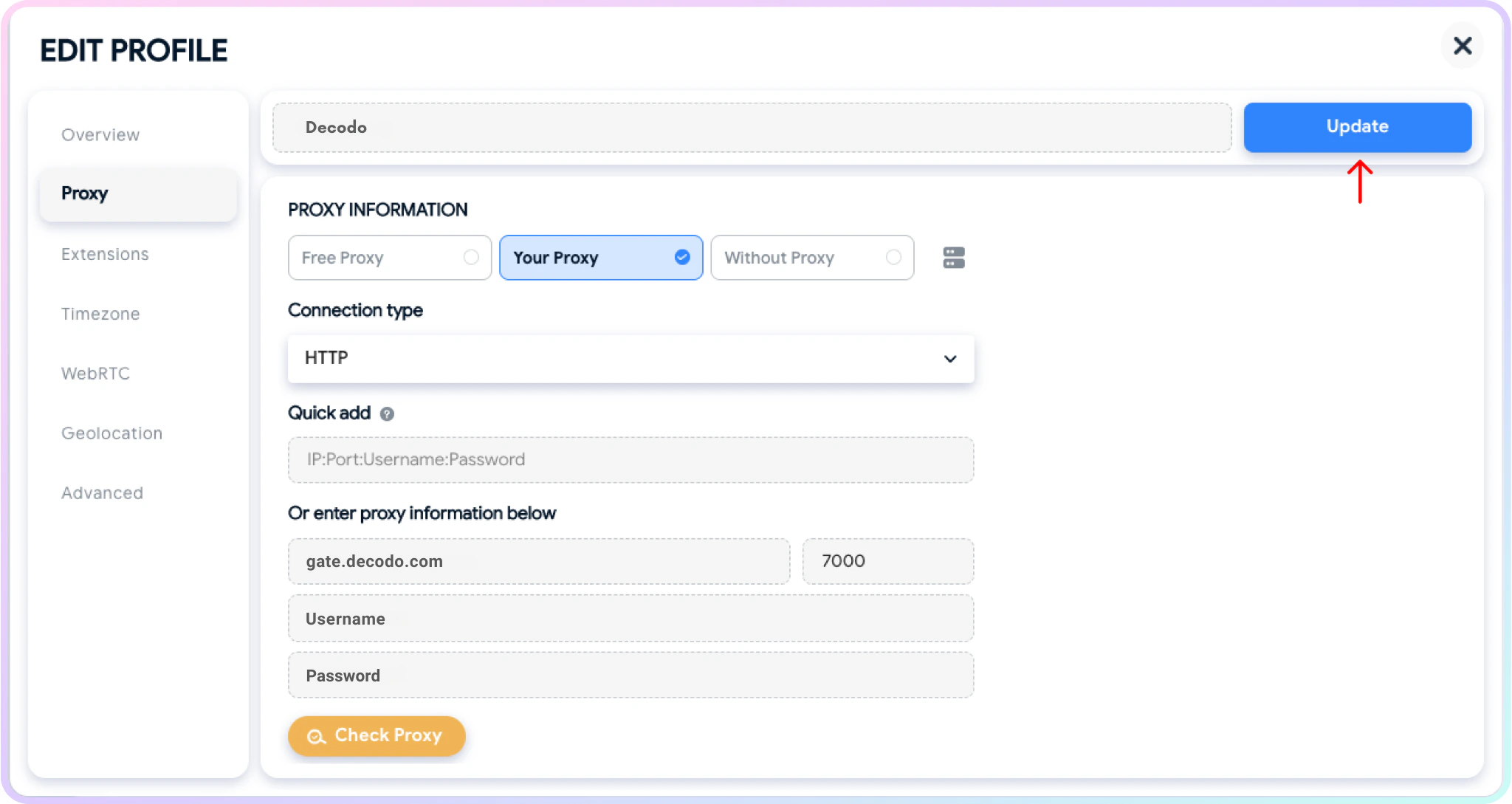
 Click on the **Proxy** tab and select **Your proxy**, this should bring up the settings for your proxy on the profile:
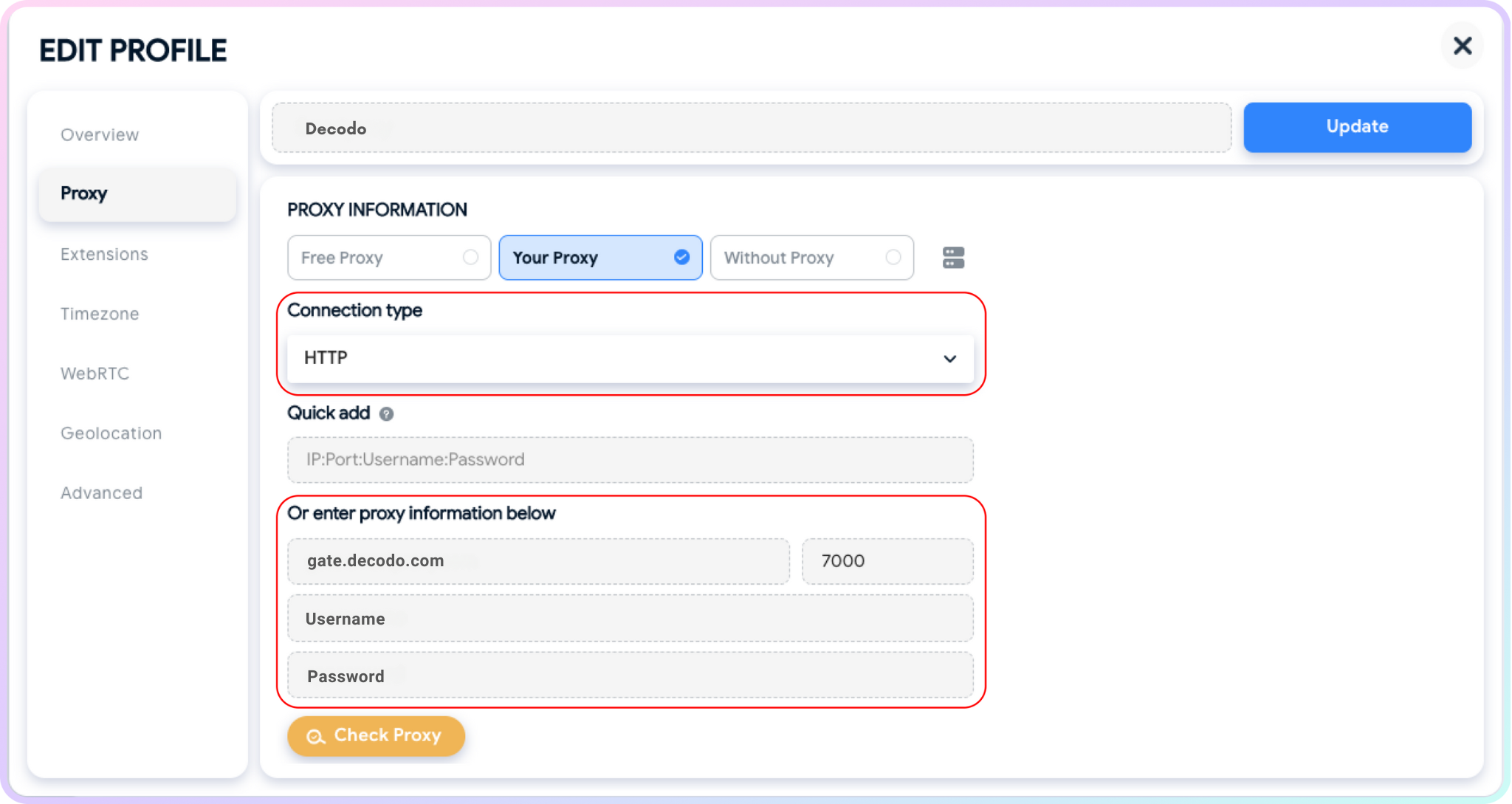
 Select the desired proxy **protocol** for your connection (`HTTP`, `HTTPS`, or `SOCKS5` if available with your subscription). Input the proxy details/endpoint into the correct fields. Once input, you can double-check if the proxy works by clicking **Check proxy**. Here's an example for residential proxies:
* **Endpoint:** `gate.decodo.com`
* **Port:** `7000`
* **Proxy Username:** Input your`proxy username`
* **Proxy Password:** Input your `proxy password`
* You can go into advanced options and customize your browser fingerprint if needed.
Select the desired proxy **protocol** for your connection (`HTTP`, `HTTPS`, or `SOCKS5` if available with your subscription). Input the proxy details/endpoint into the correct fields. Once input, you can double-check if the proxy works by clicking **Check proxy**. Here's an example for residential proxies:
* **Endpoint:** `gate.decodo.com`
* **Port:** `7000`
* **Proxy Username:** Input your`proxy username`
* **Proxy Password:** Input your `proxy password`
* You can go into advanced options and customize your browser fingerprint if needed.
 Click **Create** or **Update** in the top right corner and that's it, your profile should be good to go:
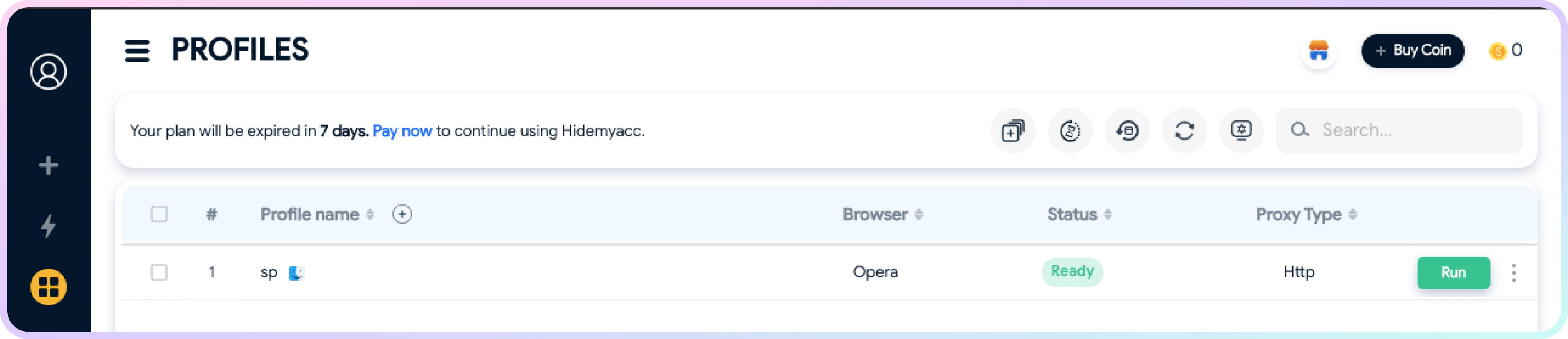
 That should be it! Click **Run,** and your profile will launch with our proxies active.
 ### Verify the Connection
* Visit [**ip.decodo.com**](https://ip.decodo.com/). If successful, your IP address will display the location of the proxy.
***
## Common Issues
### Blocklist
⚠️ Please be aware that we [**restrict access to some websites**](https://decodo.com/faq/general/do-you-have-any-blocked-sites).
### `SOCKS5`
**Residential and Mobile Proxy Support Limitations**
The `gate.decodo.com` **endpoint** and the `7000` **port** must be used to utilize `SOCKS5` Residential or Mobile proxies. **Country** endpoints, such as `us.decodo.com`, will not function!
You can target specific locations instead by specifying the location in your username using **advanced** **parameters**:
* e.g.: `user-username-country-us` will connect to the **USA** pool.
To get a **sticky** `SOCKS5` Residential or Mobile proxy in a **tool**, you must use a `session` **parameter**. Otherwise, the proxy will always rotate even with a set `sessionduration` parameter.
* e.g.: `user-username-session-abc123-sessionduration-30` will connect to the same session.
* The **session ID** name can be defined by any string of your choice.
Learn more in our **advanced** **parameter** guides for [**Residential**](https://help.decodo.com/docs/residential-proxy-advanced-parameters/) and [**Mobile**](https://help.decodo.com/docs/mobile-proxy-advanced-parameters/) proxies.
### Direct IP
If you buy an IP list, you can specify which IPs to connect to using the **direct** `ip` parameter in the proxy username: `user-username-ip-x.x.x.x`
* Supported products: **DC Pay/IP**, **Dedicated DC**, **ISP Pay/IP**, **Dedicated ISP** plans.
* Products that offer access to the full proxy pool, such as residential proxies, do not support this parameter.
* Decodo proxies don't support an `IP:PORT` format by default.
* You must use the **endpoint** rotator format (e.g., `us.decodo.com:10101`).
* If necessary, try the workaround [**here**](https://help.decodo.com/docs/how-to-get-ip-port-format#/), but it only works temporarily before requiring another setup update.
### Troubleshooting
If you experience any other issues, check out our main [**troubleshooting**](https://help.decodo.com/docs/proxy-troubleshooting) section.
***
Need help or just want to say hello? Our support is available 24/7. \
You can also reach us anytime via email at [support@decodo.com](mailto:support@decodo.com).
Can't find what you're looking for? Request an article! \
Have feedback? Share your thoughts on how we can improve.
### Verify the Connection
* Visit [**ip.decodo.com**](https://ip.decodo.com/). If successful, your IP address will display the location of the proxy.
***
## Common Issues
### Blocklist
⚠️ Please be aware that we [**restrict access to some websites**](https://decodo.com/faq/general/do-you-have-any-blocked-sites).
### `SOCKS5`
**Residential and Mobile Proxy Support Limitations**
The `gate.decodo.com` **endpoint** and the `7000` **port** must be used to utilize `SOCKS5` Residential or Mobile proxies. **Country** endpoints, such as `us.decodo.com`, will not function!
You can target specific locations instead by specifying the location in your username using **advanced** **parameters**:
* e.g.: `user-username-country-us` will connect to the **USA** pool.
To get a **sticky** `SOCKS5` Residential or Mobile proxy in a **tool**, you must use a `session` **parameter**. Otherwise, the proxy will always rotate even with a set `sessionduration` parameter.
* e.g.: `user-username-session-abc123-sessionduration-30` will connect to the same session.
* The **session ID** name can be defined by any string of your choice.
Learn more in our **advanced** **parameter** guides for [**Residential**](https://help.decodo.com/docs/residential-proxy-advanced-parameters/) and [**Mobile**](https://help.decodo.com/docs/mobile-proxy-advanced-parameters/) proxies.
### Direct IP
If you buy an IP list, you can specify which IPs to connect to using the **direct** `ip` parameter in the proxy username: `user-username-ip-x.x.x.x`
* Supported products: **DC Pay/IP**, **Dedicated DC**, **ISP Pay/IP**, **Dedicated ISP** plans.
* Products that offer access to the full proxy pool, such as residential proxies, do not support this parameter.
* Decodo proxies don't support an `IP:PORT` format by default.
* You must use the **endpoint** rotator format (e.g., `us.decodo.com:10101`).
* If necessary, try the workaround [**here**](https://help.decodo.com/docs/how-to-get-ip-port-format#/), but it only works temporarily before requiring another setup update.
### Troubleshooting
If you experience any other issues, check out our main [**troubleshooting**](https://help.decodo.com/docs/proxy-troubleshooting) section.
***
Need help or just want to say hello? Our support is available 24/7. \
You can also reach us anytime via email at [support@decodo.com](mailto:support@decodo.com).
Can't find what you're looking for? Request an article! \
Have feedback? Share your thoughts on how we can improve.