> ## Documentation Index
> Fetch the complete documentation index at: https://help.decodo.com/llms.txt
> Use this file to discover all available pages before exploring further.
# IP:Port Format
> Workaround for tools that don't support endpoint:port format. Resolve Decodo proxy endpoints to IP:port pairs for legacy application compatibility.
### Disclaimer
Server IP may change at any time.
We recommend using the standard `endpoint:port` format whenever possible. Use the `IP:Port` format only if your application requires it.
To use the `IP:Port` format, first retrieve the IP address of your endpoint using the `ping` command. The port remains the same as provided in the dashboard.
## Windows
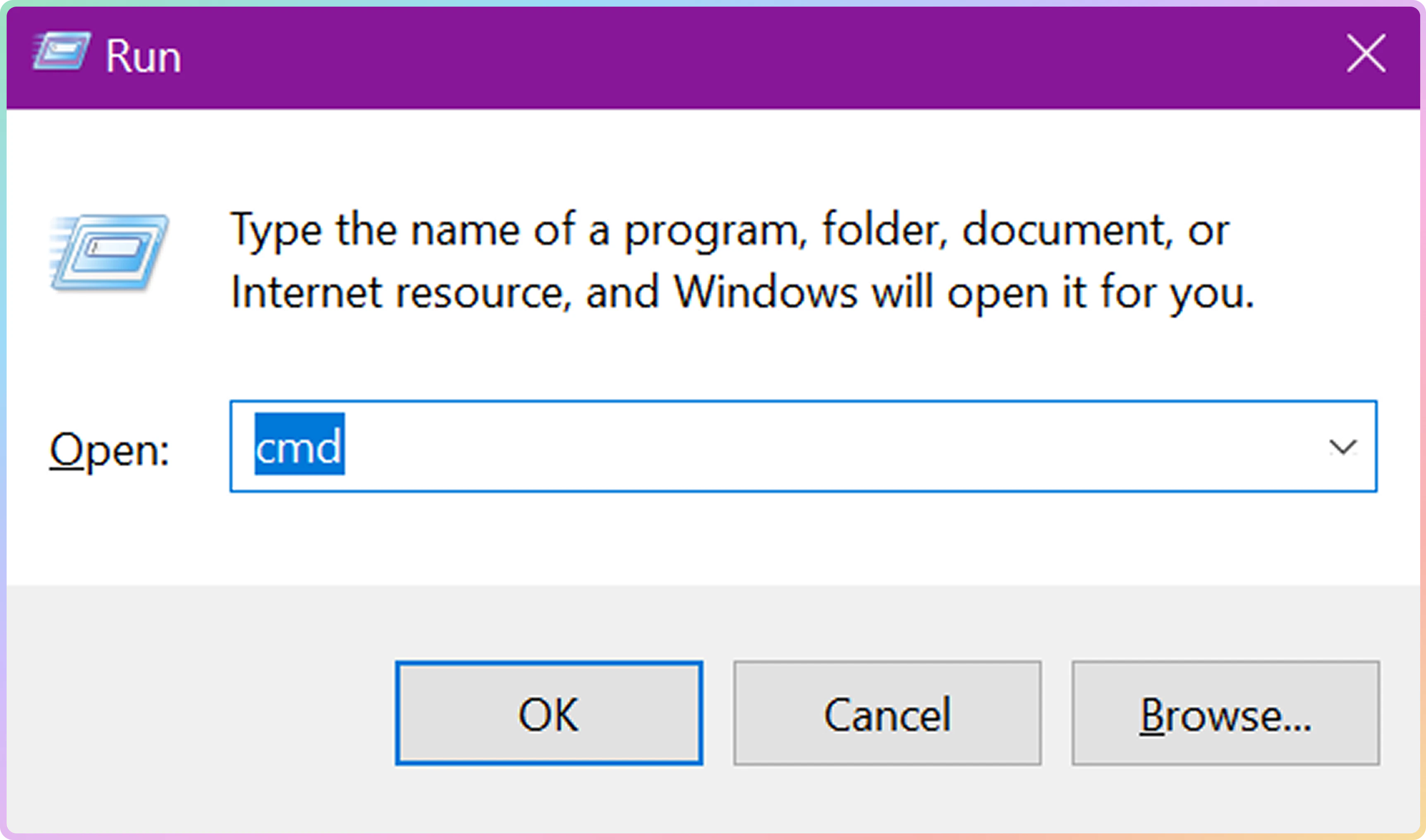
Press `Windows + R`, type `cmd`, and press `Enter`.
 Run the following command:
```text Bash theme={null}
ping gate.decodo.com
```
`gate.decodo.com` is only an example endpoint. Replace it with the endpoint assigned to your account.
Run the following command:
```text Bash theme={null}
ping gate.decodo.com
```
`gate.decodo.com` is only an example endpoint. Replace it with the endpoint assigned to your account.
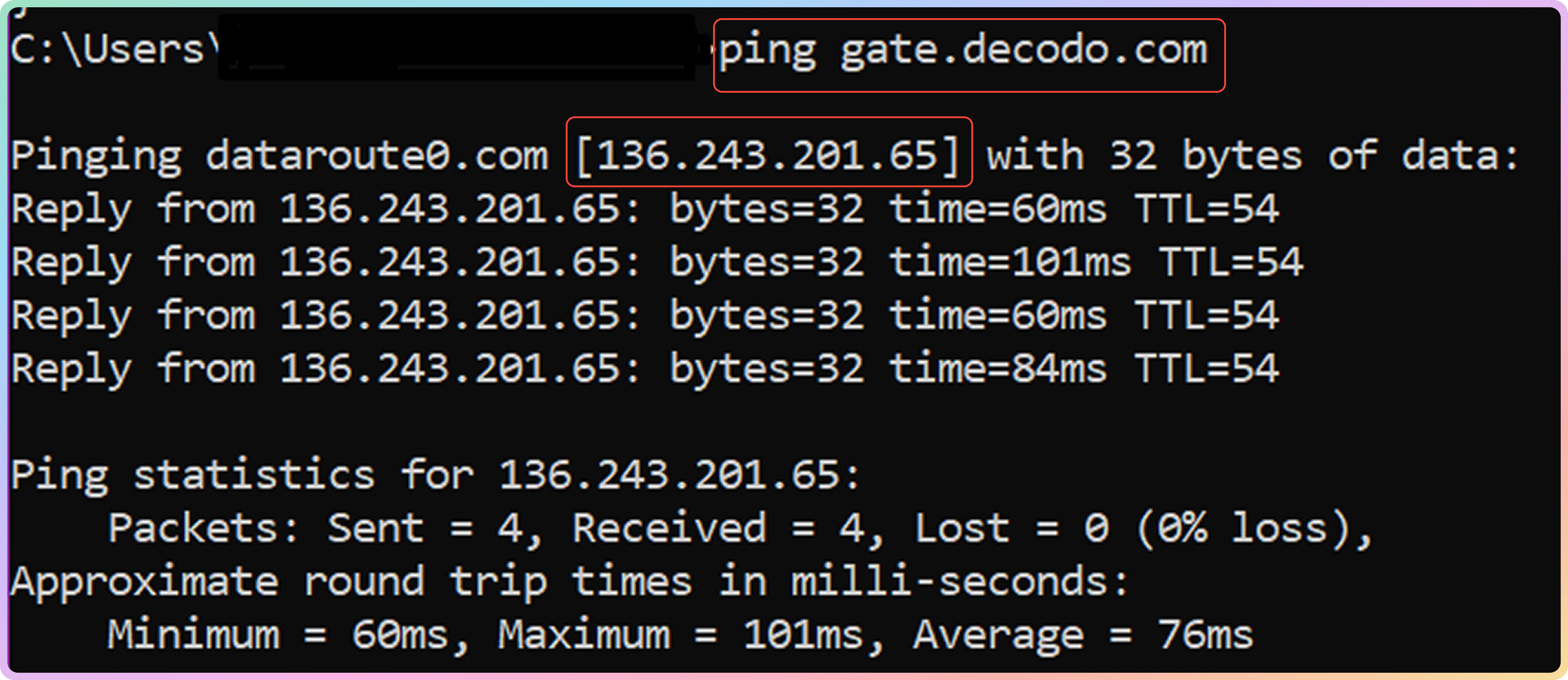 The command output will display the endpoint IP address.
Example:
```text Bash theme={null}
136.243.201.65
```
You can now use the `IP:Port` format:
```text Bash theme={null}
136.243.201.65:7000
```
Equivalent to:
```text Bash theme={null}
gate.decodo.com:7000
```
## macOS
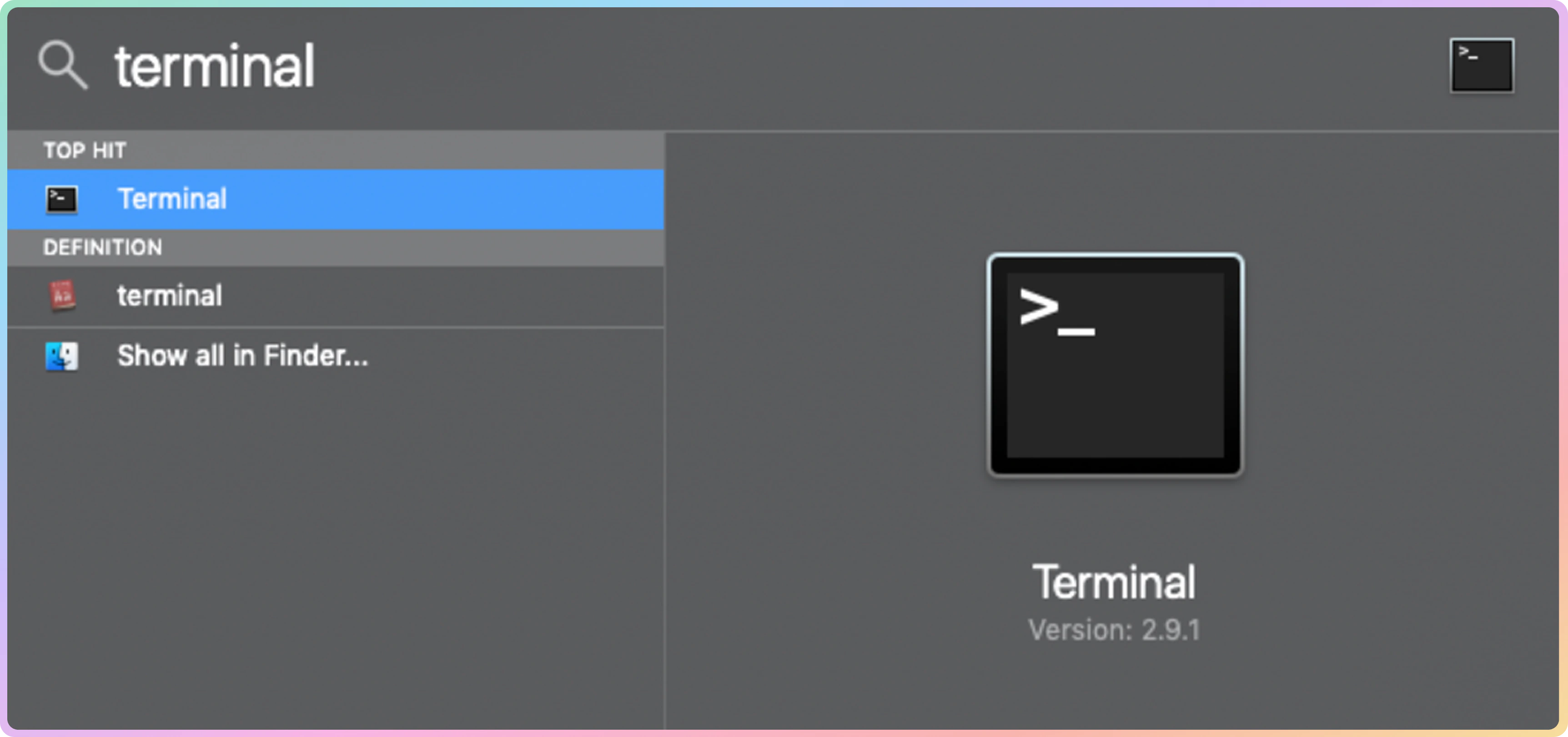
Open Spotlight Search or Finder and launch the Terminal application.
The command output will display the endpoint IP address.
Example:
```text Bash theme={null}
136.243.201.65
```
You can now use the `IP:Port` format:
```text Bash theme={null}
136.243.201.65:7000
```
Equivalent to:
```text Bash theme={null}
gate.decodo.com:7000
```
## macOS
Open Spotlight Search or Finder and launch the Terminal application.
 Run the following command:
```text Command line to enter theme={null}
ping gate.decodo.com
```
`gate.decodo.com` is only an example endpoint. Replace it with the endpoint assigned to your account.
Run the following command:
```text Command line to enter theme={null}
ping gate.decodo.com
```
`gate.decodo.com` is only an example endpoint. Replace it with the endpoint assigned to your account.
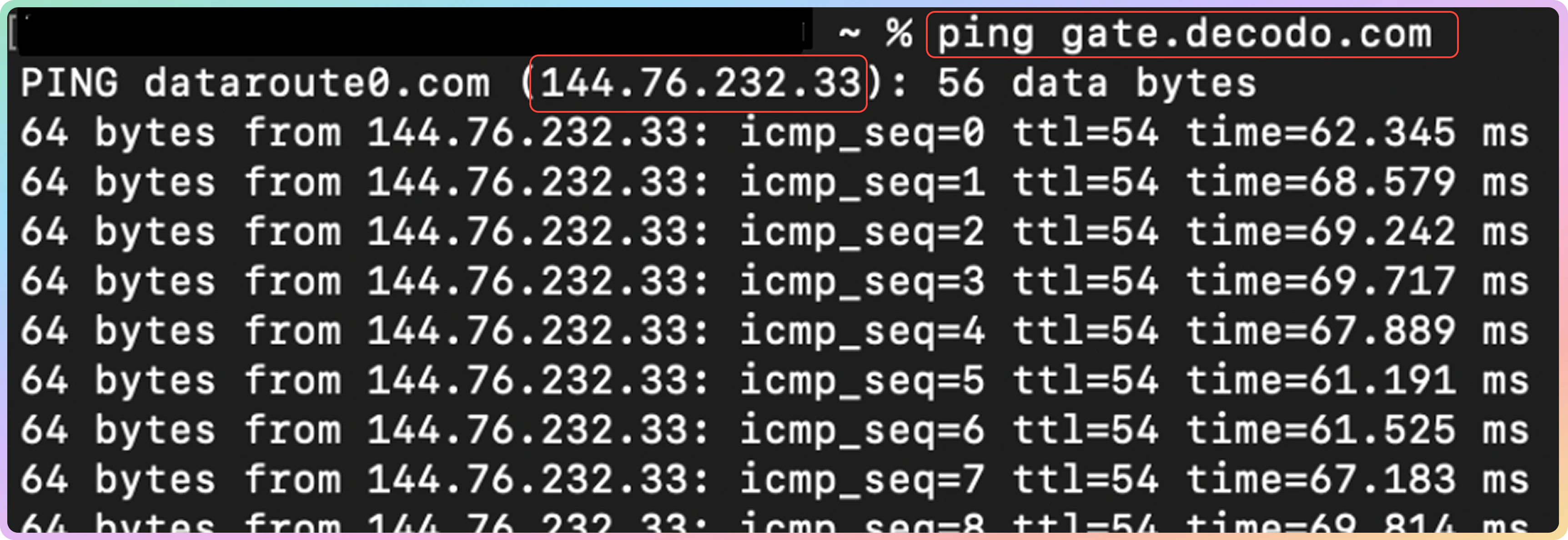 The command output will display the endpoint IP address.
Example:
```text Bash theme={null}
144.76.232.33
```
You can now use the `IP:Port` format:
```text Bash theme={null}
144.76.232.33:7000
```
Equivalent to:
```text Bash theme={null}
gate.decodo.com:7000
```
***
Need help or just want to say hello? Our support is available 24/7. \
You can also reach us anytime via email at [support@decodo.com](mailto:support@decodo.com).
Can't find what you're looking for? Request an article! \
Have feedback? Share your thoughts on how we can improve.
The command output will display the endpoint IP address.
Example:
```text Bash theme={null}
144.76.232.33
```
You can now use the `IP:Port` format:
```text Bash theme={null}
144.76.232.33:7000
```
Equivalent to:
```text Bash theme={null}
gate.decodo.com:7000
```
***
Need help or just want to say hello? Our support is available 24/7. \
You can also reach us anytime via email at [support@decodo.com](mailto:support@decodo.com).
Can't find what you're looking for? Request an article! \
Have feedback? Share your thoughts on how we can improve.