> ## Documentation Index
> Fetch the complete documentation index at: https://help.decodo.com/llms.txt
> Use this file to discover all available pages before exploring further.
# Quick Start
> ISP Pay/GB Proxy Quick Start
### Decodo Proxies Use Endpoints
* Endpoints are like gateways to IP pools.
* When you connect to an endpoint, your traffic is **automatically** routed through a random IP address from the Decodo IP pool.
* Static Residential proxies use the following endpoint and port for random requests:
```text theme={null}
isp.decodo.com:10000
```
* Here are a few basic request examples in various programming languages:
```shellscript cURL theme={null}
curl -U "USERNAME:PASSWORD" -x "isp.decodo.com:10000" "https://ip.decodo.com/json"
```
```python Python theme={null}
import requests
url = 'https://ip.decodo.com/json'
username = 'USERNAME'
password = 'PASSWORD'
proxy = f"http://{username}:{password}@isp.decodo.com:10000"
result = requests.get(url, proxies = {
'http': proxy,
'https': proxy
})
print(result.text)
```
```javascript Node theme={null}
const axios = require('axios');
const { HttpsProxyAgent } = require('https-proxy-agent');
const url = 'https://ip.decodo.com/json';
const proxyAgent = new HttpsProxyAgent(
'http://username:password@isp.decodo.com:10000');
axios
.get(url, {
httpsAgent: proxyAgent,
})
.then((response) => {
console.log(response.data);
});
```
```php PHP theme={null}
### Control Your Connection
* You can make this more specific by adding parameters to control the IP selection and location.
* Keep reading for a step-by-step walkthrough on specifying and generating more examples, or check out our [**Advanced Parameters**](https://help.decodo.com/docs/isp-pay-per-gb-proxy-advanced-parameters) article for an even more in-depth look.
## Authentication
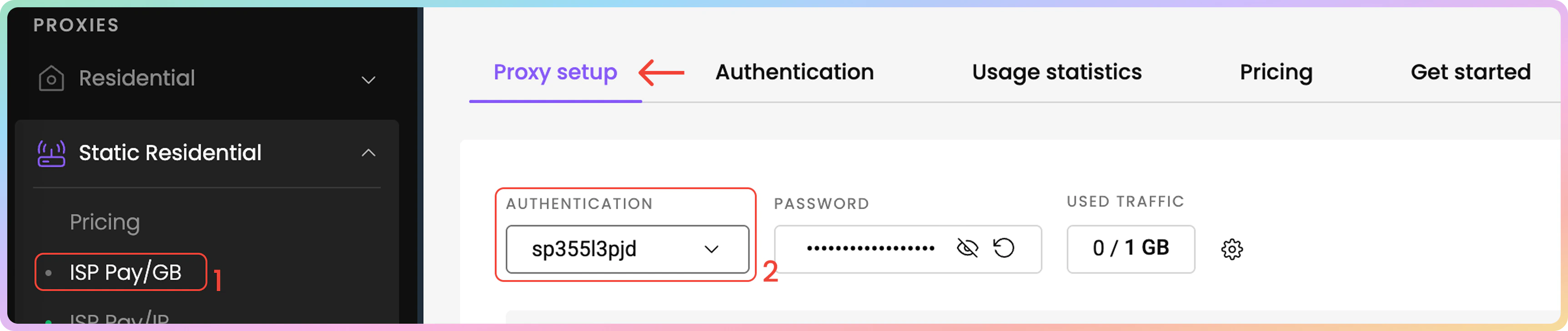
1. First, navigate to the [**Static Residential → ISP Pay/GB → Proxy setup**](https://dashboard.decodo.com/static-isp-proxies/proxy-setup) page on your dashboard and look for the Authentication section.
* You’ll see that your first proxy user and password are created automatically.
2. Next, select your proxy **authentication method**.
* This can be either your **whitelisted IP** address or one of your **proxy users**
 ### Additional Authentication Options
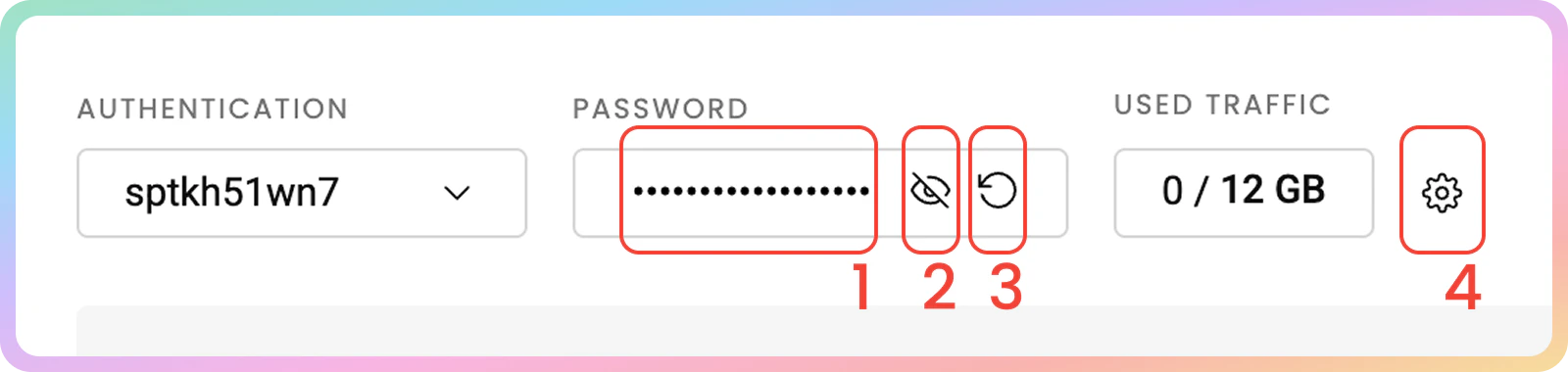
1. You may **copy** your password by clicking on it
2. To see the password, click the **eye** icon.
3. You can generate a new password by clicking on the **arrow icon** and choosing **Confirm**.
4. Here, you can also see the **used traffic** and **add a traffic limit** per proxy user, or check the used traffic sum of your whitelisted IPs.
* You can further manage your credentials in the **Authentication** tab. For more details, check out the [**Authentication Methods**](https://help.decodo.com/docs/isp-pay-per-gb-proxy-authentication-methods) article.
### Additional Authentication Options
1. You may **copy** your password by clicking on it
2. To see the password, click the **eye** icon.
3. You can generate a new password by clicking on the **arrow icon** and choosing **Confirm**.
4. Here, you can also see the **used traffic** and **add a traffic limit** per proxy user, or check the used traffic sum of your whitelisted IPs.
* You can further manage your credentials in the **Authentication** tab. For more details, check out the [**Authentication Methods**](https://help.decodo.com/docs/isp-pay-per-gb-proxy-authentication-methods) article.
 ## Proxy Setup
In the ISP Pay/GB Proxy Setup section of your dashboard, selecting various parameters will generate examples you can easily copy into your applications, tools, or code.
1. On the [**Static Residential → ISP Pay/GB → Proxy setup**](https://dashboard.decodo.com/static-isp-proxies/proxy-setup) page, find the parameter selection section below your authentication methods.
## Proxy Setup
In the ISP Pay/GB Proxy Setup section of your dashboard, selecting various parameters will generate examples you can easily copy into your applications, tools, or code.
1. On the [**Static Residential → ISP Pay/GB → Proxy setup**](https://dashboard.decodo.com/static-isp-proxies/proxy-setup) page, find the parameter selection section below your authentication methods.
 ### Location
2. First, select the [**Location**](https://help.decodo.com/docs/isp-pay-per-gb-proxy-locations) of your proxy.
### IP-based Whitelisting And Location Selection
* For ISP Pay/GB Proxies a location can only be specified when using the `user:pass` authentication method. Otherwise, you can only select a `random` location with a whitelisted IP.
### Location
2. First, select the [**Location**](https://help.decodo.com/docs/isp-pay-per-gb-proxy-locations) of your proxy.
### IP-based Whitelisting And Location Selection
* For ISP Pay/GB Proxies a location can only be specified when using the `user:pass` authentication method. Otherwise, you can only select a `random` location with a whitelisted IP.
-1.png?fit=max&auto=format&n=5nAanidmwbHFDo3f&q=85&s=2623b42014ceede686934955519e9133)
.png?fit=max&auto=format&n=5nAanidmwbHFDo3f&q=85&s=d2b7a3bdcf8775ee5e40cee662c21cf5) ### Session Type
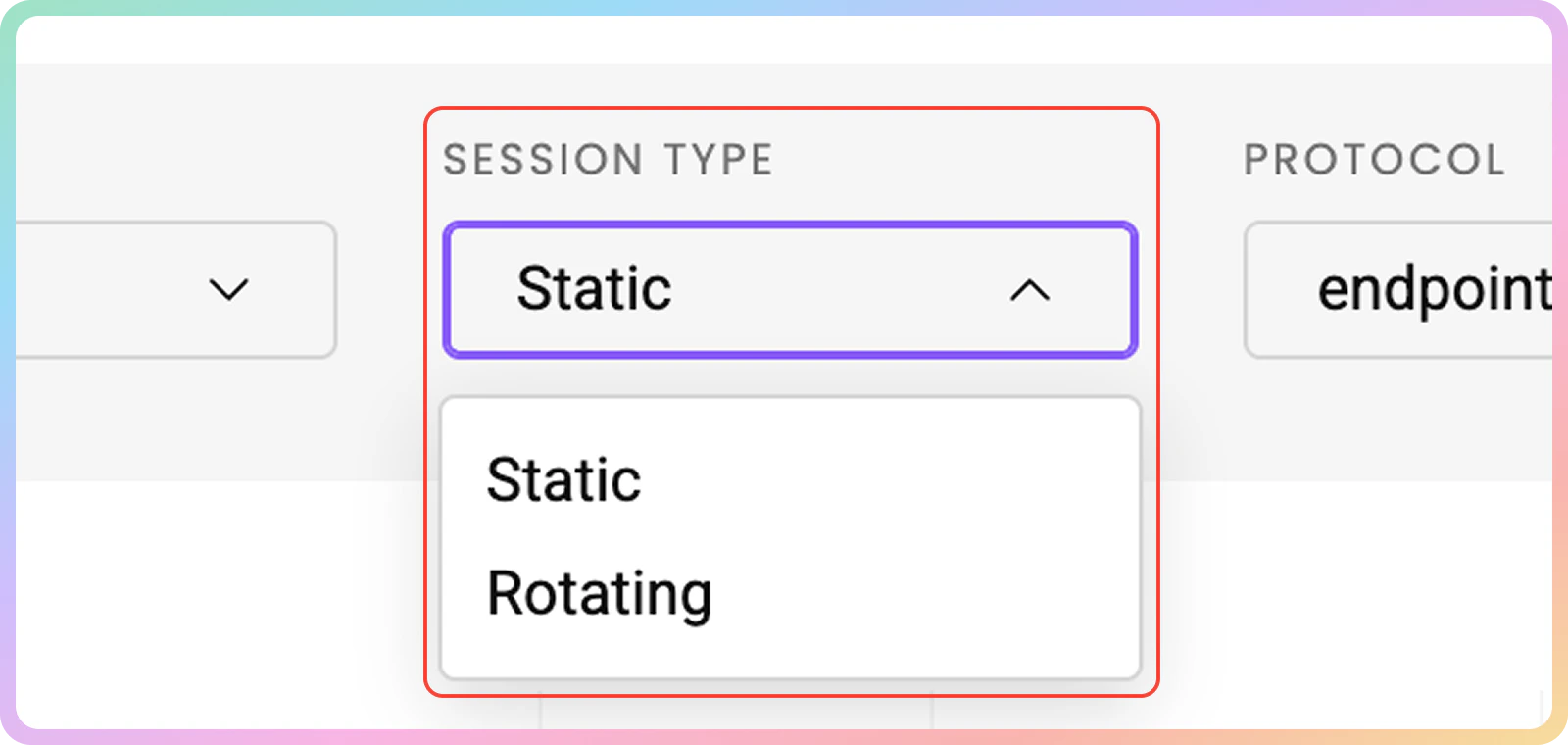
3. Afterward, select your preferred [**Session Type**](https://help.decodo.com/docs/isp-pay-per-gb-proxy-session-types), **Rotating** or **Static**.
### Session Ports
* **Static** – Ports `10001`-`63000` provide a static IP address that remains until you decide to change it or the session ends.
* **Rotating** – Port `10000` rotates the IP address on every request you make.
### Session Type
3. Afterward, select your preferred [**Session Type**](https://help.decodo.com/docs/isp-pay-per-gb-proxy-session-types), **Rotating** or **Static**.
### Session Ports
* **Static** – Ports `10001`-`63000` provide a static IP address that remains until you decide to change it or the session ends.
* **Rotating** – Port `10000` rotates the IP address on every request you make.
 ### Protocol
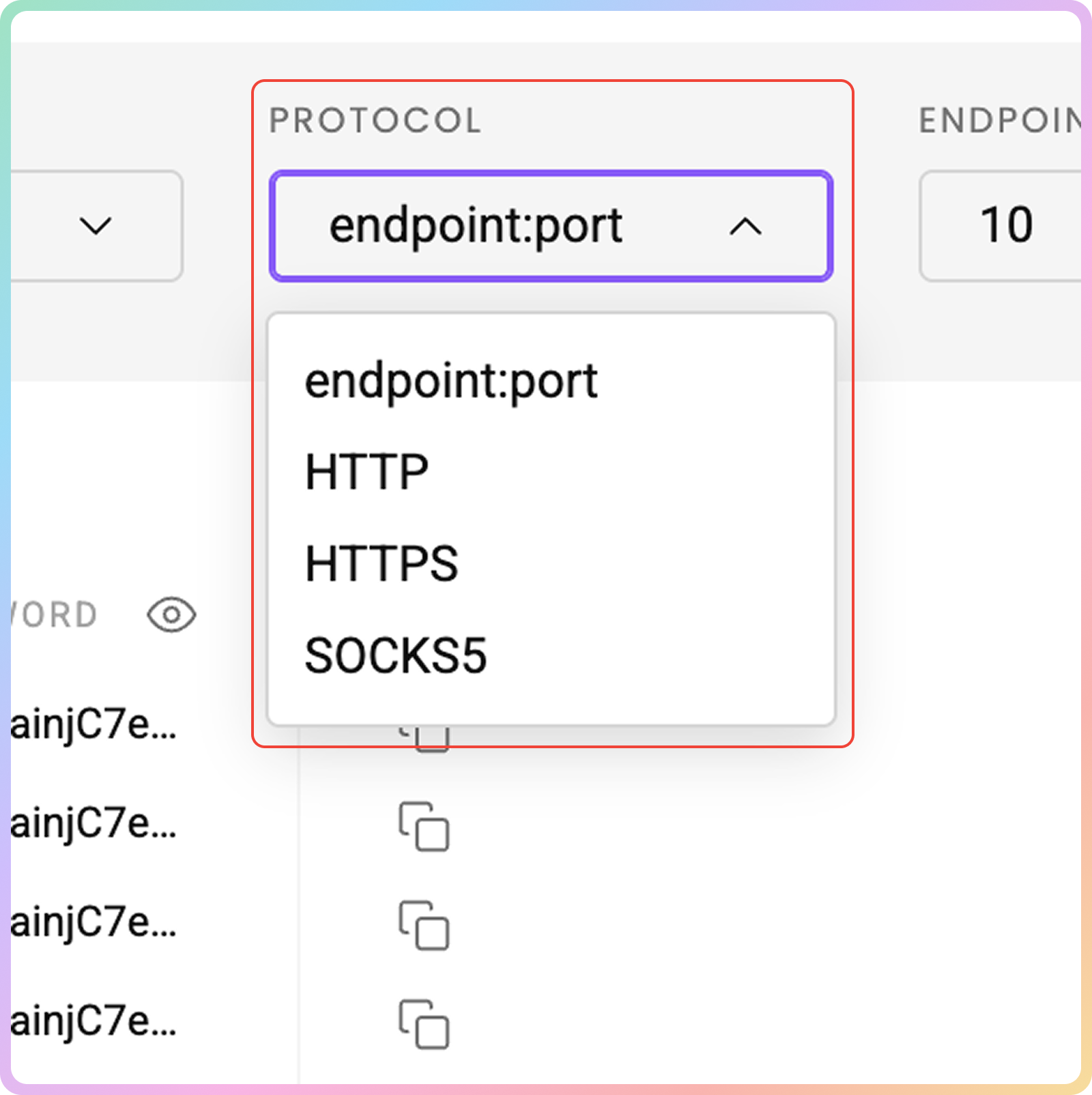
4. Finally, choose the [**Protocol**](https://help.decodo.com/docs/isp-pay-per-gb-proxy-protocols) format. `Endpoint:port`, `HTTP`, `HTTPS`, and `SOCKS5` options are available.
### Protocol
4. Finally, choose the [**Protocol**](https://help.decodo.com/docs/isp-pay-per-gb-proxy-protocols) format. `Endpoint:port`, `HTTP`, `HTTPS`, and `SOCKS5` options are available.
 ## Proxy List Examples
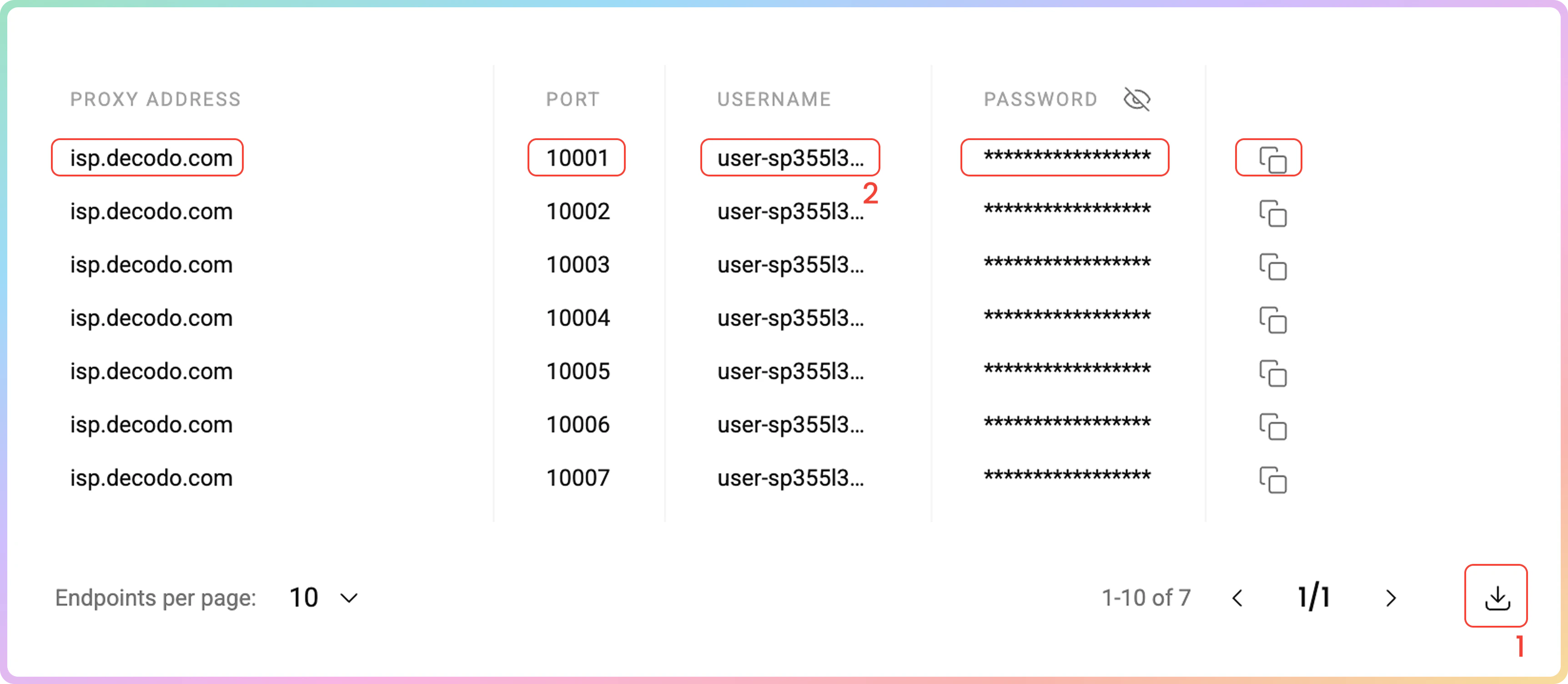
Once you're done setting up in the Proxy Setup section, you will see a **proxy list** of generated endpoints and ports based on your selection.
1. Simply **copy** it to your clipboard, or **download** a `.csv` or `.txt` file of the created proxy list.
2. Alternatively, **copy** single elements of the generated parameters, such as the **Proxy Address**, **Port**, **Username**, and **Password**, or copy the entire example string.
## Proxy List Examples
Once you're done setting up in the Proxy Setup section, you will see a **proxy list** of generated endpoints and ports based on your selection.
1. Simply **copy** it to your clipboard, or **download** a `.csv` or `.txt` file of the created proxy list.
2. Alternatively, **copy** single elements of the generated parameters, such as the **Proxy Address**, **Port**, **Username**, and **Password**, or copy the entire example string.
 ### Endpoint List Control
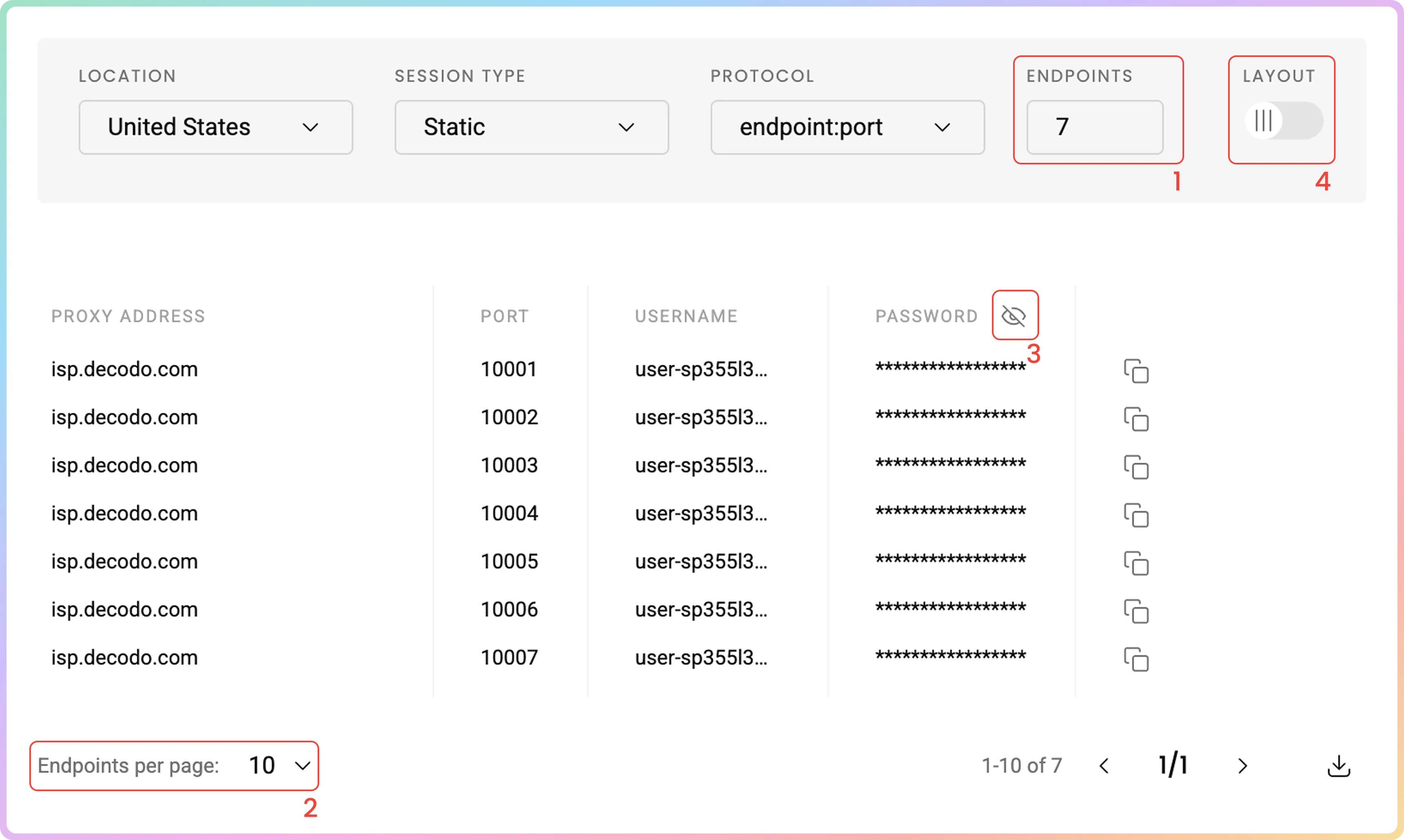
1. You can set the **number** of generated endpoints.
2. As well as how many of them you would like to display **per page** (`10`, `25`, `50`, or `100`).
3. Hide your password by clicking on the **eye** icon. This will not affect the copy & paste function.
4. Click **Switch view** at the top right under **Layout** to display the entire parameter string.
### Endpoint List Control
1. You can set the **number** of generated endpoints.
2. As well as how many of them you would like to display **per page** (`10`, `25`, `50`, or `100`).
3. Hide your password by clicking on the **eye** icon. This will not affect the copy & paste function.
4. Click **Switch view** at the top right under **Layout** to display the entire parameter string.
 ## Code Examples
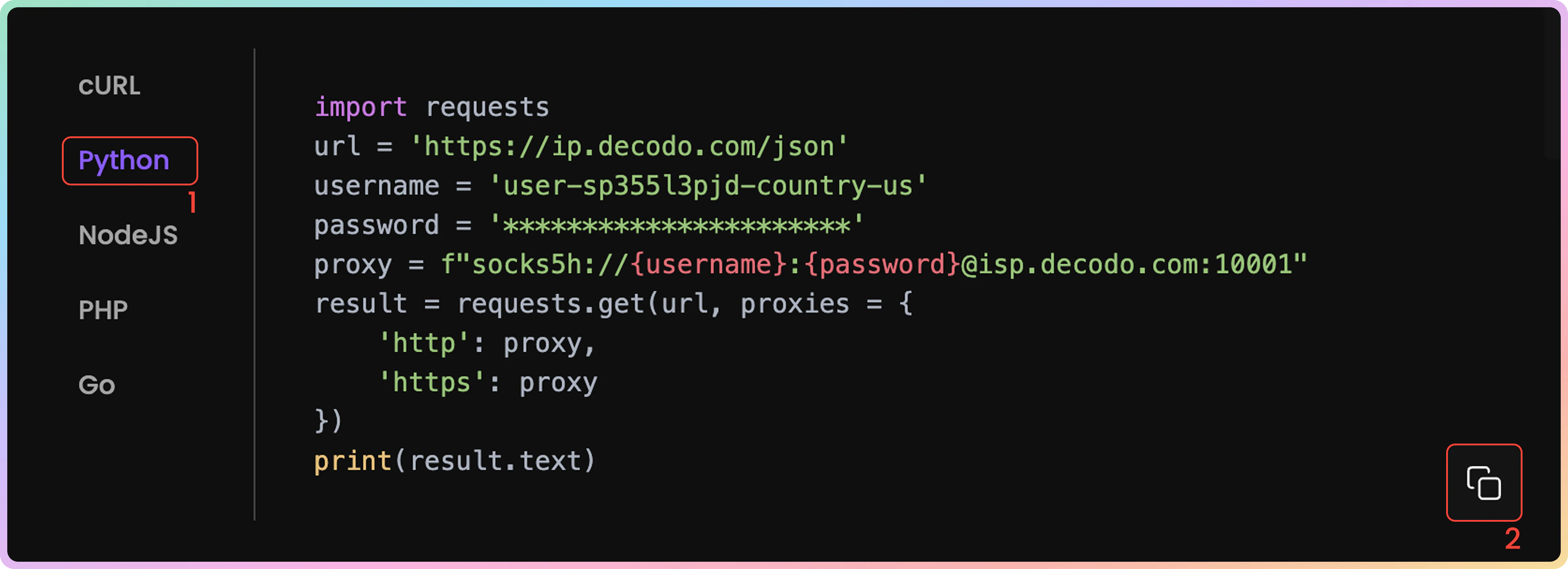
It's important to confirm your proxy is operational before using it in your projects. The **code examples** generated based on your previous selection at the bottom of your Proxy Setup dashboard allow you to quickly test whether your proxy is connecting correctly and displaying your new IP address.
1. You can select any of the available languages: `cURL`, `Python`, `NodeJS`, `PHP`, or`GO`.
2. Copy the pre-configured code example by clicking **Copy** in the bottom right corner.
3. Paste and run the code in your environment.
4. The response will show the proxy IP address and location information, confirming your proxy is working properly.
* If you see the proxy's IP address (not your actual IP) in the response, congratulations! Your proxy is successfully configured and ready to use.
## Code Examples
It's important to confirm your proxy is operational before using it in your projects. The **code examples** generated based on your previous selection at the bottom of your Proxy Setup dashboard allow you to quickly test whether your proxy is connecting correctly and displaying your new IP address.
1. You can select any of the available languages: `cURL`, `Python`, `NodeJS`, `PHP`, or`GO`.
2. Copy the pre-configured code example by clicking **Copy** in the bottom right corner.
3. Paste and run the code in your environment.
4. The response will show the proxy IP address and location information, confirming your proxy is working properly.
* If you see the proxy's IP address (not your actual IP) in the response, congratulations! Your proxy is successfully configured and ready to use.
 ## Integration Guides
Once you generate the endpoints and ports, you can apply them to any application or tool to start using proxies instantly.
### Decodo Tools
* Alternatively, you can use a dedicated Decodo tool — the **Decodo Extension** for [**Chrome**](https://help.decodo.com/docs/decodo-chrome-extension#/) and [**Firefox**](https://help.decodo.com/docs/decodo-firefox-extension#/).
### Integration Guides
* Check out the most popular 3rd party tool guides in the [**Integrations overview**](https://help.decodo.com/docs/proxy-integrations-overview) section.
### GitHub
* For any **advanced code samples** and **middleware,** please visit our [**GitHub**](https://github.com/decodo/decodo) page.
## Statistics
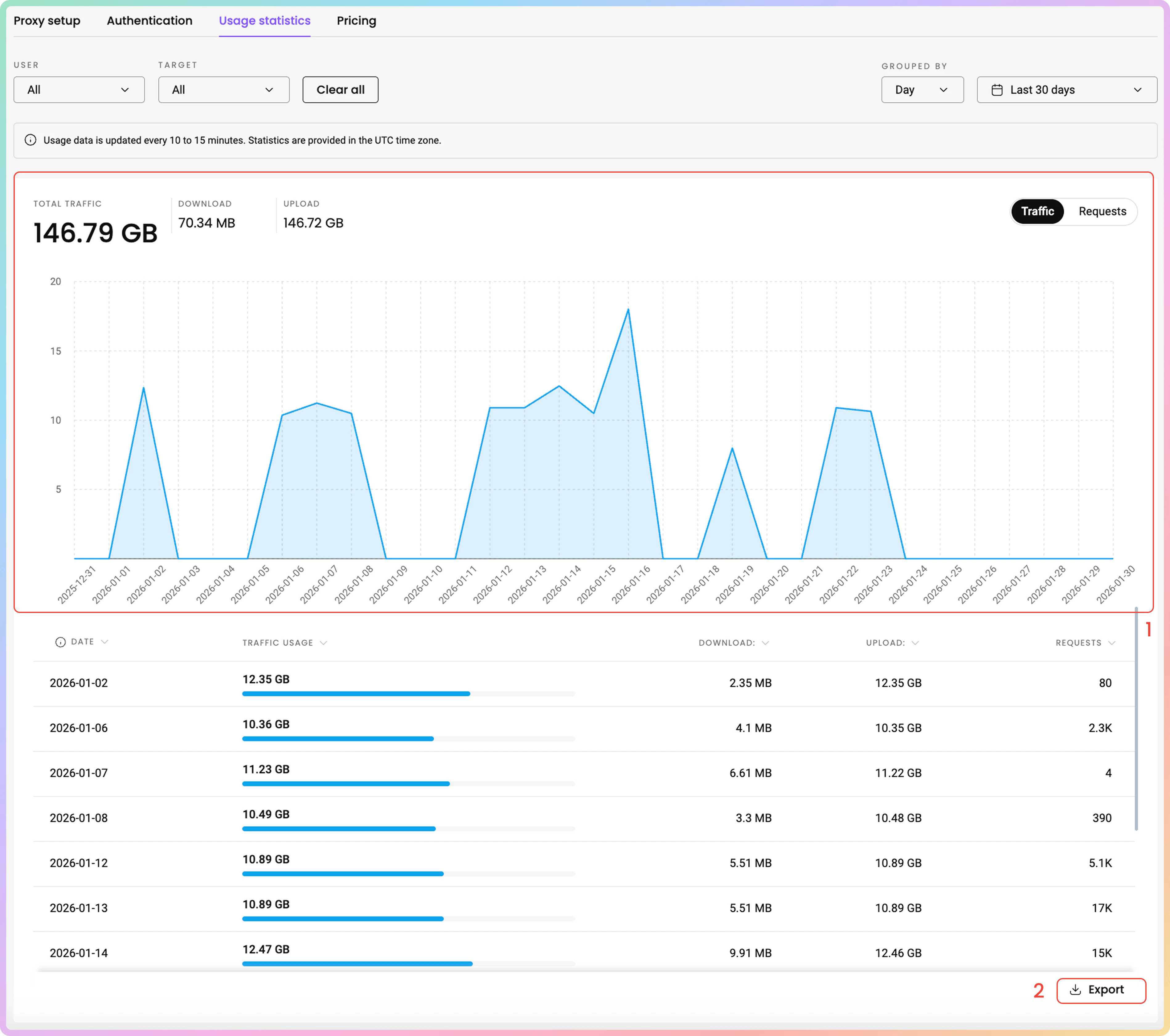
To track ISP Pay/GB proxy usage, navigate to the [**Static Residential → ISP Pay/GB → Usage statistics**](https://dashboard.decodo.com/static-isp-proxies/statistics) section.
1. Here, you can view a **Graph** of **traffic** or **request** usage sorted by: **User**, **Target**, and choose the **time period**.
2. Export **raw** or **table data** in `.CSV`, `.TXT`, or `.JSON` formats.
* All dates are in `UTC`. Traffic history is limited to `180` days maximum.
## Integration Guides
Once you generate the endpoints and ports, you can apply them to any application or tool to start using proxies instantly.
### Decodo Tools
* Alternatively, you can use a dedicated Decodo tool — the **Decodo Extension** for [**Chrome**](https://help.decodo.com/docs/decodo-chrome-extension#/) and [**Firefox**](https://help.decodo.com/docs/decodo-firefox-extension#/).
### Integration Guides
* Check out the most popular 3rd party tool guides in the [**Integrations overview**](https://help.decodo.com/docs/proxy-integrations-overview) section.
### GitHub
* For any **advanced code samples** and **middleware,** please visit our [**GitHub**](https://github.com/decodo/decodo) page.
## Statistics
To track ISP Pay/GB proxy usage, navigate to the [**Static Residential → ISP Pay/GB → Usage statistics**](https://dashboard.decodo.com/static-isp-proxies/statistics) section.
1. Here, you can view a **Graph** of **traffic** or **request** usage sorted by: **User**, **Target**, and choose the **time period**.
2. Export **raw** or **table data** in `.CSV`, `.TXT`, or `.JSON` formats.
* All dates are in `UTC`. Traffic history is limited to `180` days maximum.
 ### Top Targets, Countries, Users, and IPs
* Below, you can see even more detailed information in dedicated sections:
* **Top Targets**: No., Target, Traffic, Requests.
* **Top Countries**: Country, Traffic, Requests.
* **Top Users**: User, Traffic, Requests.
* **Top IPs**: No., IP, Traffic, Requests.
[**Here**](https://help.decodo.com/docs/isp-pay-per-gb-proxy-statistics) you can find a more comprehensive look at the **ISP Pay/GB Usage statistics** page.
## Troubleshooting
If you are experiencing any issues, please refer to our [**troubleshooting**](https://help.decodo.com/docs/proxy-troubleshooting#/) section or contact our support team directly, which is available **24/7**.
***
### Top Targets, Countries, Users, and IPs
* Below, you can see even more detailed information in dedicated sections:
* **Top Targets**: No., Target, Traffic, Requests.
* **Top Countries**: Country, Traffic, Requests.
* **Top Users**: User, Traffic, Requests.
* **Top IPs**: No., IP, Traffic, Requests.
[**Here**](https://help.decodo.com/docs/isp-pay-per-gb-proxy-statistics) you can find a more comprehensive look at the **ISP Pay/GB Usage statistics** page.
## Troubleshooting
If you are experiencing any issues, please refer to our [**troubleshooting**](https://help.decodo.com/docs/proxy-troubleshooting#/) section or contact our support team directly, which is available **24/7**.
***