> ## Documentation Index
> Fetch the complete documentation index at: https://help.decodo.com/llms.txt
> Use this file to discover all available pages before exploring further.
# Octo Browser Proxy Setup Guide
## Getting Started
Before proceeding, ensure you have:
* No other VPN or proxy active.
* The **proxy endpoint** and **port** (e.g., `us.decodo.com:10101`).
* Your **proxy username** and **password** (or a **whitelisted IP** set).
**Proxy Guides**
Learn how to find **proxy details** in your dashboard for each proxy type [**here**](https://help.decodo.com/docs/proxy-quick-start-guides).
## Proxy Setup
The first thing you will need to do to get started is to download the application and create an account with Octo Browser, which you can do [**here**](https://octobrowser.net/download/).
Open the **Octo Browser** application.
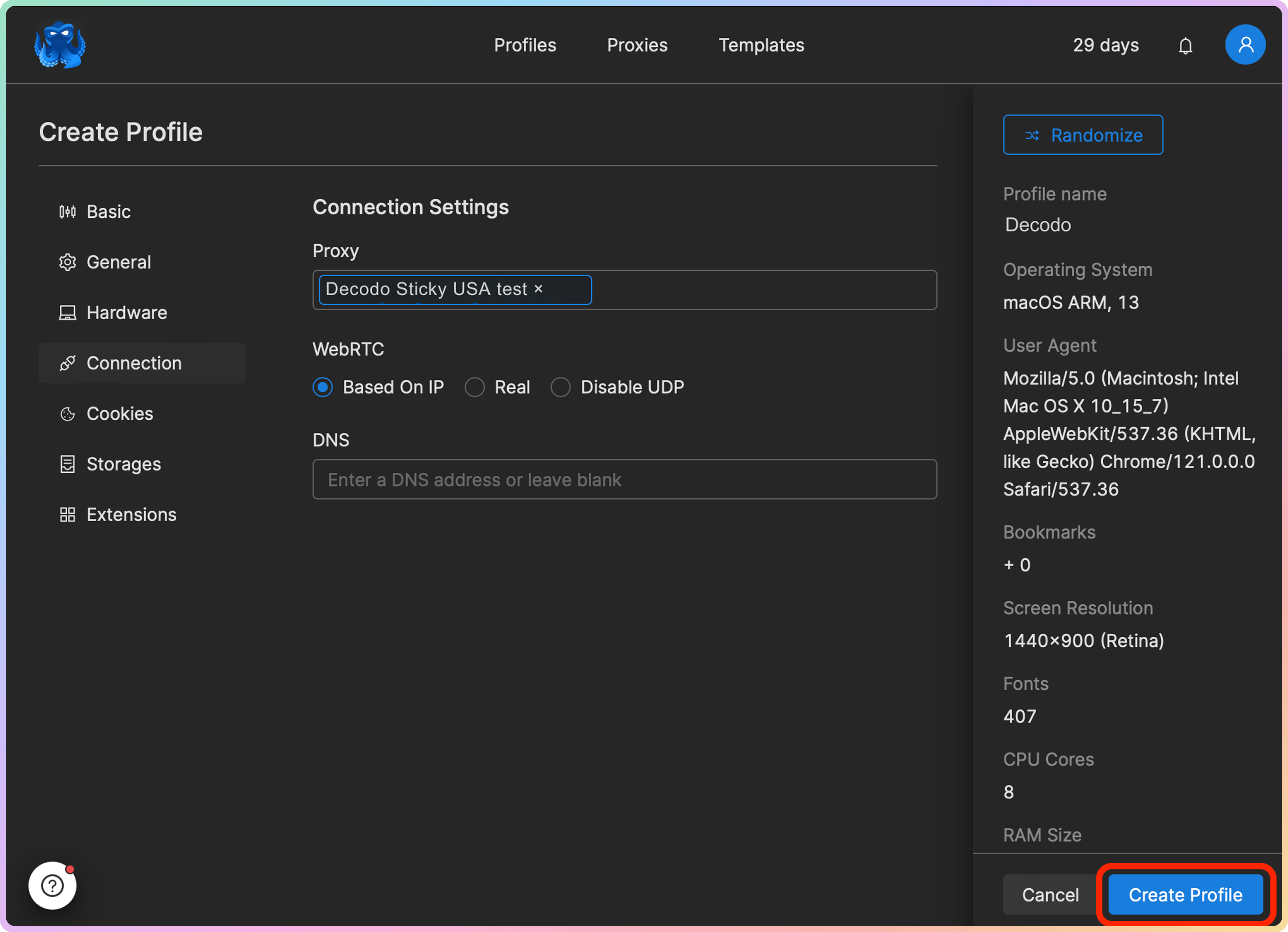
In the **Profiles** section, press the **Create Profile** to enter the setup page.
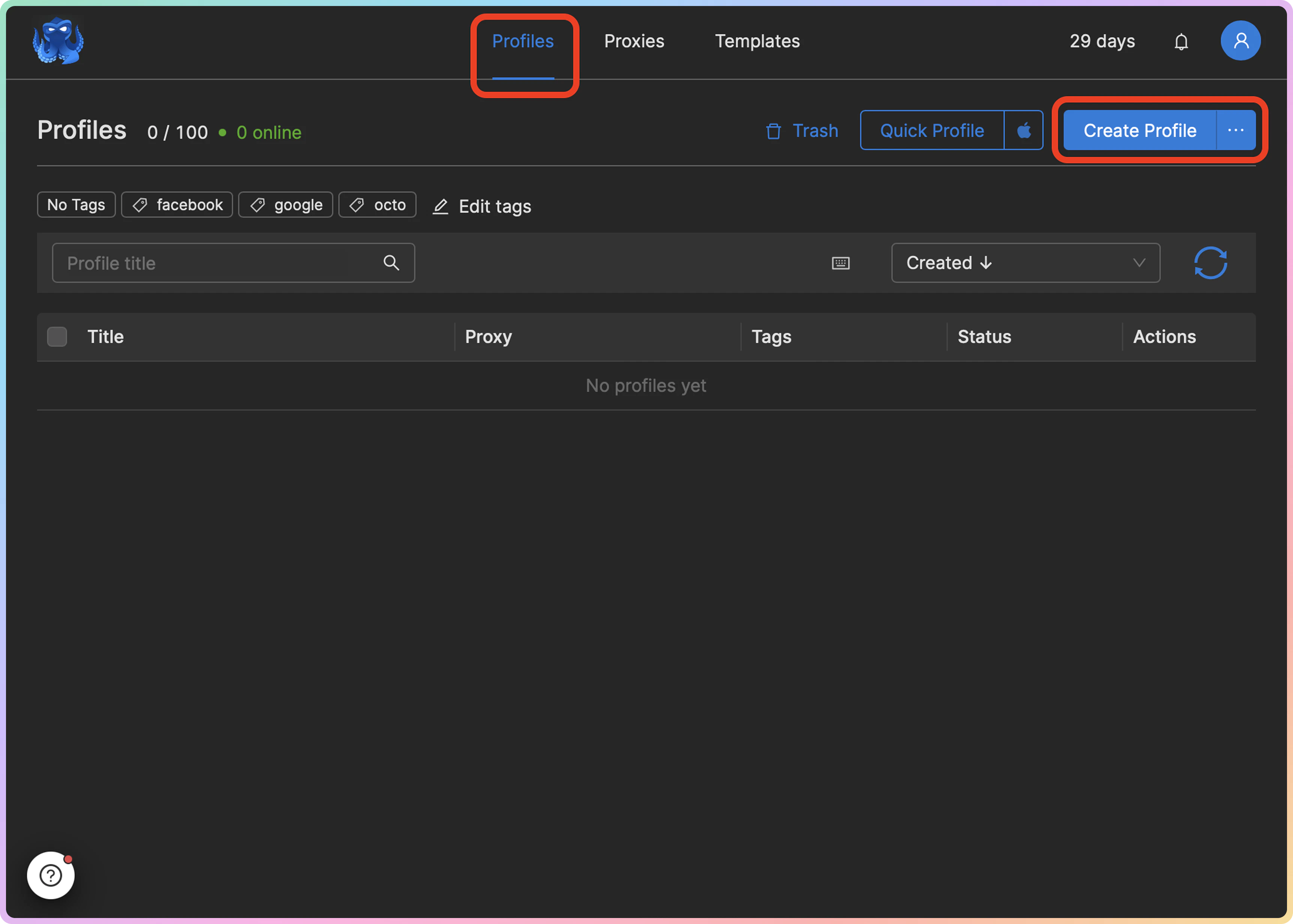 First, in the **Basic** tab, enter a profile name, and then add any other details you might need.
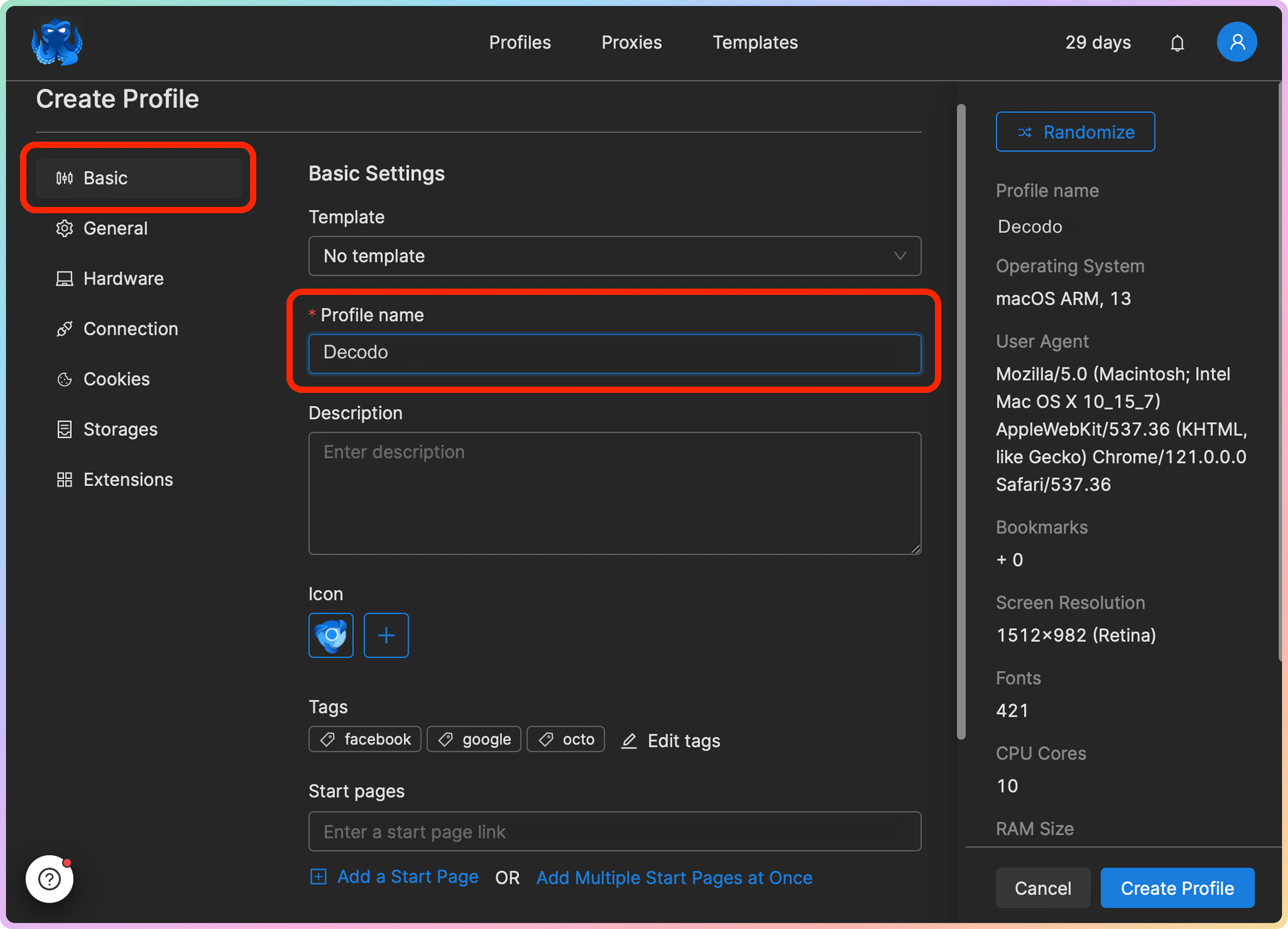 Go to the **Connection** tab and click on the **Proxy** field. Click on the **+ Set a new proxy** button.
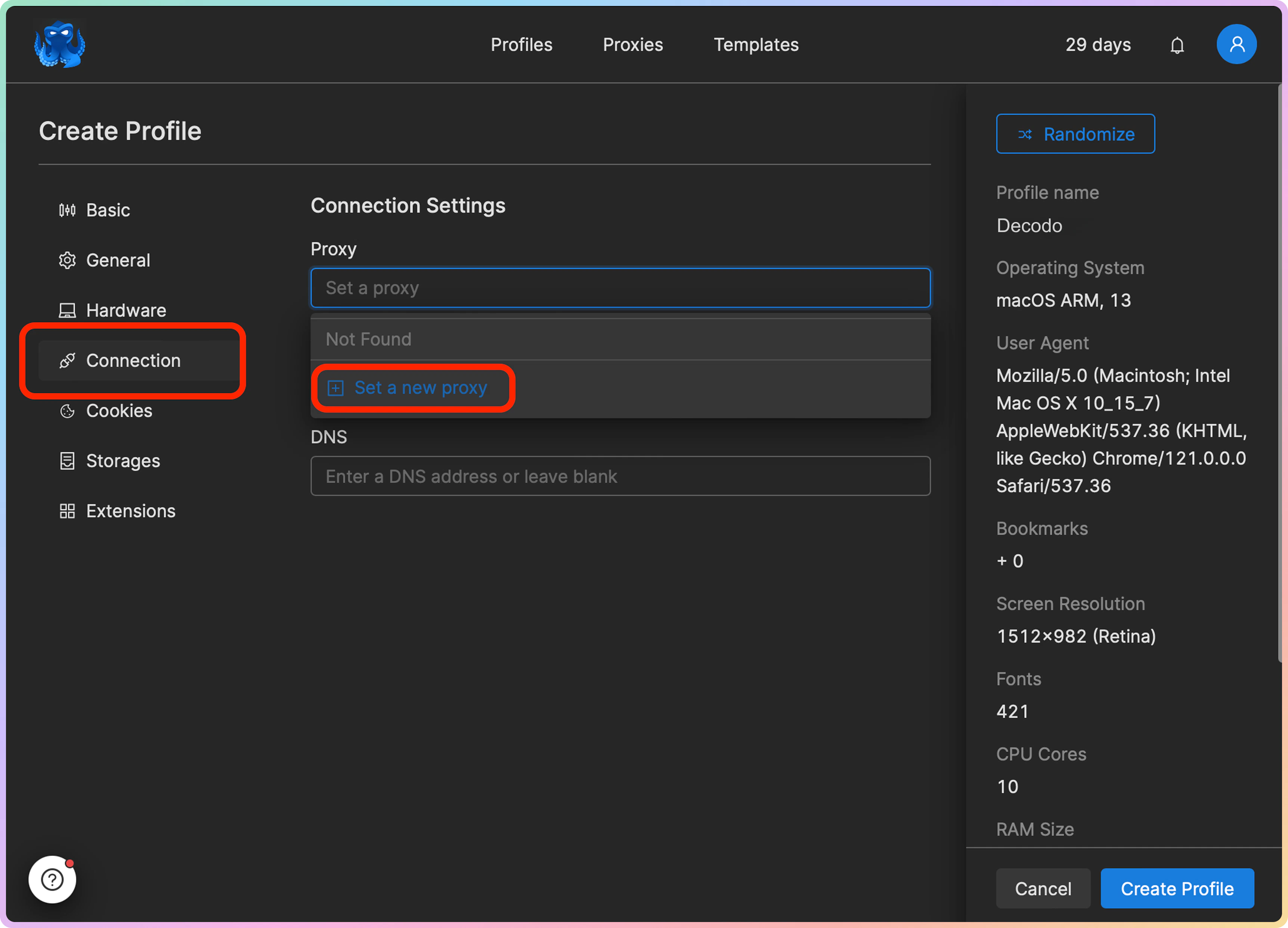 In the **Set a new proxy** pop-up window, select the proxy type and input the proxy details, which can be found on your Decodo dashboard. Here's an example for **residential** proxies:
* **Host:** `gate.decodo.com`
* **Port:** `10001`
* **Login:** Input your`proxy username`
* **Password:** Input your `proxy password`
* You can also save this configuration by ticking off the **Save to the Proxy Manager** checkbox; in this case, in the **Proxy title** field, you will need to name the particular proxy.
In the **Set a new proxy** pop-up window, select the proxy type and input the proxy details, which can be found on your Decodo dashboard. Here's an example for **residential** proxies:
* **Host:** `gate.decodo.com`
* **Port:** `10001`
* **Login:** Input your`proxy username`
* **Password:** Input your `proxy password`
* You can also save this configuration by ticking off the **Save to the Proxy Manager** checkbox; in this case, in the **Proxy title** field, you will need to name the particular proxy.
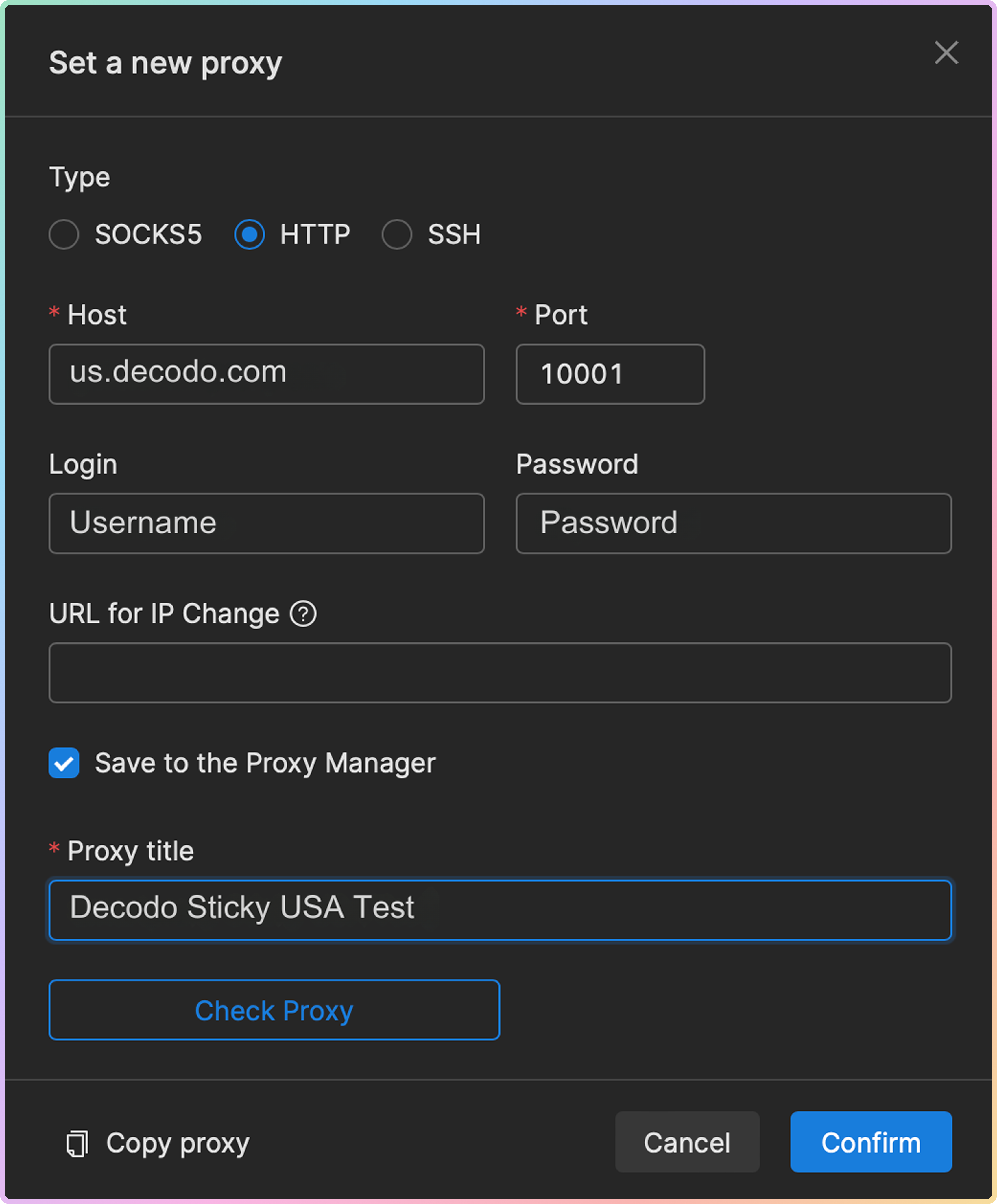 You can click on **Check proxy** button to see if the proxy is available to ensure that the setup is functional. Once done, click **Confirm** to assign the proxy to the Browser profile.
 Finally, click on the **Create Profile** button.
 ### Add Proxies in Bulk or Separately
You can create and link proxy and browser profiles in Octo Browser separately and in any order you find convenient. E.g., you can add proxies in the **Proxies** section by clicking on the **Add Proxy** or \*\*Bulk Add \*\*buttons and then later assign them to specific profiles.
### Add Proxies in Bulk or Separately
You can create and link proxy and browser profiles in Octo Browser separately and in any order you find convenient. E.g., you can add proxies in the **Proxies** section by clicking on the **Add Proxy** or \*\*Bulk Add \*\*buttons and then later assign them to specific profiles.
 ### Launch a Profile
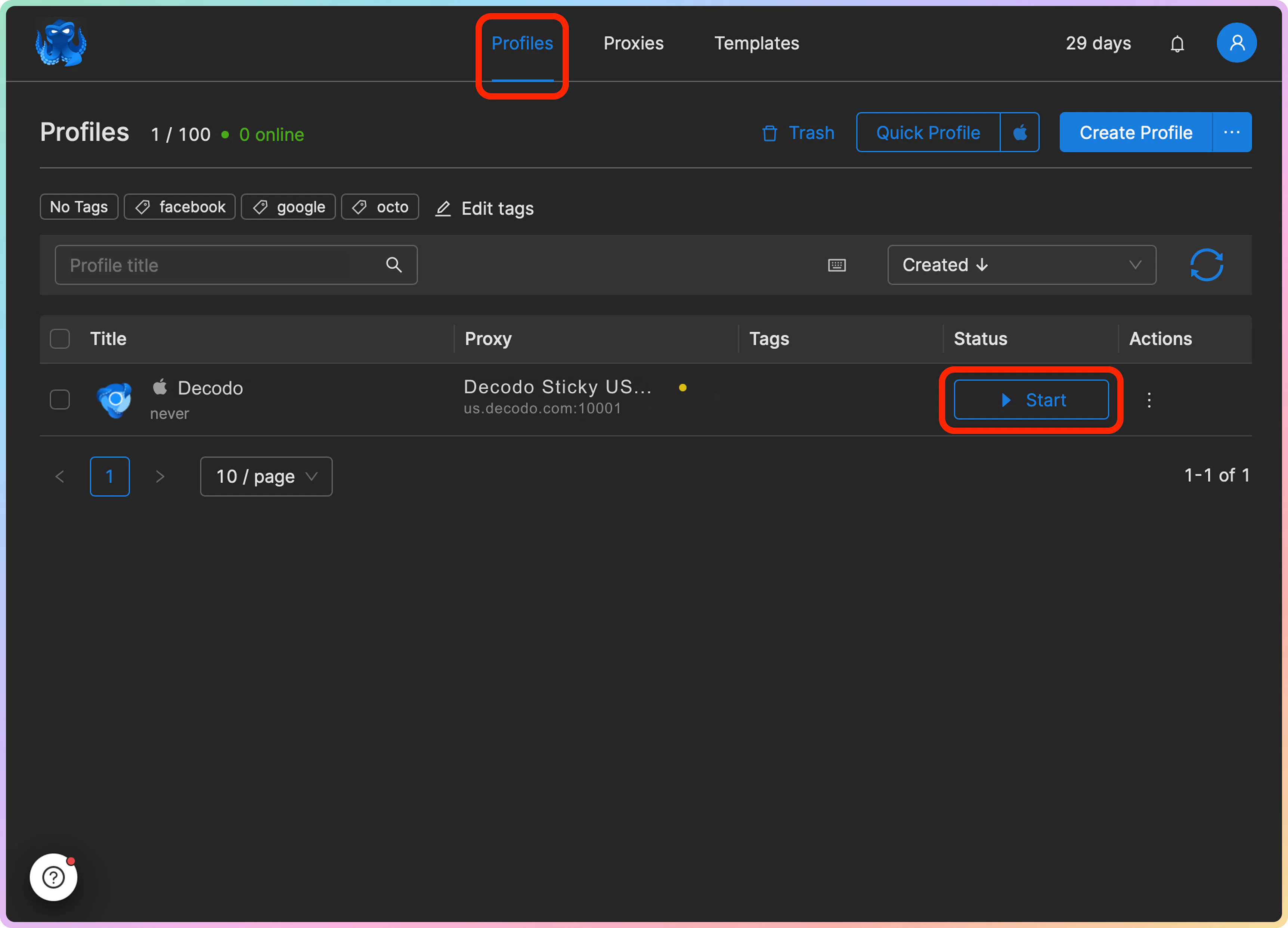
Once you have created a profile and linked a proxy to it, you can launch it from the Profiles section by clicking **Start**.
### Launch a Profile
Once you have created a profile and linked a proxy to it, you can launch it from the Profiles section by clicking **Start**.
 ### Verify the Connection
* Visit [**ip.decodo.com**](https://ip.decodo.com/). If successful, your IP address will display the location of the proxy.
***
## Common Issues
### Blocklist
⚠️ Please be aware that we [**restrict access to some websites**](https://decodo.com/faq/general/do-you-have-any-blocked-sites).
### `SOCKS5`
**Residential and Mobile Proxy Support Limitations**
The `gate.decodo.com` **endpoint** and the `7000` **port** must be used to utilize `SOCKS5` Residential or Mobile proxies. **Country** endpoints, such as `us.decodo.com`, will not function!
You can target specific locations instead by specifying the location in your username using **advanced** **parameters**:
* e.g.: `user-username-country-us` will connect to the **USA** pool.
To get a **sticky** `SOCKS5` Residential or Mobile proxy in a **tool**, you must use a `session` **parameter**. Otherwise, the proxy will always rotate even with a set `sessionduration` parameter.
* e.g.: `user-username-session-abc123-sessionduration-30` will connect to the same session.
* The **session ID** name can be defined by any string of your choice.
Learn more in our **advanced** **parameter** guides for [**Residential**](https://help.decodo.com/docs/residential-proxy-advanced-parameters/) and [**Mobile**](https://help.decodo.com/docs/mobile-proxy-advanced-parameters/) proxies.
### Direct IP
If you buy an IP list, you can specify which IPs to connect to using the **direct** `ip` parameter in the proxy username: `user-username-ip-x.x.x.x`
* Supported products: **DC Pay/IP**, **Dedicated DC**, **ISP Pay/IP**, **Dedicated ISP** plans.
* Products that offer access to the full proxy pool, such as residential proxies, do not support this parameter.
* Decodo proxies don't support an `IP:PORT` format by default.
* You must use the **endpoint** rotator format (e.g., `us.decodo.com:10101`).
* If necessary, try the workaround [**here**](https://help.decodo.com/docs/how-to-get-ip-port-format#/), but it only works temporarily before requiring another setup update.
### Troubleshooting
If you experience any other issues, check out our main [**troubleshooting**](https://help.decodo.com/docs/proxy-troubleshooting) section.
***
Need help or just want to say hello? Our support is available 24/7. \
You can also reach us anytime via email at [support@decodo.com](mailto:support@decodo.com).
Can't find what you're looking for? Request an article! \
Have feedback? Share your thoughts on how we can improve.
### Verify the Connection
* Visit [**ip.decodo.com**](https://ip.decodo.com/). If successful, your IP address will display the location of the proxy.
***
## Common Issues
### Blocklist
⚠️ Please be aware that we [**restrict access to some websites**](https://decodo.com/faq/general/do-you-have-any-blocked-sites).
### `SOCKS5`
**Residential and Mobile Proxy Support Limitations**
The `gate.decodo.com` **endpoint** and the `7000` **port** must be used to utilize `SOCKS5` Residential or Mobile proxies. **Country** endpoints, such as `us.decodo.com`, will not function!
You can target specific locations instead by specifying the location in your username using **advanced** **parameters**:
* e.g.: `user-username-country-us` will connect to the **USA** pool.
To get a **sticky** `SOCKS5` Residential or Mobile proxy in a **tool**, you must use a `session` **parameter**. Otherwise, the proxy will always rotate even with a set `sessionduration` parameter.
* e.g.: `user-username-session-abc123-sessionduration-30` will connect to the same session.
* The **session ID** name can be defined by any string of your choice.
Learn more in our **advanced** **parameter** guides for [**Residential**](https://help.decodo.com/docs/residential-proxy-advanced-parameters/) and [**Mobile**](https://help.decodo.com/docs/mobile-proxy-advanced-parameters/) proxies.
### Direct IP
If you buy an IP list, you can specify which IPs to connect to using the **direct** `ip` parameter in the proxy username: `user-username-ip-x.x.x.x`
* Supported products: **DC Pay/IP**, **Dedicated DC**, **ISP Pay/IP**, **Dedicated ISP** plans.
* Products that offer access to the full proxy pool, such as residential proxies, do not support this parameter.
* Decodo proxies don't support an `IP:PORT` format by default.
* You must use the **endpoint** rotator format (e.g., `us.decodo.com:10101`).
* If necessary, try the workaround [**here**](https://help.decodo.com/docs/how-to-get-ip-port-format#/), but it only works temporarily before requiring another setup update.
### Troubleshooting
If you experience any other issues, check out our main [**troubleshooting**](https://help.decodo.com/docs/proxy-troubleshooting) section.
***
Need help or just want to say hello? Our support is available 24/7. \
You can also reach us anytime via email at [support@decodo.com](mailto:support@decodo.com).
Can't find what you're looking for? Request an article! \
Have feedback? Share your thoughts on how we can improve.