> ## Documentation Index
> Fetch the complete documentation index at: https://help.decodo.com/llms.txt
> Use this file to discover all available pages before exploring further.
# Octoparse Proxy Setup Guide
## Proxy Setup
Open the **Octoparse** application.
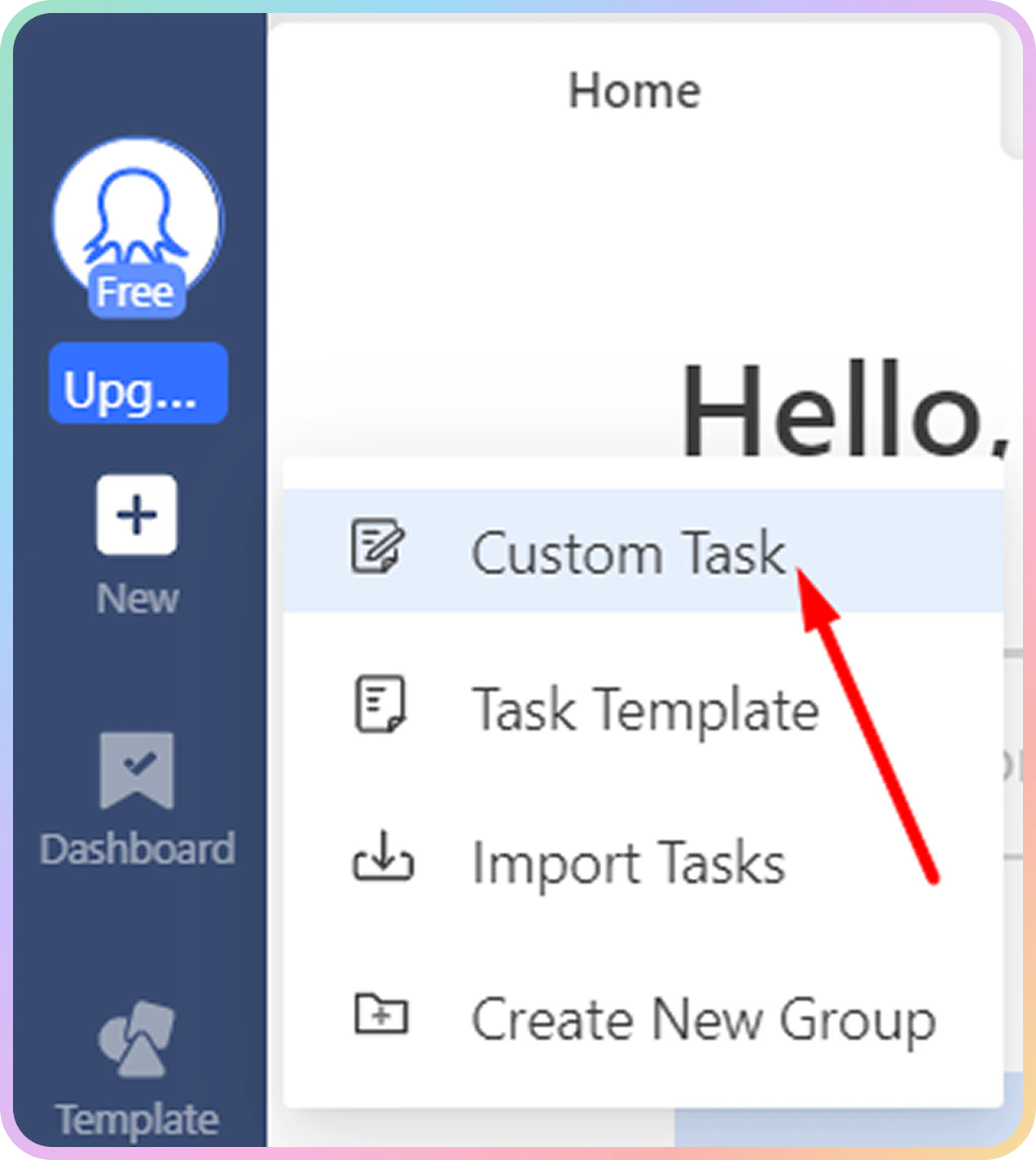
In the top-left menu, hover over the **New** button, and click on **Custom Task**. For testing purposes, we are going to create a custom task.
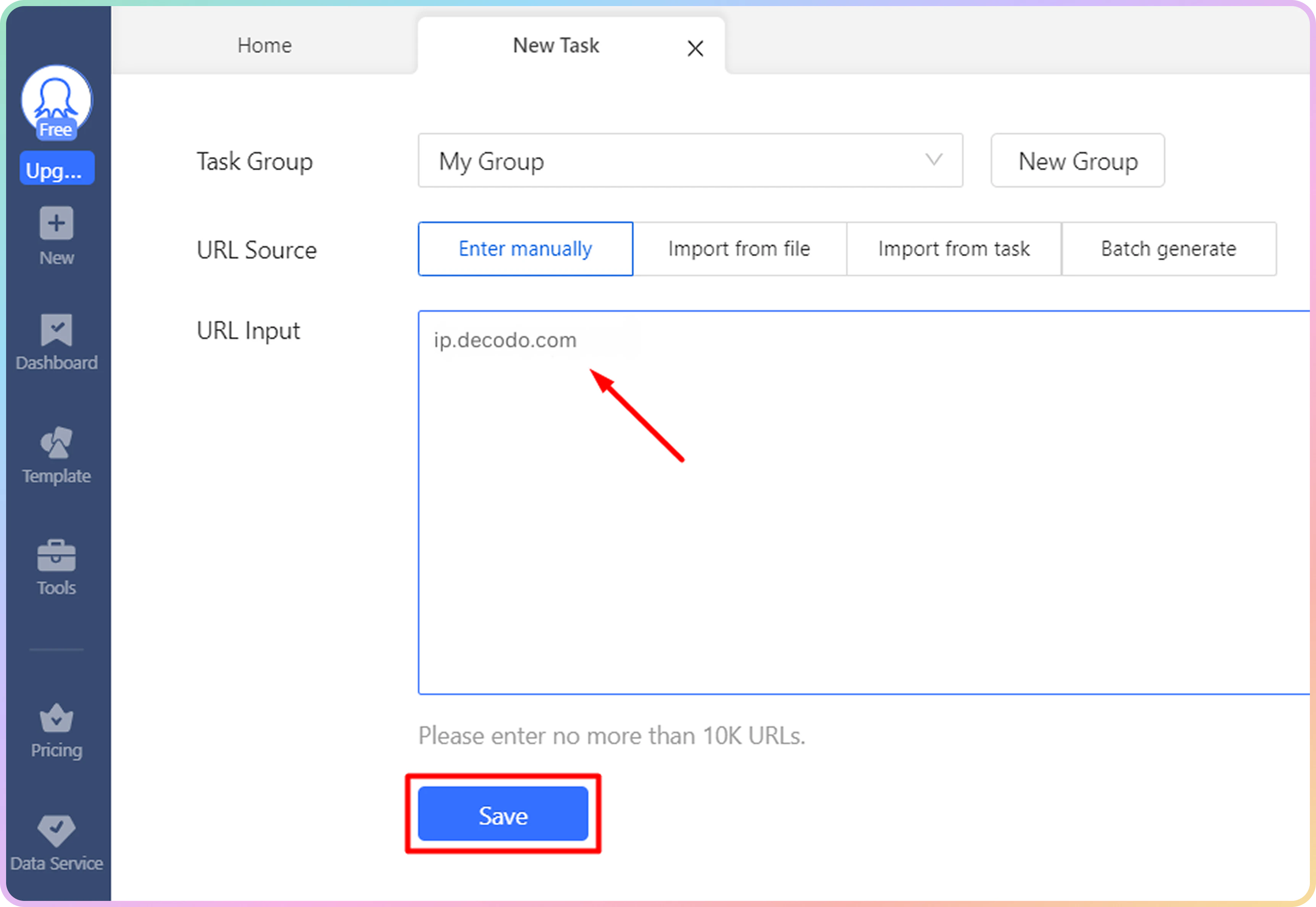
 In the **URL Input** field, indicate the website you would like to extract data from. For this test, we are going to use `ip.decodo.com`. Once you do that, hit the **Save** button.
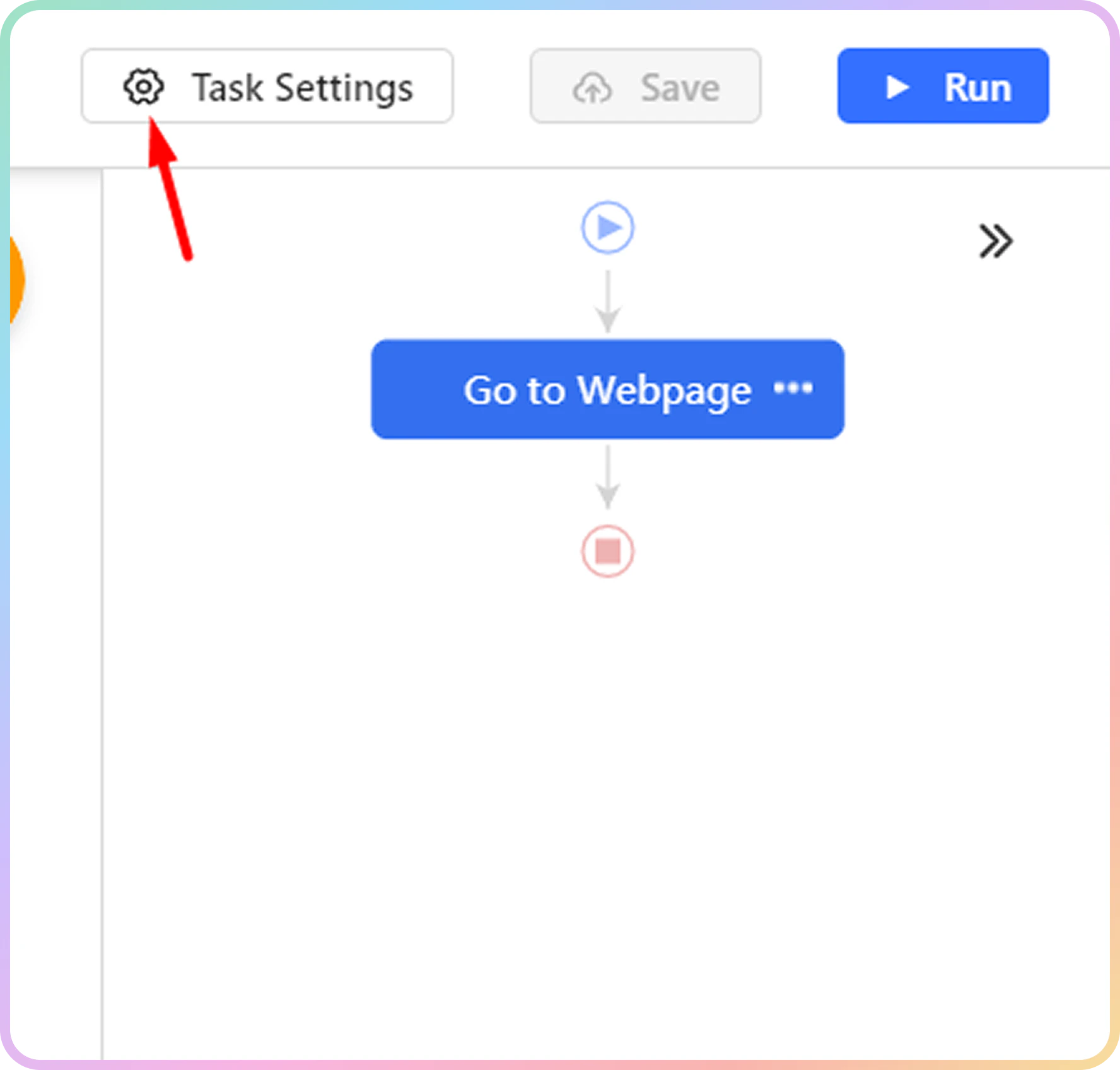
 You should now find yourself in your **Task** tab. To configure our proxies, select the **Task Settings** button.
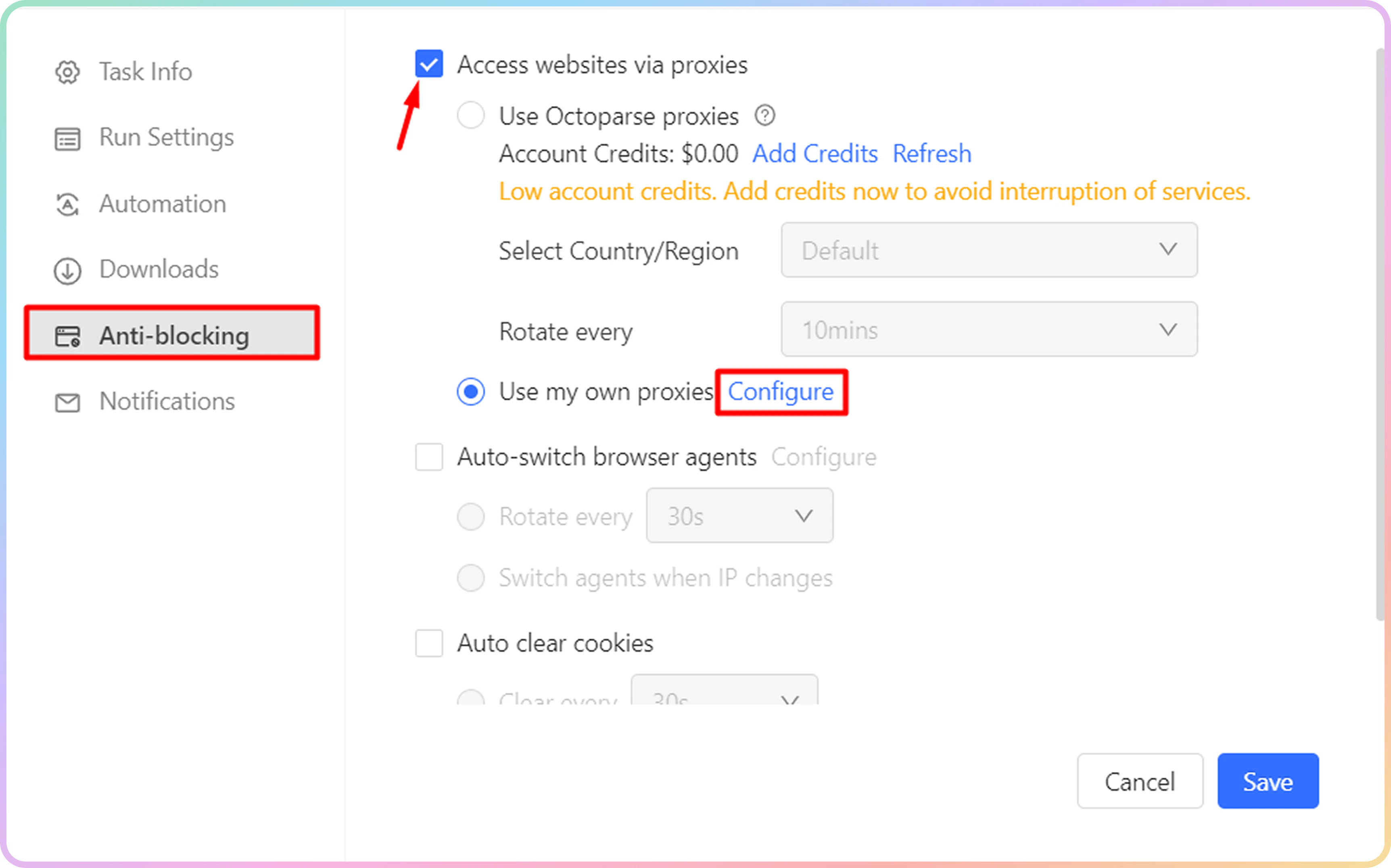
 In the pop-up menu, choose the **Anti-blocking** tab and check the option to **Access websites via proxies**. You should now be able to click on the **Configure** button.
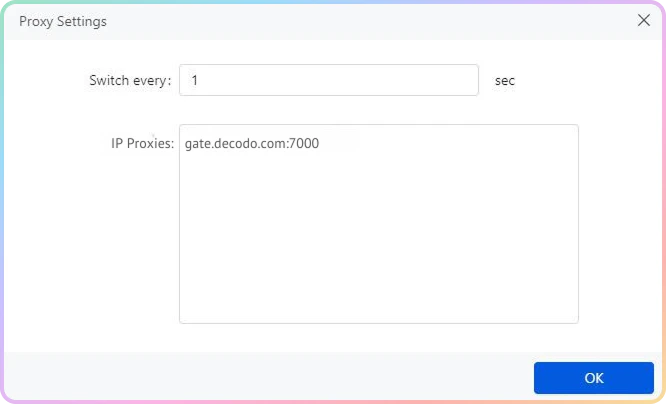
 In the Proxy Settings pop-up, define the proxy you would like to use. Unfortunately, **Octoparse** only offers `IP:PORT` based format to authenticate through a proxy network. For that particular reason, you will need to use our **Whitelisted IP** feature to skip the traditional `username:password` authentication when going through a proxy. You can whitelist your IP after logging into our dashboard [here](https://dashboard.decodo.com/residential-proxies/proxy-setup).
Once you have your `IP:PORT` ready, select the **Switch** interval according to your session type. If you are using a rotating session type, set the interval to 1. If you are using a sticky session, set it to 600. Finally, hit the **Confirm** button.
In the Proxy Settings pop-up, define the proxy you would like to use. Unfortunately, **Octoparse** only offers `IP:PORT` based format to authenticate through a proxy network. For that particular reason, you will need to use our **Whitelisted IP** feature to skip the traditional `username:password` authentication when going through a proxy. You can whitelist your IP after logging into our dashboard [here](https://dashboard.decodo.com/residential-proxies/proxy-setup).
Once you have your `IP:PORT` ready, select the **Switch** interval according to your session type. If you are using a rotating session type, set the interval to 1. If you are using a sticky session, set it to 600. Finally, hit the **Confirm** button.
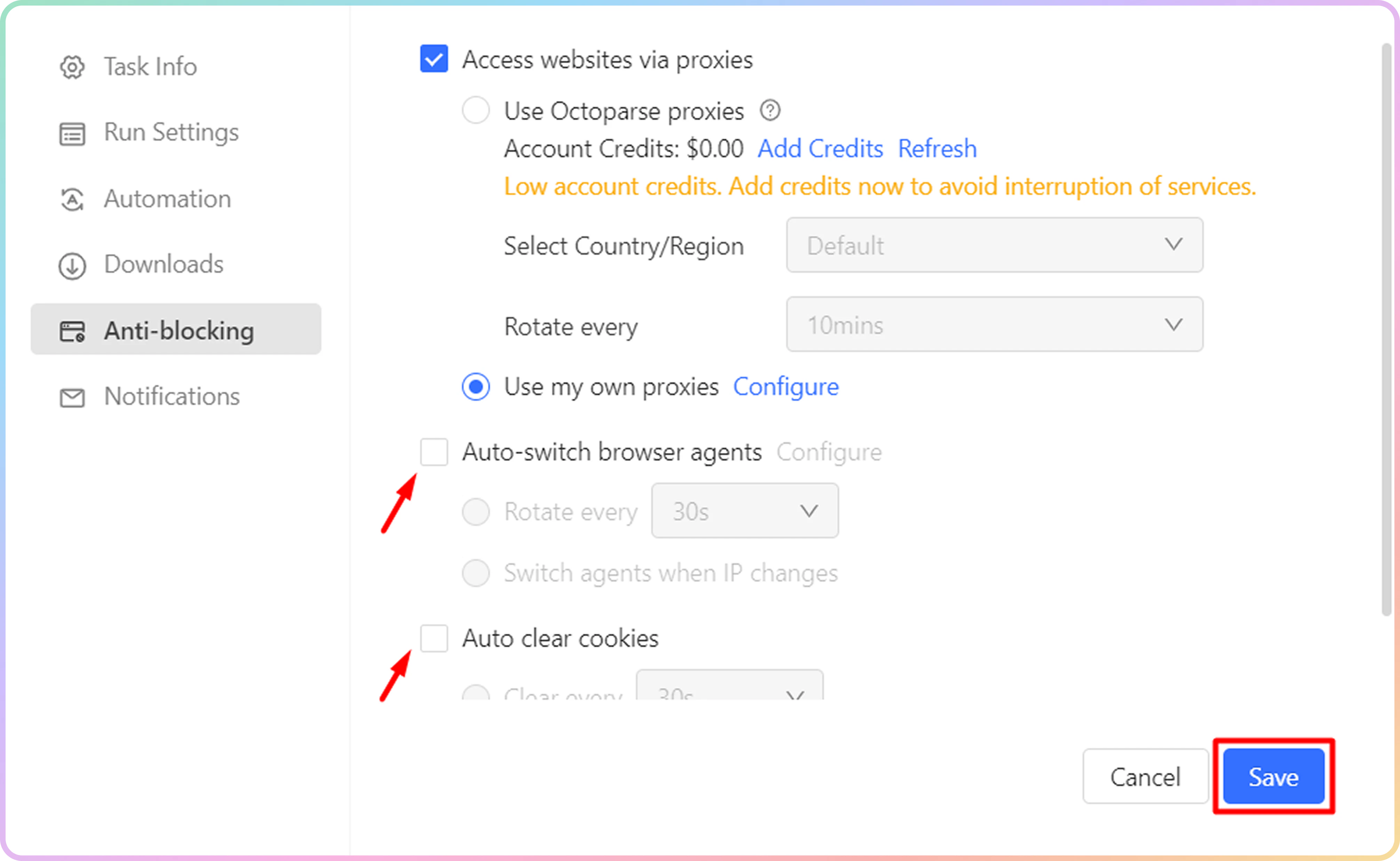
 You can enable some other settings here, like **Auto-switch browser agents** or **Auto clear cookies**. Once you're satisfied with your settings, click **Save** to continue.
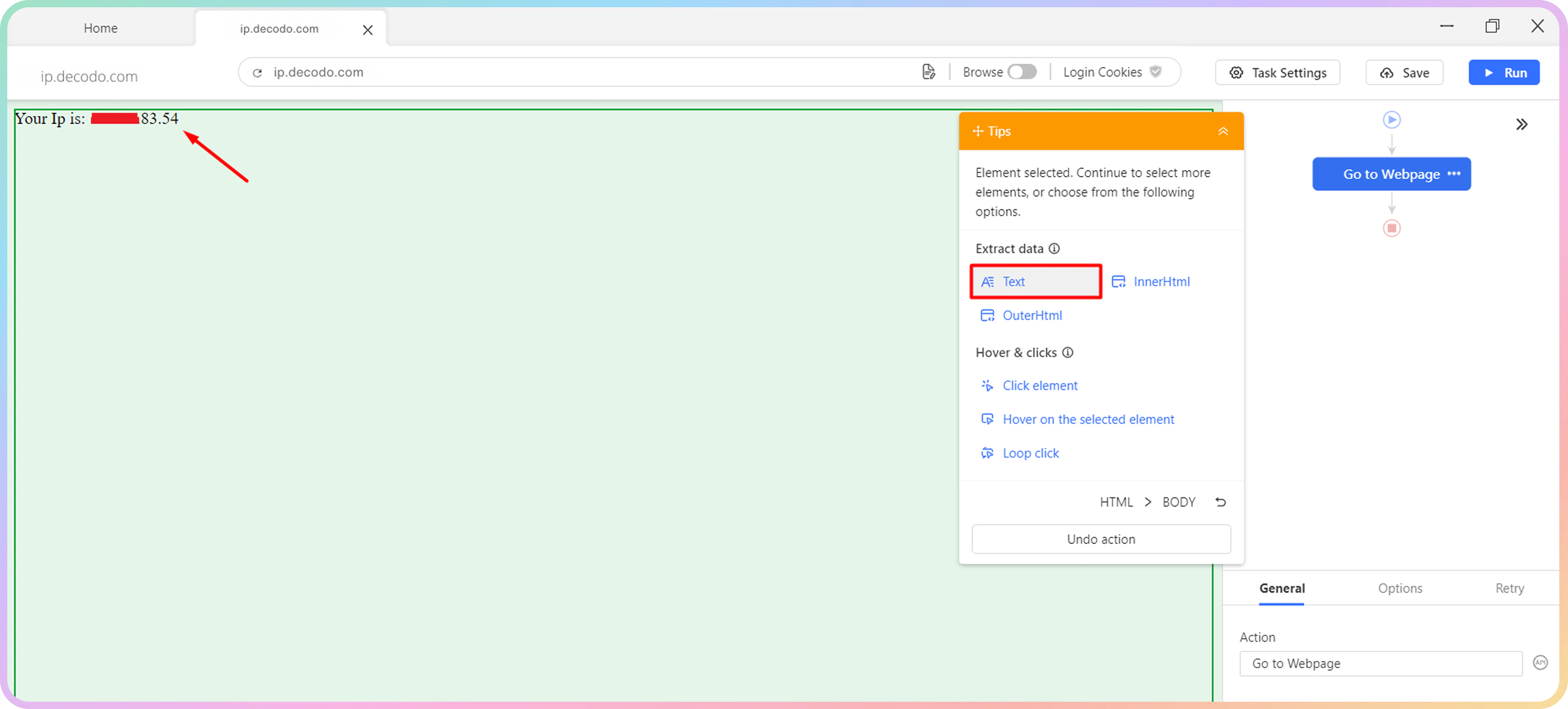
 To extract data from our example page, click on the IP address that you can see at the top of the **Octoparse** application and select **Text** in the **Extract data** option.
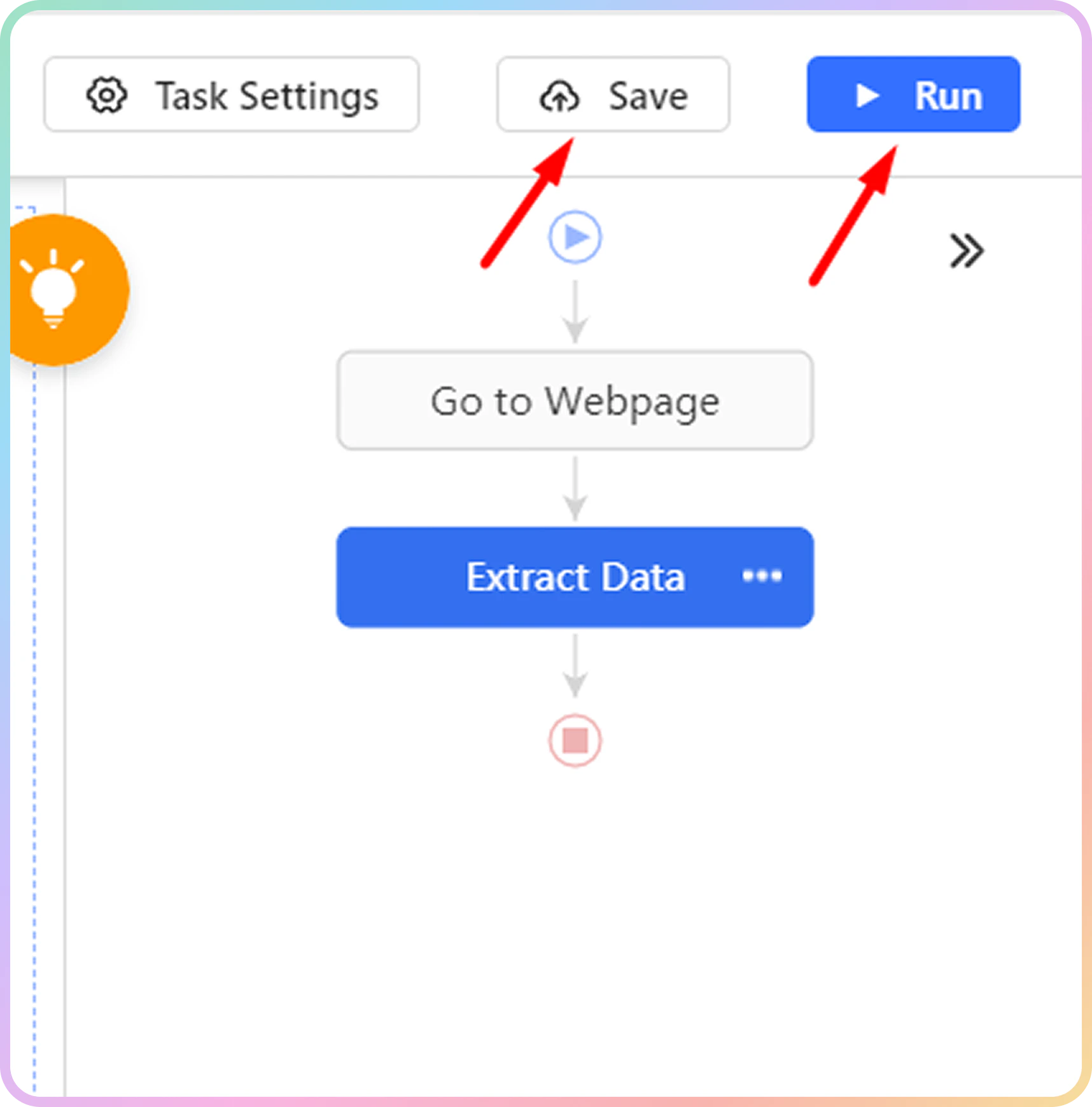
 Once that is done, click on **Save** and then **Run**.
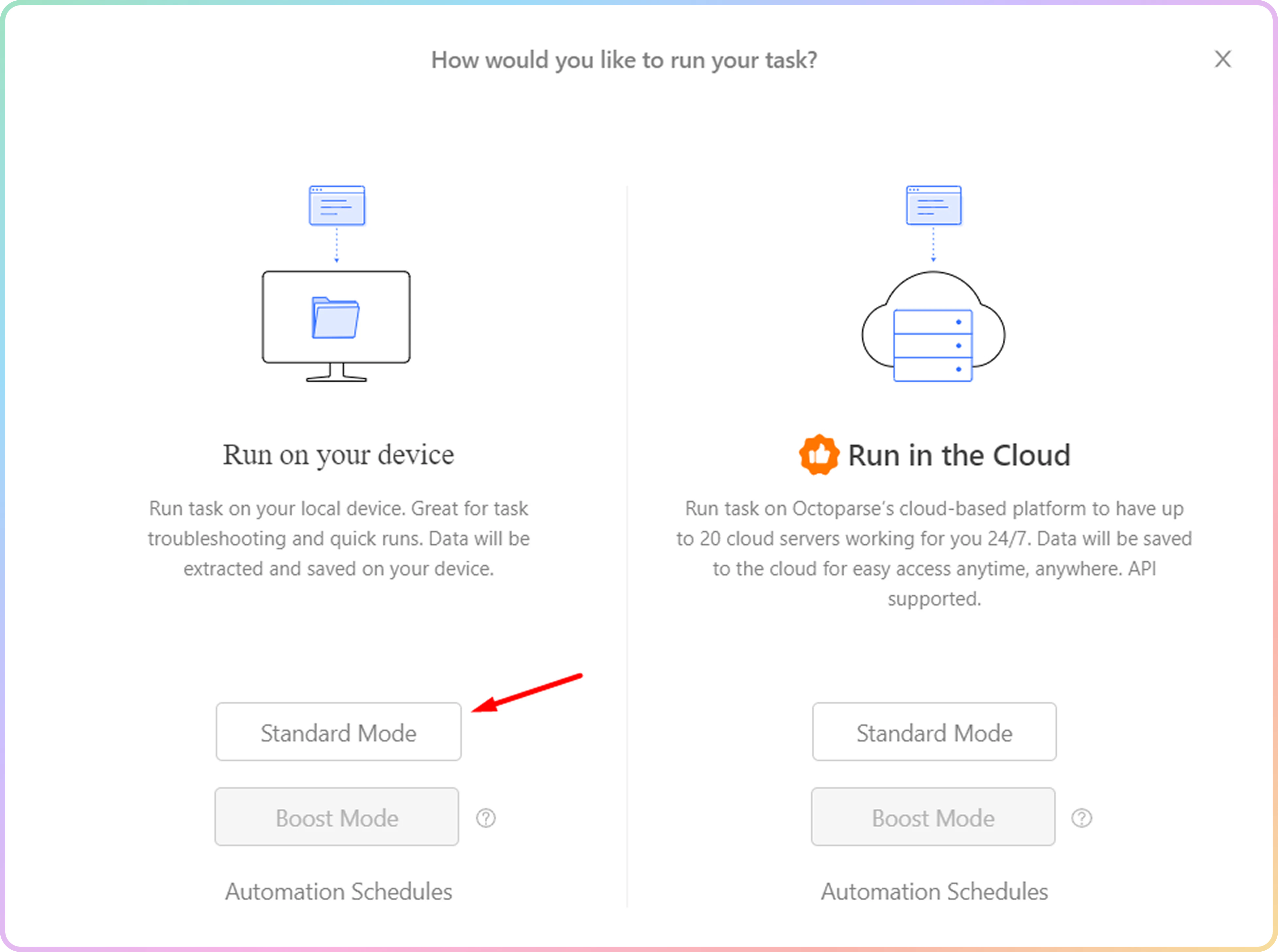
 Depending on how you want to run your task, select one of the available extraction options. For testing purposes, you can **Run task on your device** in **Standard Mode**.
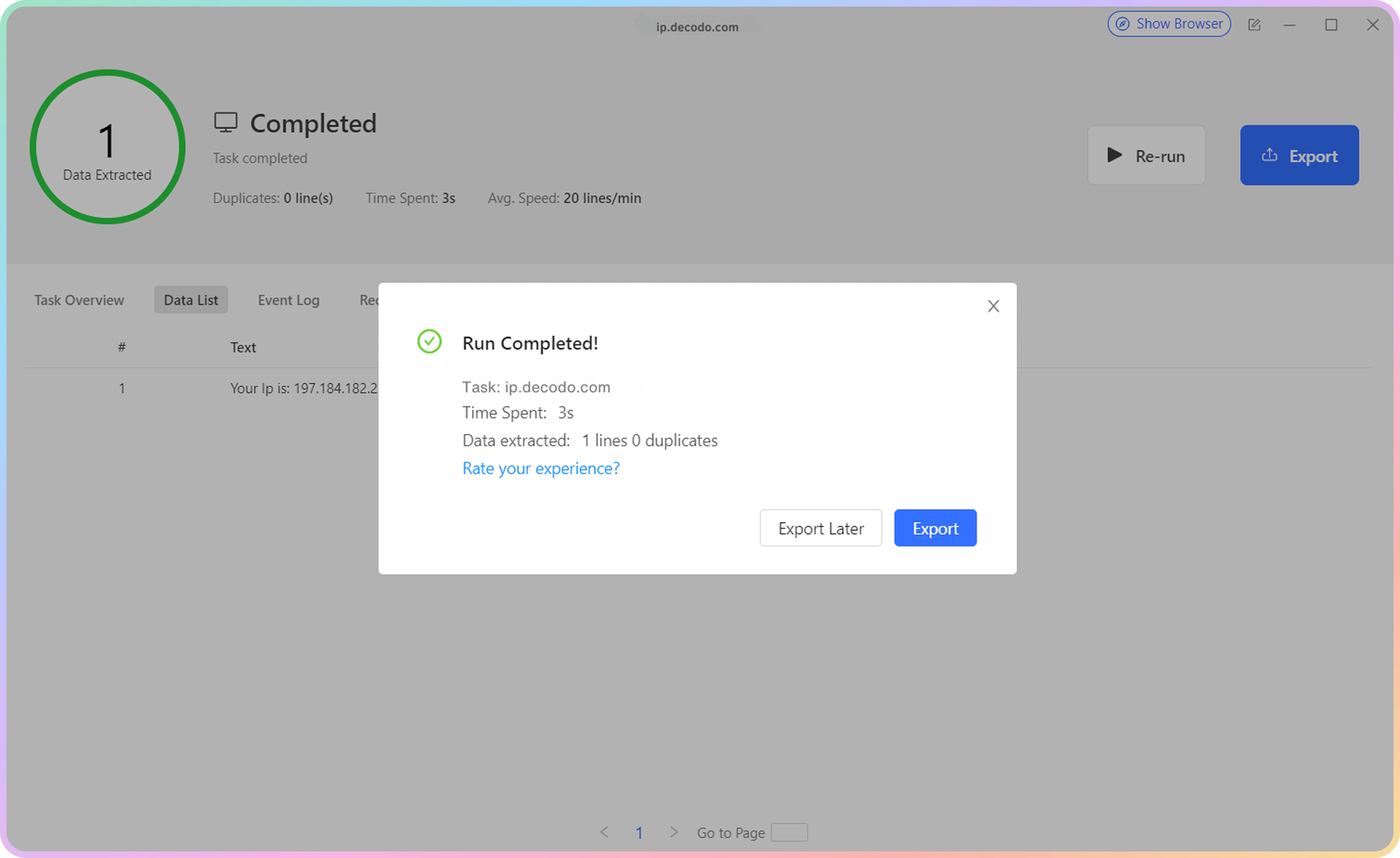
 If done correctly, you should see our proxy IP in the extracted data table once the task is finished.
 ***
Need help or just want to say hello? Our support is available 24/7. \
You can also reach us anytime via email at [support@decodo.com](mailto:support@decodo.com).
Can't find what you're looking for? Request an article! \
Have feedback? Share your thoughts on how we can improve.
***
Need help or just want to say hello? Our support is available 24/7. \
You can also reach us anytime via email at [support@decodo.com](mailto:support@decodo.com).
Can't find what you're looking for? Request an article! \
Have feedback? Share your thoughts on how we can improve.