> ## Documentation Index
> Fetch the complete documentation index at: https://help.decodo.com/llms.txt
> Use this file to discover all available pages before exploring further.
# Proxyfier Proxy Setup Guide
> Proxifier is a network utility for Windows and macOS that enables applications to connect through SOCKS5 and HTTPS proxies. It tunnels traffic to bypass firewalls, enhances privacy by masking your IP address, and provides granular control over network connections.
## Getting Started
Before proceeding, ensure you have:
* No other VPN or proxy active.
* The **proxy endpoint** and **port** (e.g., `us.decodo.com:10101`).
* Your **proxy username** and **password** (or a **whitelisted IP** set).
**Proxy Guides**
Learn how to find **proxy details** in your dashboard for each proxy type [**here**](https://help.decodo.com/docs/proxy-quick-start-guides).
## Windows Proxy Setup
First, [**download**](https://www.proxifier.com/download/) Proxifier.
Open the application and go to **Proxy servers**.
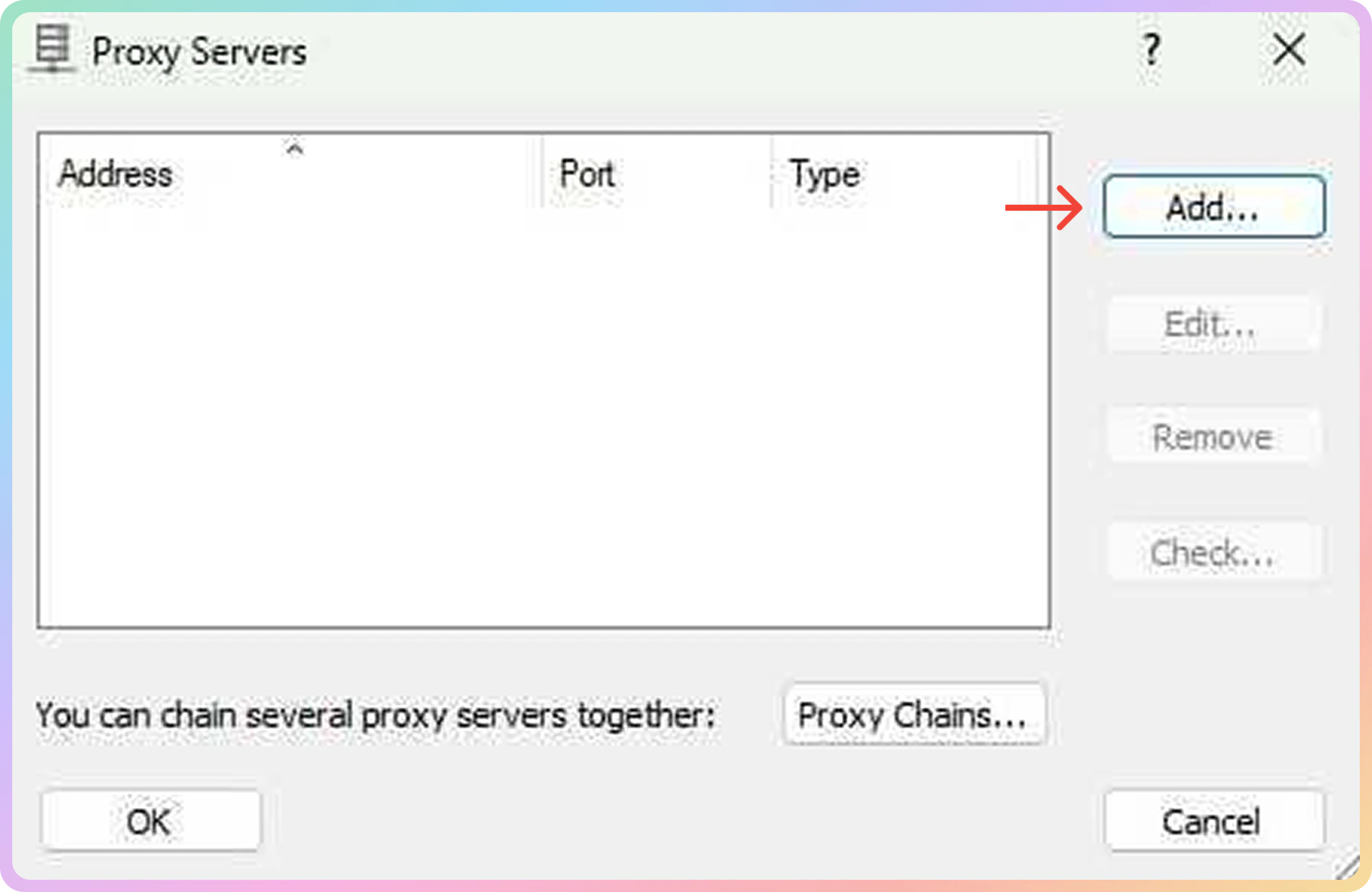
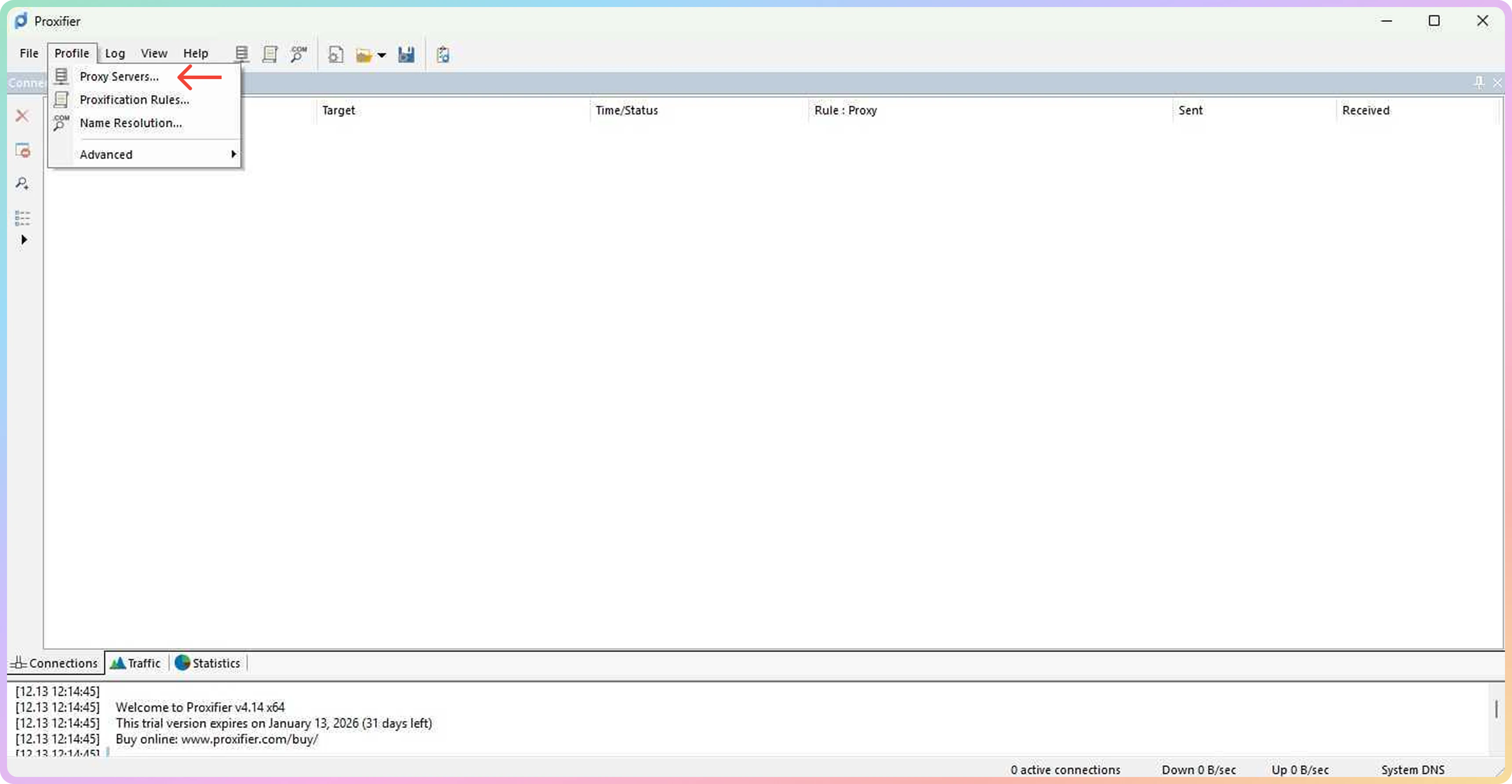 Click **Add** to create a new proxy server.
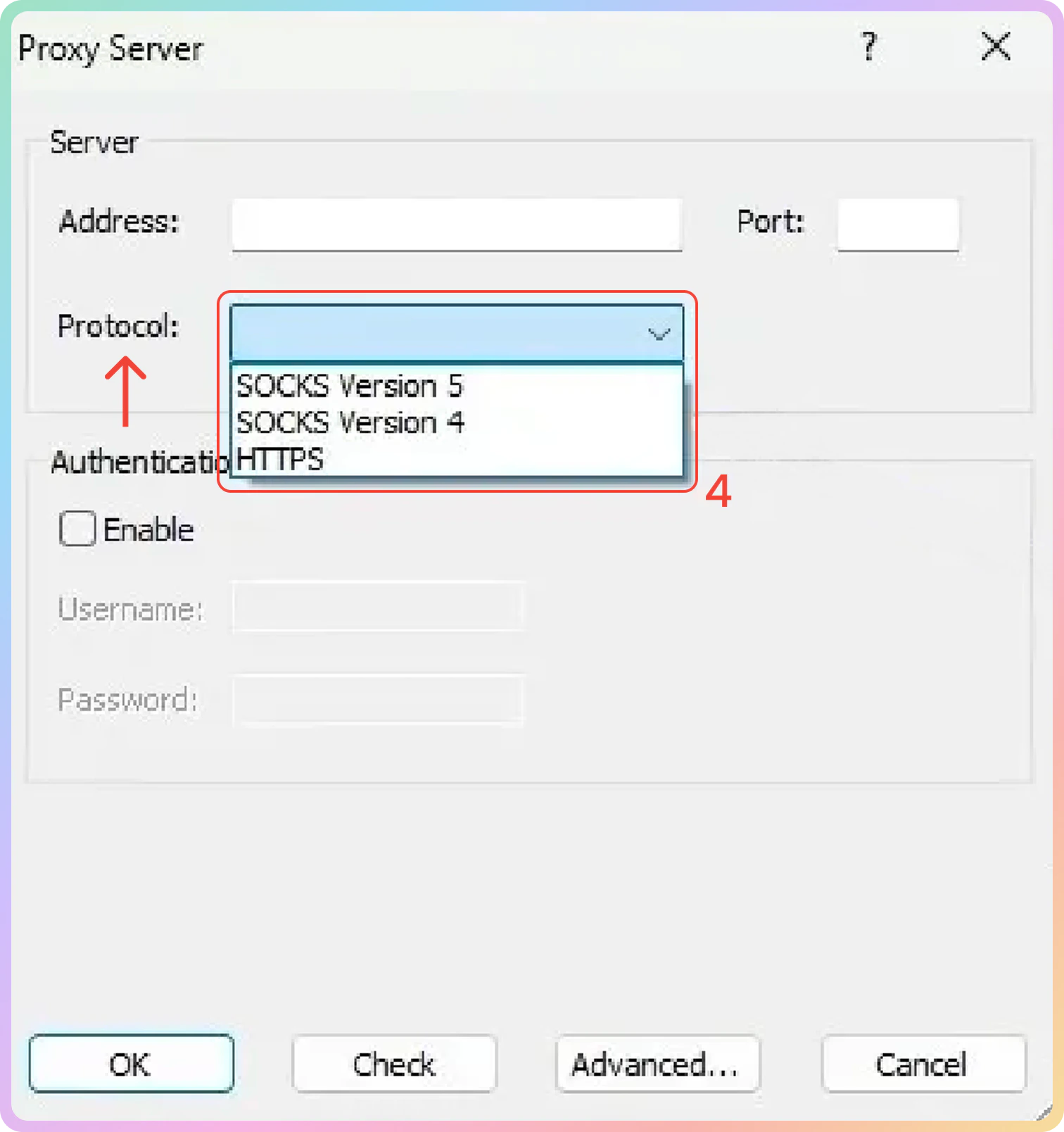
 Select the **Proxy type**: `HTTPS` or `SOCKS5`.
 Fill in the **Host:Port** (e.g., `gate.decodo.com`:`7000`).
Check **Enable** box to enter authentication
Set up the authentication:
* **Username**: Proxy username.
* **Password**: Proxy password.
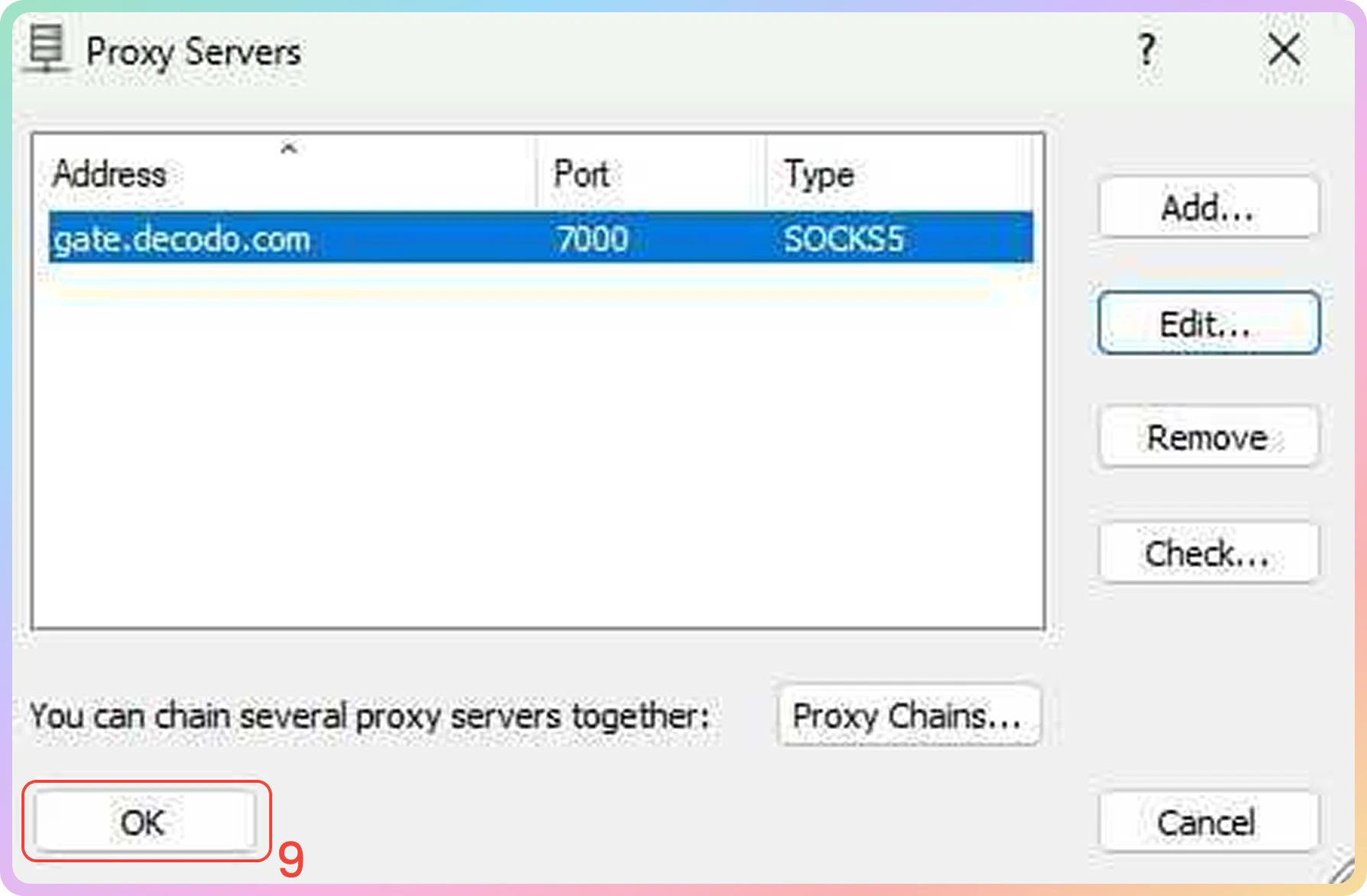
Click **OK** to save the profile setup.
Fill in the **Host:Port** (e.g., `gate.decodo.com`:`7000`).
Check **Enable** box to enter authentication
Set up the authentication:
* **Username**: Proxy username.
* **Password**: Proxy password.
Click **OK** to save the profile setup.
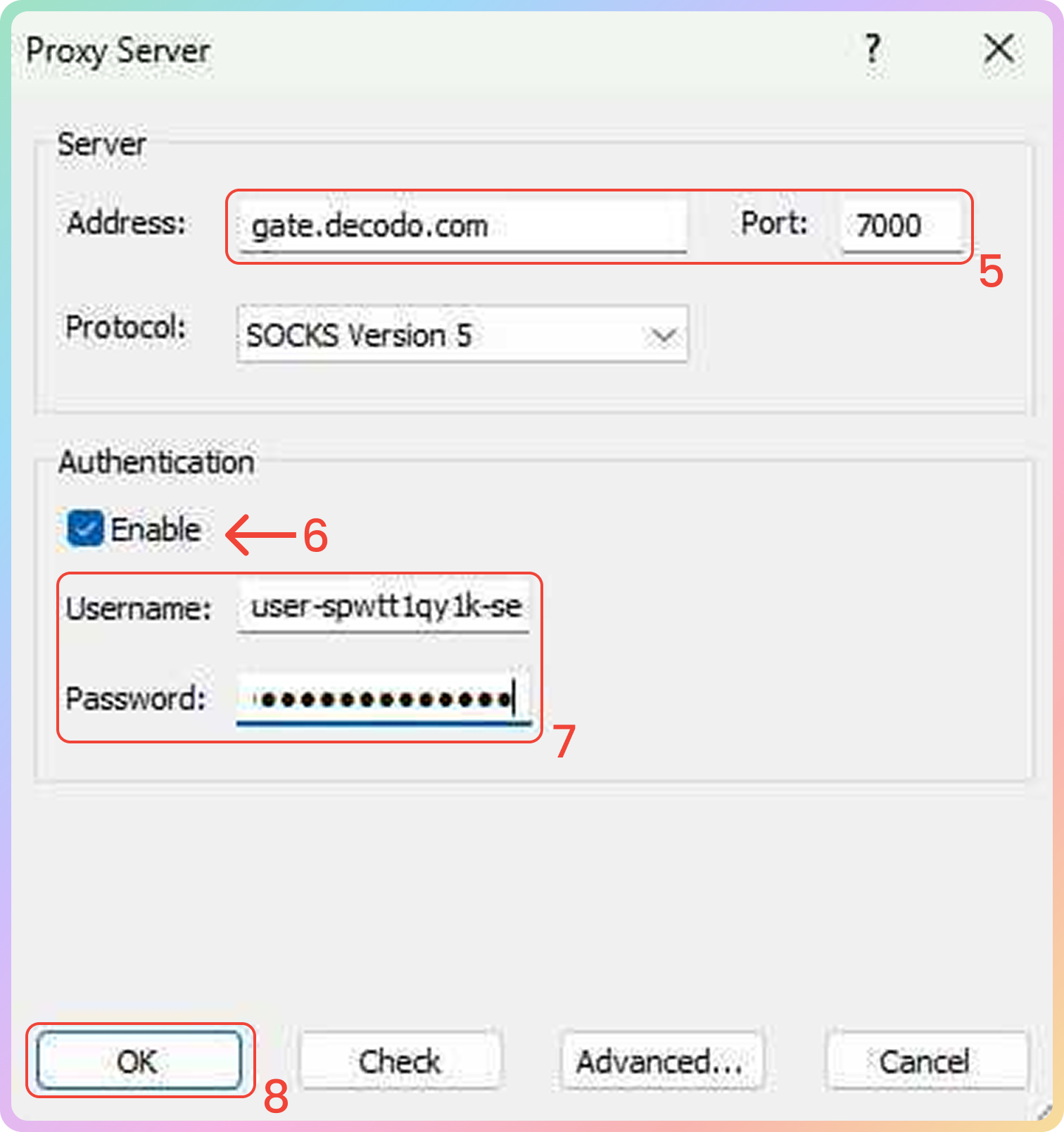 Press **OK** on the new tab to save the proxy server.
 ### Troubleshooting
If you are having connection issues, here is a solution you can try on your end.
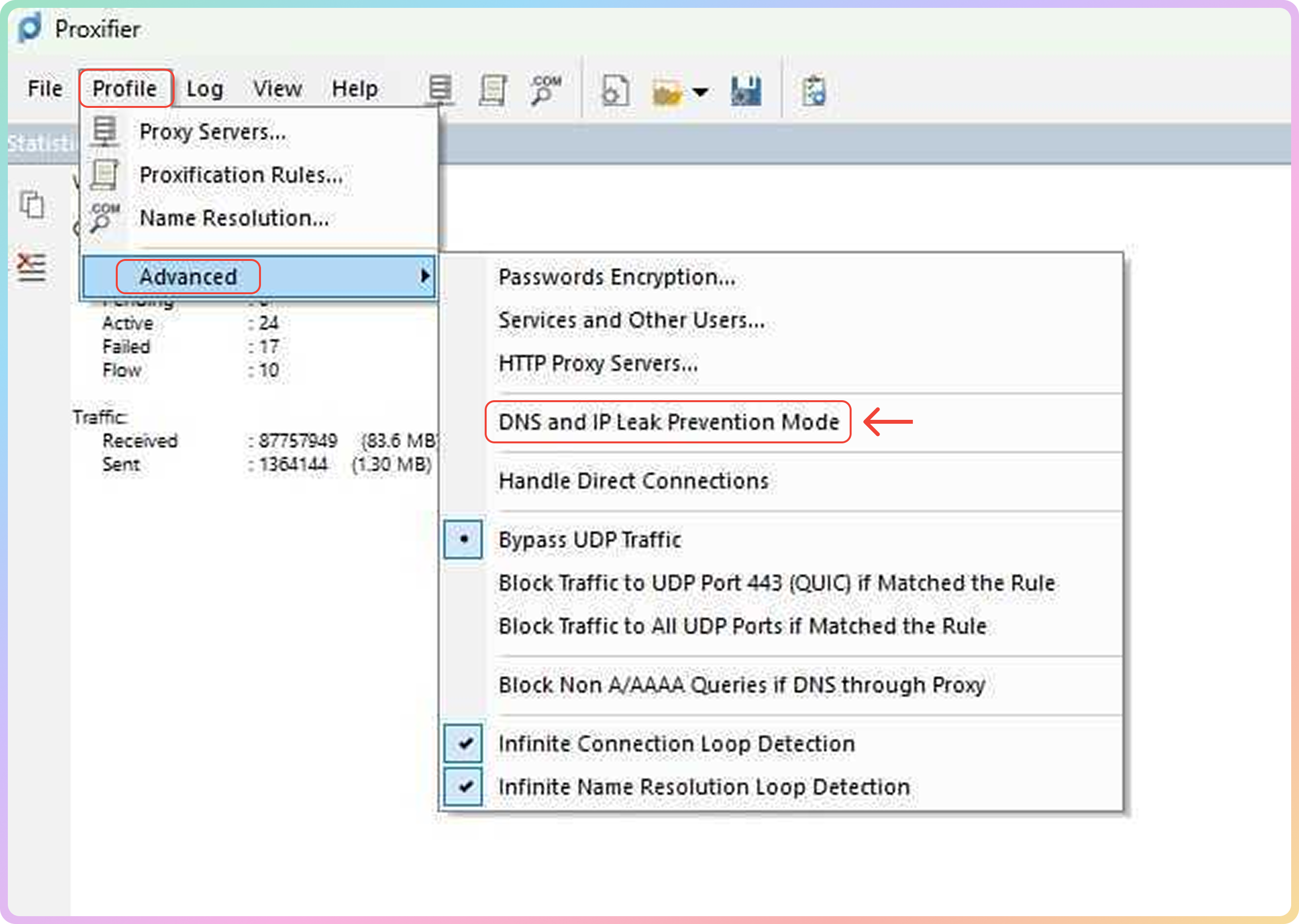
**Step 1.** Click on **Profile** -> **Advanced** -> enable **DNS and IP Leak prevention mode**.
### Troubleshooting
If you are having connection issues, here is a solution you can try on your end.
**Step 1.** Click on **Profile** -> **Advanced** -> enable **DNS and IP Leak prevention mode**.
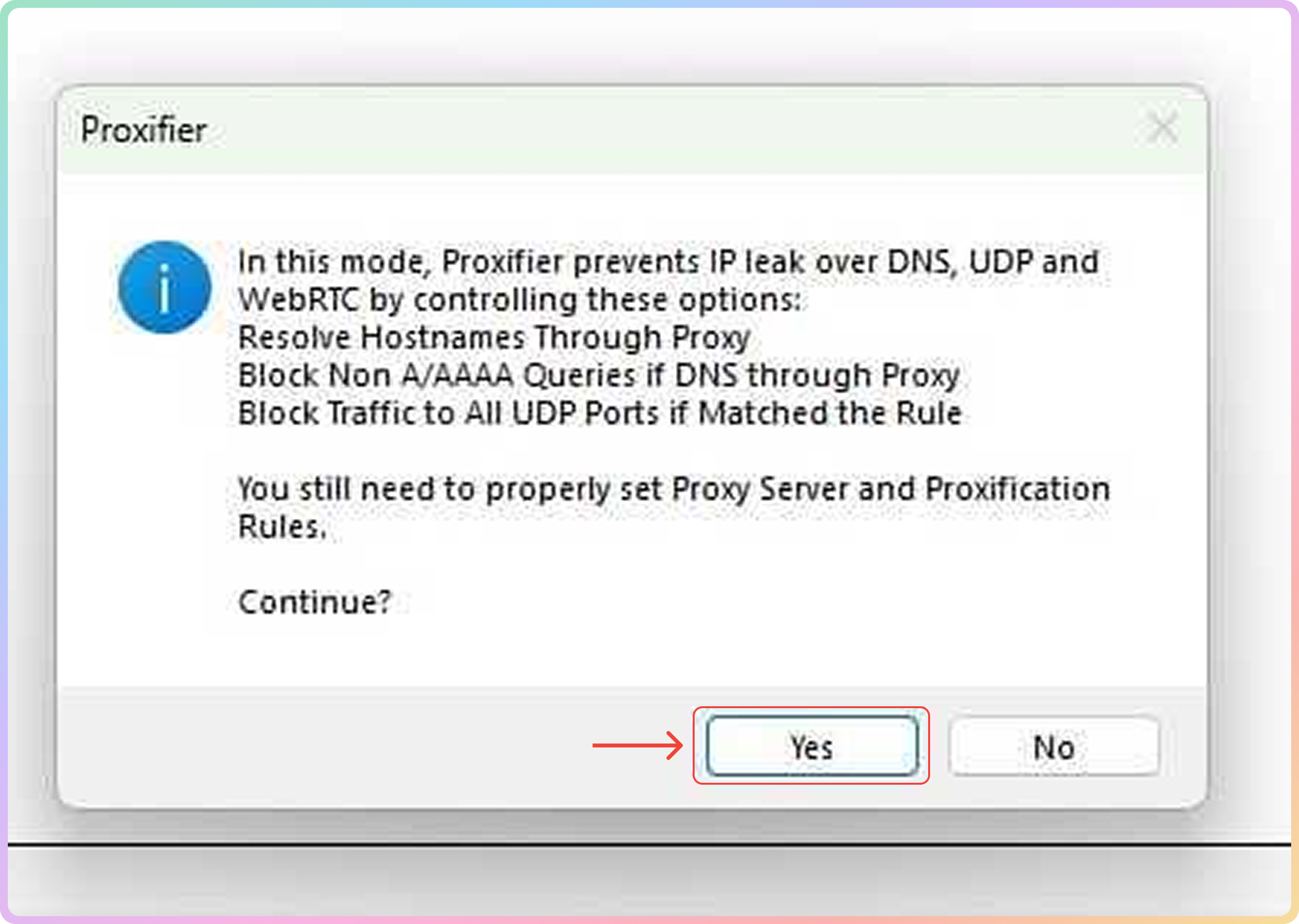
 **Step 2.** Click **Yes** to proceed with the change.
 ### Verify the connection
* Open a browser and visit [**ip.decodo.com**](https://ip.decodo.com/). If successful, your IP address will display the location of the proxy. If needed, restart the application.
## macOS Proxy Setup
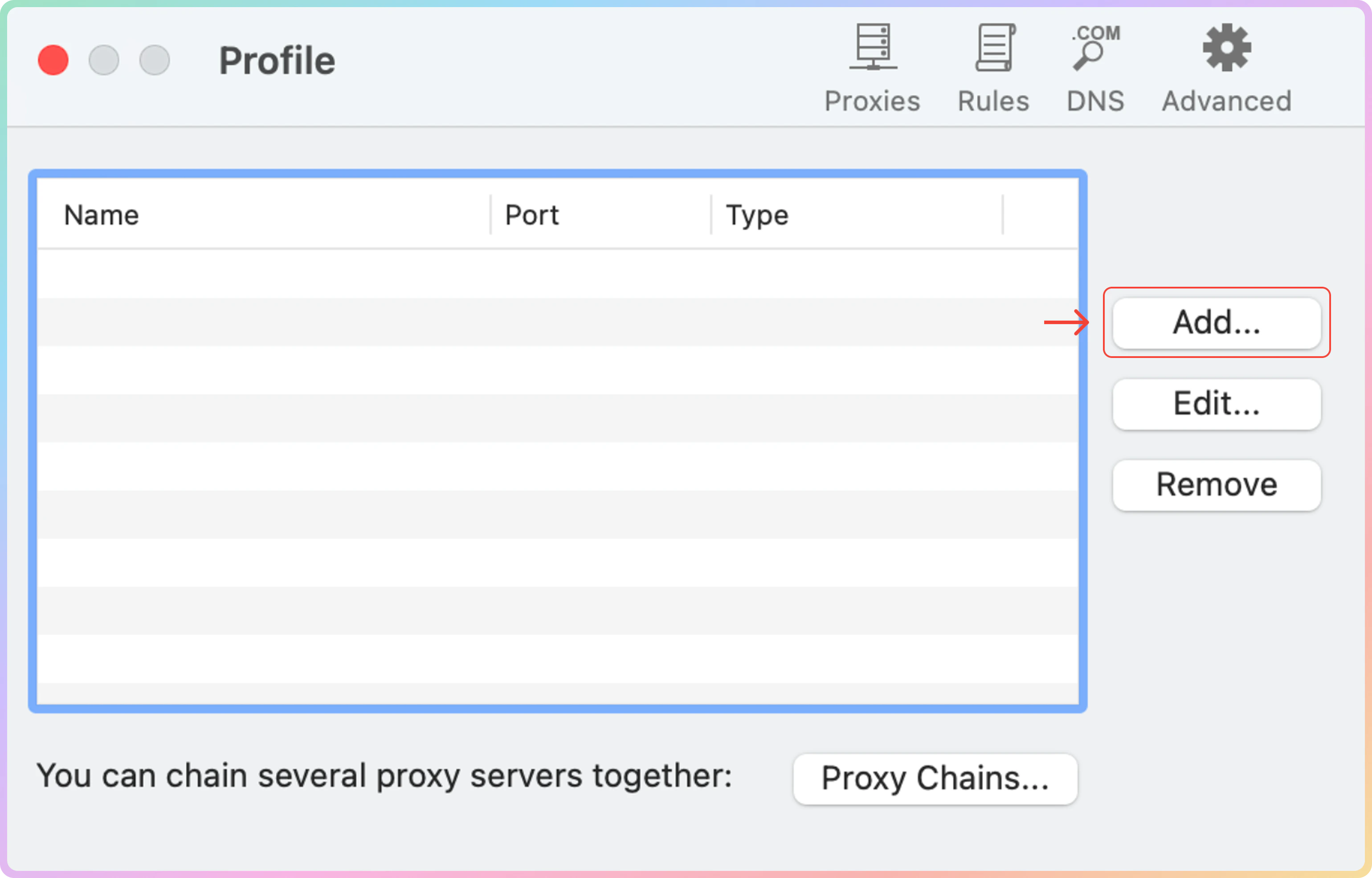
Open the app and go to **Proxies**.
### Verify the connection
* Open a browser and visit [**ip.decodo.com**](https://ip.decodo.com/). If successful, your IP address will display the location of the proxy. If needed, restart the application.
## macOS Proxy Setup
Open the app and go to **Proxies**.
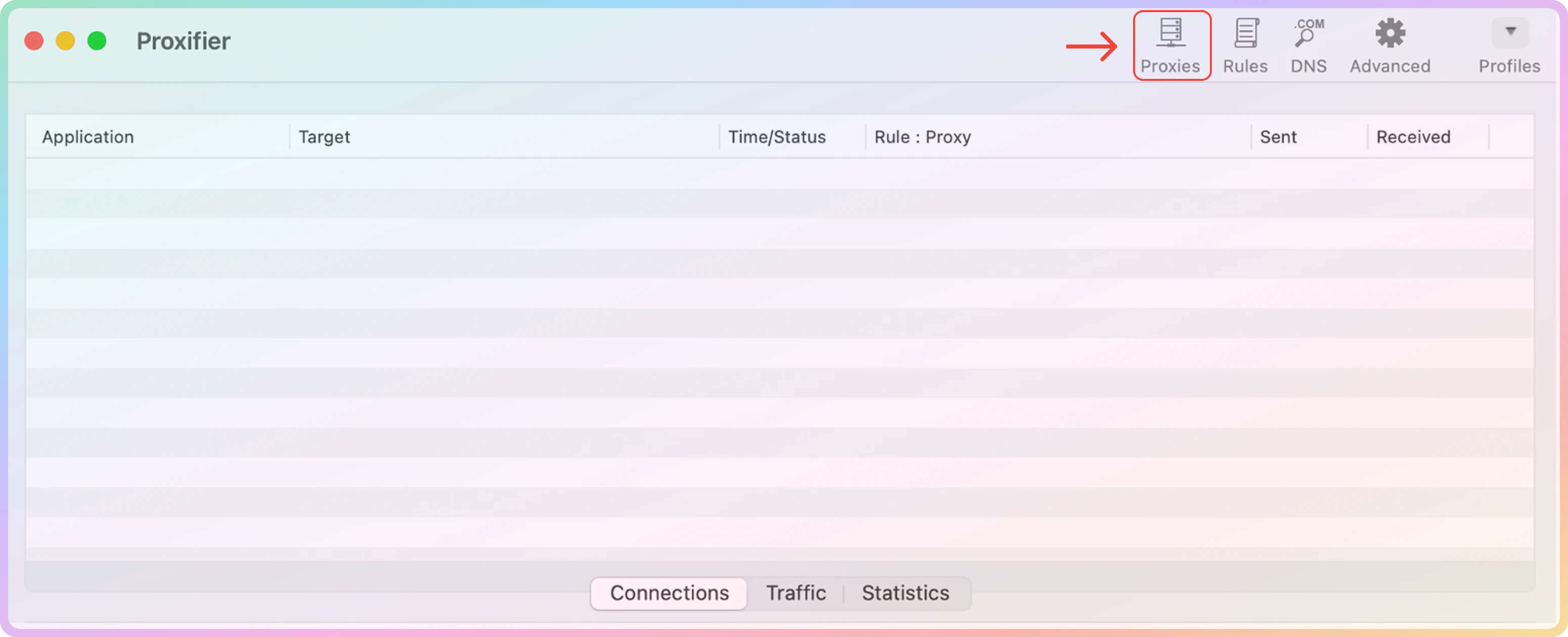 Click on **Add** to create a new proxy server.
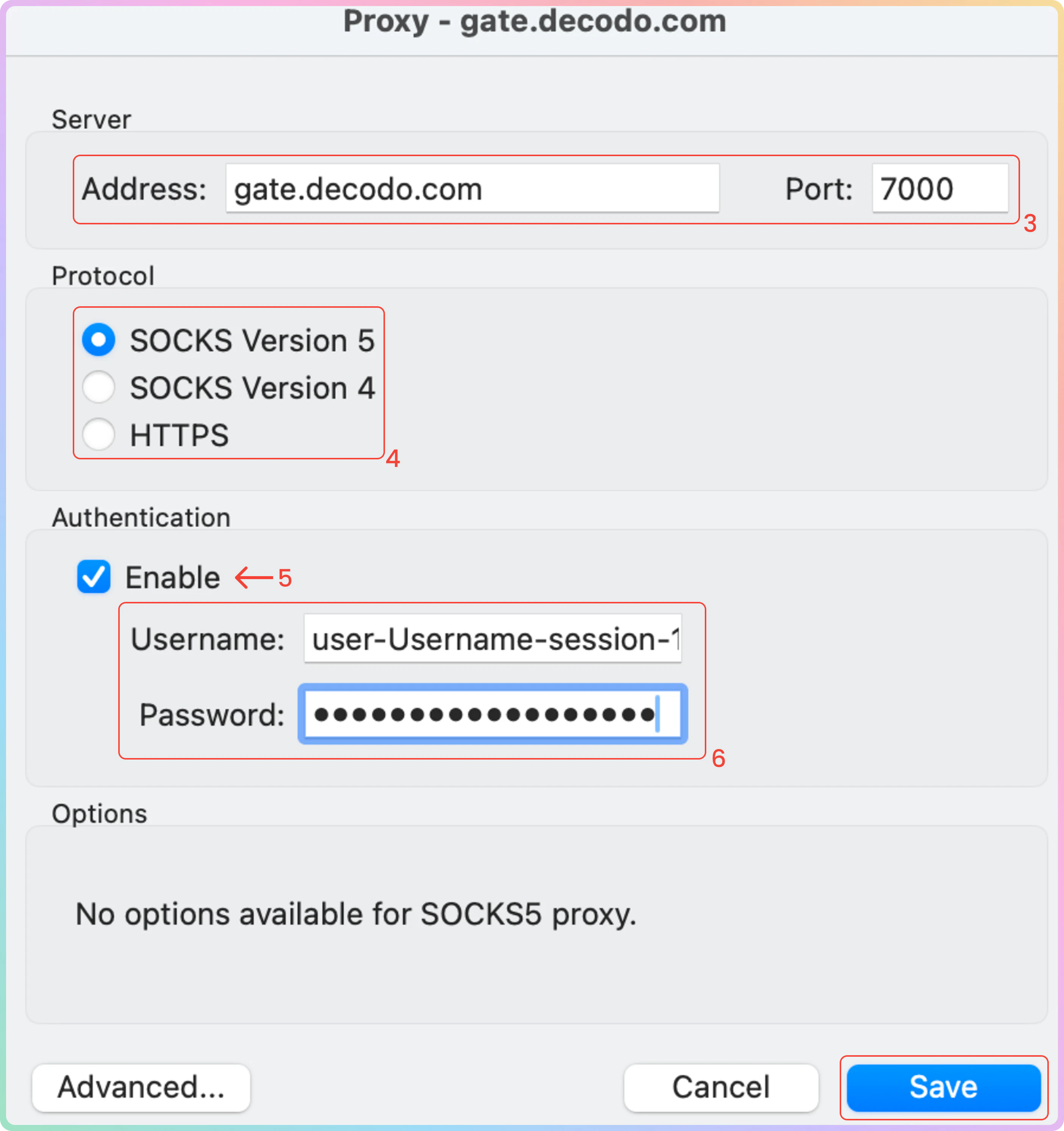
 Fill in the **Host:Port** (e.g., `gate.decodo.com`:`7000`).
Select the **Proxy type**: `HTTPS` or `SOCKS5`.
Check the **Enable** box to enter authentication.
Set up the authentication:
* **Username**: Proxy username.
* **Password**: Proxy password.
Click **Save** to save the profile setup.
Fill in the **Host:Port** (e.g., `gate.decodo.com`:`7000`).
Select the **Proxy type**: `HTTPS` or `SOCKS5`.
Check the **Enable** box to enter authentication.
Set up the authentication:
* **Username**: Proxy username.
* **Password**: Proxy password.
Click **Save** to save the profile setup.
 ### Verify the Connection
* Open a browser and visit [**ip.decodo.com**](https://ip.decodo.com/). If successful, your IP address will display the location of the proxy. If needed, restart the application.
***
## Common Issues
### Blocklist
⚠️ Please be aware that we [**restrict access to some websites**](https://decodo.com/faq/general/do-you-have-any-blocked-sites).
### `SOCKS5`
**Residential and Mobile Proxy Support Limitations**
The `gate.decodo.com` **endpoint** and the `7000` **port** must be used to utilize `SOCKS5` Residential or Mobile proxies. **Country** endpoints, such as `us.decodo.com`, will not function!
You can target specific locations instead by specifying the location in your username using **advanced** **parameters**:
* e.g.: `user-username-country-us` will connect to the **USA** pool.
To get a **sticky** `SOCKS5` Residential or Mobile proxy in a **tool**, you must use a `session` **parameter**. Otherwise, the proxy will always rotate even with a set `sessionduration` parameter.
* e.g.: `user-username-session-abc123-sessionduration-30` will connect to the same session.
* The **session ID** name can be defined by any string of your choice.
Learn more in our **advanced** **parameter** guides for [**Residential**](https://help.decodo.com/docs/residential-proxy-advanced-parameters/) and [**Mobile**](https://help.decodo.com/docs/mobile-proxy-advanced-parameters/) proxies.
### Direct IP
If you buy an IP list, you can specify which IPs to connect to using the **direct** `ip` parameter in the proxy username: `user-username-ip-x.x.x.x`
* Supported products: **DC Pay/IP**, **Dedicated DC**, **ISP Pay/IP**, **Dedicated ISP** plans.
* Products that offer access to the full proxy pool, such as residential proxies, do not support this parameter.
* Decodo proxies don't support an `IP:PORT` format by default.
* You must use the **endpoint** rotator format (e.g., `us.decodo.com:10101`).
* If necessary, try the workaround [**here**](https://help.decodo.com/docs/how-to-get-ip-port-format#/), but it only works temporarily before requiring another setup update.
### Troubleshooting
If you experience any other issues, check out our main [**troubleshooting**](https://help.decodo.com/docs/proxy-troubleshooting) section.
***
Need help or just want to say hello? Our support is available 24/7. \
You can also reach us anytime via email at [support@decodo.com](mailto:support@decodo.com).
Can't find what you're looking for? Request an article! \
Have feedback? Share your thoughts on how we can improve.
### Verify the Connection
* Open a browser and visit [**ip.decodo.com**](https://ip.decodo.com/). If successful, your IP address will display the location of the proxy. If needed, restart the application.
***
## Common Issues
### Blocklist
⚠️ Please be aware that we [**restrict access to some websites**](https://decodo.com/faq/general/do-you-have-any-blocked-sites).
### `SOCKS5`
**Residential and Mobile Proxy Support Limitations**
The `gate.decodo.com` **endpoint** and the `7000` **port** must be used to utilize `SOCKS5` Residential or Mobile proxies. **Country** endpoints, such as `us.decodo.com`, will not function!
You can target specific locations instead by specifying the location in your username using **advanced** **parameters**:
* e.g.: `user-username-country-us` will connect to the **USA** pool.
To get a **sticky** `SOCKS5` Residential or Mobile proxy in a **tool**, you must use a `session` **parameter**. Otherwise, the proxy will always rotate even with a set `sessionduration` parameter.
* e.g.: `user-username-session-abc123-sessionduration-30` will connect to the same session.
* The **session ID** name can be defined by any string of your choice.
Learn more in our **advanced** **parameter** guides for [**Residential**](https://help.decodo.com/docs/residential-proxy-advanced-parameters/) and [**Mobile**](https://help.decodo.com/docs/mobile-proxy-advanced-parameters/) proxies.
### Direct IP
If you buy an IP list, you can specify which IPs to connect to using the **direct** `ip` parameter in the proxy username: `user-username-ip-x.x.x.x`
* Supported products: **DC Pay/IP**, **Dedicated DC**, **ISP Pay/IP**, **Dedicated ISP** plans.
* Products that offer access to the full proxy pool, such as residential proxies, do not support this parameter.
* Decodo proxies don't support an `IP:PORT` format by default.
* You must use the **endpoint** rotator format (e.g., `us.decodo.com:10101`).
* If necessary, try the workaround [**here**](https://help.decodo.com/docs/how-to-get-ip-port-format#/), but it only works temporarily before requiring another setup update.
### Troubleshooting
If you experience any other issues, check out our main [**troubleshooting**](https://help.decodo.com/docs/proxy-troubleshooting) section.
***
Need help or just want to say hello? Our support is available 24/7. \
You can also reach us anytime via email at [support@decodo.com](mailto:support@decodo.com).
Can't find what you're looking for? Request an article! \
Have feedback? Share your thoughts on how we can improve.