> ## Documentation Index
> Fetch the complete documentation index at: https://help.decodo.com/llms.txt
> Use this file to discover all available pages before exploring further.
# PVACreator Proxy Setup Guide
## Getting the Proxies
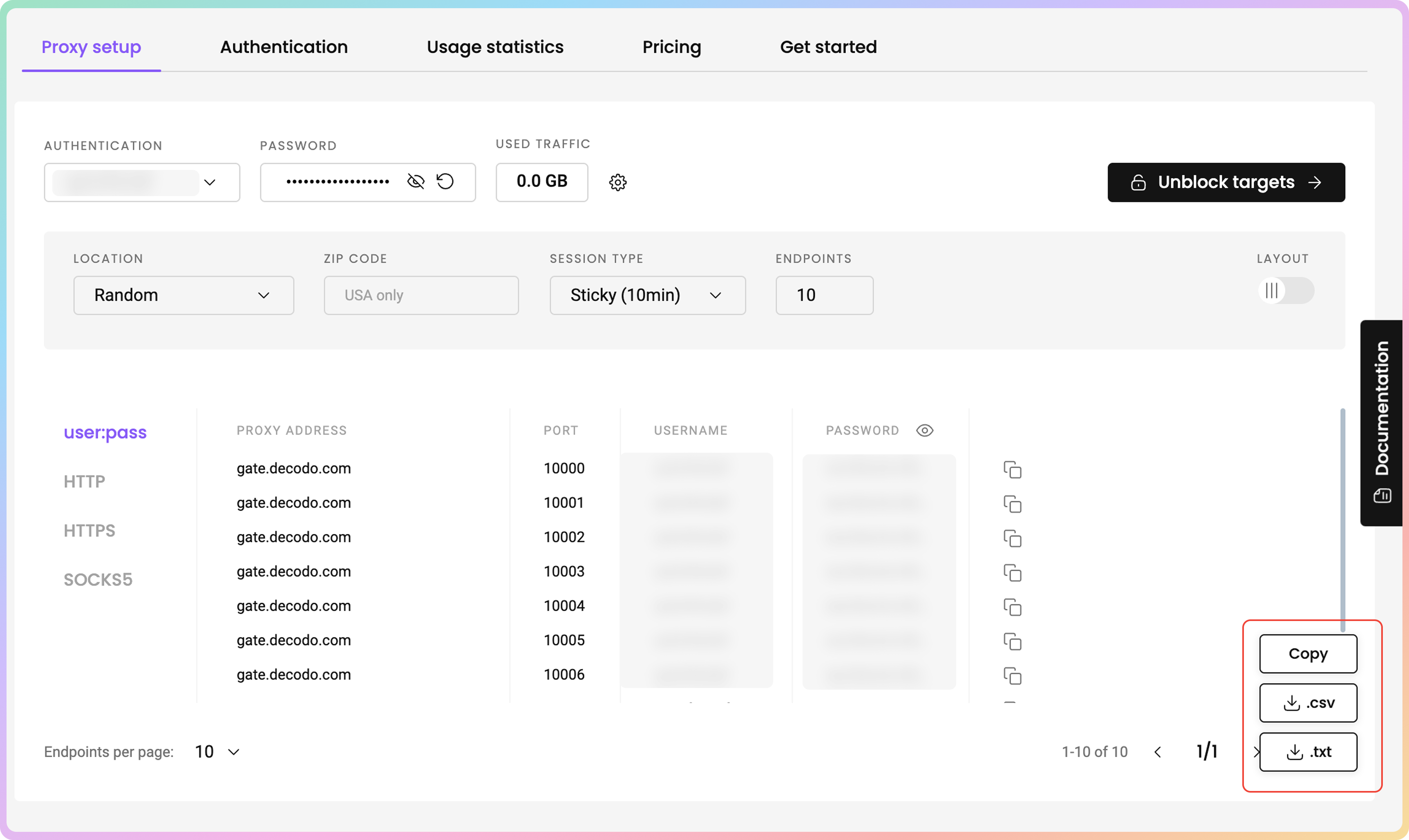
Log in to your dashboard. Navigate to the **Residential** - [**Proxy setup**](https://dashboard.decodo.com/residential-proxies/proxy-setup) page. You will find the **Endpoint generator** by scrolling down.
Select your [**Authentication method**](https://help.decodo.com/docs/proxy-authentication-guides#/) and **Location**.
Select the **Session type**.
Select the **Protocol**. If needed, you can change the number of proxies you want right above the generated list on the right side.
You can download a list of proxies in **.txt or .csv** files. Alternatively, you can copy the proxies right from the generated list.
 ## Proxy Setup
Open **PVACreator**, and click on **Proxy**. Then, click **Import** to import proxies.
## Proxy Setup
Open **PVACreator**, and click on **Proxy**. Then, click **Import** to import proxies.
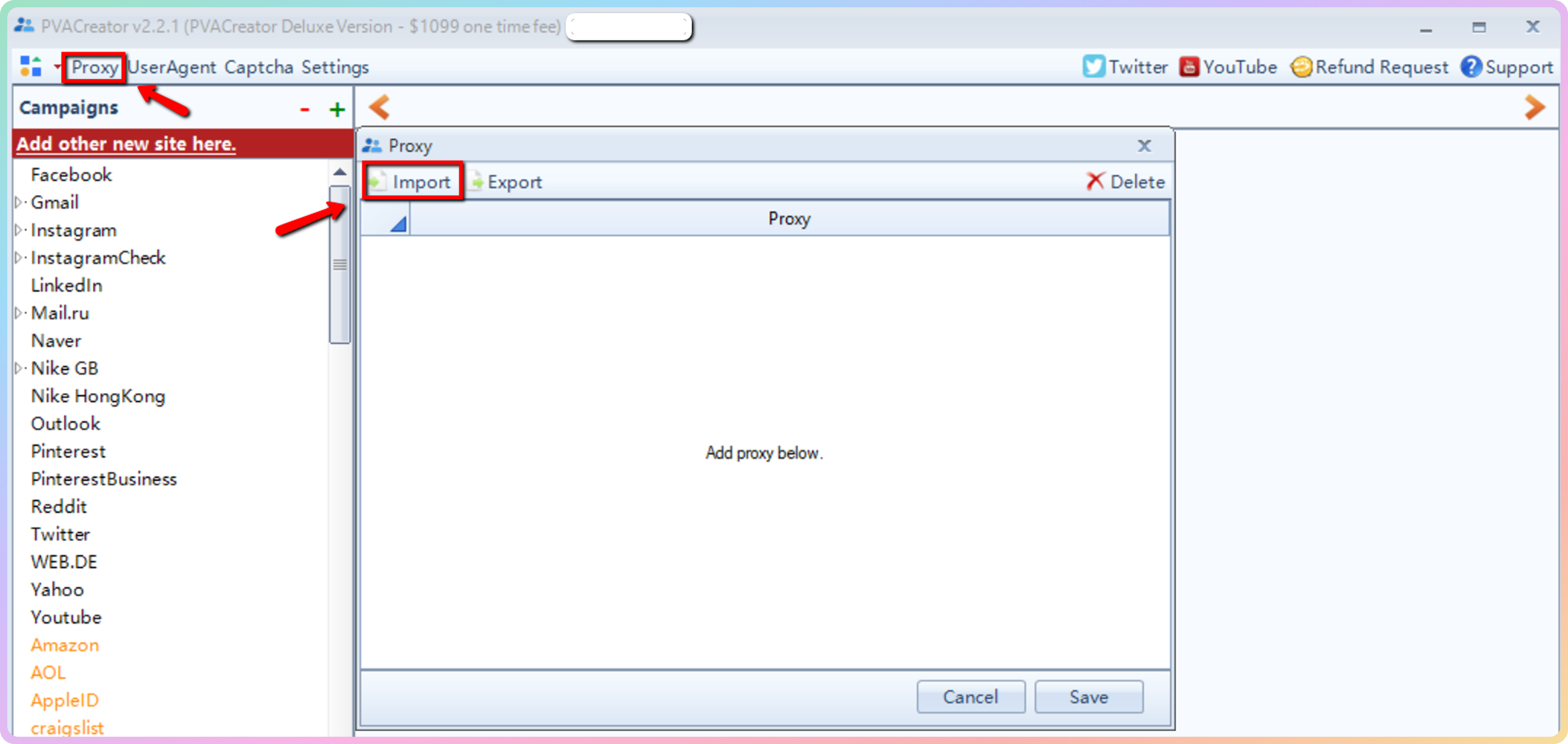 Select your proxy list file.
Click **Save** after importing proxies.
Then, you will need to bind proxies to your campaign. We use an Instagram campaign in the example.
Once you open the campaign, go to the **Proxy** tab, and then click **Bind proxy**. This will fill in the proxy table with the proxies that you've already imported. Alternatively, you can select **Import** (instead of **Bind Proxy**).
To save the changes, click **Save**.
***
Need help or just want to say hello? Our support is available 24/7. \
You can also reach us anytime via email at [support@decodo.com](mailto:support@decodo.com).
Can't find what you're looking for? Request an article! \
Have feedback? Share your thoughts on how we can improve.
Select your proxy list file.
Click **Save** after importing proxies.
Then, you will need to bind proxies to your campaign. We use an Instagram campaign in the example.
Once you open the campaign, go to the **Proxy** tab, and then click **Bind proxy**. This will fill in the proxy table with the proxies that you've already imported. Alternatively, you can select **Import** (instead of **Bind Proxy**).
To save the changes, click **Save**.
***
Need help or just want to say hello? Our support is available 24/7. \
You can also reach us anytime via email at [support@decodo.com](mailto:support@decodo.com).
Can't find what you're looking for? Request an article! \
Have feedback? Share your thoughts on how we can improve.