> ## Documentation Index
> Fetch the complete documentation index at: https://help.decodo.com/llms.txt
> Use this file to discover all available pages before exploring further.
# ScrapeBox Proxy Setup Guide
Open the **ScrapeBox** application.
Check the **Use Proxies** field in **Select Harvester and Proxies** settings.
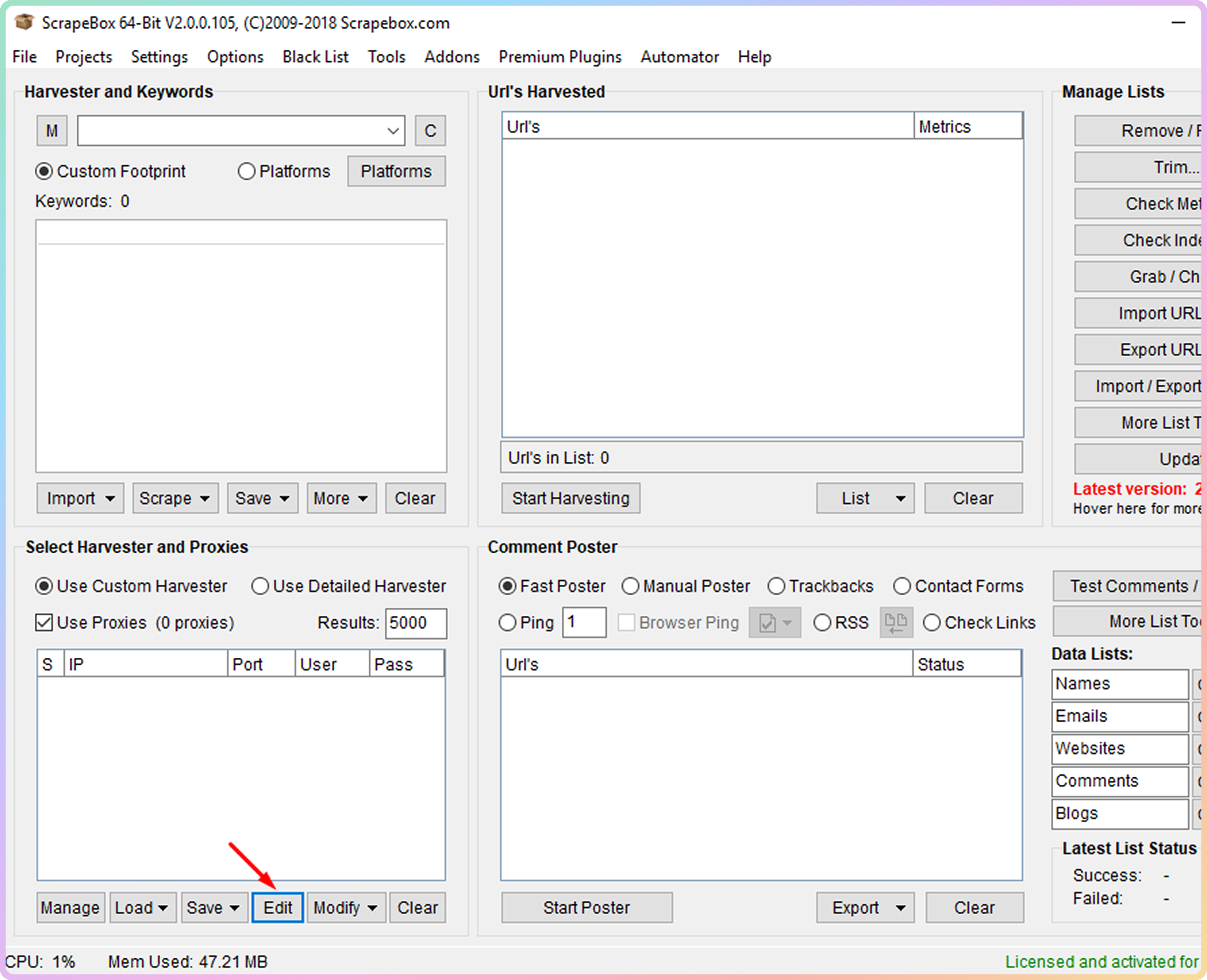
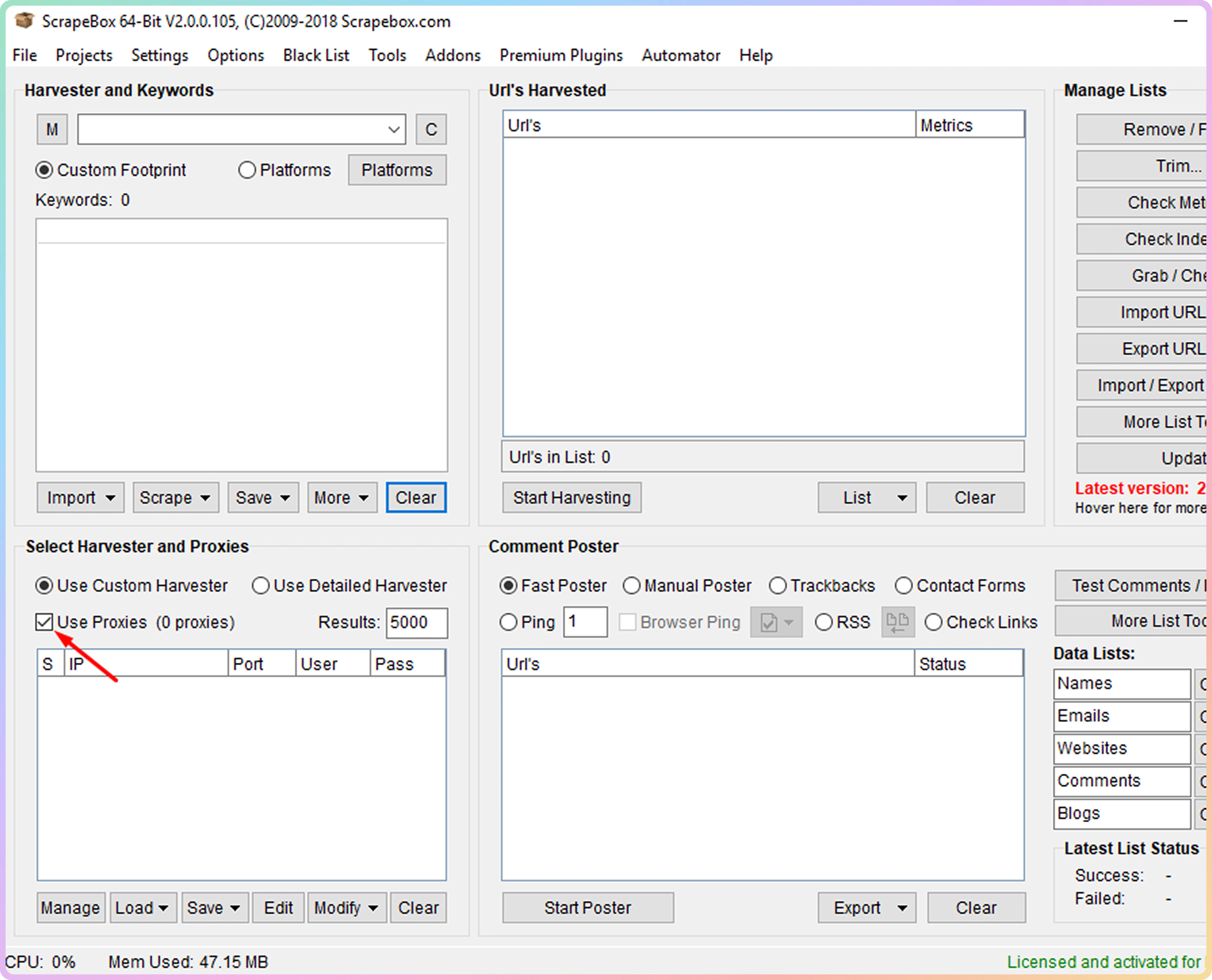 Click the **Edit** button to start setting up your proxies.
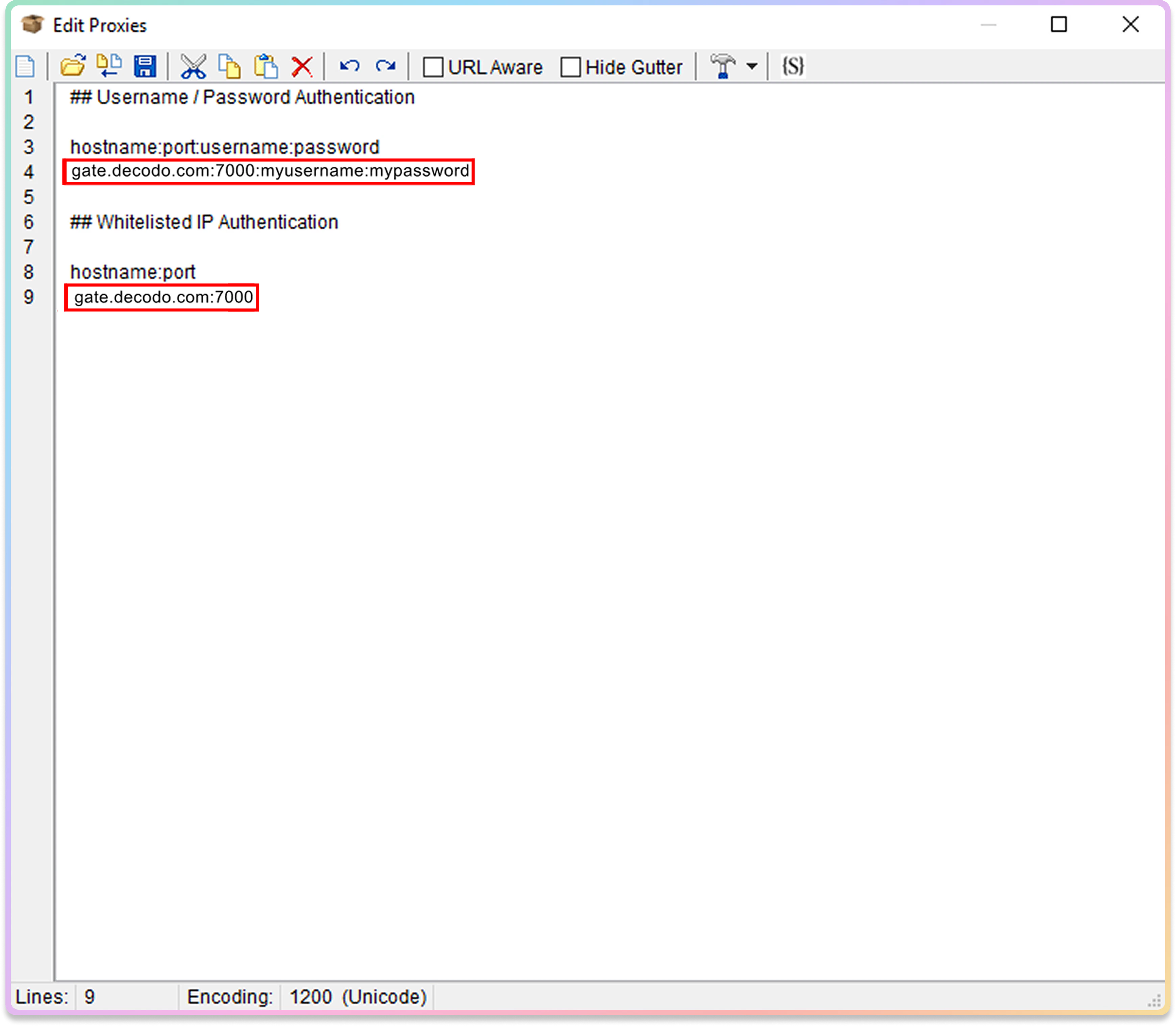
 Depending on the authentication method you would like to use, type in the information for the proxy authentication as in the example below:
 Once that is done, click **Save** to save the proxy settings. Now you should see your proxies in the **Select Harvester and Proxies** box.
Select all of the proxies you have entered and click the **Modify** button.
Once that is done, click **Save** to save the proxy settings. Now you should see your proxies in the **Select Harvester and Proxies** box.
Select all of the proxies you have entered and click the **Modify** button.
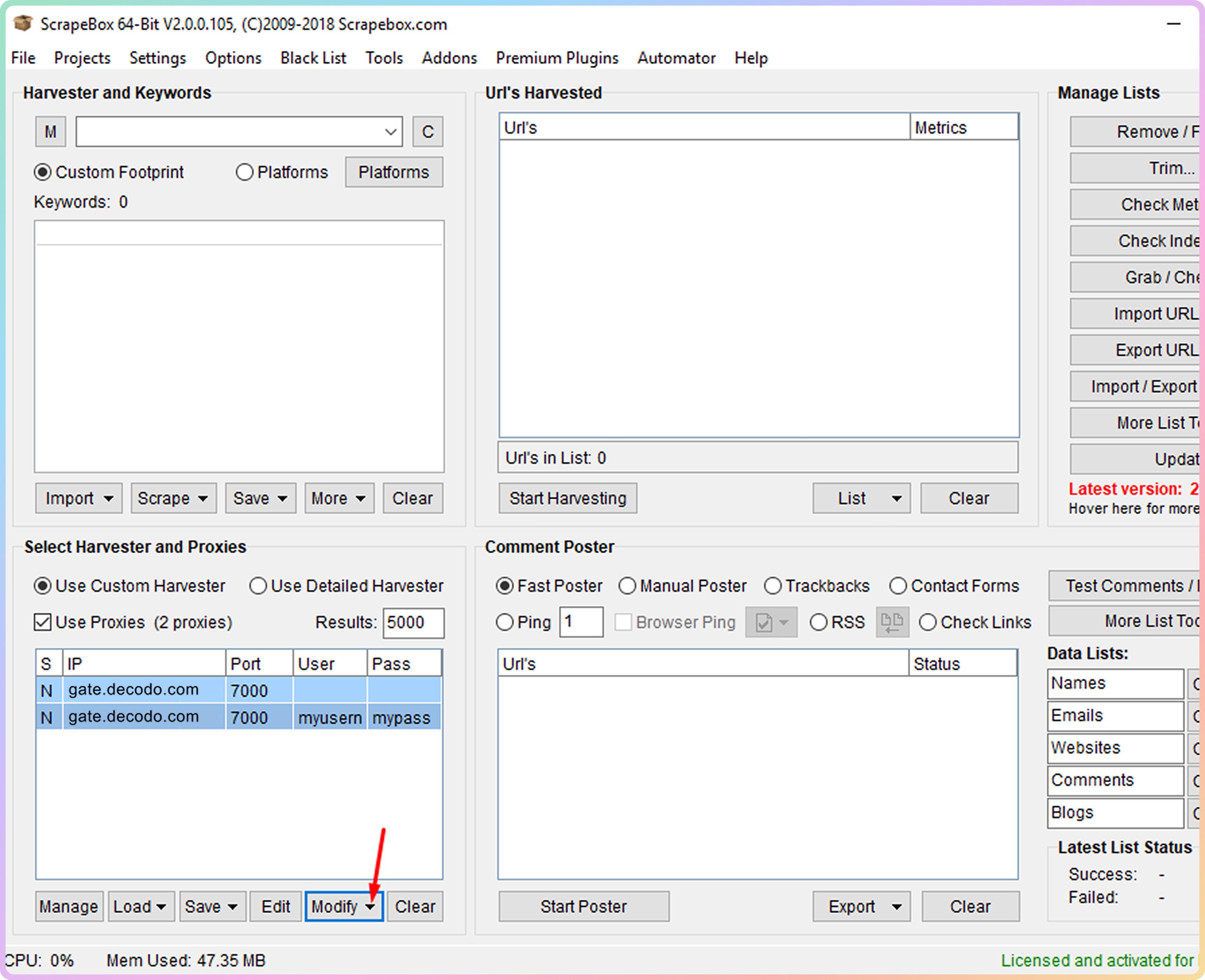 Click on the option **Mark all Proxies as Non-Socks proxies**. If done correctly, you should see the letter **N** under each entered proxy in the **S** field of the proxy table.
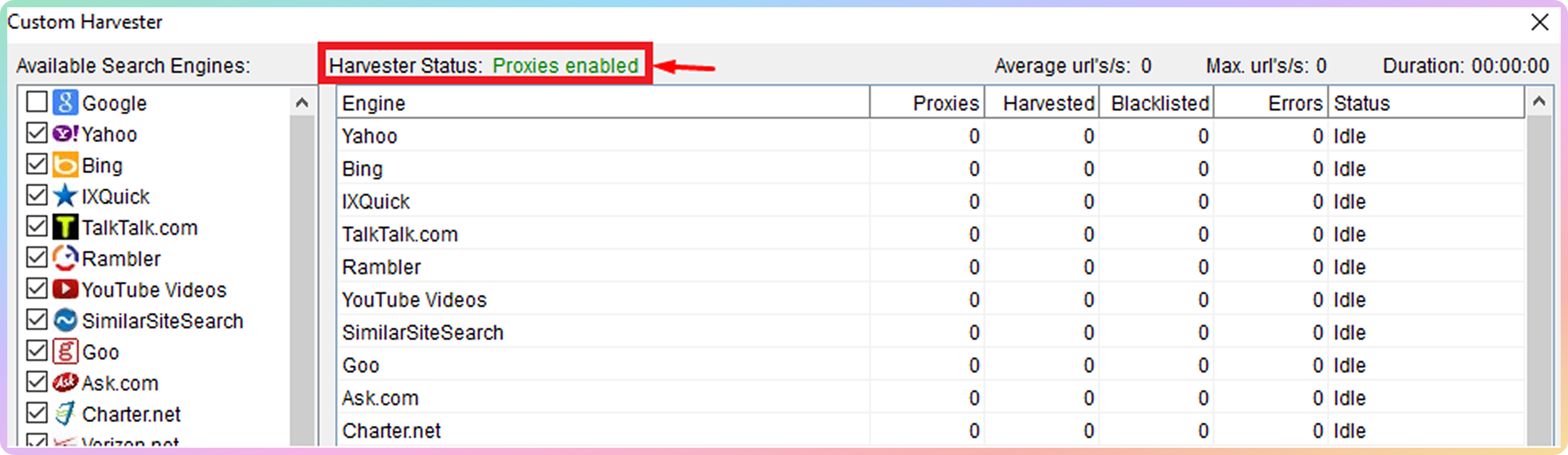
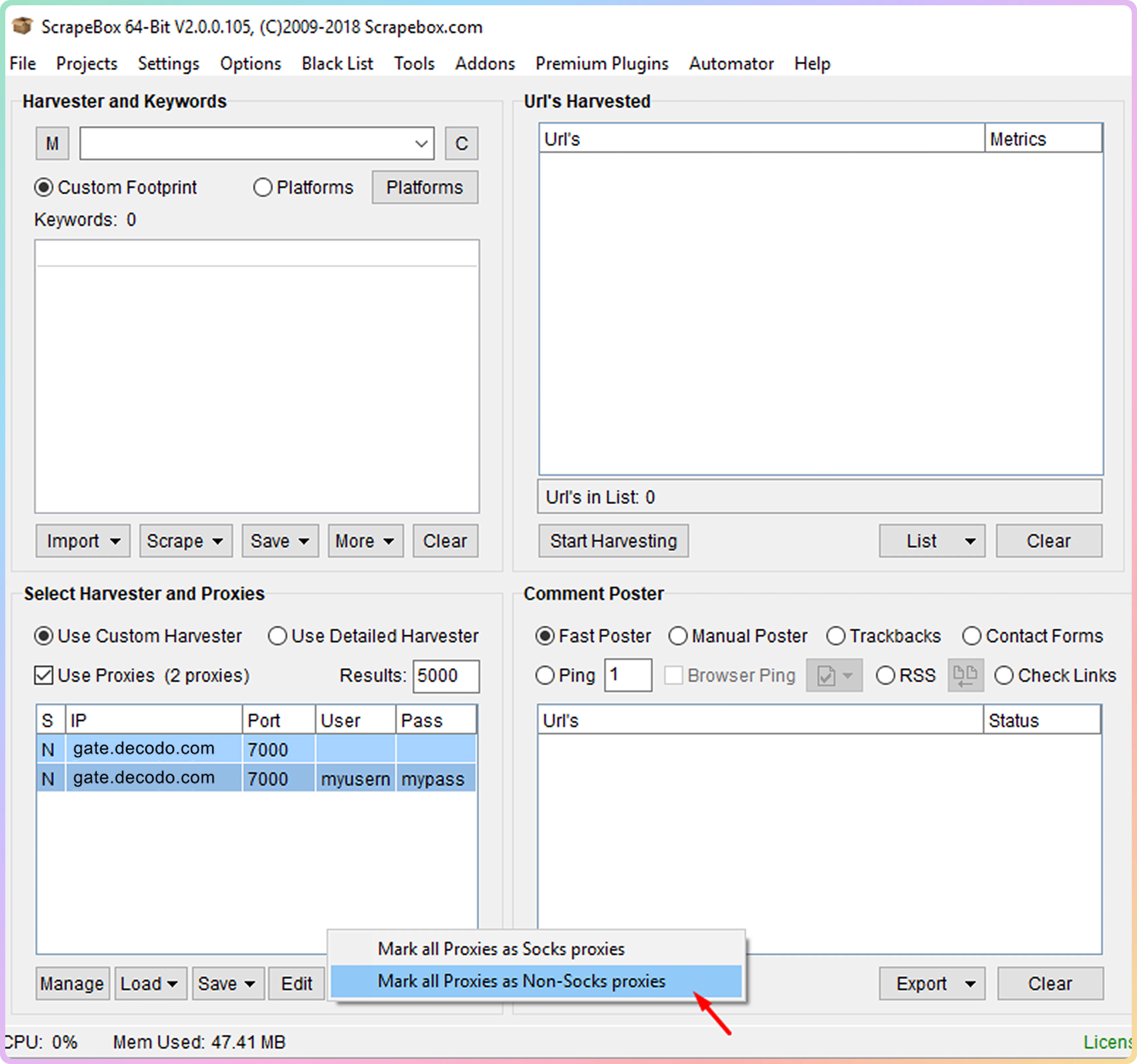 You can configure the rest of the **ScrapeBox** settings according to your needs. To test if you are using proxies, simply check if **Harvester Status** indicates **Proxies Enabled**.
 Make sure that you are not checking the status of the proxies in the **Proxy Editor** as you will get negative results. **ScrapeBox** does not support checks on backconnect proxies used by Decodo.
***
Need help or just want to say hello? Our support is available 24/7. \
You can also reach us anytime via email at [support@decodo.com](mailto:support@decodo.com).
Can't find what you're looking for? Request an article! \
Have feedback? Share your thoughts on how we can improve.
Make sure that you are not checking the status of the proxies in the **Proxy Editor** as you will get negative results. **ScrapeBox** does not support checks on backconnect proxies used by Decodo.
***
Need help or just want to say hello? Our support is available 24/7. \
You can also reach us anytime via email at [support@decodo.com](mailto:support@decodo.com).
Can't find what you're looking for? Request an article! \
Have feedback? Share your thoughts on how we can improve.