> ## Documentation Index
> Fetch the complete documentation index at: https://help.decodo.com/llms.txt
> Use this file to discover all available pages before exploring further.
# Scrapy Proxy Middleware Setup Guide
Open the **Terminal** window.
Navigate to the main directory of your project folder using `cd yourprojectname`.
Download our proxy middleware using the following command:
```shellscript cURL theme={null}
curl https://raw.githubusercontent.com/decodo/Scrapy-Middleware/master/decodo_auth.py > decodo_auth.py
```
You should now see that your project folder contains the **decodo\_auth.py** file.
Using a file manager, navigate to your project folder, where you should see the **settings.py** file.
Edit the **settings.py** file using an editor of your choice.
Add the following properties at the bottom:
```text Properties theme={null}
DOWNLOADER_MIDDLEWARES = {
'scrapy.downloadermiddlewares.httpproxy.HttpProxyMiddleware': 110,
'yourprojectname.decodo_auth.ProxyMiddleware': 100,
}
DECODO_USER = 'username' ## Decodo Username (Sub-user)
DECODO_PASSWORD = 'password' ## Password for your user
DECODO_ENDPOINT = 'gate.decodo.com' ## Endpoint you'd like to use
DECODO_PORT = '7000' ## Port of the endpoint you are using.
```
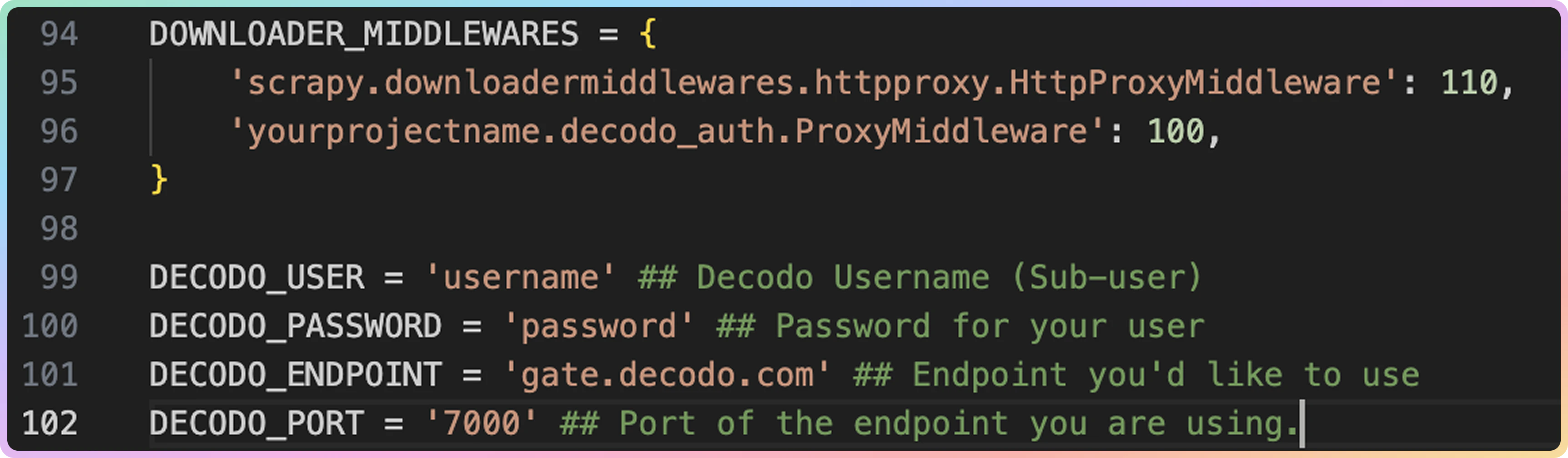 In the **DOWNLOADER\_MIDDLEWARES** section, change the `yourprojectname` line to the name of your project.
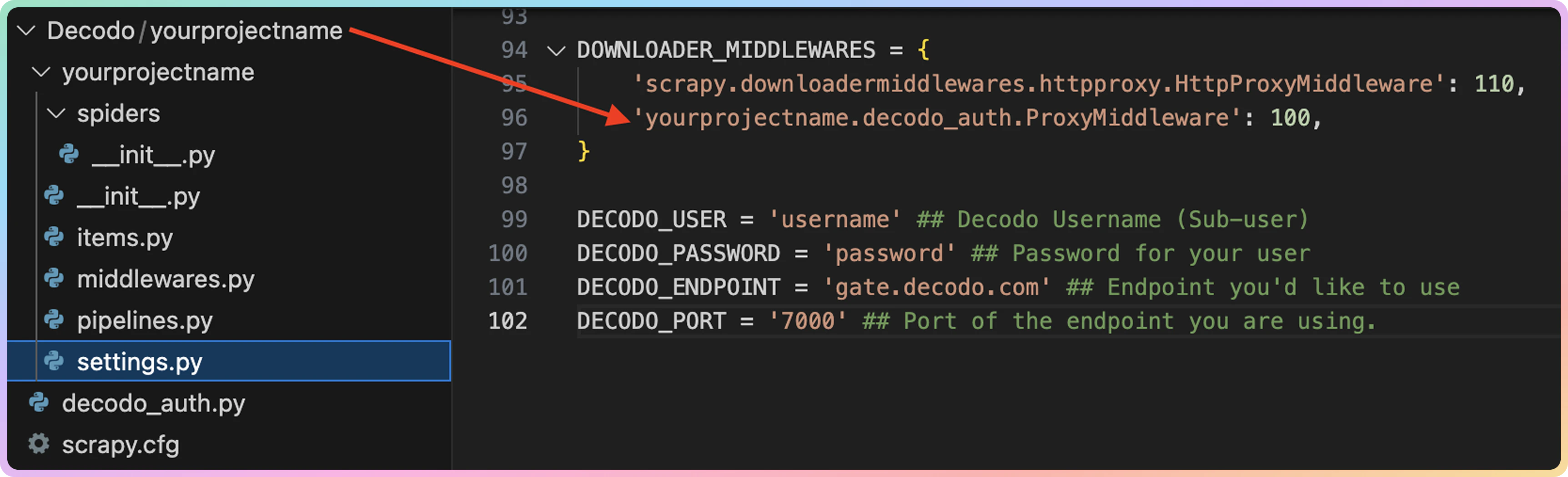 Make sure that you enter your account details as well as proxy details within quotation marks **' '**.
Finally, **Save** the file.
To find more information about the setup, make sure to visit our [**Github Page**](https://github.com/decodo/Scrapy-Middleware). In case you wish to use Decodo directly in your request, please refer to [**this article**](https://github.com/decodo/Scrapy).
***
Need help or just want to say hello? Our support is available 24/7. \
You can also reach us anytime via email at [support@decodo.com](mailto:support@decodo.com).
Can't find what you're looking for? Request an article! \
Have feedback? Share your thoughts on how we can improve.
Make sure that you enter your account details as well as proxy details within quotation marks **' '**.
Finally, **Save** the file.
To find more information about the setup, make sure to visit our [**Github Page**](https://github.com/decodo/Scrapy-Middleware). In case you wish to use Decodo directly in your request, please refer to [**this article**](https://github.com/decodo/Scrapy).
***
Need help or just want to say hello? Our support is available 24/7. \
You can also reach us anytime via email at [support@decodo.com](mailto:support@decodo.com).
Can't find what you're looking for? Request an article! \
Have feedback? Share your thoughts on how we can improve.