> ## Documentation Index
> Fetch the complete documentation index at: https://help.decodo.com/llms.txt
> Use this file to discover all available pages before exploring further.
# Tun2Socks Proxy Setup Guide
> Tun2Socks is a free app available on Android devices and tunnels connections for your apps.
Tun2Socks is not available on the Apple **iPhone**.
## Getting Started
Before proceeding, ensure you have:
* No other VPN or proxy active.
* The **proxy endpoint** and **port** (e.g., `us.decodo.com:10101`).
* Your **proxy username** and **password** (or a **whitelisted IP** set).
**Proxy Guides**
Learn how to find **proxy details** in your dashboard for each proxy type [**here**](https://help.decodo.com/docs/proxy-quick-start-guides).
## Android Setup
Download the app from [**the Play Store**](https://play.google.com/store/apps/details?id=com.elseplus.tun2socks\&hl=en\&gl=US) on your Android device.
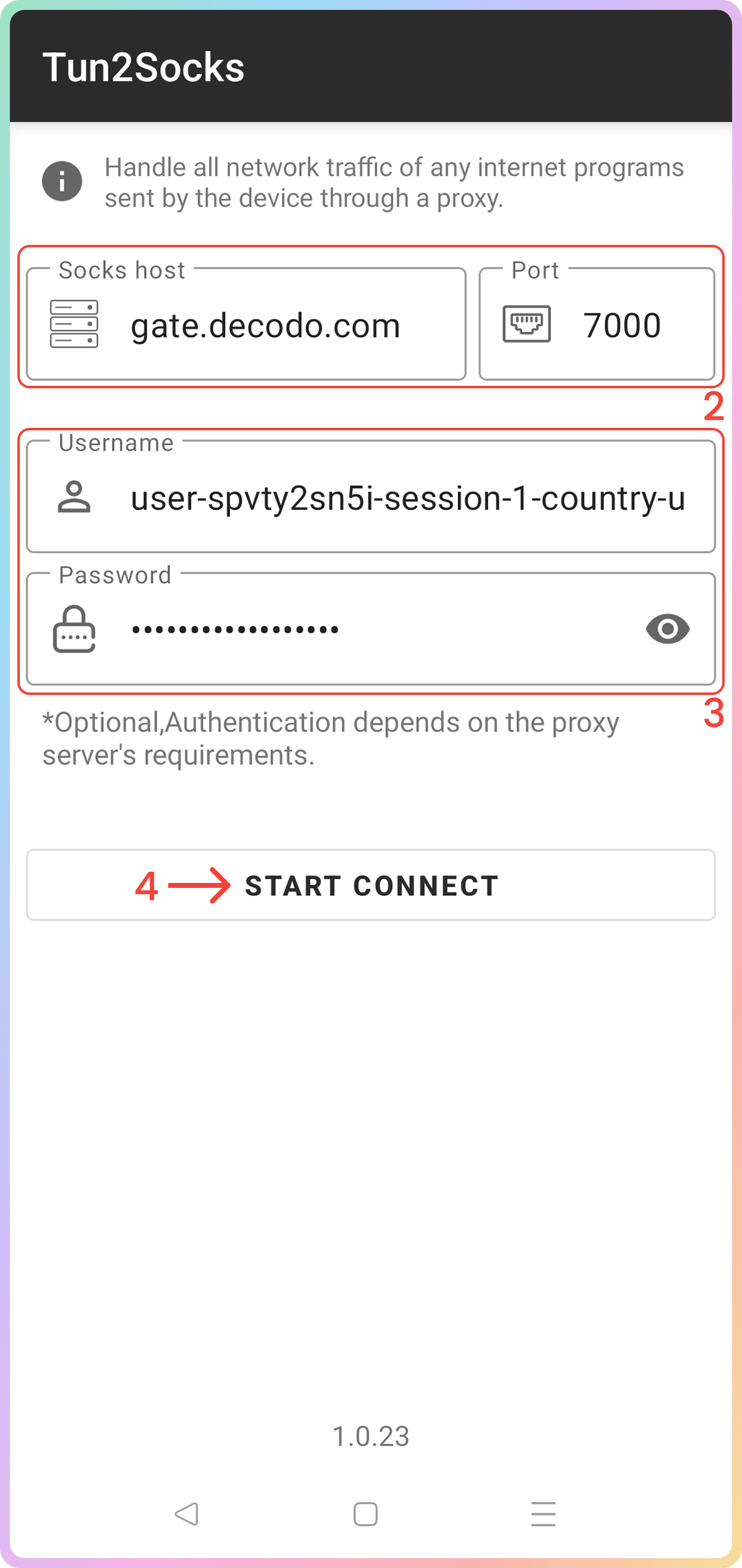
Open the app and fill in the following fields:
* **Socks host** (e.g., `gate.decodo.com`).
* **Port** (e.g., `7000`).
Set up the authentication:
* **Username**: Proxy username (e.g., `user-proxyusername-session-1-sessionduration-60-country-us`).
* **Password**: Proxy password.
- Ensure you are using **advanced parameters** directly in the proxy username to specify the **location** and keep the IP from **rotating** with residential and mobile proxies.
- Refer to the [**Common Issues**](https://help.decodo.com/docs/tun2socks-integration?isFramePreview=true#socks5) section below to learn how.
Tap **START CONNECT** to activate the proxies.
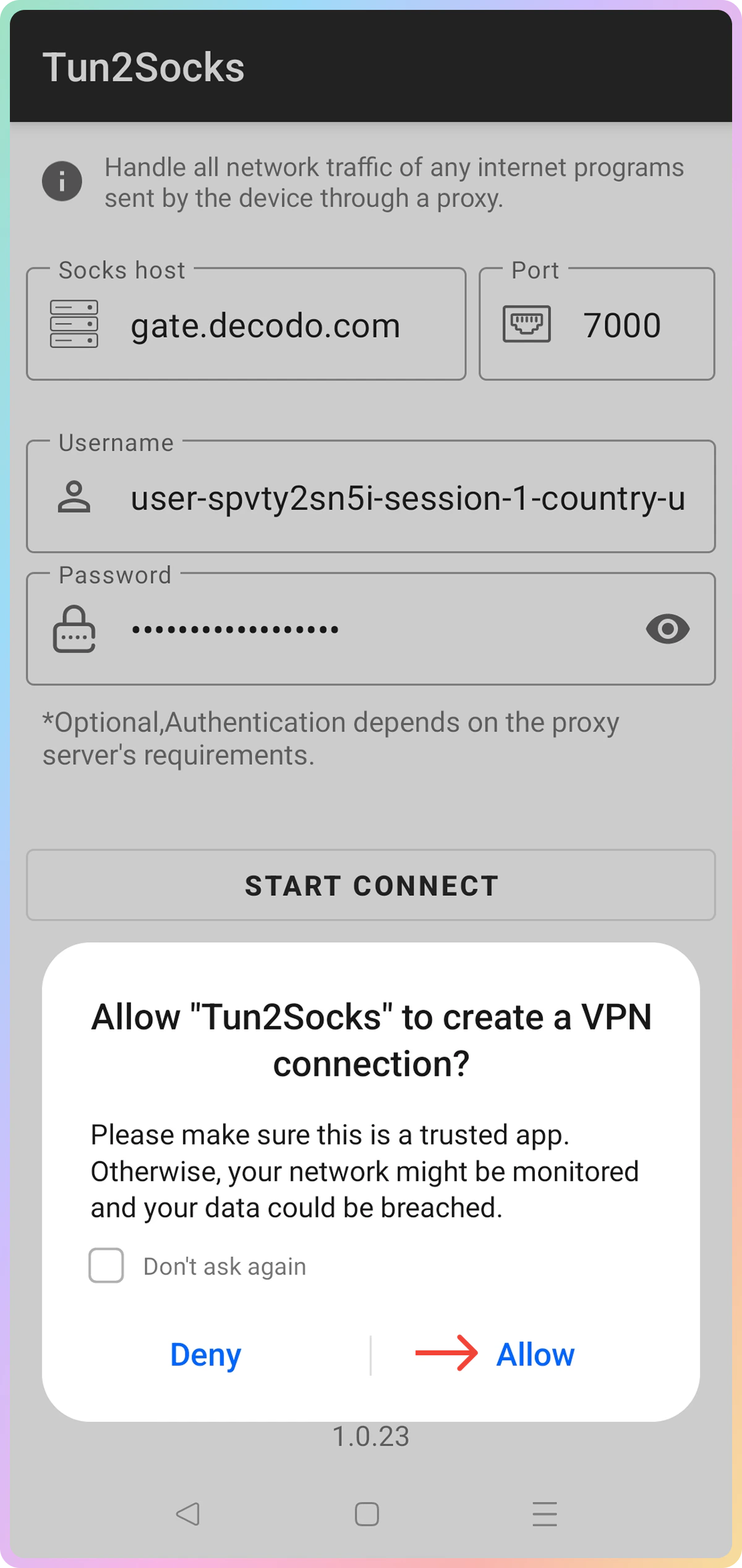
 A pop-up will appear, asking you to create a VPN connection. Tap **Allow**.
 ### Verify the Connection
* Open a browser and visit [**ip.decodo.com**](https://ip.decodo.com/). If successful, your IP address will display the location of the proxy.
***
## Common Issues
### Blocklist
⚠️ Please be aware that we [**restrict access to some websites**](https://decodo.com/faq/general/do-you-have-any-blocked-sites).
### `SOCKS5`
**Residential and Mobile Proxy Support Limitations**
The `gate.decodo.com` **endpoint** and the `7000` **port** must be used to utilize `SOCKS5` Residential or Mobile proxies. **Country** endpoints, such as `us.decodo.com`, will not function!
You can target specific locations instead by specifying the location in your username using **advanced** **parameters**:
* e.g.: `user-username-country-us` will connect to the **USA** pool.
To get a **sticky** `SOCKS5` Residential or Mobile proxy in a **tool**, you must use a `session` **parameter**. Otherwise, the proxy will always rotate even with a set `sessionduration` parameter.
* e.g.: `user-username-session-abc123-sessionduration-30` will connect to the same session.
* The **session ID** name can be defined by any string of your choice.
Learn more in our **advanced** **parameter** guides for [**Residential**](https://help.decodo.com/docs/residential-proxy-advanced-parameters/) and [**Mobile**](https://help.decodo.com/docs/mobile-proxy-advanced-parameters/) proxies.
### Direct IP
If you buy an IP list, you can specify which IPs to connect to using the **direct** `ip` parameter in the proxy username: `user-username-ip-x.x.x.x`
* Supported products: **DC Pay/IP**, **Dedicated DC**, **ISP Pay/IP**, **Dedicated ISP** plans.
* Products that offer access to the full proxy pool, such as residential proxies, do not support this parameter.
* Decodo proxies don't support an `IP:PORT` format by default.
* You must use the **endpoint** rotator format (e.g., `us.decodo.com:10101`).
* If necessary, try the workaround [**here**](https://help.decodo.com/docs/how-to-get-ip-port-format#/), but it only works temporarily before requiring another setup update.
### Troubleshooting
If you experience any other issues, check out our main [**troubleshooting**](https://help.decodo.com/docs/proxy-troubleshooting) section.
***
Need help or just want to say hello? Our support is available 24/7. \
You can also reach us anytime via email at [support@decodo.com](mailto:support@decodo.com).
Can't find what you're looking for? Request an article! \
Have feedback? Share your thoughts on how we can improve.
### Verify the Connection
* Open a browser and visit [**ip.decodo.com**](https://ip.decodo.com/). If successful, your IP address will display the location of the proxy.
***
## Common Issues
### Blocklist
⚠️ Please be aware that we [**restrict access to some websites**](https://decodo.com/faq/general/do-you-have-any-blocked-sites).
### `SOCKS5`
**Residential and Mobile Proxy Support Limitations**
The `gate.decodo.com` **endpoint** and the `7000` **port** must be used to utilize `SOCKS5` Residential or Mobile proxies. **Country** endpoints, such as `us.decodo.com`, will not function!
You can target specific locations instead by specifying the location in your username using **advanced** **parameters**:
* e.g.: `user-username-country-us` will connect to the **USA** pool.
To get a **sticky** `SOCKS5` Residential or Mobile proxy in a **tool**, you must use a `session` **parameter**. Otherwise, the proxy will always rotate even with a set `sessionduration` parameter.
* e.g.: `user-username-session-abc123-sessionduration-30` will connect to the same session.
* The **session ID** name can be defined by any string of your choice.
Learn more in our **advanced** **parameter** guides for [**Residential**](https://help.decodo.com/docs/residential-proxy-advanced-parameters/) and [**Mobile**](https://help.decodo.com/docs/mobile-proxy-advanced-parameters/) proxies.
### Direct IP
If you buy an IP list, you can specify which IPs to connect to using the **direct** `ip` parameter in the proxy username: `user-username-ip-x.x.x.x`
* Supported products: **DC Pay/IP**, **Dedicated DC**, **ISP Pay/IP**, **Dedicated ISP** plans.
* Products that offer access to the full proxy pool, such as residential proxies, do not support this parameter.
* Decodo proxies don't support an `IP:PORT` format by default.
* You must use the **endpoint** rotator format (e.g., `us.decodo.com:10101`).
* If necessary, try the workaround [**here**](https://help.decodo.com/docs/how-to-get-ip-port-format#/), but it only works temporarily before requiring another setup update.
### Troubleshooting
If you experience any other issues, check out our main [**troubleshooting**](https://help.decodo.com/docs/proxy-troubleshooting) section.
***
Need help or just want to say hello? Our support is available 24/7. \
You can also reach us anytime via email at [support@decodo.com](mailto:support@decodo.com).
Can't find what you're looking for? Request an article! \
Have feedback? Share your thoughts on how we can improve.