> ## Documentation Index
> Fetch the complete documentation index at: https://help.decodo.com/llms.txt
> Use this file to discover all available pages before exploring further.
# Storage setup
> Set up an Amazon S3 bucket, Google Cloud Storage or another S3-compatible provider for Video downloader, and build your upload_url.
## Amazon S3
You can download videos straight into your S3 bucket by providing a number of arguments through the `upload_url` parameter. In the steps below, we will upload a sample video into a new bucket.
If you have the option, we recommend creating a new bucket for video downloads. That said, the following steps will also work on an existing bucket.
In order to start downloading videos:
1. Create a new S3 bucket with default setup and permissions.
2. [Create a new IAM user](https://docs.aws.amazon.com/IAM/latest/UserGuide/id_users_create.html).
3. Attach the `PutObject` permission for your bucket on the IAM user:
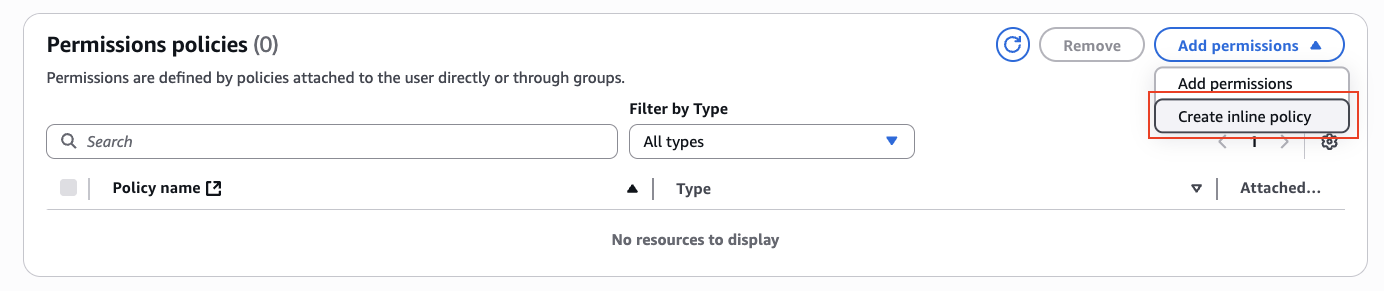
1. Add an inline policy:
 2. Under Service, select S3.
3. Under Actions:
1. The following permissions need to be added to the bucket:
* `GetBucketLocation`
2. The following permissions need to be added to the folder of the bucket:
* `PutObject`
* `PutObjectAcl`
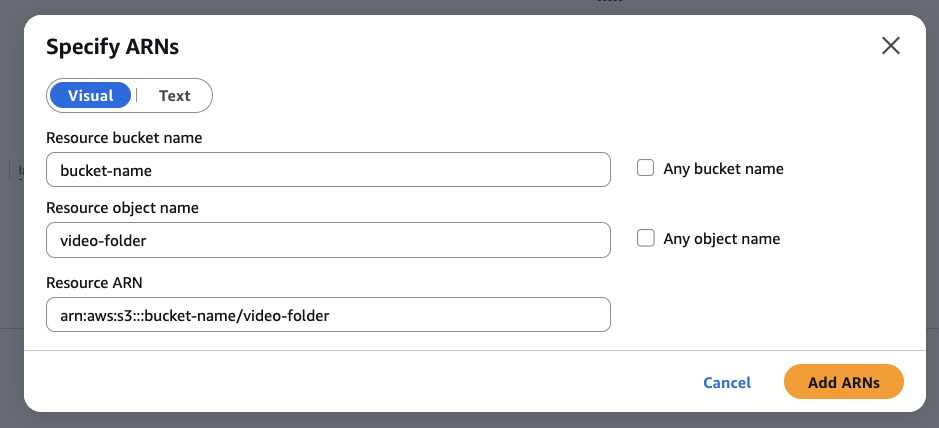
4. Under Resources, select Specific, click on Add ARN, add your bucket name and your video folder name:
2. Under Service, select S3.
3. Under Actions:
1. The following permissions need to be added to the bucket:
* `GetBucketLocation`
2. The following permissions need to be added to the folder of the bucket:
* `PutObject`
* `PutObjectAcl`
4. Under Resources, select Specific, click on Add ARN, add your bucket name and your video folder name:
 5. Your final policy statement should look like this:
```text theme={null}
{
"Version": "2012-10-17",
"Statement": [
{
"Sid": "Statement01",
"Effect": "Allow",
"Action": "s3:GetBucketLocation",
"Resource": "arn:aws:s3:::your-bucket"
},
{
"Sid": "Statement02",
"Effect": "Allow",
"Action": [
"s3:PutObject",
"s3:PutObjectAcl"
],
"Resource": "arn:aws:s3:::your-bucket/*"
}
]
}
```
4. [Generate an access key and secret](https://docs.aws.amazon.com/keyspaces/latest/devguide/create.keypair.html) for that user.
1. When asked for a use case, select Other.
The access key sent to Video downloader cannot include any non URI-escaped characters that may conflict with the `upload_url` parameter, such as `/` or `@`. If your key generated by AWS includes such characters, please regenerate your key.
5. Call Video downloader with the following sample parameters:
```text theme={null}
{
"target": "youtube_video",
"query": "PFRn5zKJTD8",
"upload_url": "https://access_key:access_secret@s3.us-west-2.amazonaws.com/your-bucket/video-folder"
}
```
Things to note:
* `access_key` and `access_secret` are generated from step 4.
* `us-west-2` is used as a sample region, your AWS region may be different.
* A `/video-folder` must be provided.
* If your secret contains `+`, URL-encode it as `%2B`.
## Other S3-compatible providers
Below are a number of S3-compatible providers that will also work with this target out of the box:
* [MinIO](https://min.io)
* [Wasabi](https://wasabi.com)
* [DigitalOcean Spaces](https://www.digitalocean.com/products/spaces)
* [Backblaze B2](https://www.backblaze.com/b2/cloud-storage.html)
* [Scaleway Object Storage](https://www.scaleway.com/en/object-storage/)
* [Linode Object Storage](https://www.linode.com/products/object-storage/)
* [IBM Cloud Object Storage](https://www.ibm.com/cloud/object-storage)
* [Oracle Cloud Object Storage](https://www.oracle.com/cloud/storage/object-storage.html)
* [Hetzner Cloud Storage](https://www.hetzner.com/storage)
* [Google Cloud Storage](https://cloud.google.com/storage/docs/interoperability), with an HMAC key: `https://:@storage.googleapis.com//`
***
Need help or just want to say hello? Our support is available 24/7. \
You can also reach us anytime via email at [support@decodo.com](mailto:support@decodo.com).
Can't find what you're looking for? Request an article! \
Have feedback? Share your thoughts on how we can improve.
This documentation is built and hosted on [Mintlify](https://mintlify.com), a developer documentation platform.
5. Your final policy statement should look like this:
```text theme={null}
{
"Version": "2012-10-17",
"Statement": [
{
"Sid": "Statement01",
"Effect": "Allow",
"Action": "s3:GetBucketLocation",
"Resource": "arn:aws:s3:::your-bucket"
},
{
"Sid": "Statement02",
"Effect": "Allow",
"Action": [
"s3:PutObject",
"s3:PutObjectAcl"
],
"Resource": "arn:aws:s3:::your-bucket/*"
}
]
}
```
4. [Generate an access key and secret](https://docs.aws.amazon.com/keyspaces/latest/devguide/create.keypair.html) for that user.
1. When asked for a use case, select Other.
The access key sent to Video downloader cannot include any non URI-escaped characters that may conflict with the `upload_url` parameter, such as `/` or `@`. If your key generated by AWS includes such characters, please regenerate your key.
5. Call Video downloader with the following sample parameters:
```text theme={null}
{
"target": "youtube_video",
"query": "PFRn5zKJTD8",
"upload_url": "https://access_key:access_secret@s3.us-west-2.amazonaws.com/your-bucket/video-folder"
}
```
Things to note:
* `access_key` and `access_secret` are generated from step 4.
* `us-west-2` is used as a sample region, your AWS region may be different.
* A `/video-folder` must be provided.
* If your secret contains `+`, URL-encode it as `%2B`.
## Other S3-compatible providers
Below are a number of S3-compatible providers that will also work with this target out of the box:
* [MinIO](https://min.io)
* [Wasabi](https://wasabi.com)
* [DigitalOcean Spaces](https://www.digitalocean.com/products/spaces)
* [Backblaze B2](https://www.backblaze.com/b2/cloud-storage.html)
* [Scaleway Object Storage](https://www.scaleway.com/en/object-storage/)
* [Linode Object Storage](https://www.linode.com/products/object-storage/)
* [IBM Cloud Object Storage](https://www.ibm.com/cloud/object-storage)
* [Oracle Cloud Object Storage](https://www.oracle.com/cloud/storage/object-storage.html)
* [Hetzner Cloud Storage](https://www.hetzner.com/storage)
* [Google Cloud Storage](https://cloud.google.com/storage/docs/interoperability), with an HMAC key: `https://:@storage.googleapis.com//`
***
Need help or just want to say hello? Our support is available 24/7. \
You can also reach us anytime via email at [support@decodo.com](mailto:support@decodo.com).
Can't find what you're looking for? Request an article! \
Have feedback? Share your thoughts on how we can improve.
This documentation is built and hosted on [Mintlify](https://mintlify.com), a developer documentation platform.