

If you’re interested in learning how traffic is counted, head over to Traffic usage.
Statistics data line graph
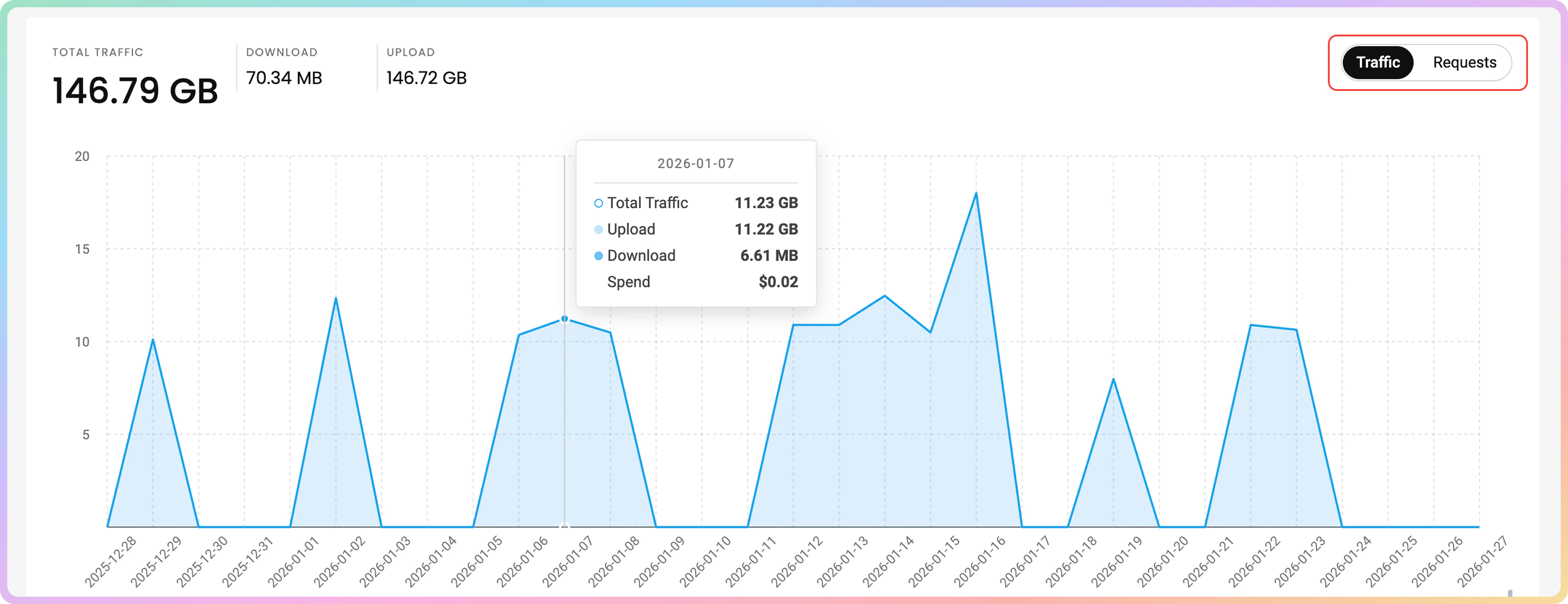
You will see a line graph, which displays your total Traffic or Requests sent with the proxies.Usage data is updated every 10 to 15 minutes. Statistics are provided in the UTC time zone.
- In the Traffic line graph, the vertical axis shows the used traffic in
MBand/orGB, whereas the horizontal axis shows the time you grouped by. - You can hover over the data points in the line graph to see detailed usage for the selected time.
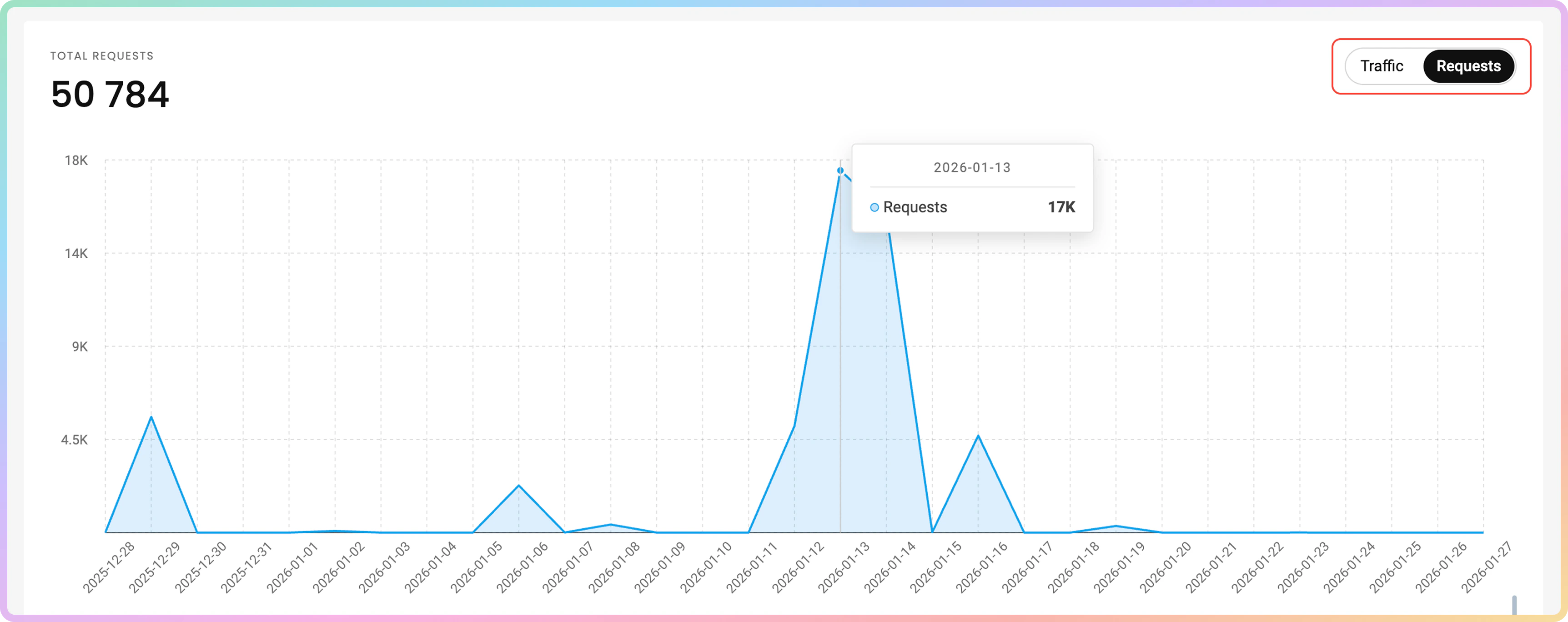
- In the Requests line graph, the vertical axis shows the count of requests sent with the proxies, whereas the horizontal axis shows the time you grouped by.
- You can hover over the data points in the line graph to see detailed usage for the selected time.
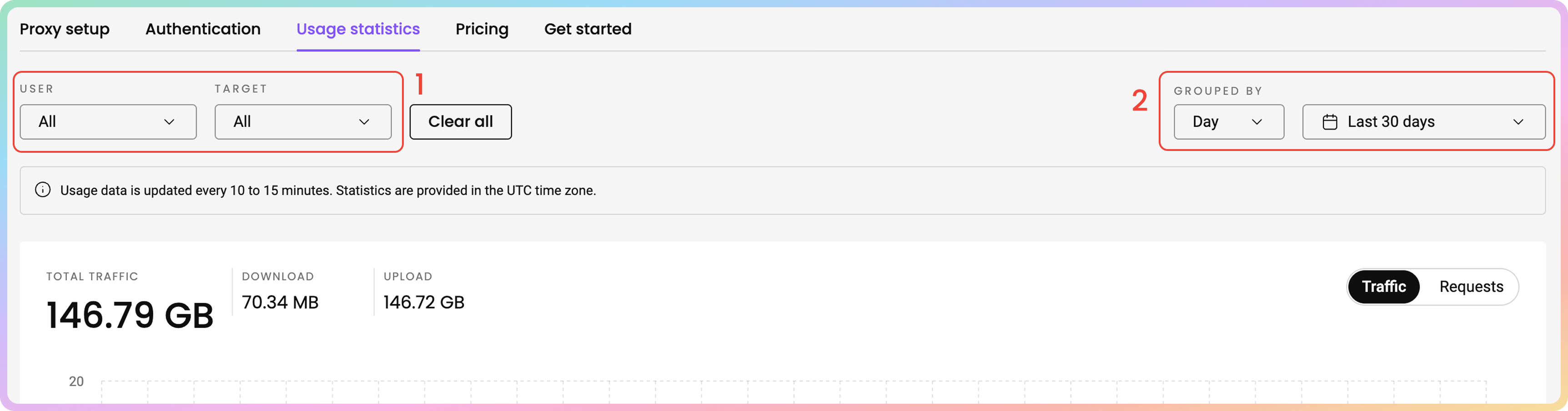
- You can choose to sort the data by proxy User and Target.
- You can also group the data by day, week, or month.
Traffic history is limited to a maximum of 180 days.
Statistics data table
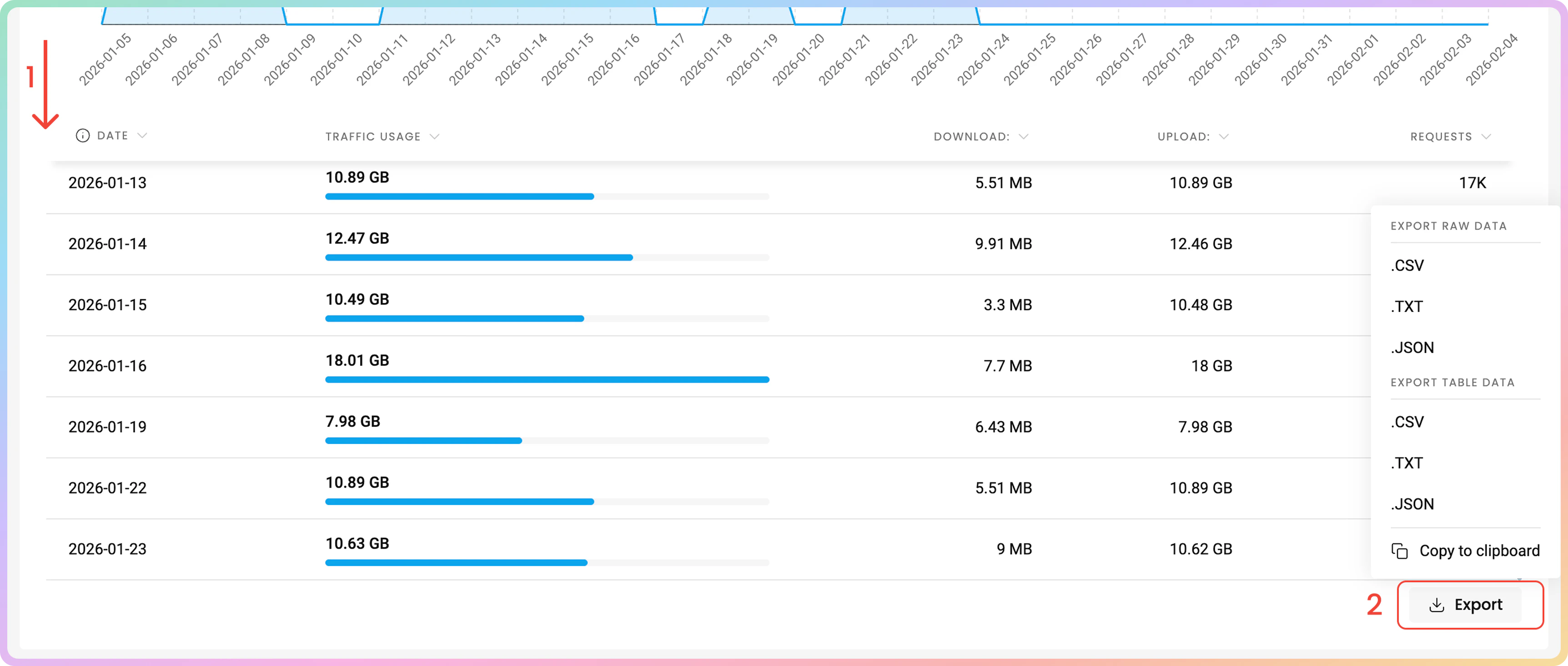
Below the line graph, you can view the data table that summarizes the traffic used with the proxies.- You can find the Date, Traffic Usage, Download, and Upload traffic in
MBorGB, and Requests. - You can export the table’s data directly or export the raw data in the following file formats:
.CSV, .TXT, or.JSON. You can also copy the data to your clipboard.
Top targets
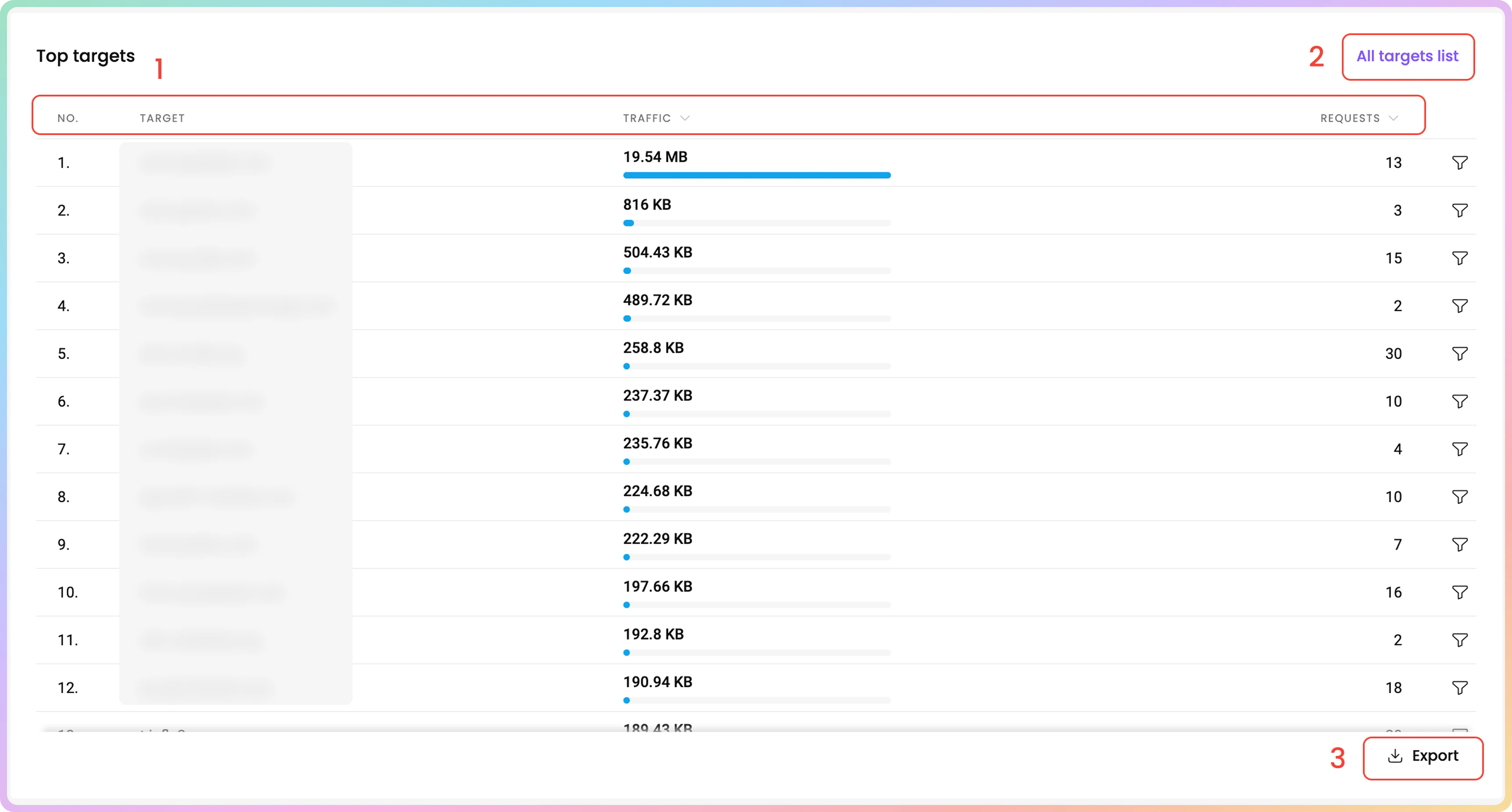
In the Top targets table, you can see the target domains, which you have accessed with the proxies, sorted by total traffic consumption in descending order.- You can find the No., Target, Traffic, and Requests columns as well.
-
To view the full target list, click on the All targets list button located at the top right corner of the table.
- There, you can search the entire list by keywords.

-
You can export the table’s data directly or export the raw data in the following file formats:
.CSV, .TXT, or.JSON. You can also copy the data to your clipboard.
Top countries
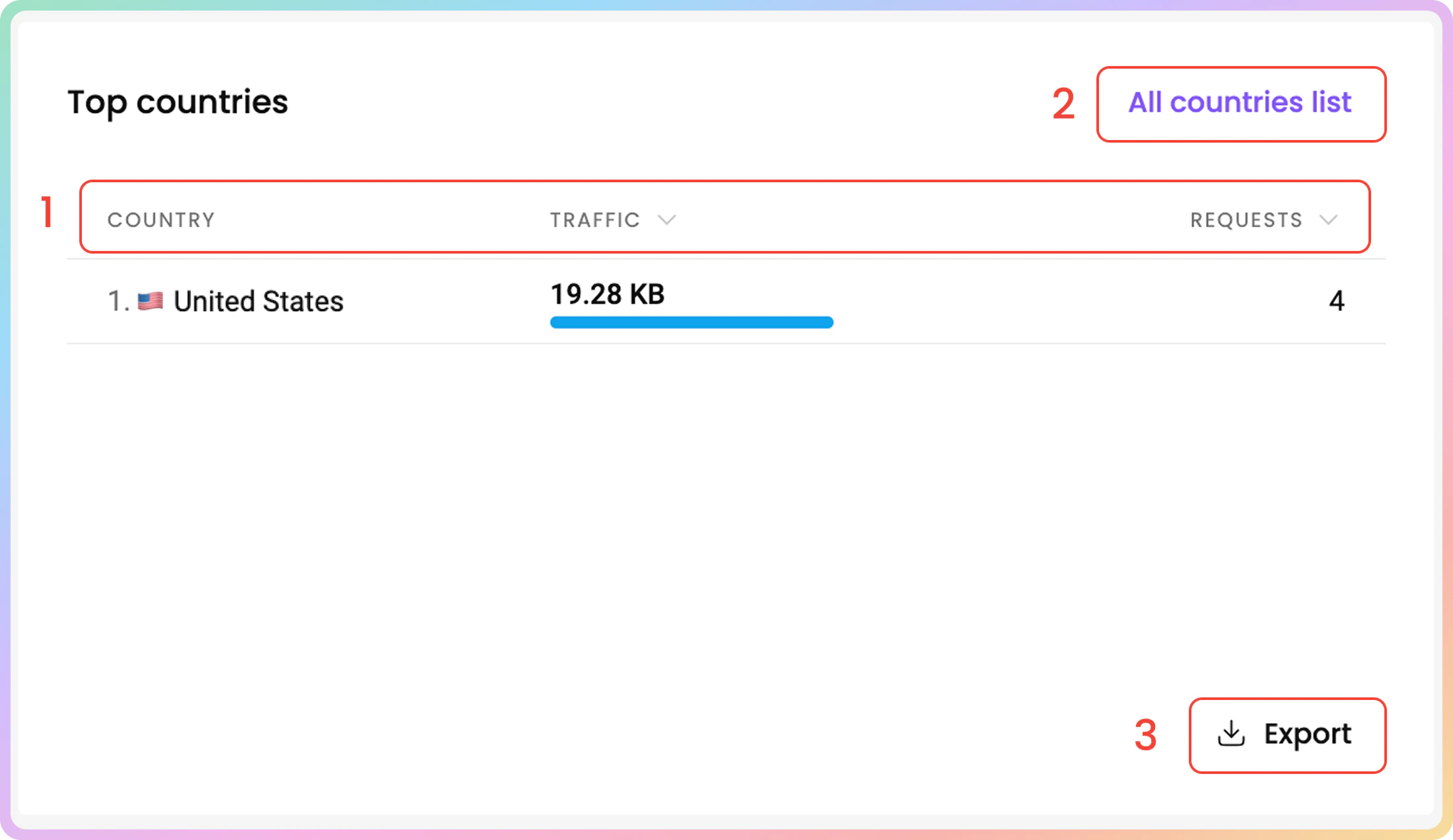
In the Top countries table, you can see the countries you have targeted with the proxies, sorted by total traffic consumption in descending order.- You can find the Country, Traffic, and Requests.
-
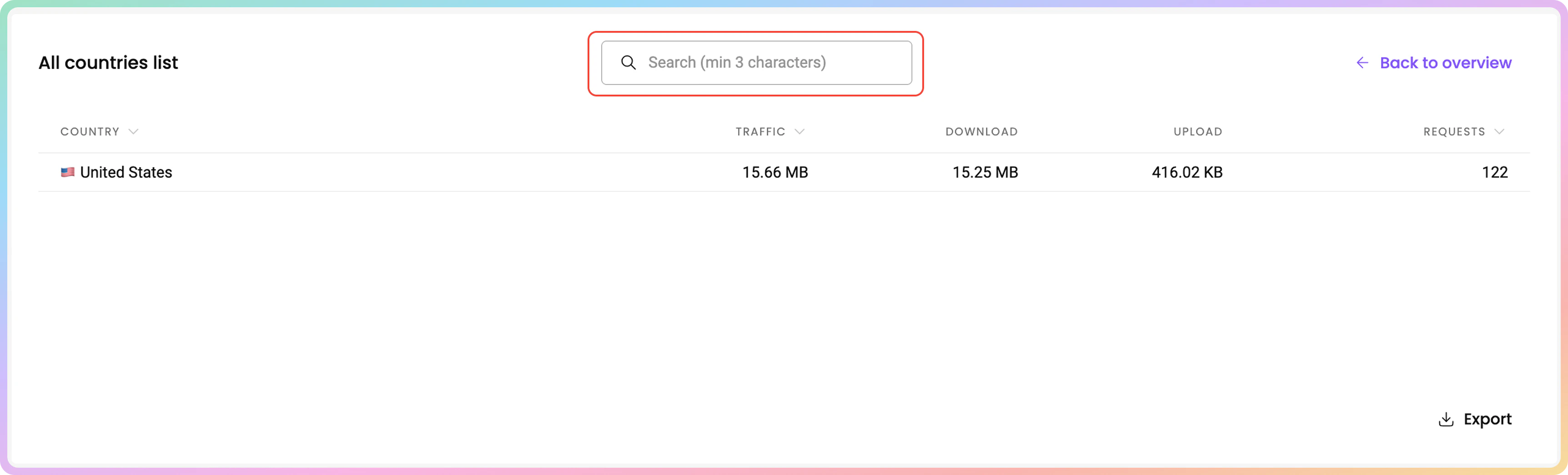
To view the full target list, click on the All countries list button located at the top right corner of the table.
- There, you can search the entire list by keywords.
-
You can export the table’s data directly or export the raw data in the following file formats:
.CSV, .TXT, or.JSON. You can also copy the data to your clipboard.
Top users
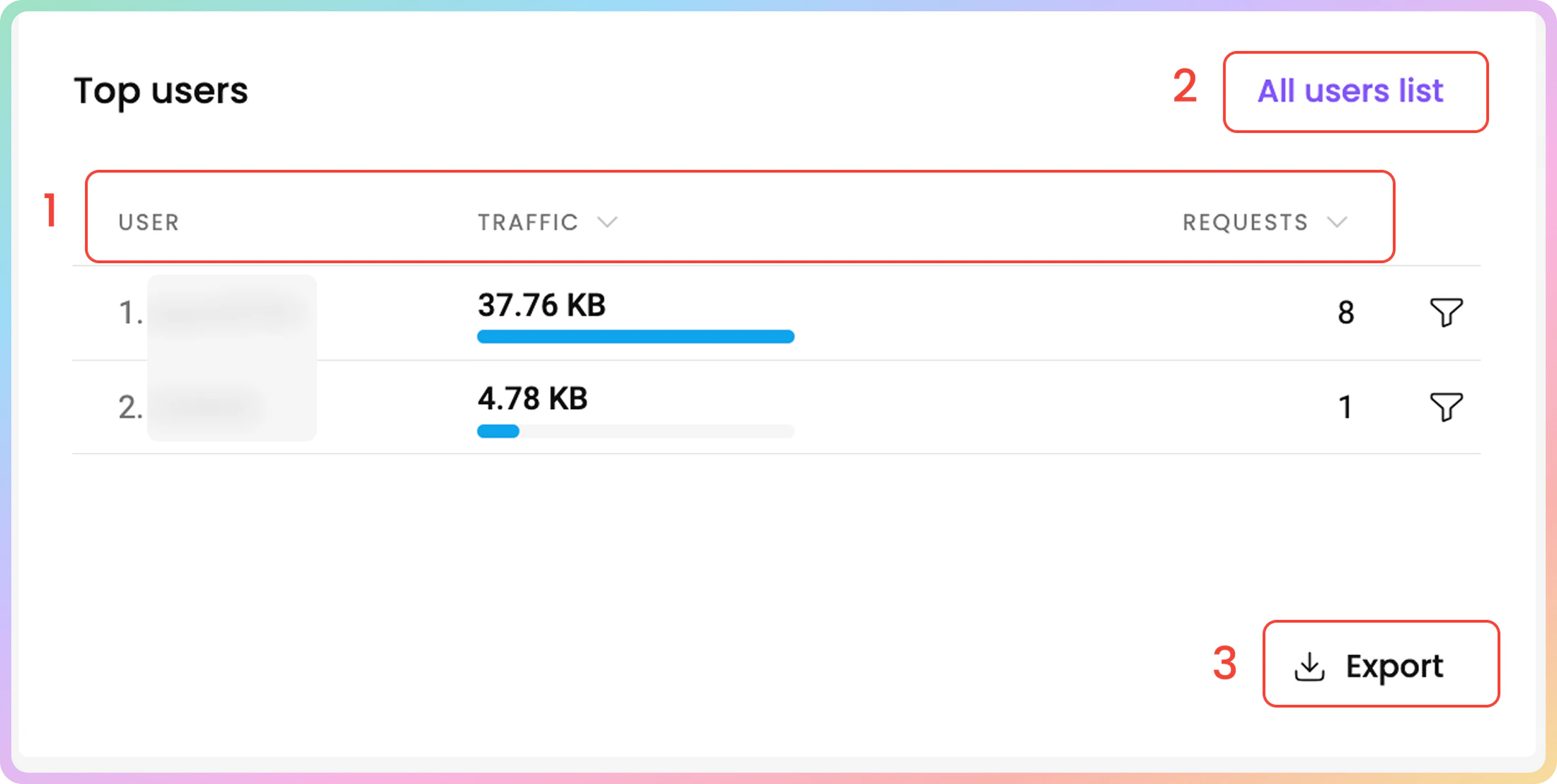
In the Top users table, you can see the used traffic of your proxy users and whitelisted IPs, sorted from highest to lowest.The proxy traffic generated when authenticating via the whitelisted IP method is aggregated. That means sorting used traffic by different whitelisted IPs is not possible.
- You can find the User, Traffic, and Requests columns as well.
-
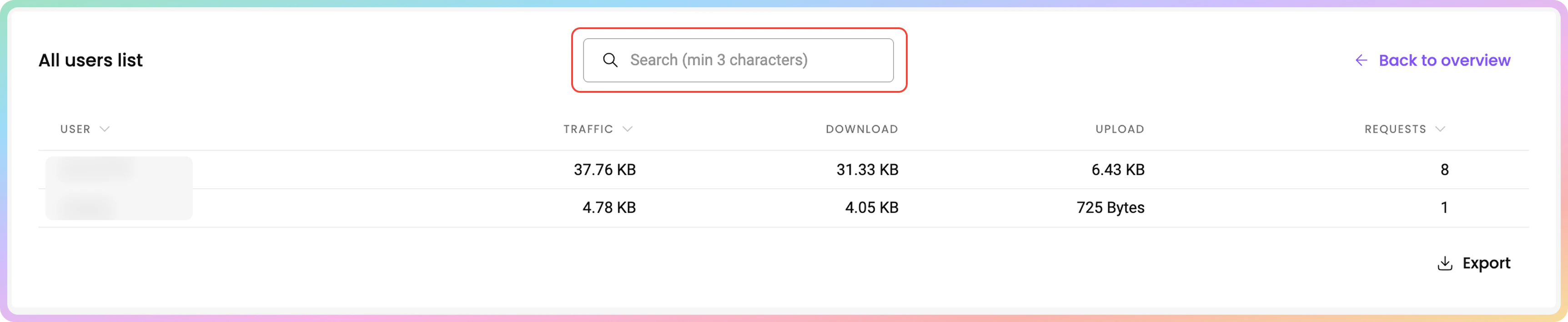
To view the full target list, click on the All users list button located at the top right corner of the table.
- There, you can search the entire list by keywords.
-
You can export the table’s data directly or export the raw data in the following file formats:
.CSV, .TXT, or.JSON. You can also copy the data to your clipboard.
Top IPs
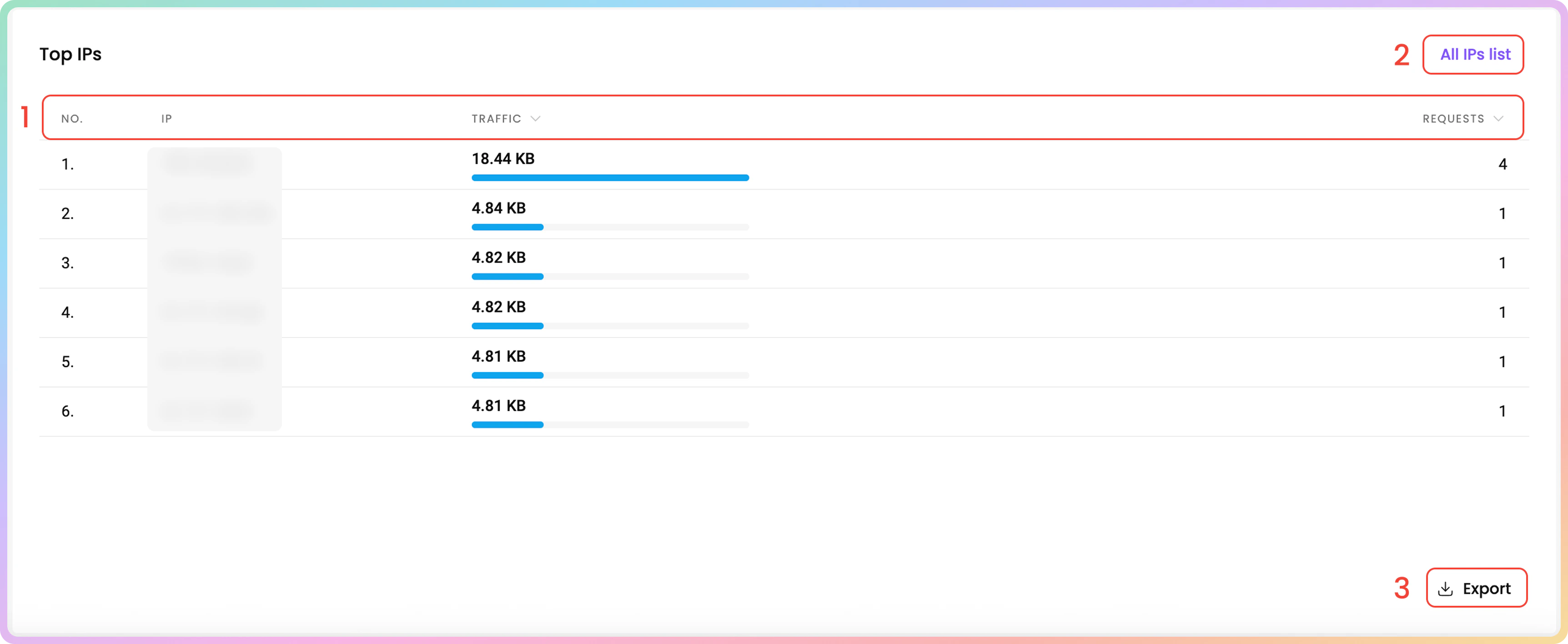
In the Top IPs table, you can see the proxy IPs you have targeted, sorted by total traffic consumption in descending order.- You can find the No., IP, Traffic and Requests columns.
-
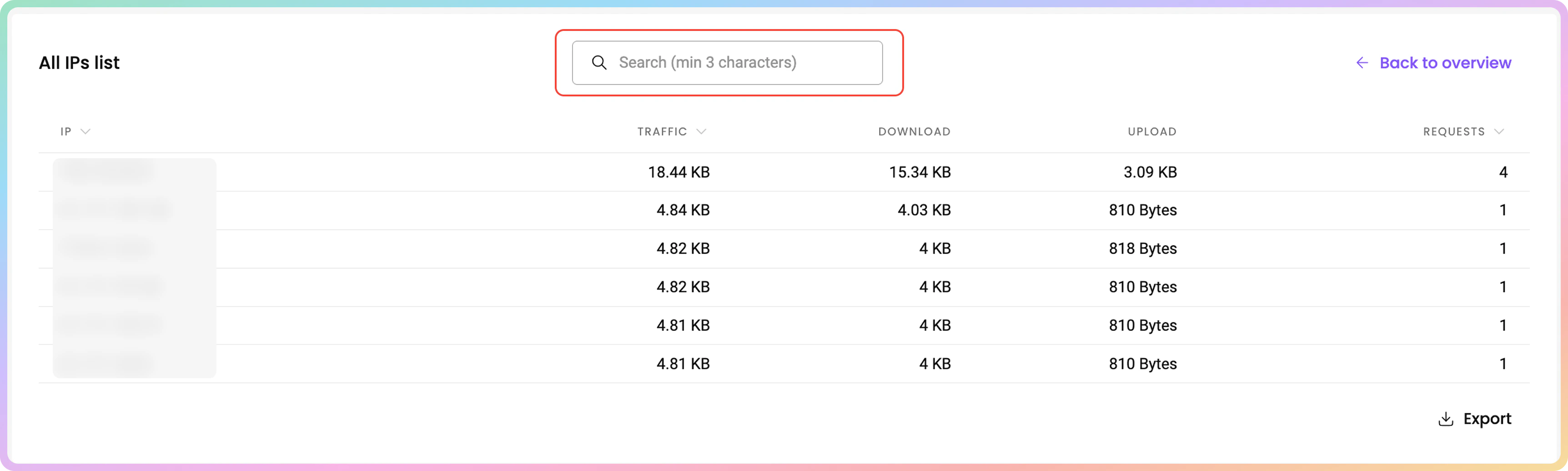
To view the full IP list, click on the All IPs list button located at the top right corner of the table.
- There, you can search the entire list by keywords
-
You can export the table’s data directly or export the raw data in the following file formats:
.CSV, .TXT, or.JSON. You can also copy the data to your clipboard.
Unrecognized Usage in Statistics
Unfamiliar Target Websites
If you see an unfamiliar target on your statistics page, keep in mind that it may be a subdomain of the websites you are targeting. This means the target website uses subdomains to organize separate sections of content or services. The dashboard tracks these subdomains as well.Unexpected Traffic Consumption
- If you notice a higher traffic usage with the proxies, note that the traffic may have been consumed by applications running and updating in the background while you’re using the proxies.
- Additionally, target websites could have changed and introduced new content, which would impact the proxy traffic.
- Generally, it’s advised to generate a new password for your proxy users periodically.
- Don’t forget to turn off the tool or program you are using to run the proxies after you’re done using them.
Support
Need help or just want to say hello? Our support is available 24/7.
You can also reach us anytime via email at support@decodo.com.
You can also reach us anytime via email at support@decodo.com.
Feedback
Can’t find what you’re looking for? Request an article!
Have feedback? Share your thoughts on how we can improve.
Have feedback? Share your thoughts on how we can improve.