

target: youtube_video) can be used to download and save specified Youtube videos into the s3 compatible storage.
youtube_video
- The
youtube_videotarget only supports asynchronous and batch integrations. - Batch
youtube_videorequests are limited to 100 video per request. - Downloading is supported for videos of 12 hours or less.
- The download time is limited to 10 hour.
Delivery to S3
You can download videos straight into your S3 bucket by providing a number of arguments through theupload_url parameter. In the steps below, we will upload a sample video into a new bucket.
If you have the option, we recommend creating a new bucket for video downloads. That said, the following steps will also work on an existing bucket.
- Create a new S3 bucket with default setup and permissions.
- Create a new IAM user.
- Attach the
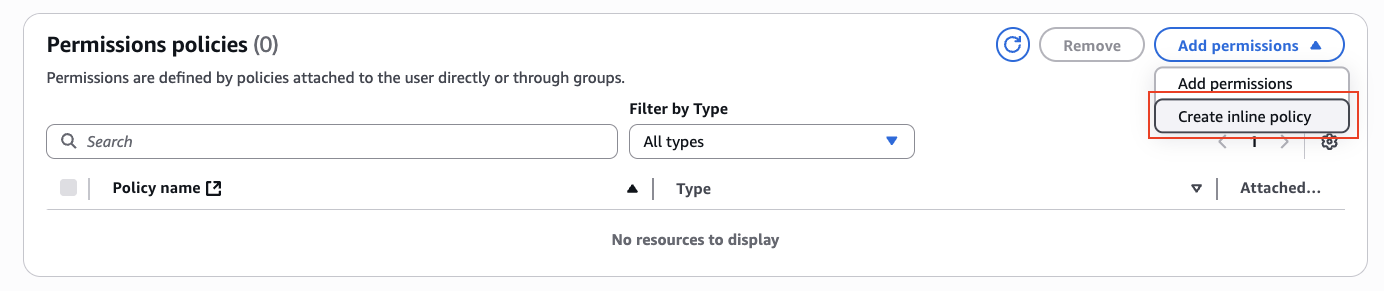
PutObjectpermission for your bucket on the IAM user:- Add an inline policy:
- Under Service, select S3.
- Under Actions:
- The following permissions need to be added to the bucket:
GetBucketLocation
- The following permissions need to be added to the folder of the bucket:
PutObjectPutObjectAcl
- The following permissions need to be added to the bucket:
- Under Resources, select Specific, click on Add ARN, add your bucket name and your video folder name:
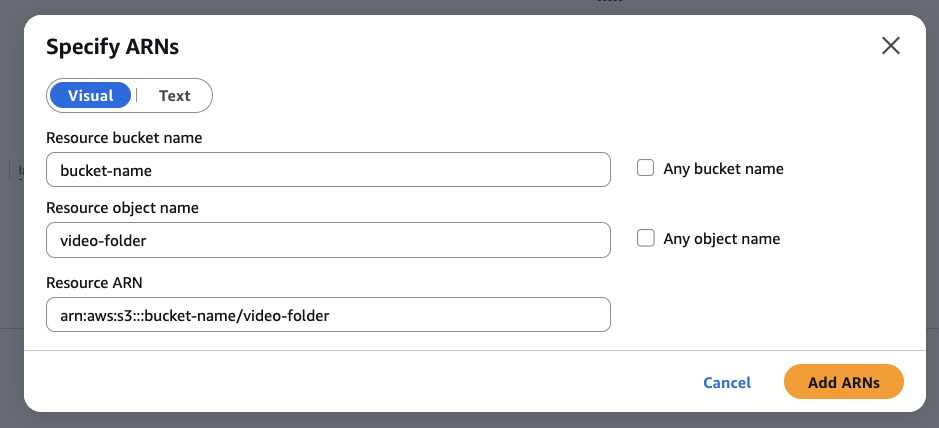
- Your final policy statement should look like this:
- Add an inline policy:
- Generate an access key and secret for that user.
- When asked for a use case, select Other.
- Call Scraper API with the following sample parameters:
access_keyandaccess_secretare generated from step 4.us-west-2is used as a sample region, your AWS region may be different.- A
/video-foldermust be provided.
S3-compatible Providers
Below are a number of S3-compatible providers that will also work with this target out of the box:- MinIO
- Wasabi
- DigitalOcean Spaces
- Backblaze B2
- Scaleway Object Storage
- Linode Object Storage
- IBM Cloud Object Storage
- Oracle Cloud Object Storage
- Hetzner Cloud Storage
Sample Request
Accessing geo-restricted videos
Scraper API attempts to automatically pick the best location from where to download geo-restricted videos. However, YouTube videos do not expose information about what geolocation a given video is restricted to, therefore, Scraper API may fail after a fixed number of attempts. Manually retrying the scraping request may be required.Monitoring progress
The status of a queued video download can be checked throughhttps://scraper-api.decodo.com/v3/task/{task_id}/results endpoint (you can find id in the body of the response after the task has been created):
- HTTP status code 204 indicates that the download is still processing.
- HTTP status code 200 indicates that the download has finished and an attempt to upload to your storage direction has been made. If video was not uploaded
status_codein the response will provide reasoning, there requests are billed for the traffic that was used attempting to fetch a video:
Traffic is billed as the total data moved to complete a download: the video file itself, plus a small amount of unavoidable transfer data needed to retrieve it. This extra data varies by video, depending on how the source platform delivers it, so total traffic is always slightly higher than the final file size in your storage.
Support
Need help or just want to say hello? Our support is available 24/7.
You can also reach us anytime via email at support@decodo.com.
You can also reach us anytime via email at support@decodo.com.
Feedback
Can’t find what you’re looking for? Request an article!
Have feedback? Share your thoughts on how we can improve.
Have feedback? Share your thoughts on how we can improve.