

For a quick and easy set up on the Firefox browser, download the Decodo Firefox Extension here.
Connecting after Login
1
Login Menu
Select 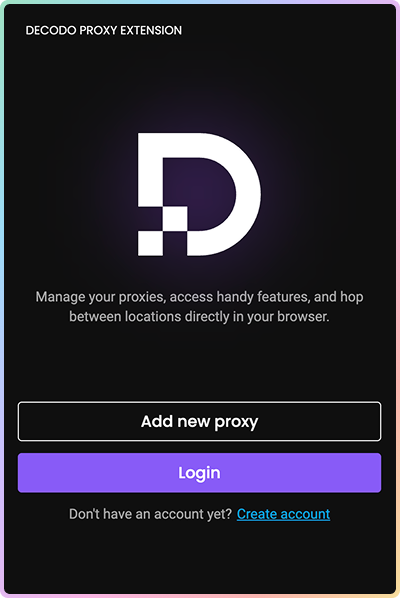
Login or Create account, which will take you to our dashboard:2
Proxy Type
Choose your proxy type by scrolling through the menu: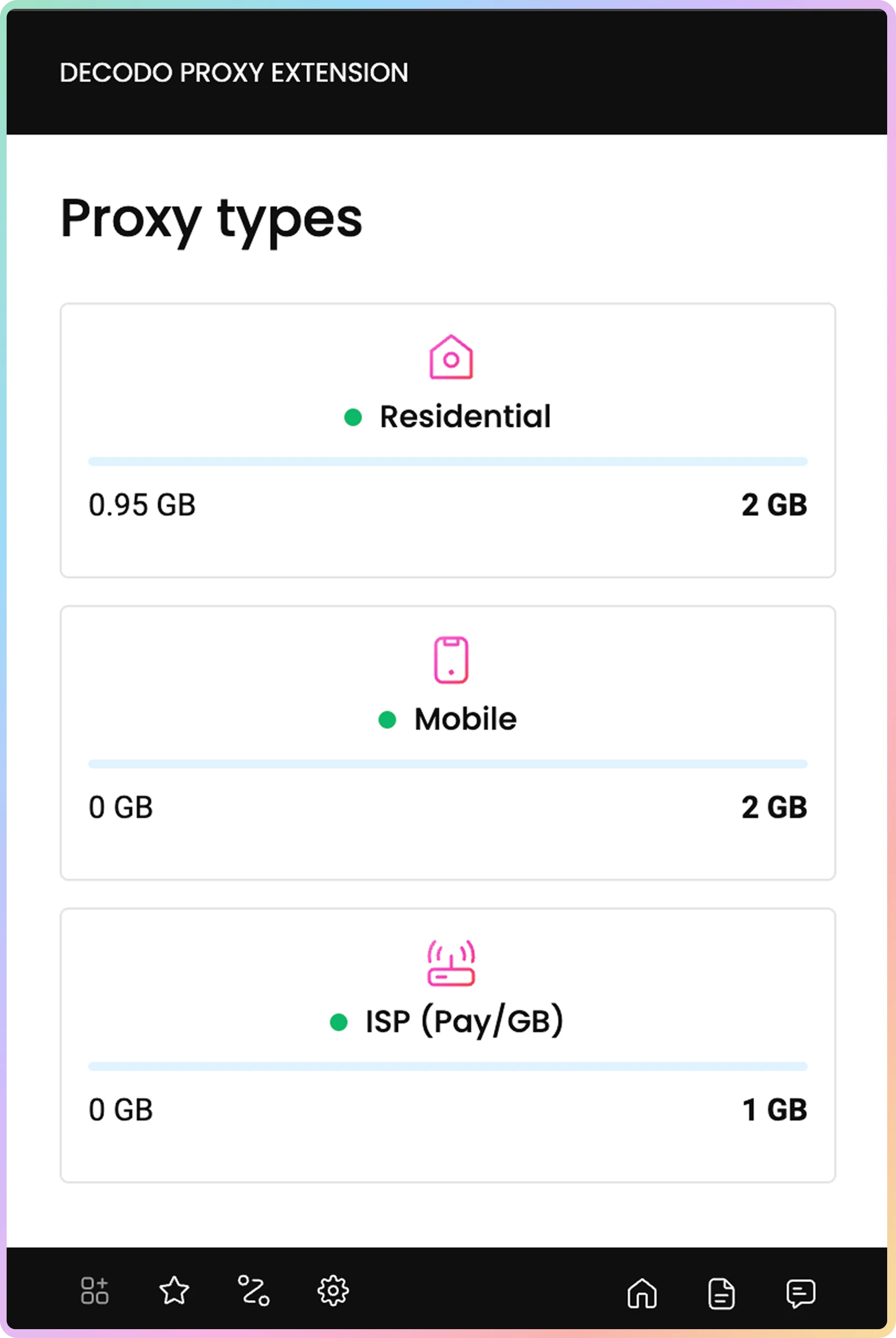
3
Proxy Settings
From there, you will be able to choose: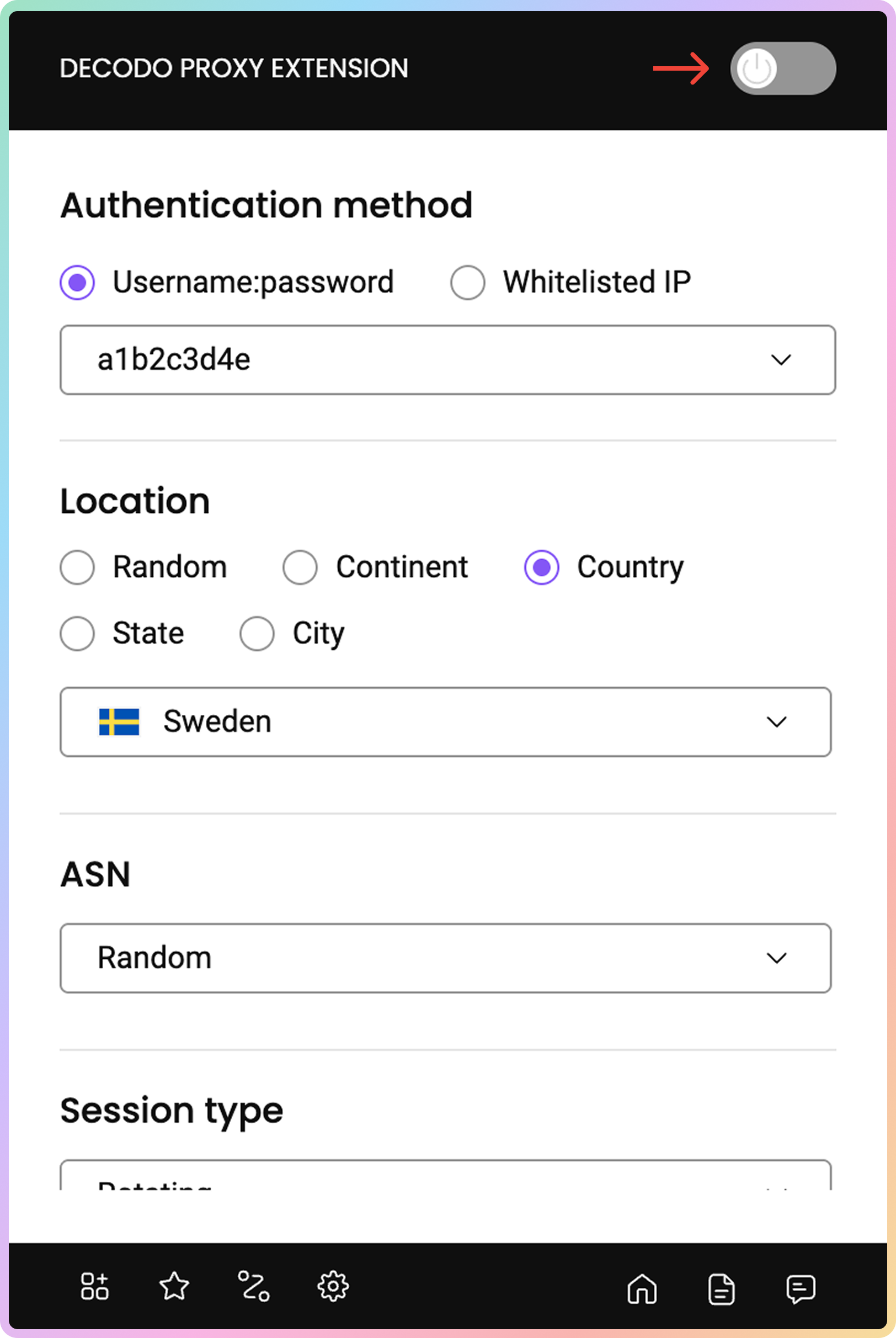
- Authentication method, as well as your created users, in the drop-down
- Location
- ASN
- Session Type
- Protocol
To return to the proxy type selection, press
Select other proxy type.4
Connecting
To connect, press the toggle button in the top right corner of the window. Once connected, the extension will display your chosen location, session type, and protocol.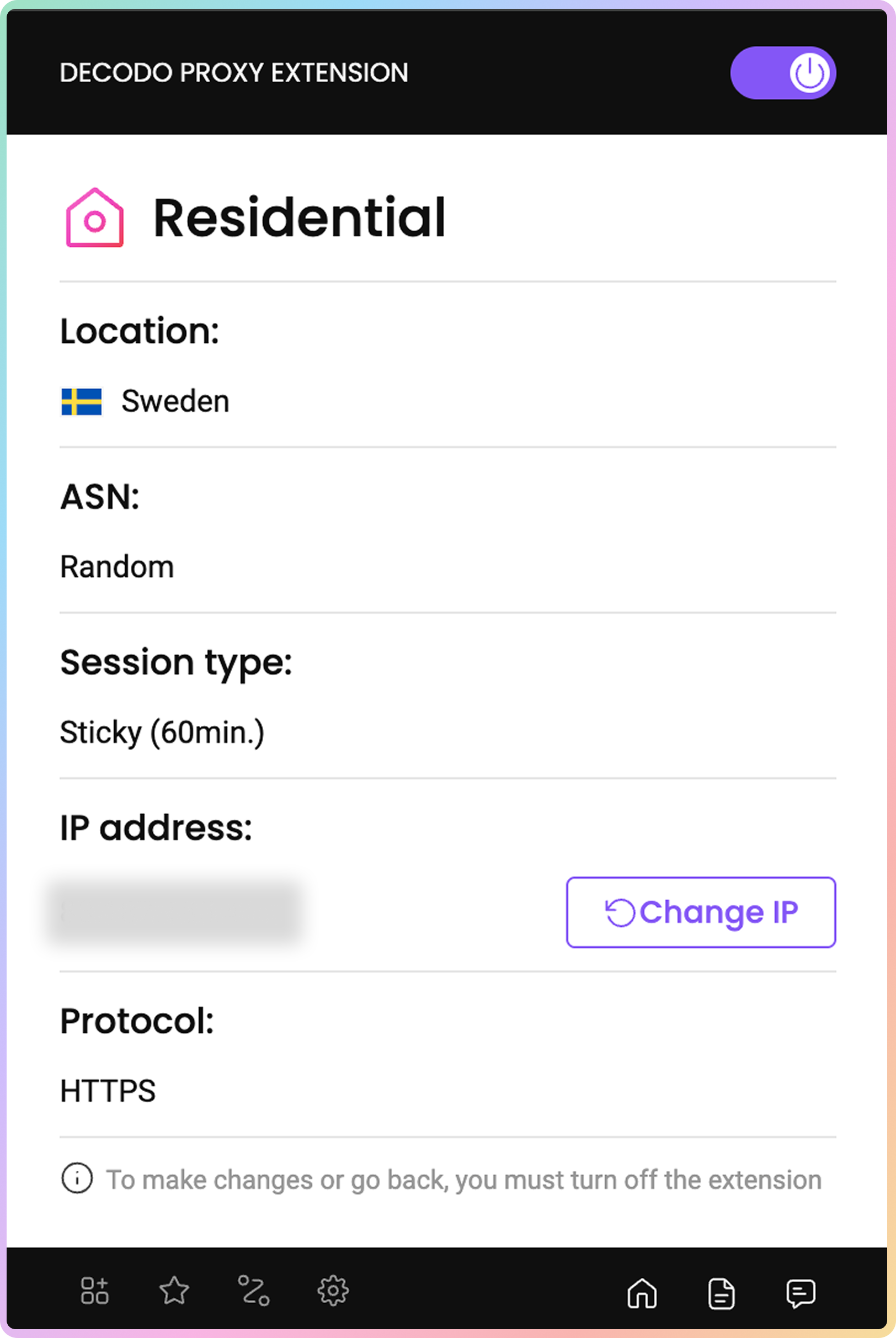
Connecting Without Login
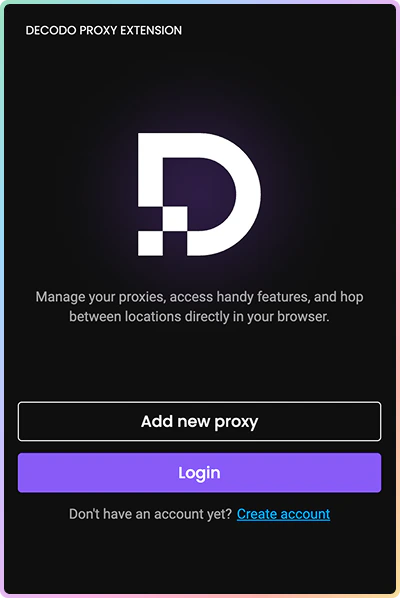
Once you’ve added the extension, follow these simple steps to start connecting via proxy without logging in via the Decodo dashboard:1
Login Menu
- Select
Add new proxyin the initial screen, and thenManual setup:
2
Proxy Setup
Fill the fields with any proxy server information (yes, even outside Decodo!):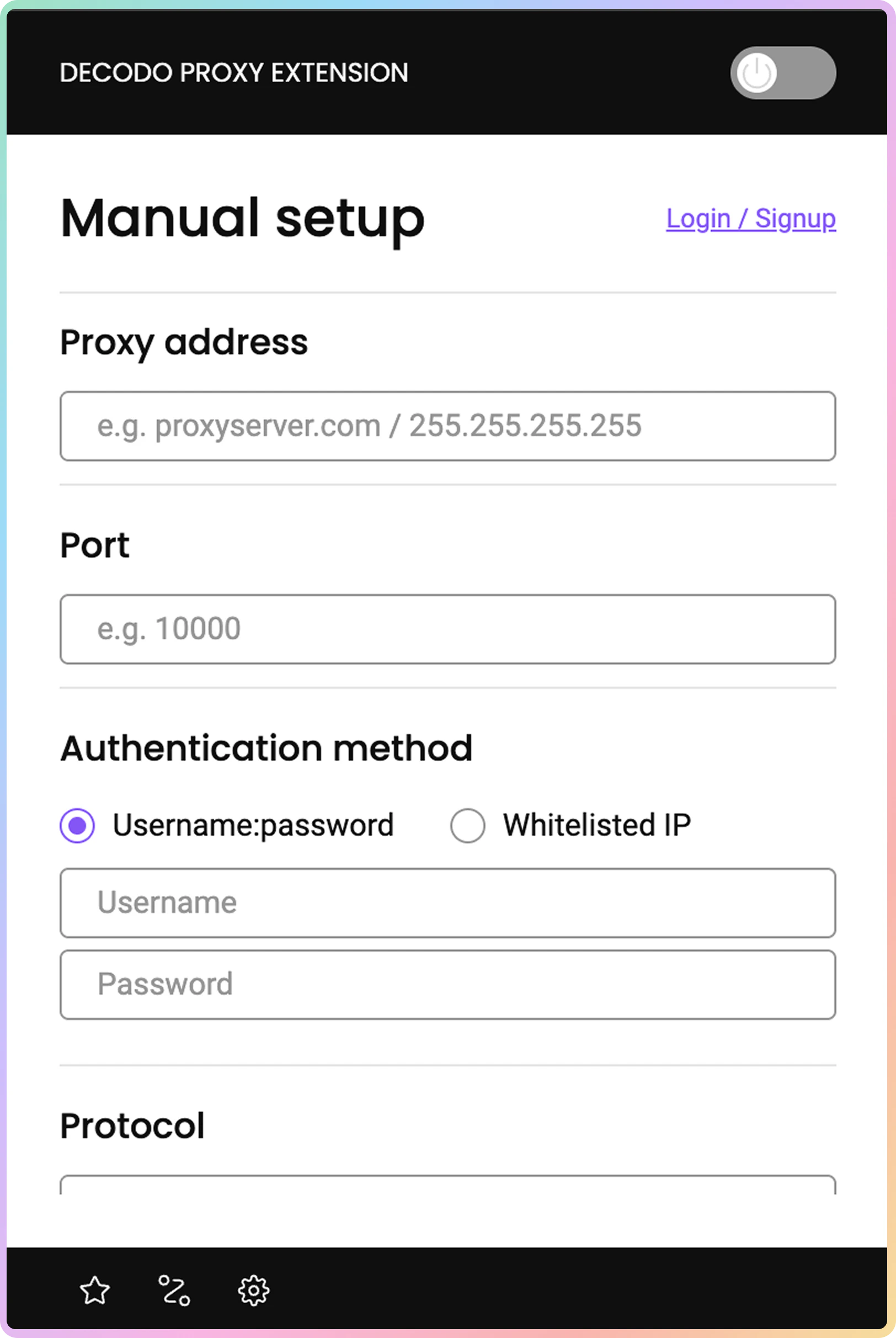
- Available protocols:
HTTP,HTTPSandSOCKS5(DecodoSOCKS5is unsupported).
3
Connecting
Press the toggle button in the top-right corner to connect. Easy!
Settings
WebRTC leak prevention
By enabling the WebRTC Leak Prevent option via a toggle button, you can stop WebRTC from bypassing your proxy, masking both your real IP address and location. To enable it:1
Open Settings
- Open the Decodo extension and click on the settings button in the bottom-right corner.
2
Toggle WebRTC Leak Prevent
Click on the WebRTC Leak Prevent toggle button, and there you go!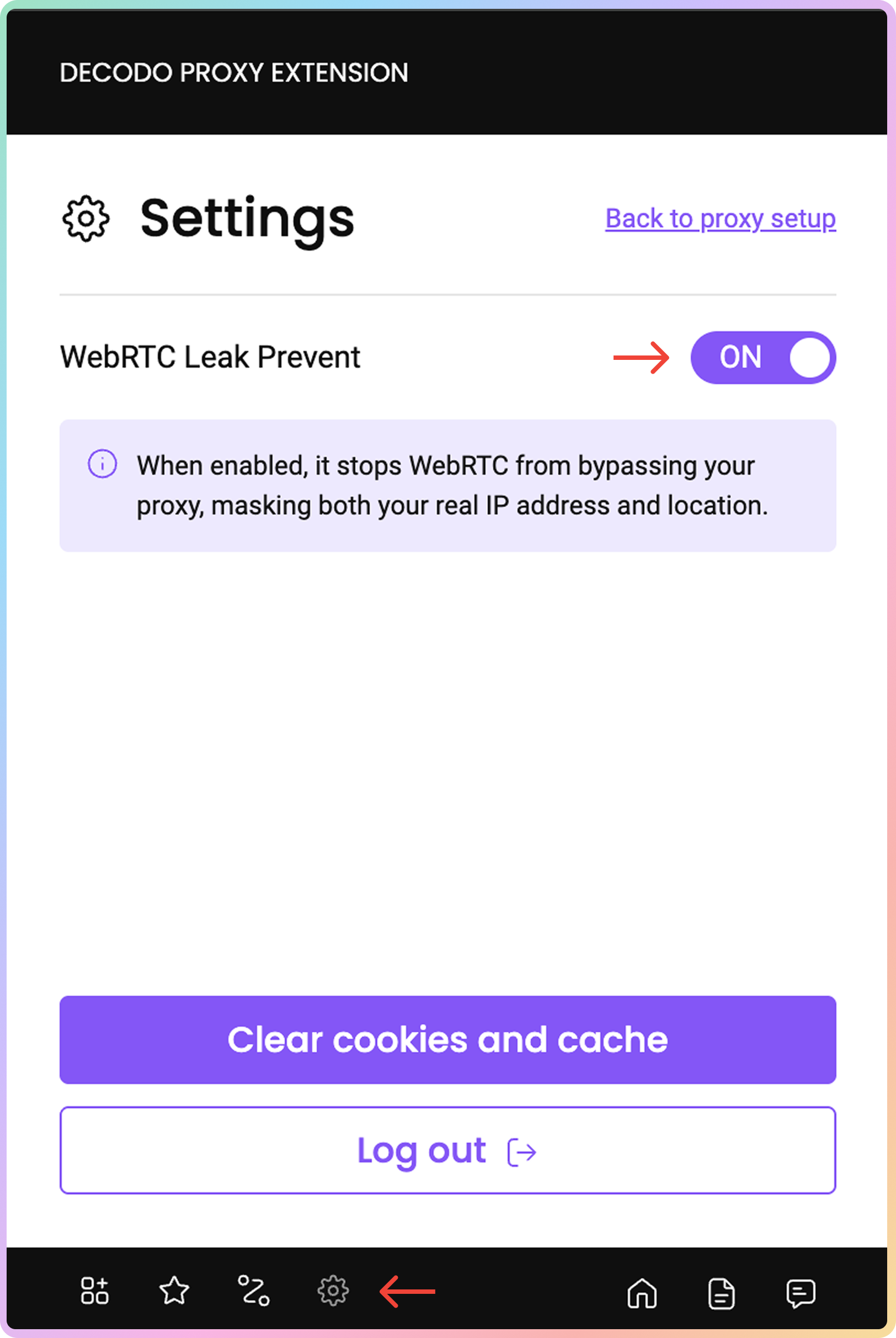
WebRTC leak prevention is enabled by default in the extension.
Clear cookies and cache
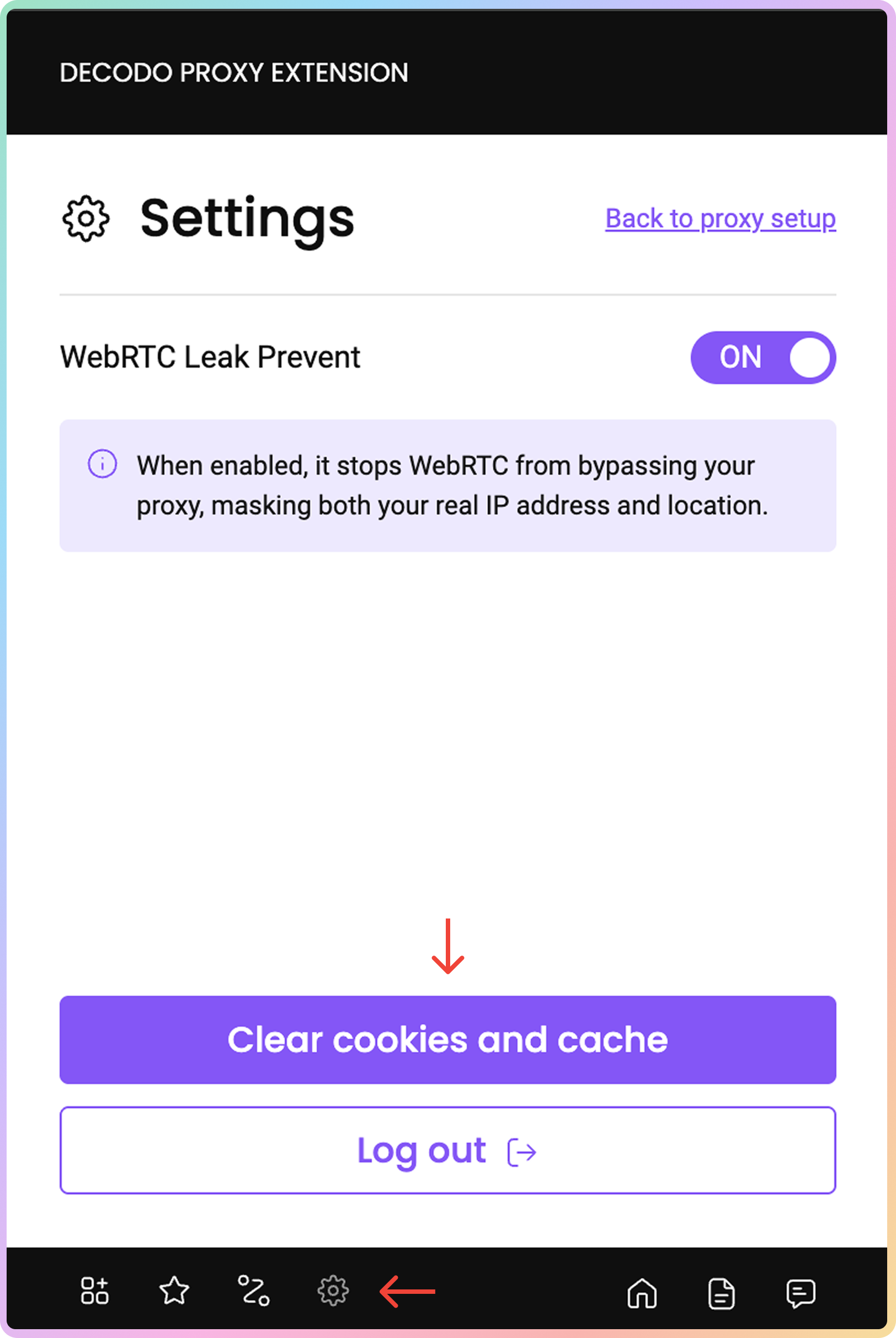
With the help of this setting, you can clear your browser’s cache and cookies with just a click. To clear them:1
Open Settings
Open the Decodo extension and click on the settings button in the bottom-left corner.
2
Clear cookies and cache
- Click on Clear cookies and cache, and voilà!
Profiles
1
Saving Profiles
You can also save various profiles, both of Decodo and other proxy connections, by specifying the name of the profile you want to save in the Add to profiles (optional) section and clicking on 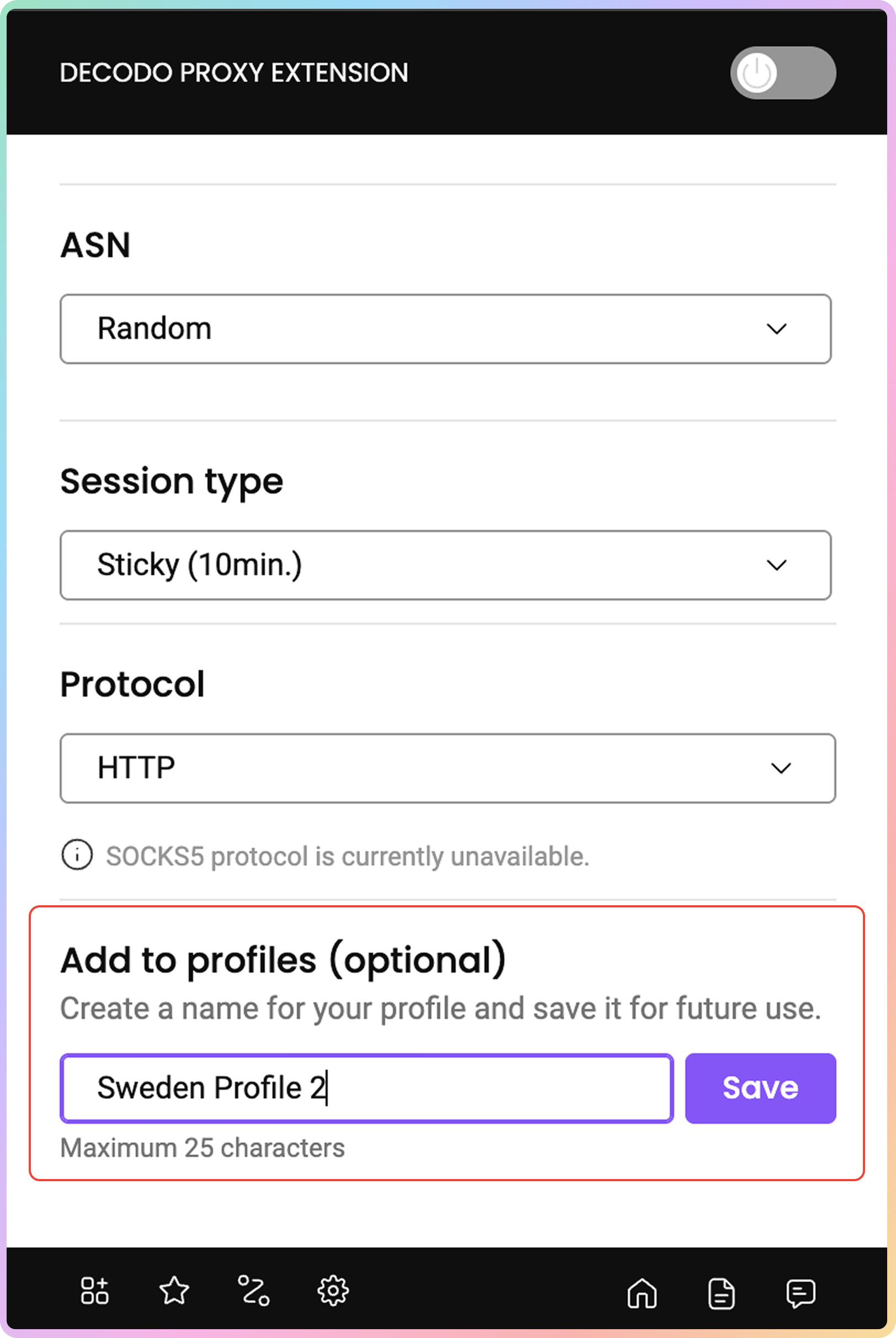
Save:2
Managing Profiles
You can view, manage, or connect to your saved profiles by clicking on the ★ symbol at the bottom left of the extension: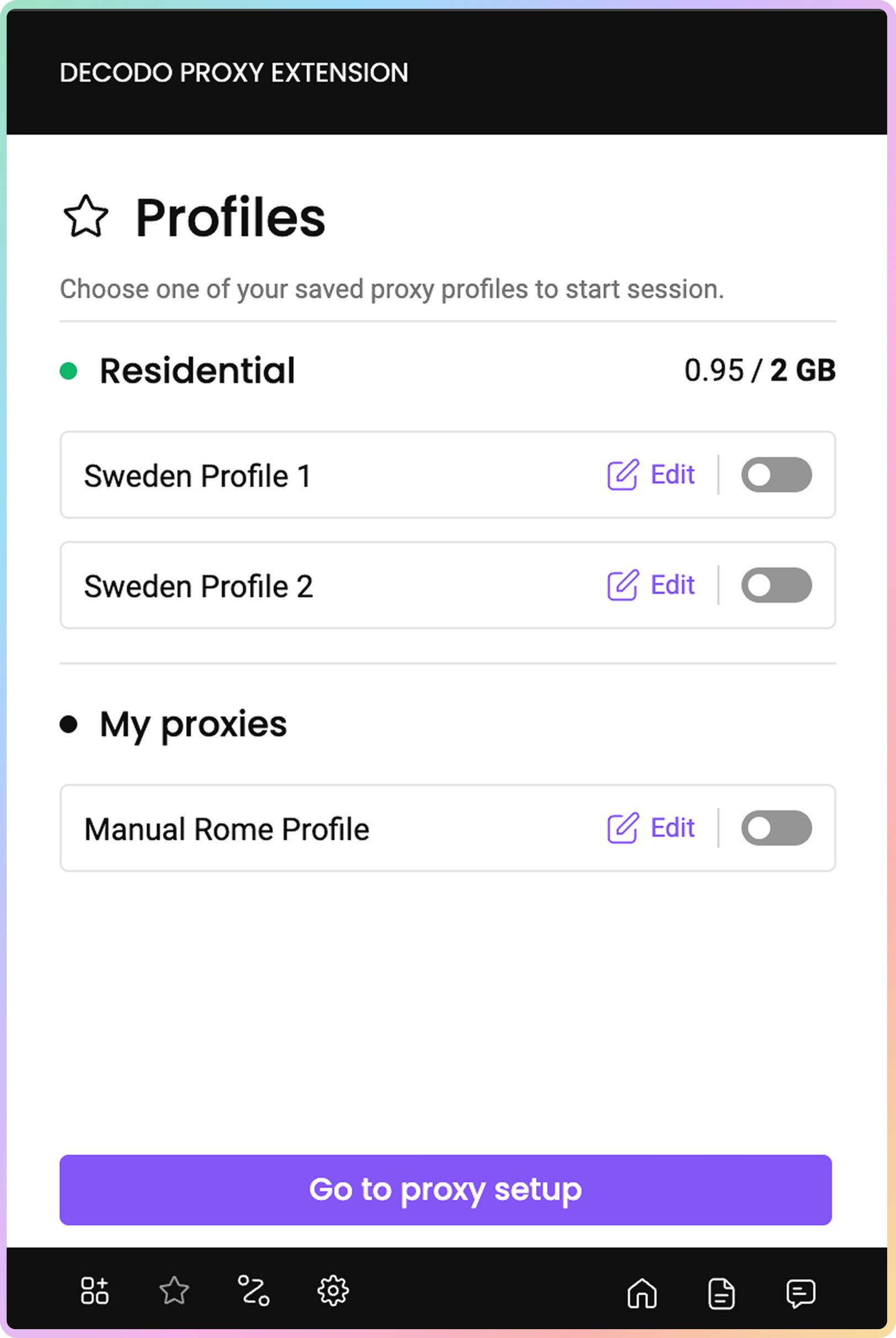
Bypass list
To exclude websites from being proxied, you can enter the undesired website domain names in the Bypass list extension window. To open the Bypass list extension window:1
Open Bypass List
Open the Decodo extension and click on the Bypass list button in the bottom-right corner.
2
Bypass Setup
Then, simply enter the website domain you’d like to avoid proxying. You can enter multiple websites.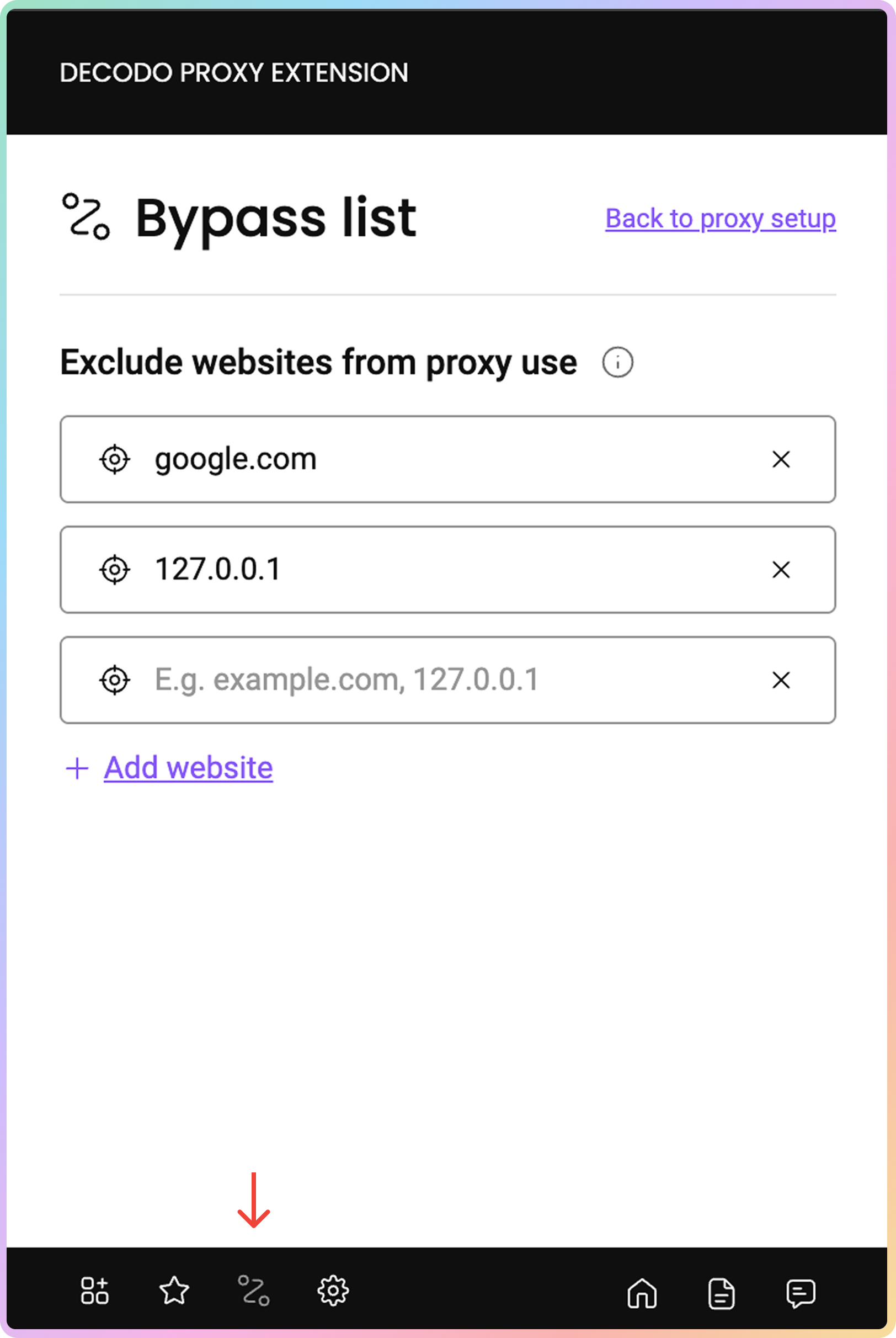
There are multiple formats that can be included in the bypass list. You can learn more about them via the Chrome Developer API.
Workplaces
1
Open Workplace selection
Press the icon at the bottom center of the extension.
2
Workspace Management
You will be able to choose your desired Workspace and use the products shared by the selected Workplace in the extension.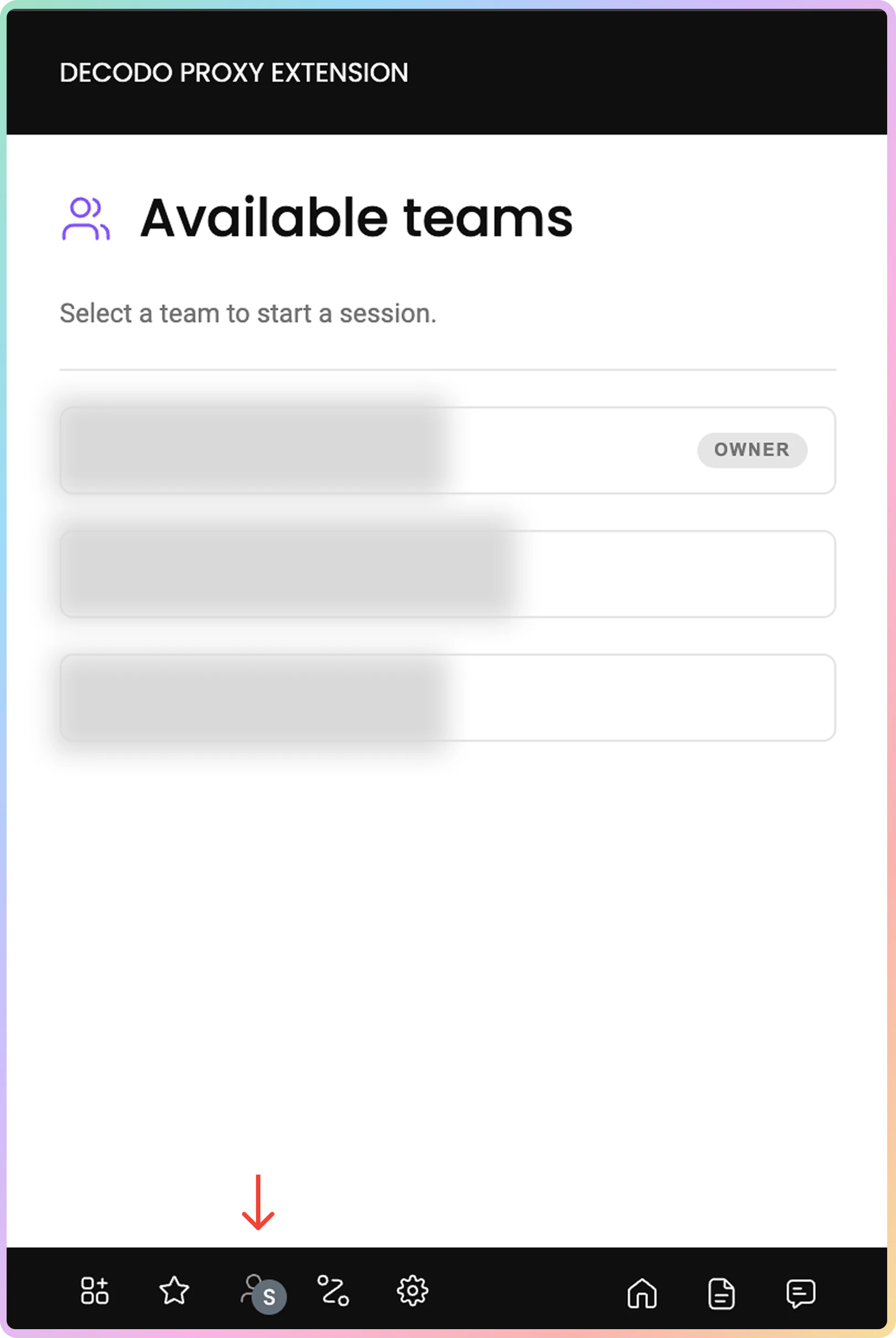
This feature will appear only when your account is part of two or more Workplaces.
Errors
- Unable to connect with the credentials provided. This error means that you have entered your proxy username and/or password incorrectly. Please log in to your dashboard account and go to the Proxy Setup section. You can adjust the credentials there.
- Unsuccessful request. Try changing the location or the session type and connect again. If you receive this error, try enabling the proxy using a different location or session type. If the error message persists, make sure the following details are correct:
- Your residential or datacenter subscription is active.
- No traffic limit has been set for your Proxy User. You can check that in the Proxy Setup Section of your Dashboard.
- If you are using Whitelisted IP authentication, check if the current IP of your device is whitelisted.
- If everything looks fine, but you still get this error, let us know via LiveChat!
- Unsuccessful request. Try changing the location or the proxy rotation type and connect again. If you receive this error, try enabling the proxy using a different location or rotation type. If the error message persists, try doing the steps in the error message above.
- Unsuccessful request. Please ensure that you enter a valid proxy username, password, and IP address. This error means that you have entered your proxy username, password, or whitelisted IP incorrectly. Please log in to your dashboard account and go to the Proxy Setup section. You can double-check the credentials there.
- Too many unsuccessful login attempts. Please try again later. You will see this error if you’ve entered your credentials incorrectly five times in a row. It’s there to prevent abuse and ensure that our services are functioning as intended. The block will clear after one hour.
- No whitelisted IP found, visit the dashboard to manage IPs. You will see this error if you have selected a whitelisted IP as the authentication method but haven’t whitelisted any IP addresses in your dashboard. To do so, go to the Proxy Setup section and add your desired IP address.
Support
Need help or just want to say hello? Our support is available 24/7.
You can also reach us anytime via email at support@decodo.com.
You can also reach us anytime via email at support@decodo.com.
Feedback
Can’t find what you’re looking for? Request an article!
Have feedback? Share your thoughts on how we can improve.
Have feedback? Share your thoughts on how we can improve.