

Proxy Setup
1
Open the Octoparse application.
2
In the top-left menu, hover over the New button, and click on Custom Task. For testing purposes, we are going to create a custom task.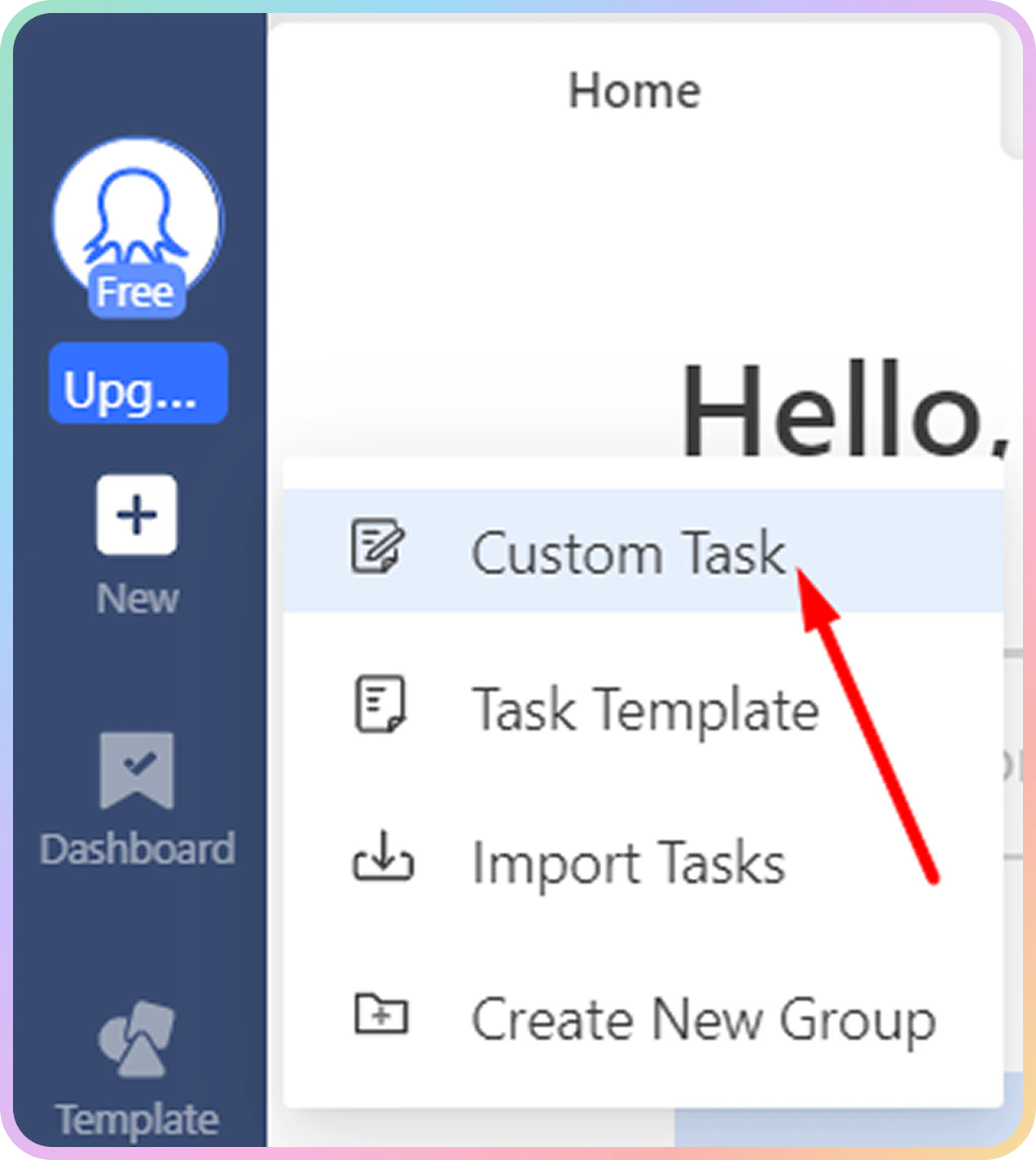
3
In the URL Input field, indicate the website you would like to extract data from. For this test, we are going to use 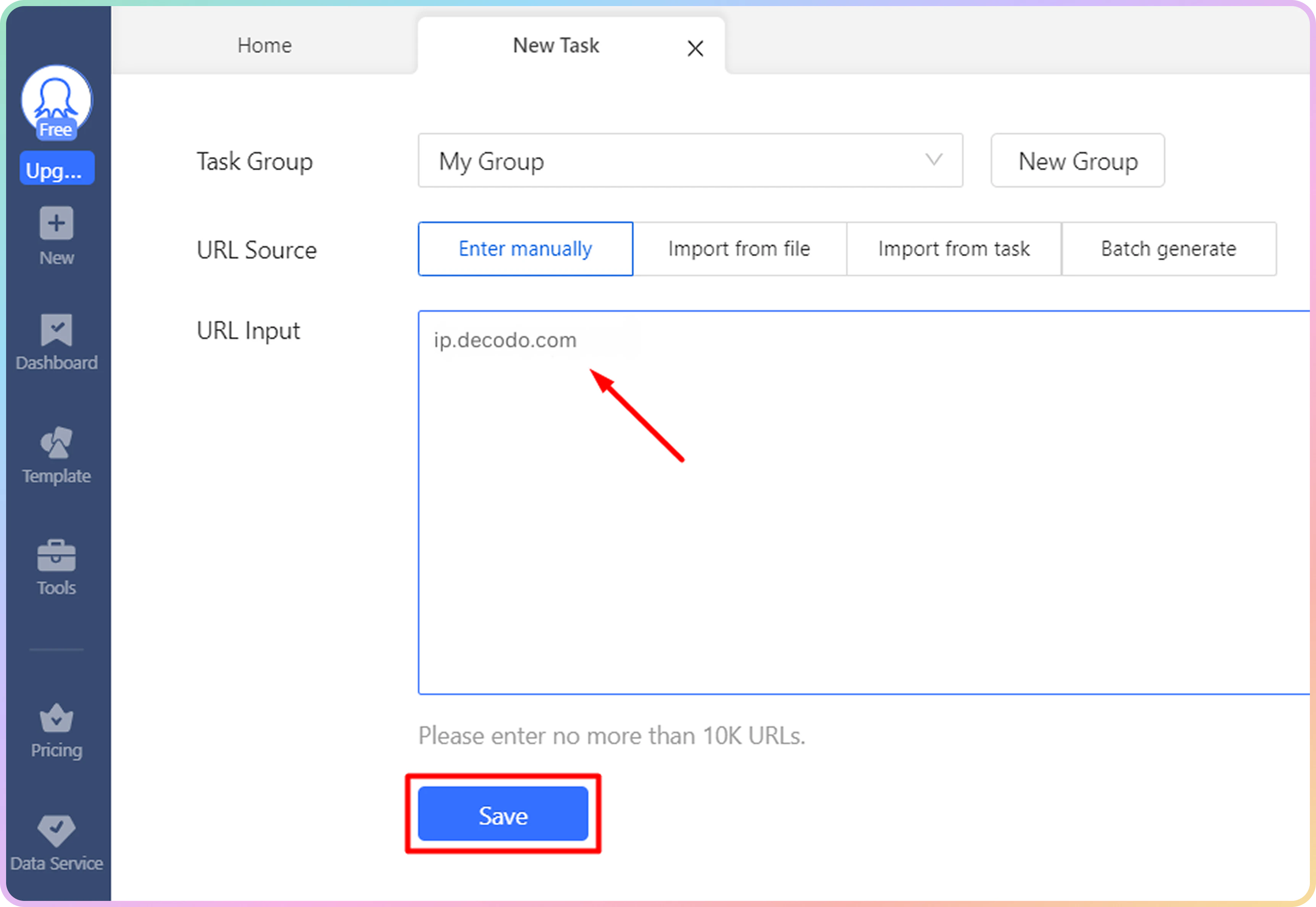
ip.decodo.com. Once you do that, hit the Save button.4
You should now find yourself in your Task tab. To configure our proxies, select the Task Settings button.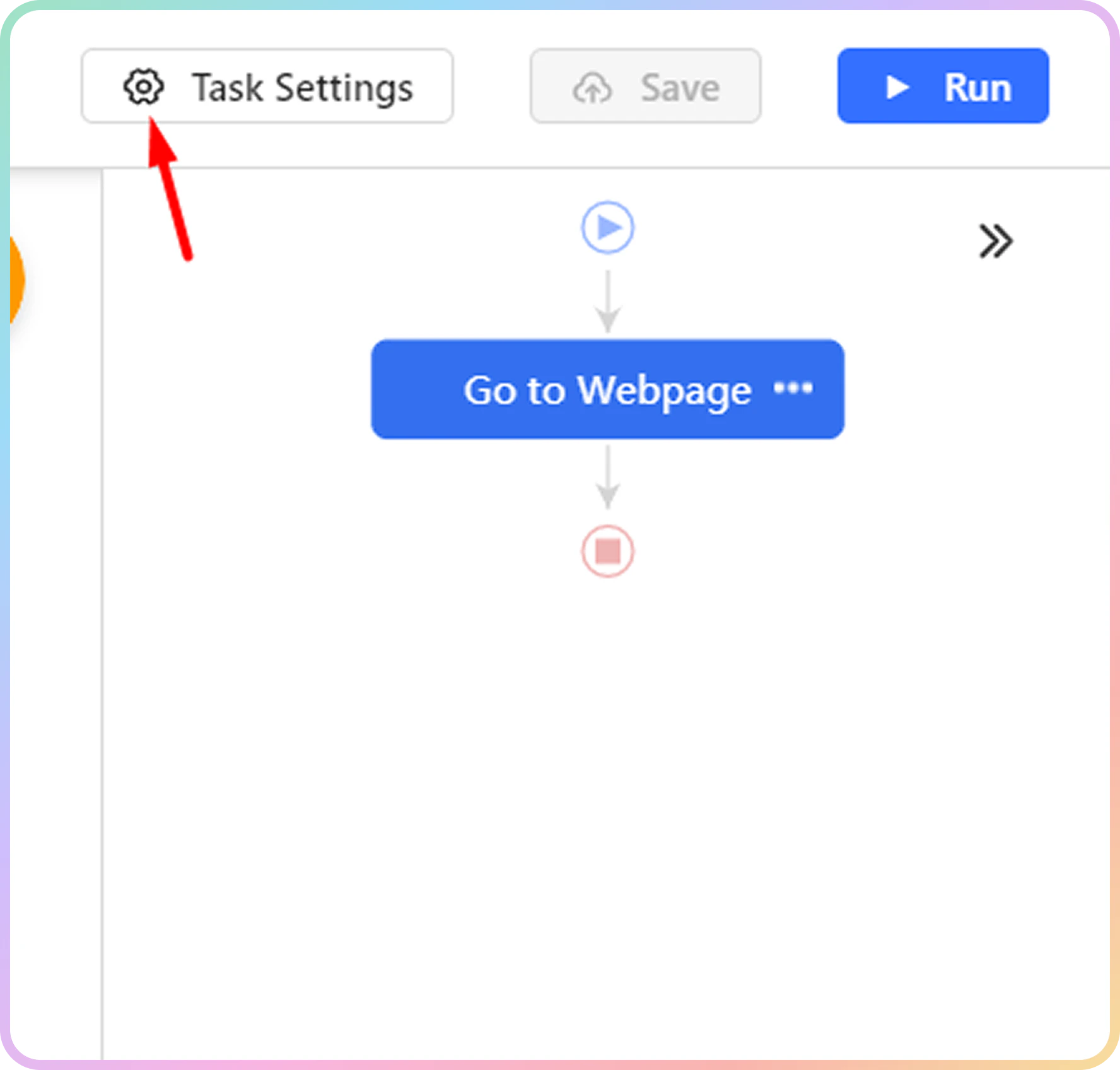
5
In the pop-up menu, choose the Anti-blocking tab and check the option to Access websites via proxies. You should now be able to click on the Configure button.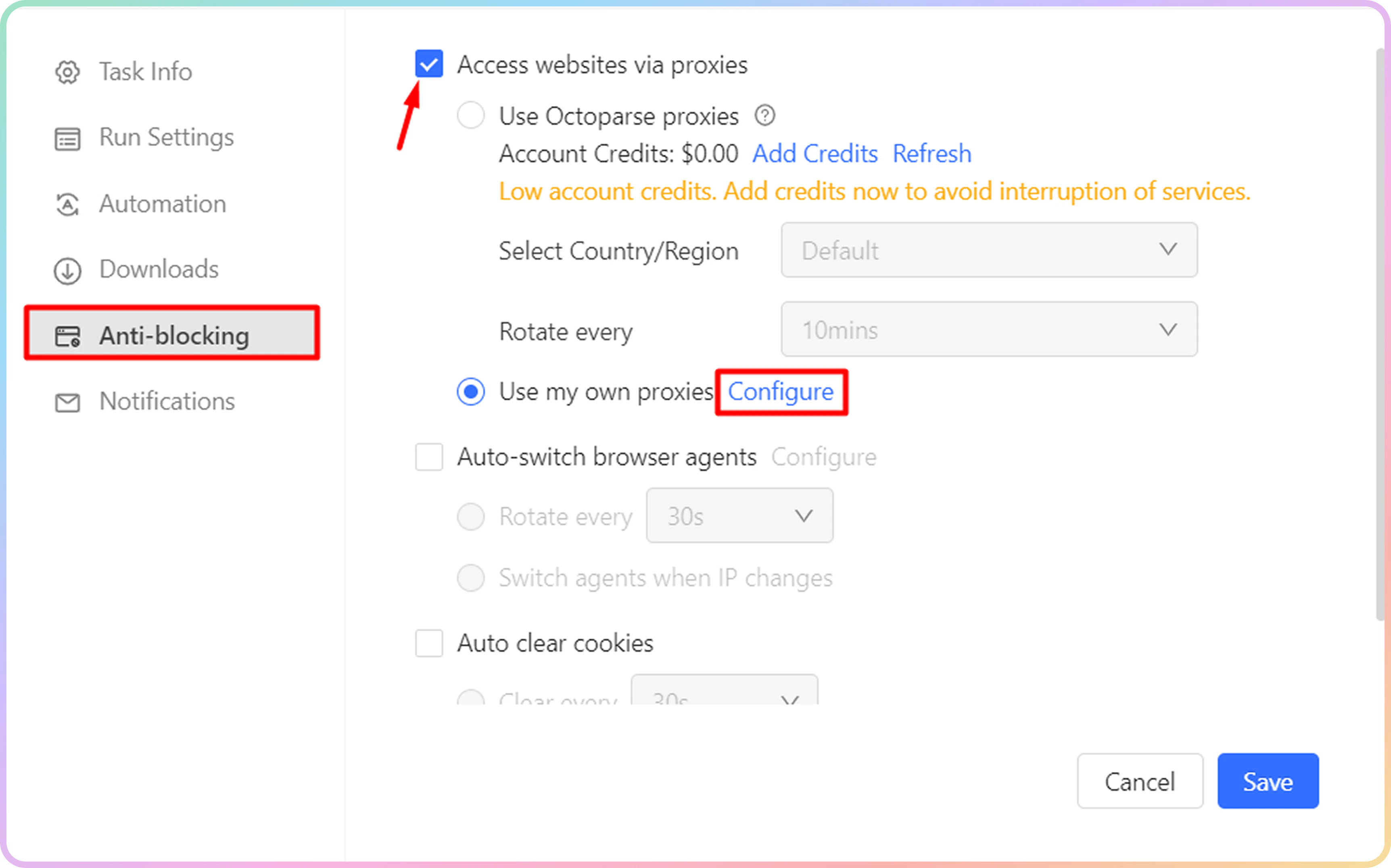
6
In the Proxy Settings pop-up, define the proxy you would like to use. Unfortunately, Octoparse only offers
IP:PORT based format to authenticate through a proxy network. For that particular reason, you will need to use our Whitelisted IP feature to skip the traditional username:password authentication when going through a proxy. You can whitelist your IP after logging into our dashboard here.7
Once you have your 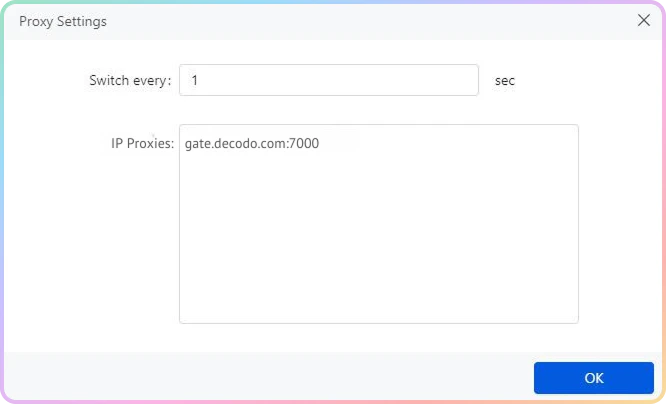
IP:PORT ready, select the Switch interval according to your session type. If you are using a rotating session type, set the interval to 1. If you are using a sticky session, set it to 600. Finally, hit the Confirm button.8
You can enable some other settings here, like Auto-switch browser agents or Auto clear cookies. Once you’re satisfied with your settings, click Save to continue.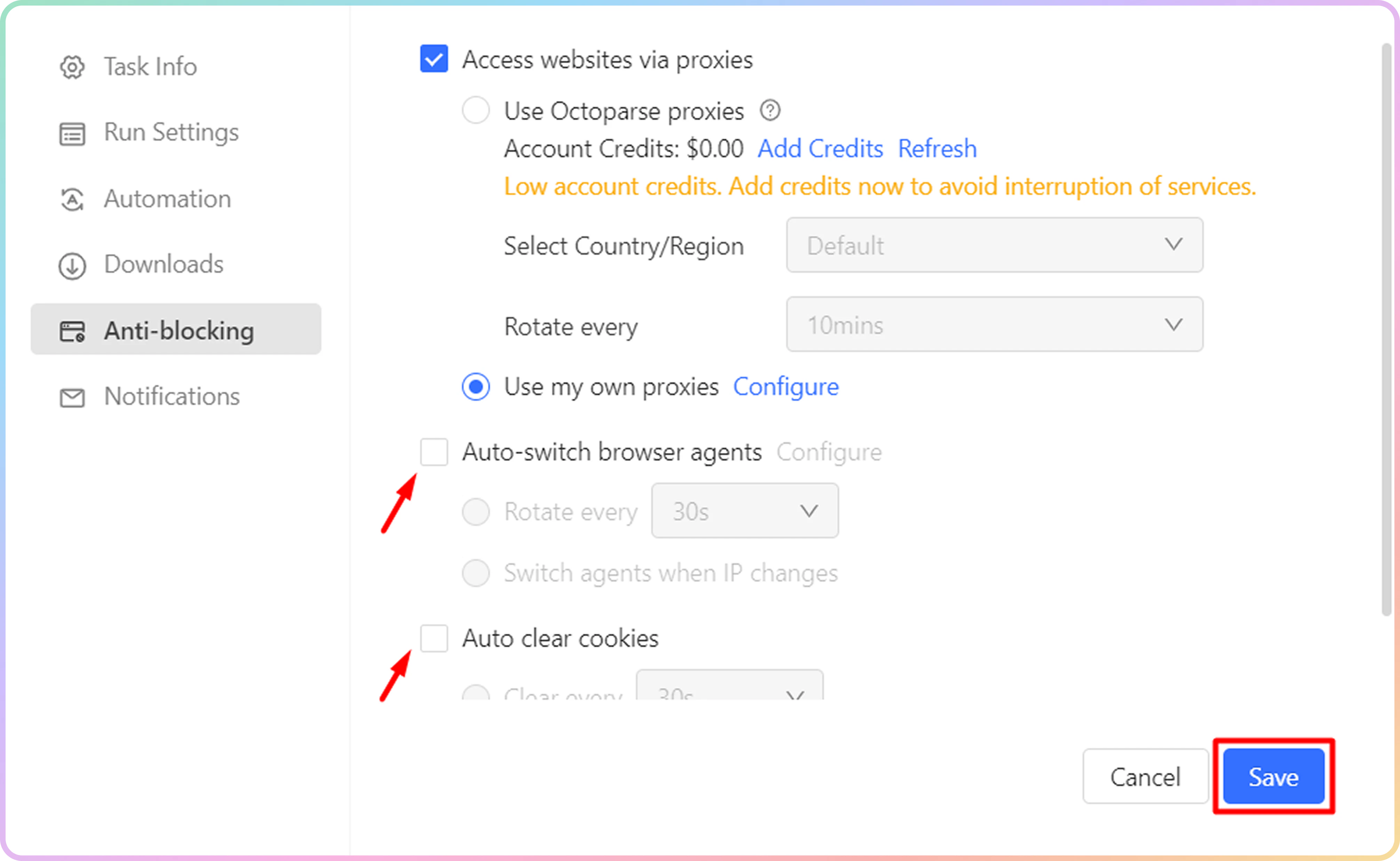
9
To extract data from our example page, click on the IP address that you can see at the top of the Octoparse application and select Text in the Extract data option.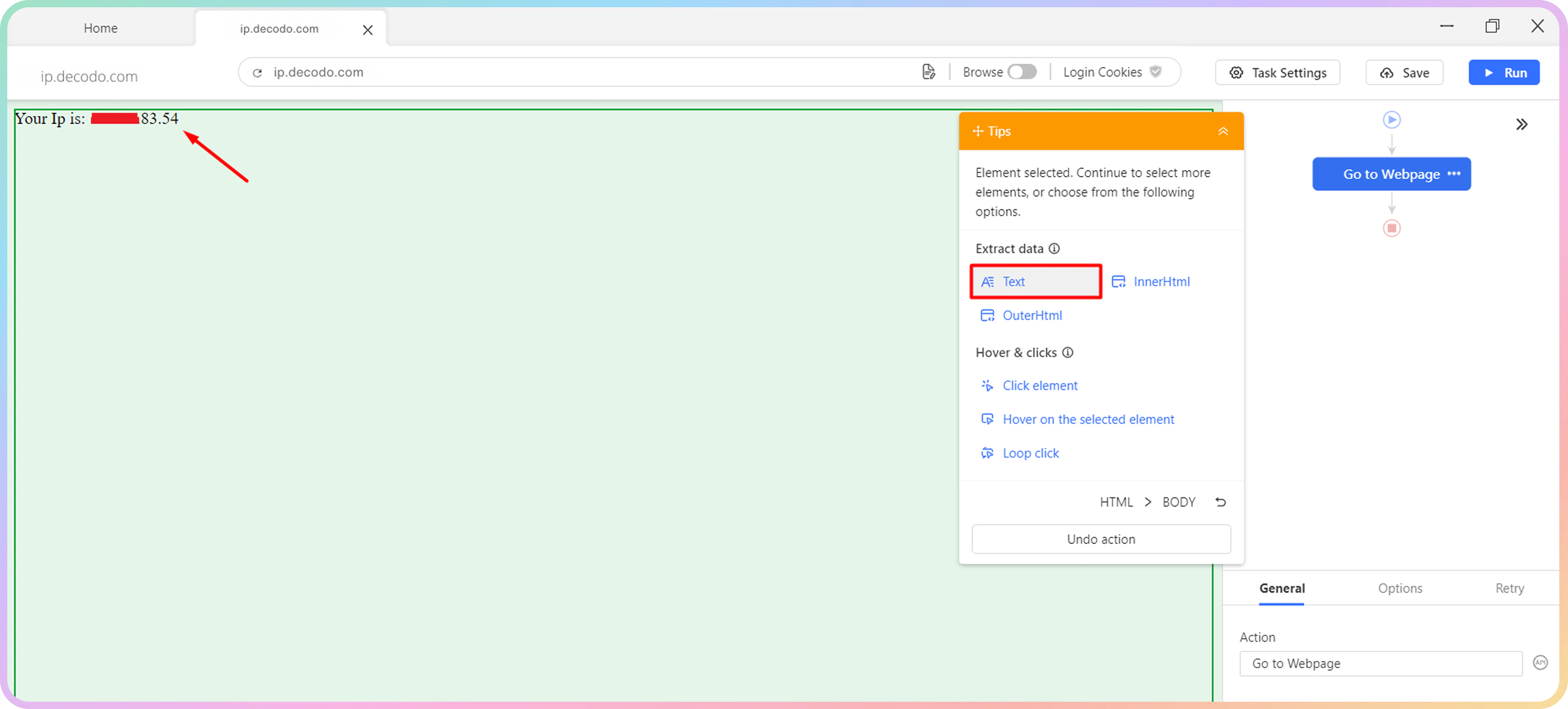
10
Once that is done, click on Save and then Run.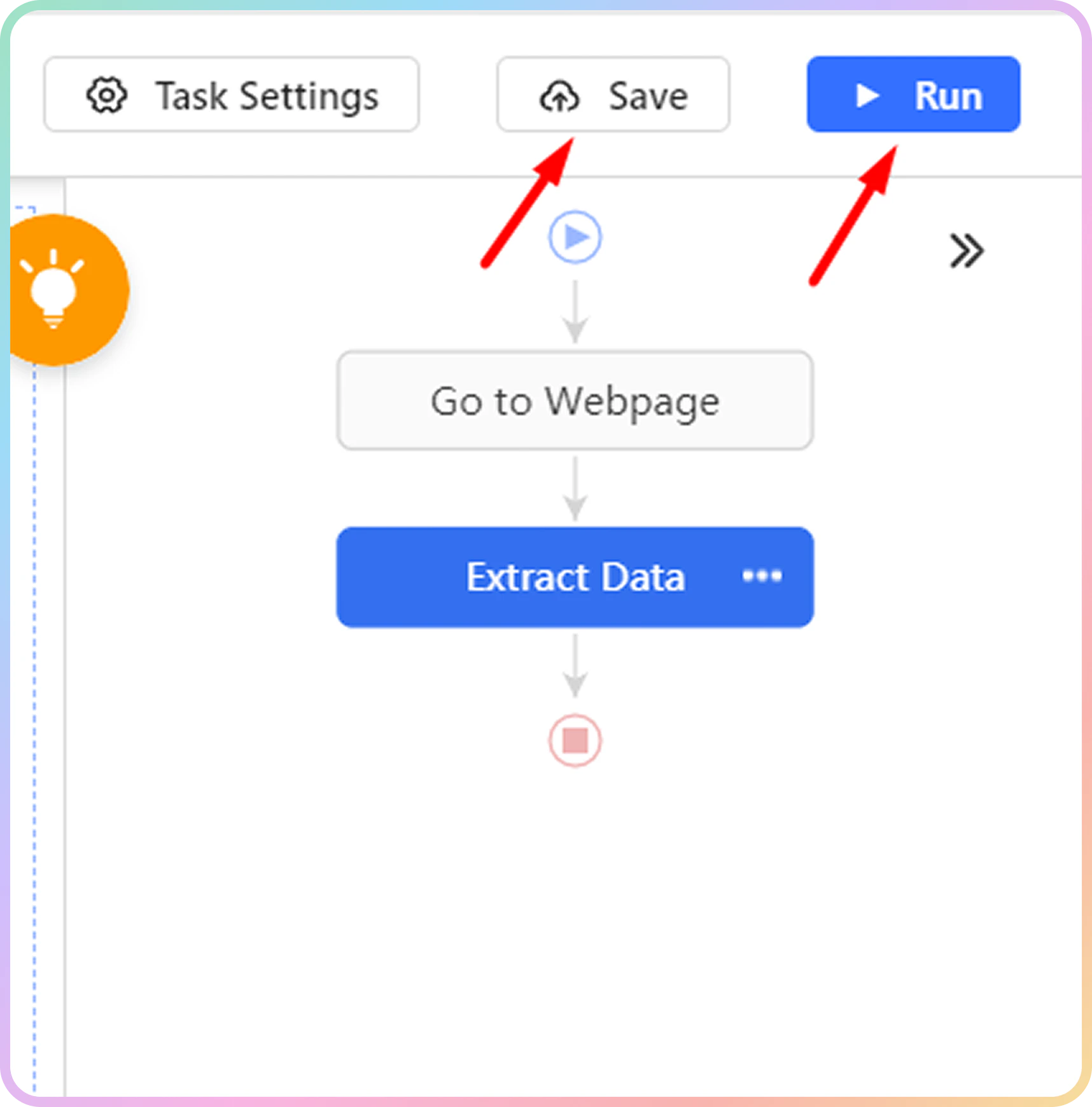
11
Depending on how you want to run your task, select one of the available extraction options. For testing purposes, you can Run task on your device in Standard Mode.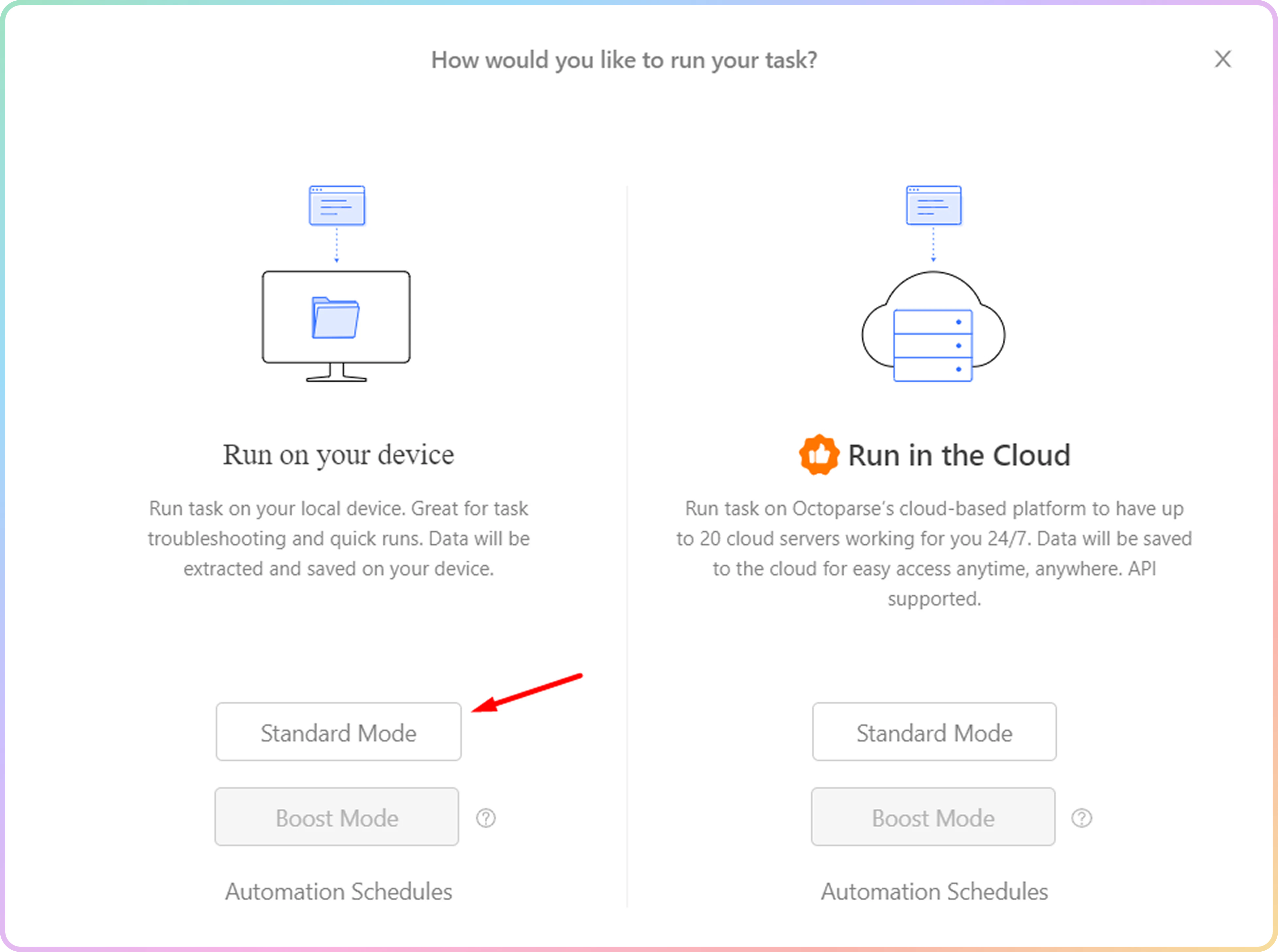
12
If done correctly, you should see our proxy IP in the extracted data table once the task is finished.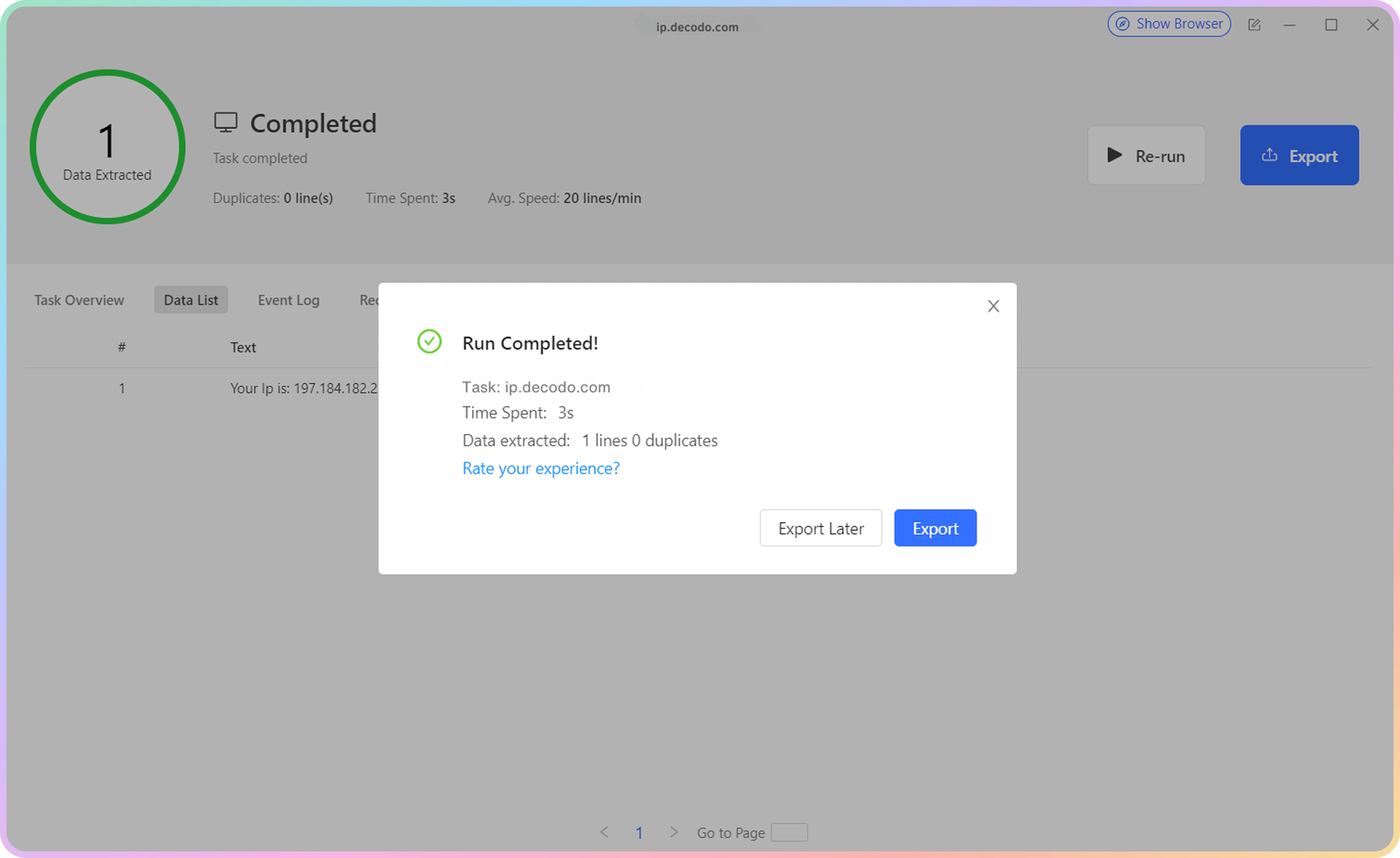
Support
Need help or just want to say hello? Our support is available 24/7.
You can also reach us anytime via email at support@decodo.com.
You can also reach us anytime via email at support@decodo.com.
Feedback
Can’t find what you’re looking for? Request an article!
Have feedback? Share your thoughts on how we can improve.
Have feedback? Share your thoughts on how we can improve.