

- After you purchase a subscription, a proxy username and password will be automatically generated in the Authentication section.
- The default number of whitelisted IP slots is 10. Please contact our customer support for more information.
Dashboard Access
If you cannot log in to the dashboard, please request a password change by going to the Reset Password page.User:pass Authentication
Managing Proxy Users
- You can manage your proxy users by clicking the Users tab in the Authentication section.
- You can buy additional users by clicking Buy users on the right.
- The default number of Users depends on the Number of IPs you select during checkout.
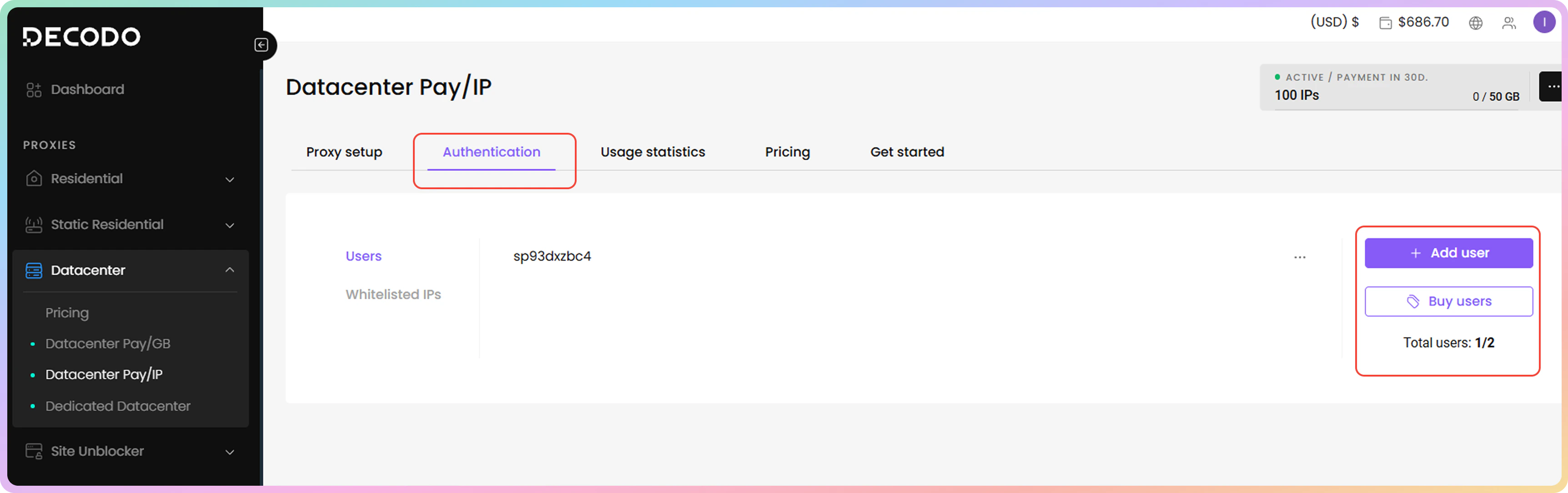
Currently, you cannot rename proxy users. If needed, you can create a new one or recreate a proxy user by deleting it.
Make sure to enter a unique username when creating a proxy user to prevent intermittent proxy authentication problems.
Editing Proxy Users
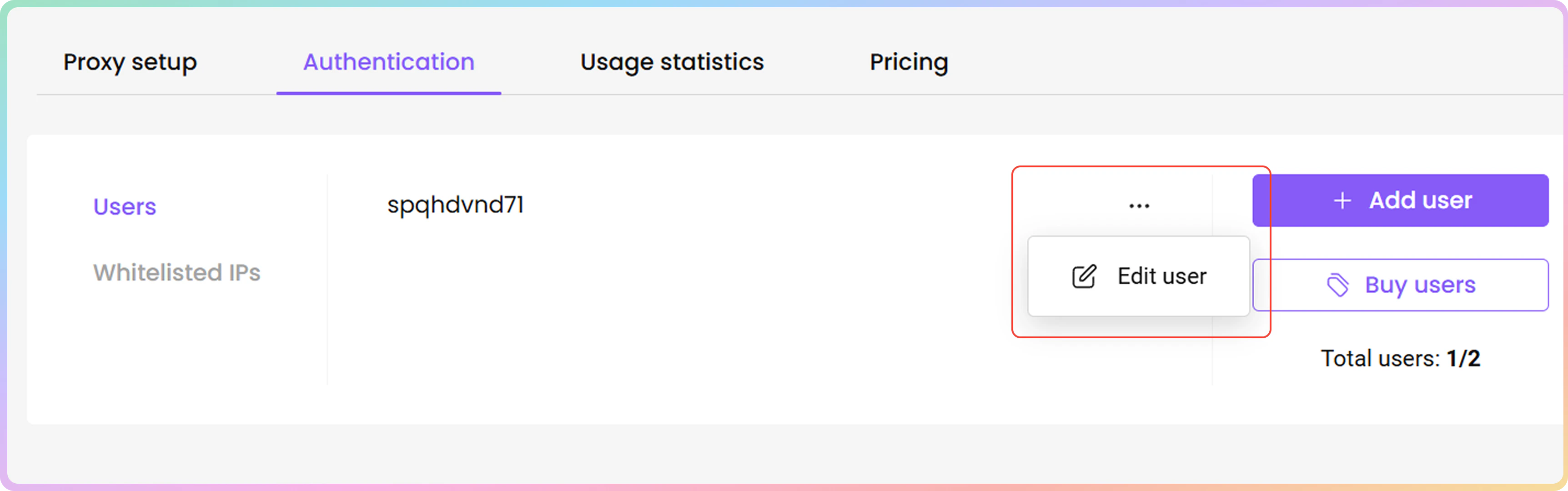
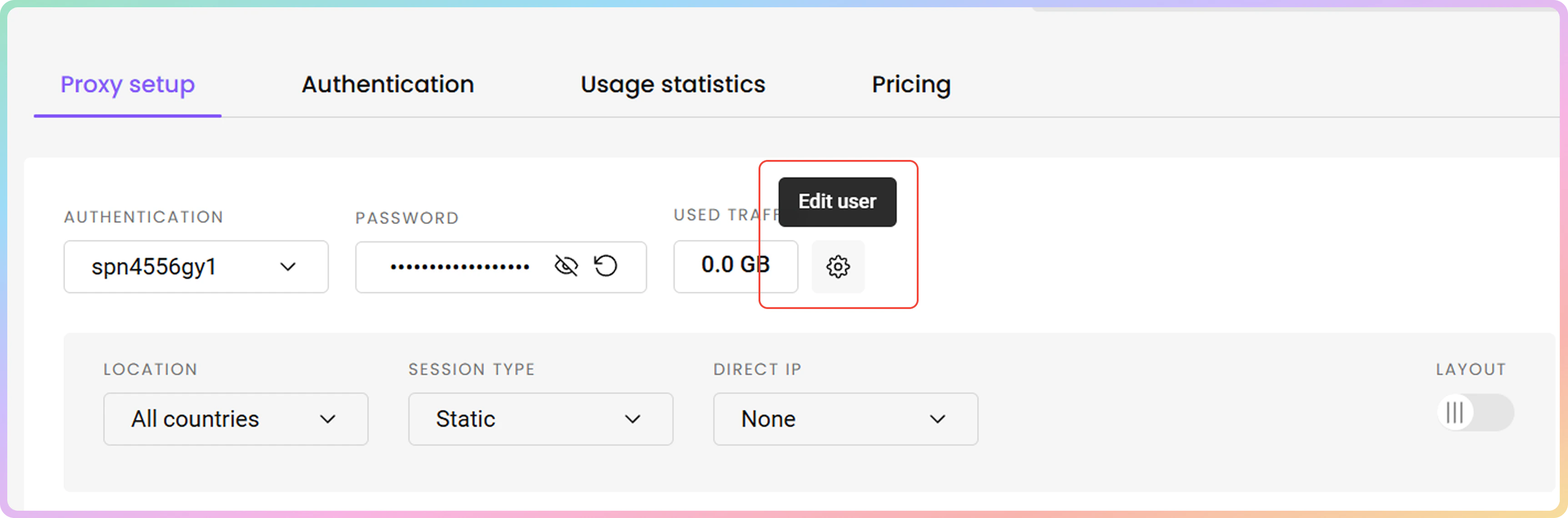
To edit a proxy user, click the three dots and then Edit user. A menu on the right will open.- Alternatively, you can add or edit proxy users directly in the Proxy Setup section.
Password Generation
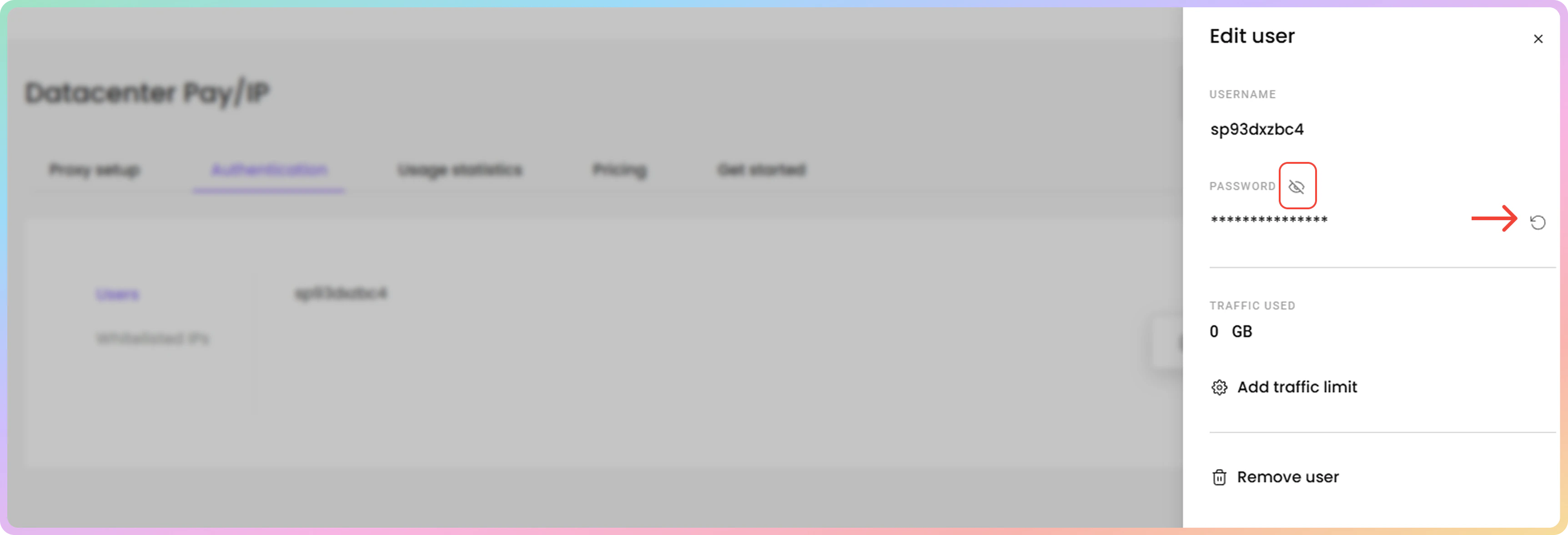
- To change your proxy user’s password, click the Generate password button next to the password.
- To reveal or hide the password, click the eye icon.
- You can copy the username and password by clicking on them.
Traffic Limit Management
- To add, edit, or remove a traffic limit for a specific proxy user, click Add traffic limit.
- Type in the traffic limit and click the checkmark button to add or edit a limit. Click X to cancel.
- Click Edit to change the traffic limit or the Bin icon to remove it.
- Click Save.
Proxy User Deletion
- To delete a proxy user, click Remove user and then Confirm.
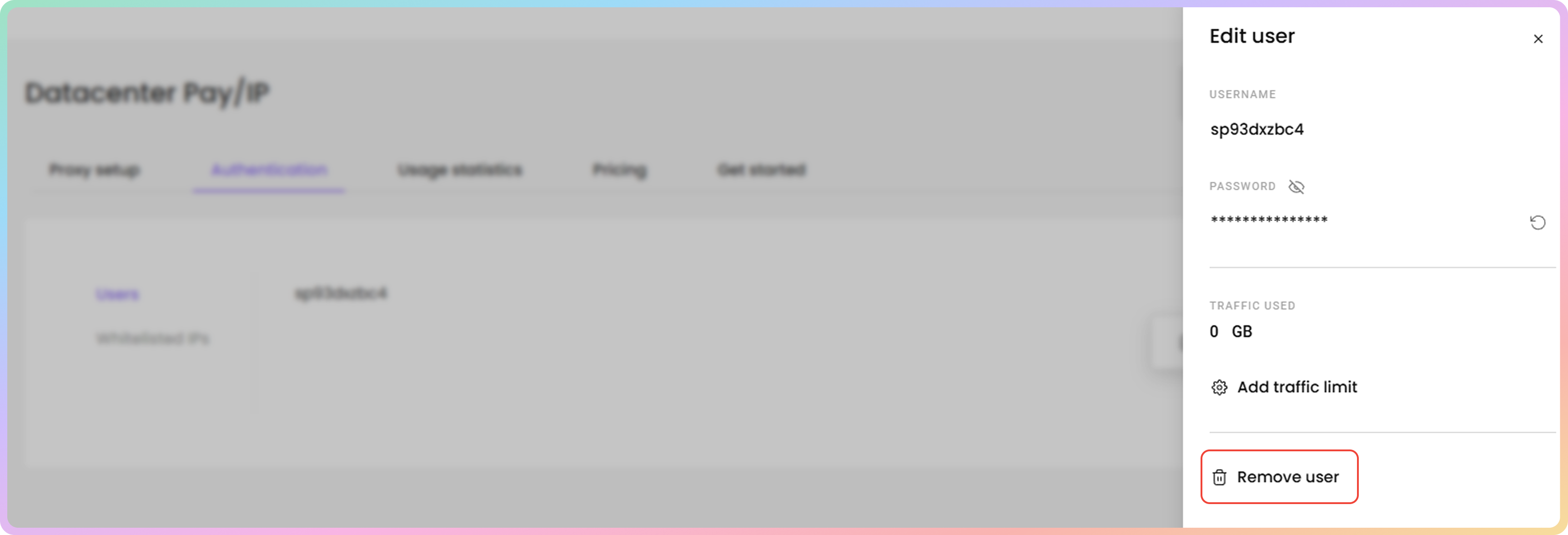
Adding a proxy user
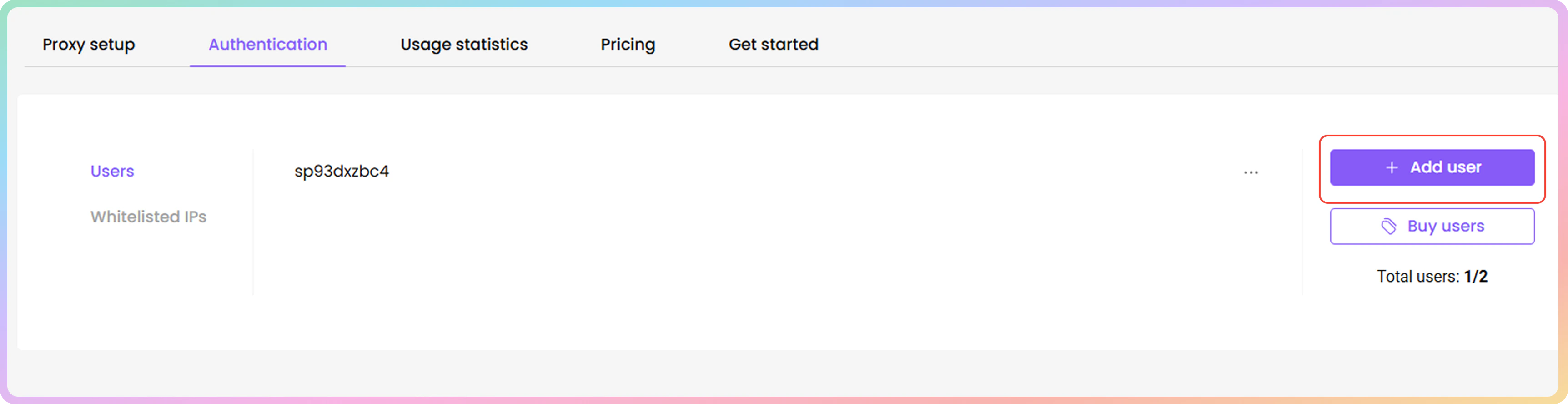
- To create a new proxy username and password, click + Add user. A menu on the right will open.
- A vacancy is required for this option to appear. Check the Total users count.
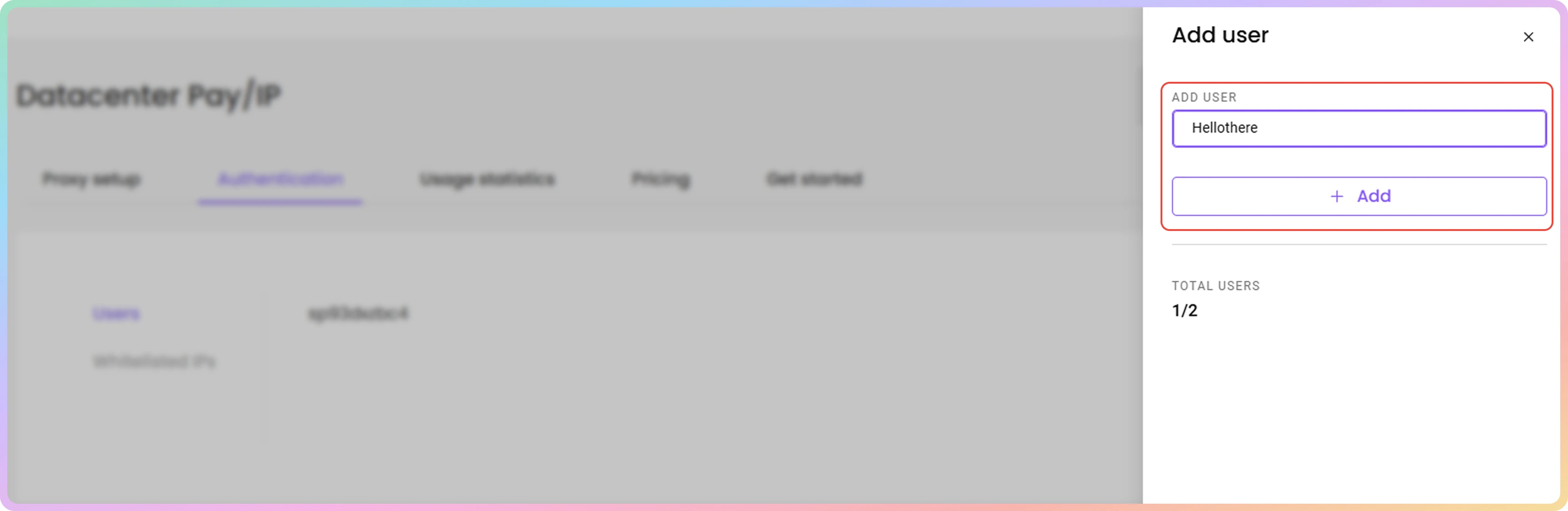
- Type in the username you want, and click + Add. A password will be automatically generated.
- The username must be 6 to 64 characters long, letters and numbers only, no spaces.
Whitelisted IP Authentication
Managing Whitelisted IPs
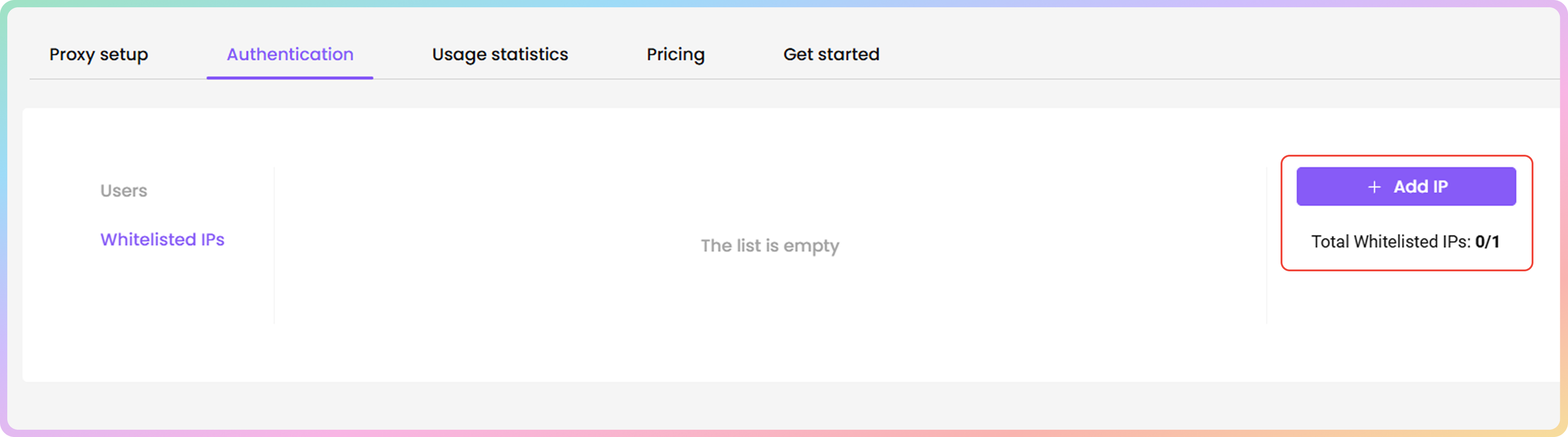
- You can manage your whitelisted IPs by clicking the Whitelisted IPs tab in the Authentication section.
- The list will be empty by default.
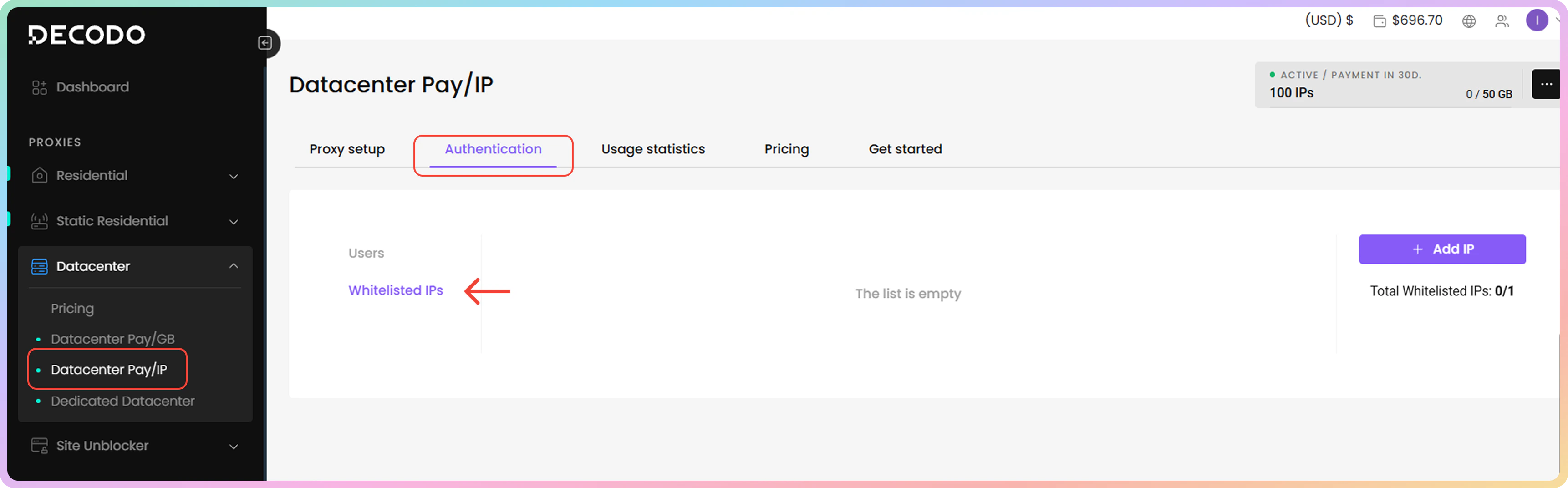
- To add a new IP address to the whitelist, click + Add IP. A menu on the right will open.
- To buy more than 10 Whitelisted IP slots, please contact our 24/7 customer support by clicking the chat widget on the bottom right or by using this link.
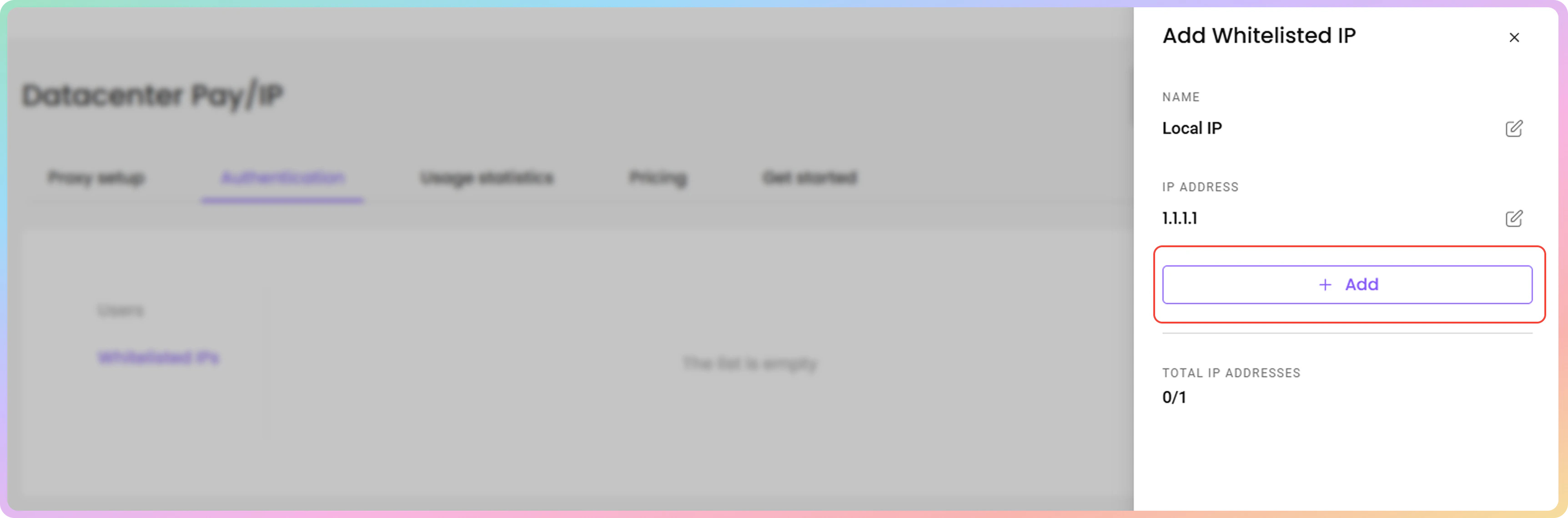
- Enter your desired IP address, click + Add to whitelist it or Edit to enter a specific one manually.
- You can only add IPs that are in IPv4 format (xx.xx.xx.xx). The IPv6 format is not supported.
- Ensure that the IP you are adding is yours, only accessible by you and that you are not using a Proxy or VPN service at the time.
Editing Whitelisted IPs
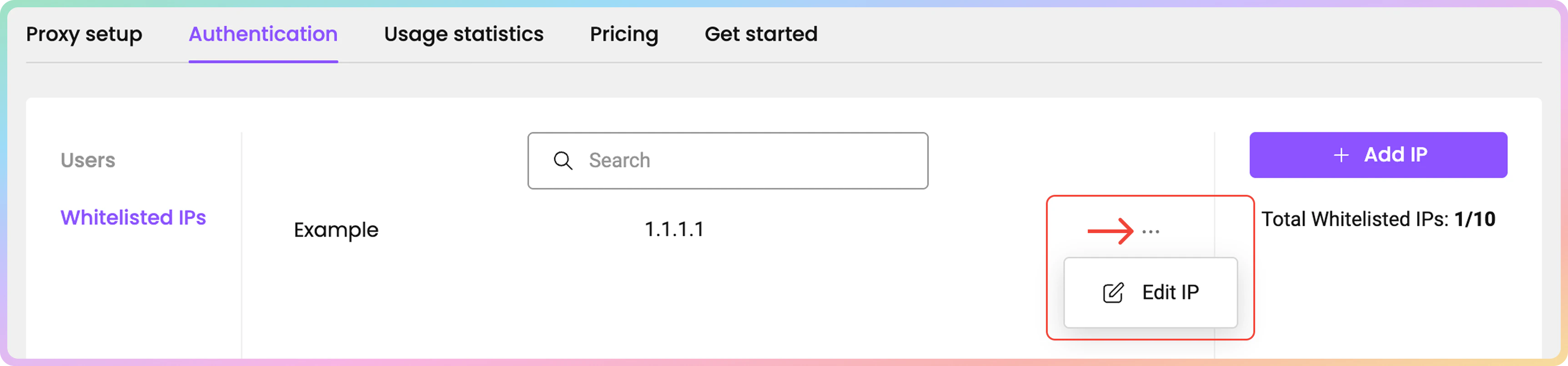
- To edit a whitelisted IP, click the three dots, and then Edit IP. A menu on the right will open.
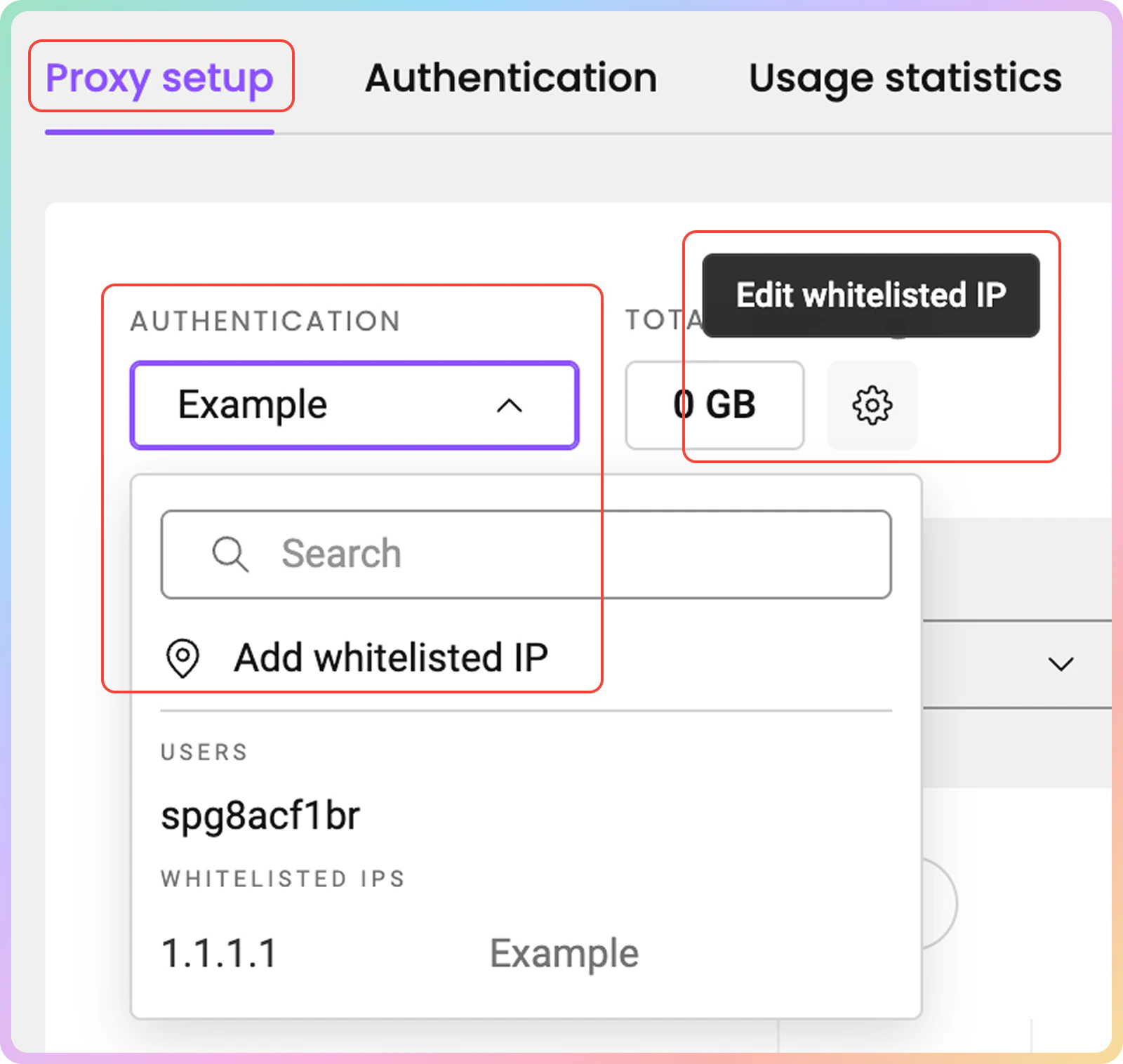
- Alternatively, you can add or edit whitelisted IPs directly in the Proxy setup section.
Naming Whitelisted IPs
- To name your whitelisted IP, click Edit and type in the name you want. Click Save to finalize.
- Leave the entry field blank to remove a name.
Whitelisted IP Removal
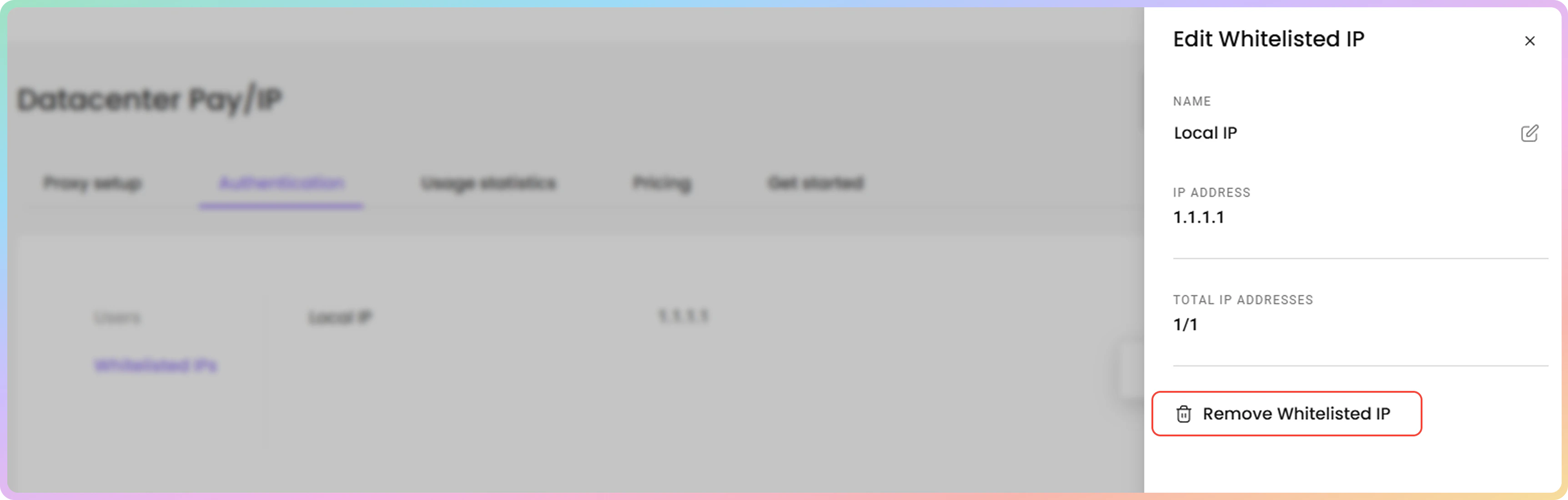
- To remove a whitelisted IP, click Remove Whitelisted IP and then Confirm.
Support
Need help or just want to say hello? Our support is available 24/7.
You can also reach us anytime via email at support@decodo.com.
You can also reach us anytime via email at support@decodo.com.
Feedback
Can’t find what you’re looking for? Request an article!
Have feedback? Share your thoughts on how we can improve.
Have feedback? Share your thoughts on how we can improve.