

IP configuration options
My IP List
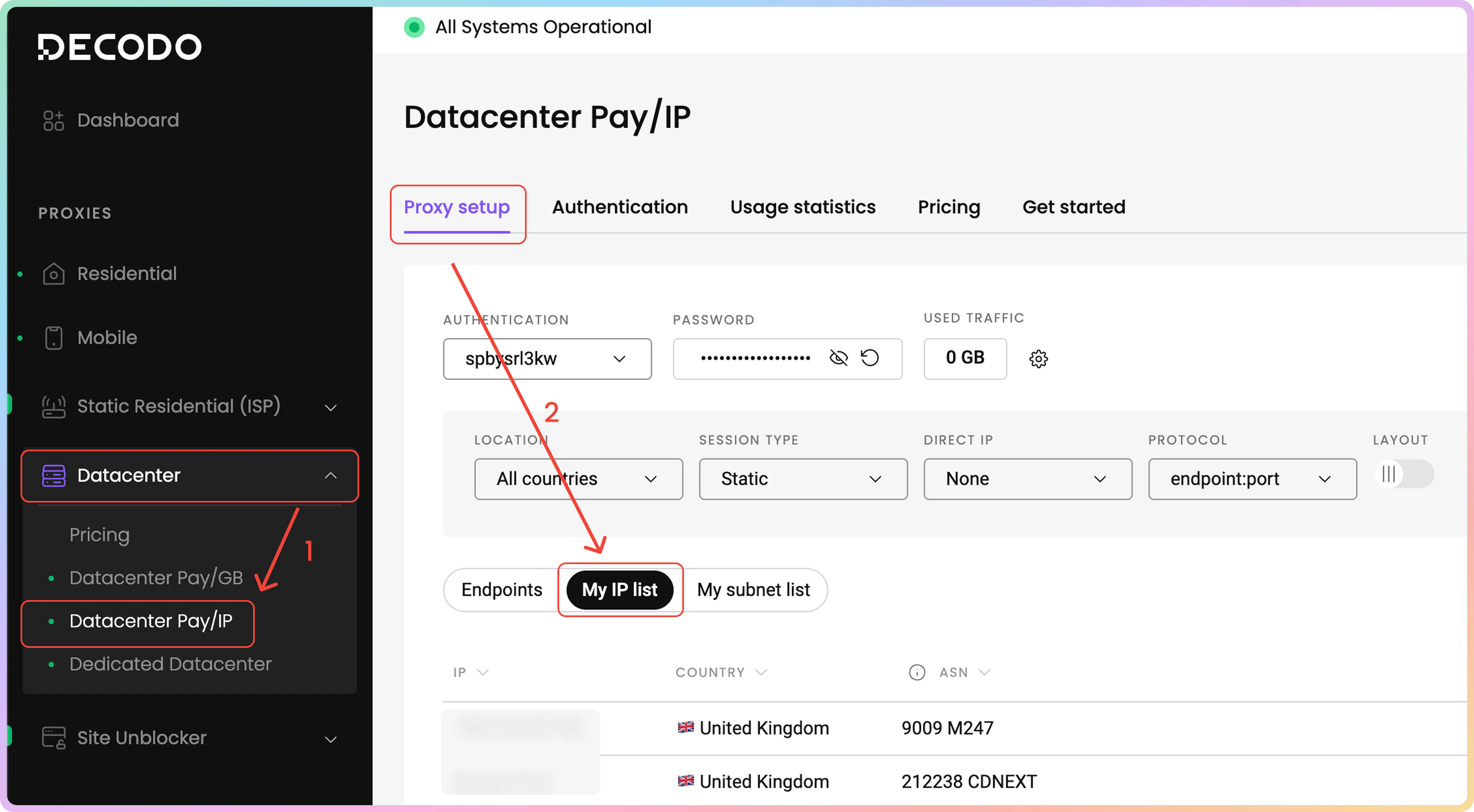
By default, the dashboard shows the proxy endpoints list. That means you would have to navigate to the My IP list section on the dashboard to view your purchased IP list.- Via the dashboard left panel, click on Datacenter → Datacenter Pay/IP.
- Now, you are in the Proxy setup page. Above the endpoint generator section, click on the My IP list section.
- There are 3 columns: the IP address, the IP’s country of origin, and its ASN.
- You can filter the IP list by its country or search via keywords.
- You can copy each of the table’s values to your clipboard by clicking on them.
- You can export the table’s data directly or export the raw data in the following file formats:
.CSV, .TXT, or.JSON. You can also copy the list of IPs to your clipboard.
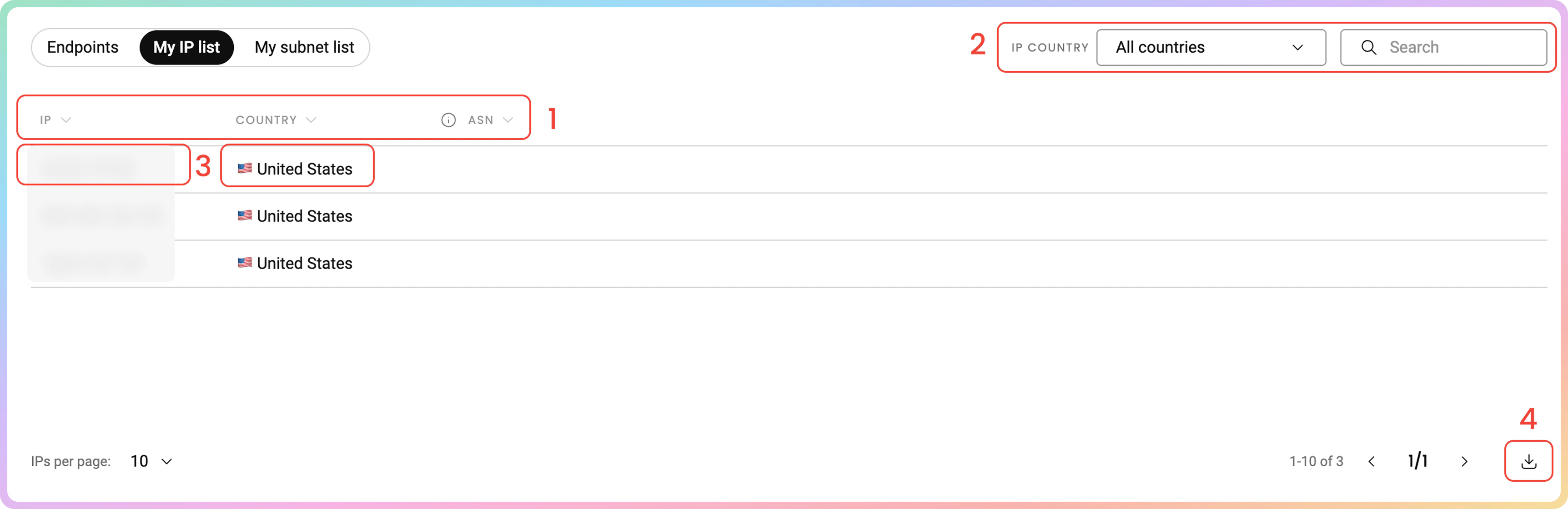
Keep in mind that some IPs listed may not have an associated ASN.
My subnet list
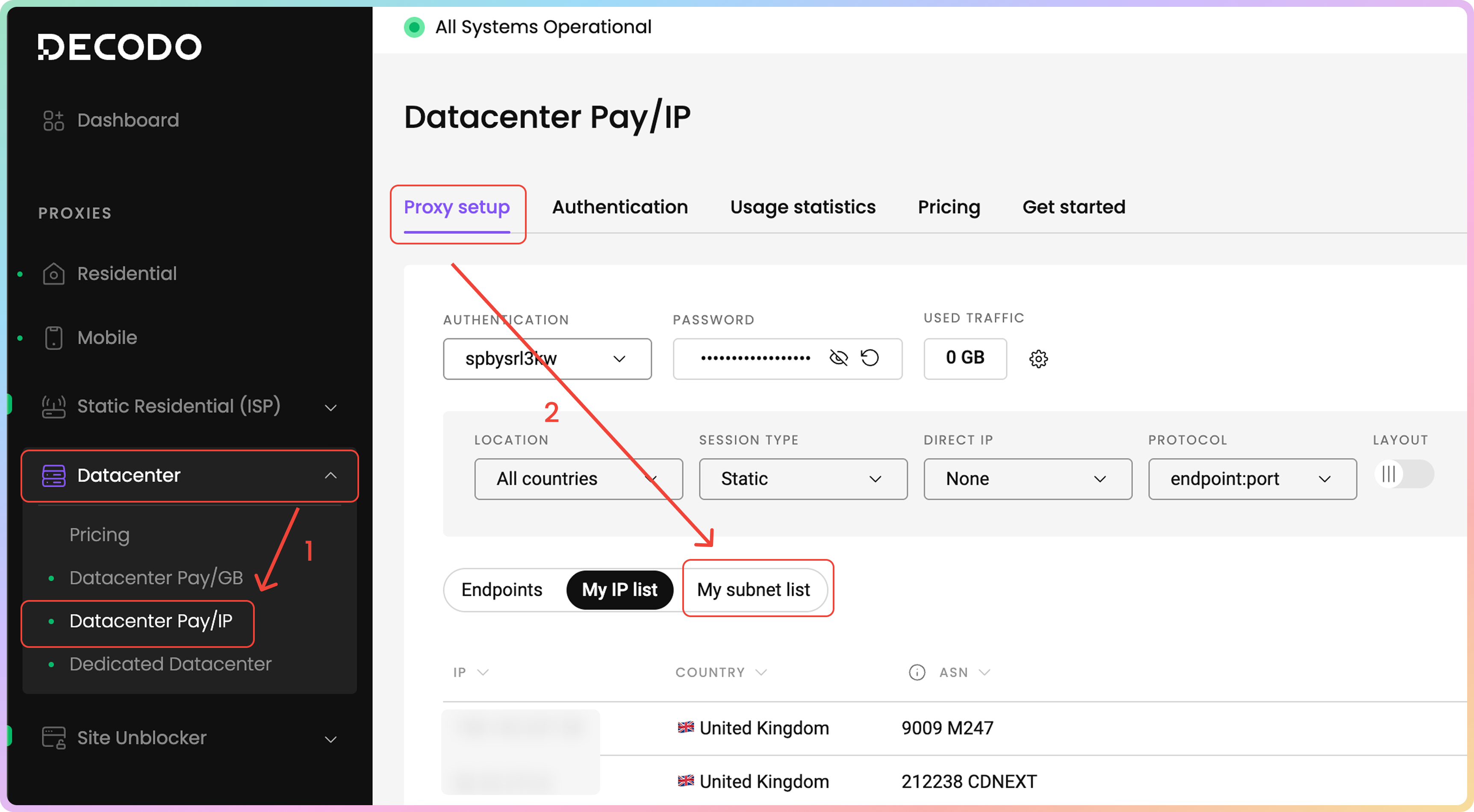
Similarly to the My IP list access, you would have to navigate to the My subnet list section on the dashboard to view your purchased IP subnets list.- Via the dashboard left panel, click on Datacenter -> Datacenter Pay/IP.
- Now, you are in the Proxy setup page. Above the endpoint generator section, click on the My subnet list section.
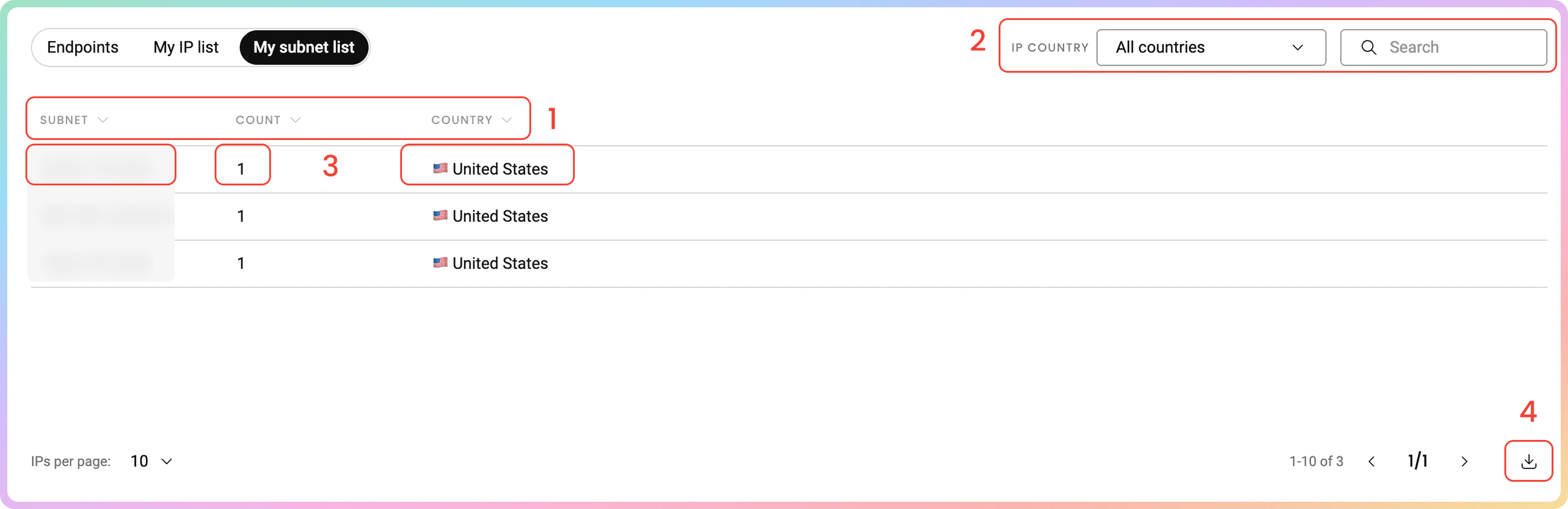
- There are 3 columns: the subnet, the count of your purchased IPs that belong in that subnet, and the subnet’s country of origin.
- You can filter the IP list by its country or search via keywords.
- You can copy each of the table’s values to your clipboard by clicking on them.
- You can export the table’s data directly or export the raw data in the following file formats:
.CSV, .TXT, or.JSON. You can also copy the list of subnets to your clipboard.
Support
Need help or just want to say hello? Our support is available 24/7.
You can also reach us anytime via email at support@decodo.com.
You can also reach us anytime via email at support@decodo.com.
Feedback
Can’t find what you’re looking for? Request an article!
Have feedback? Share your thoughts on how we can improve.
Have feedback? Share your thoughts on how we can improve.