

Getting Started
Before proceeding, ensure you have:- No other VPN or proxy active.
- The proxy endpoint and port (e.g.,
us.decodo.com:10101). - Your proxy username and password (or a whitelisted IP set).
Proxy Setup
1
The first thing you will need to do to get started is to download the application and create an account with Octo Browser, which you can do here.
2
Open the Octo Browser application.
3
In the Profiles section, press the Create Profile to enter the setup page.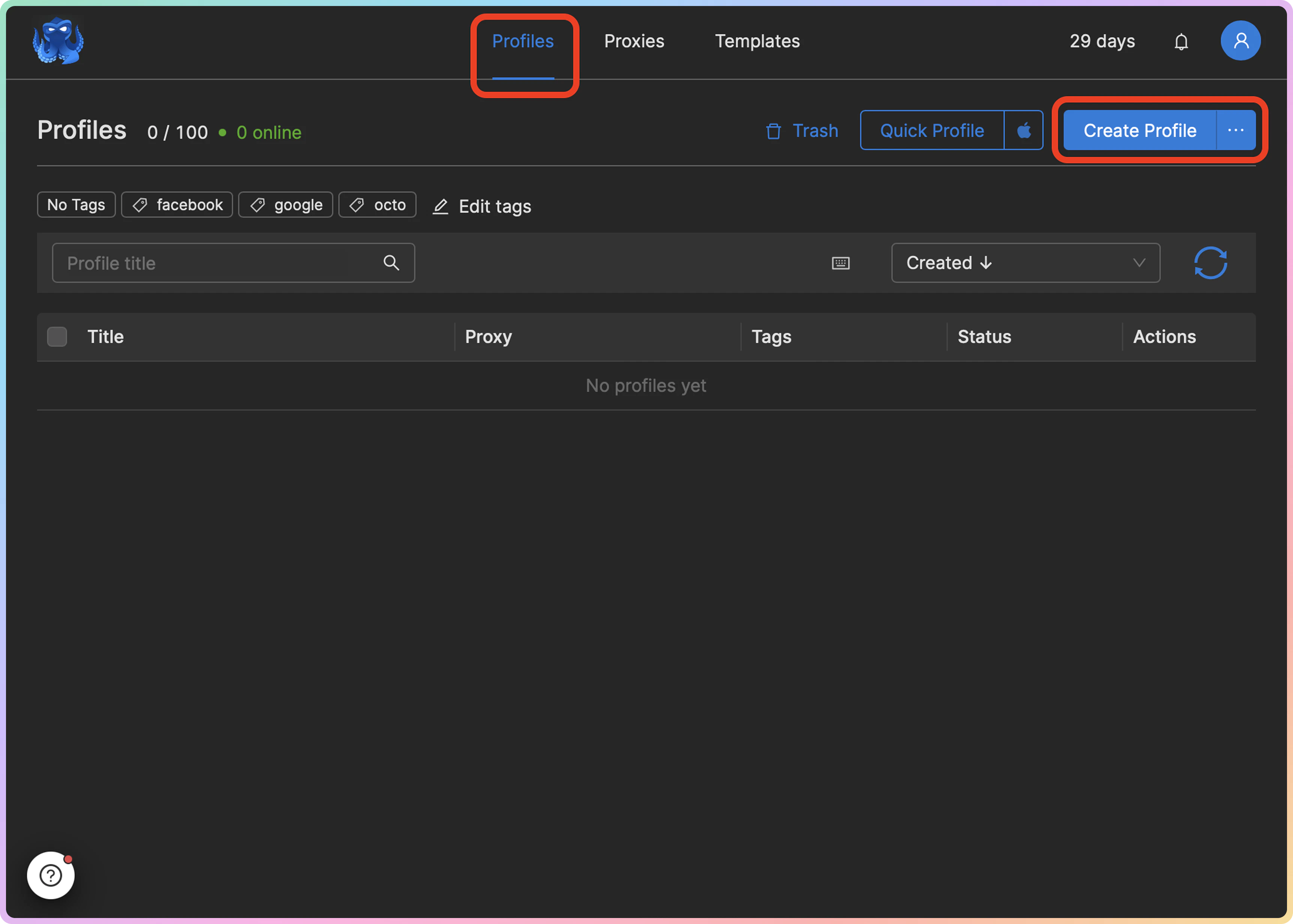
4
First, in the Basic tab, enter a profile name, and then add any other details you might need.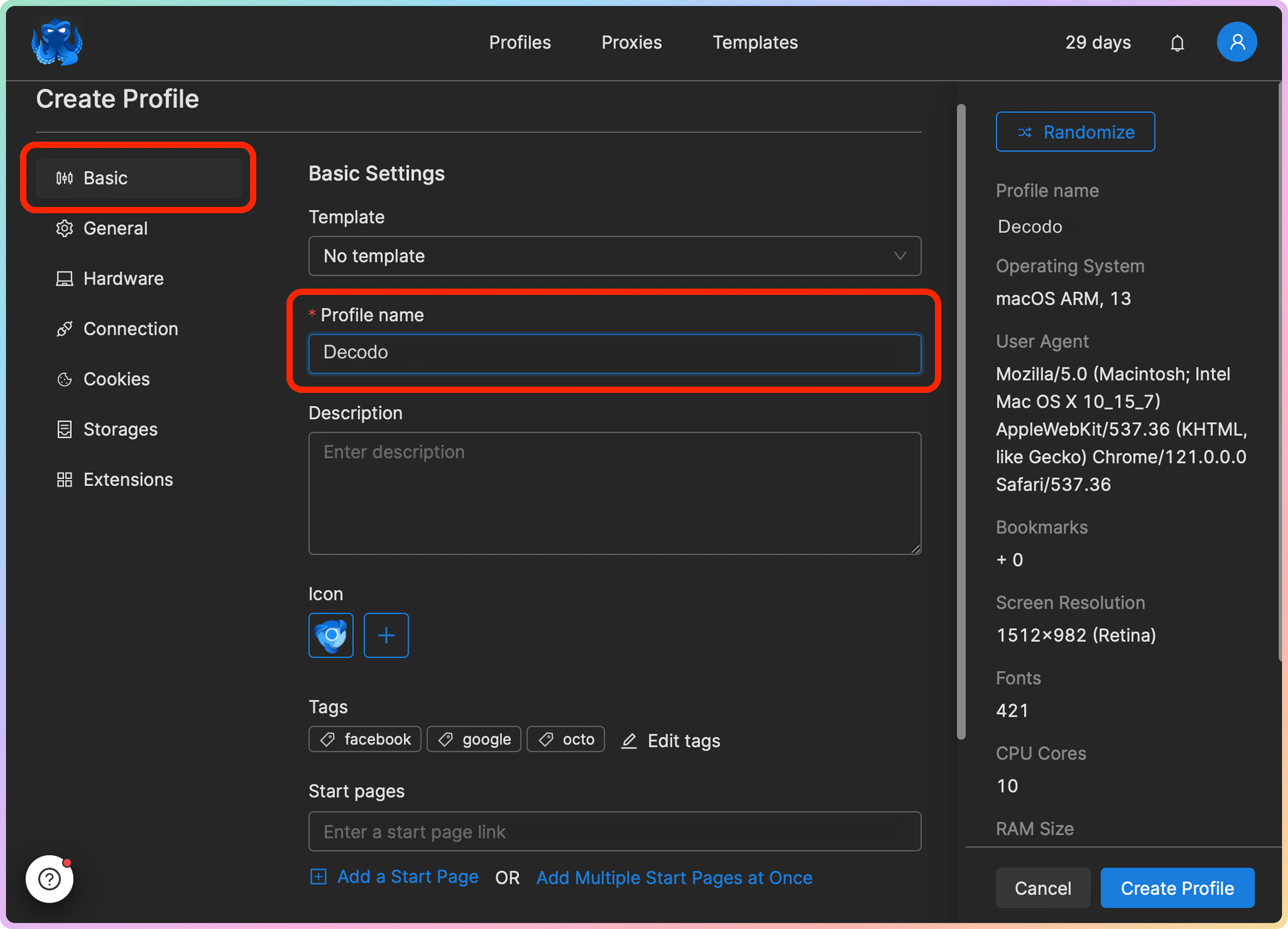
5
Go to the Connection tab and click on the Proxy field. Click on the + Set a new proxy button.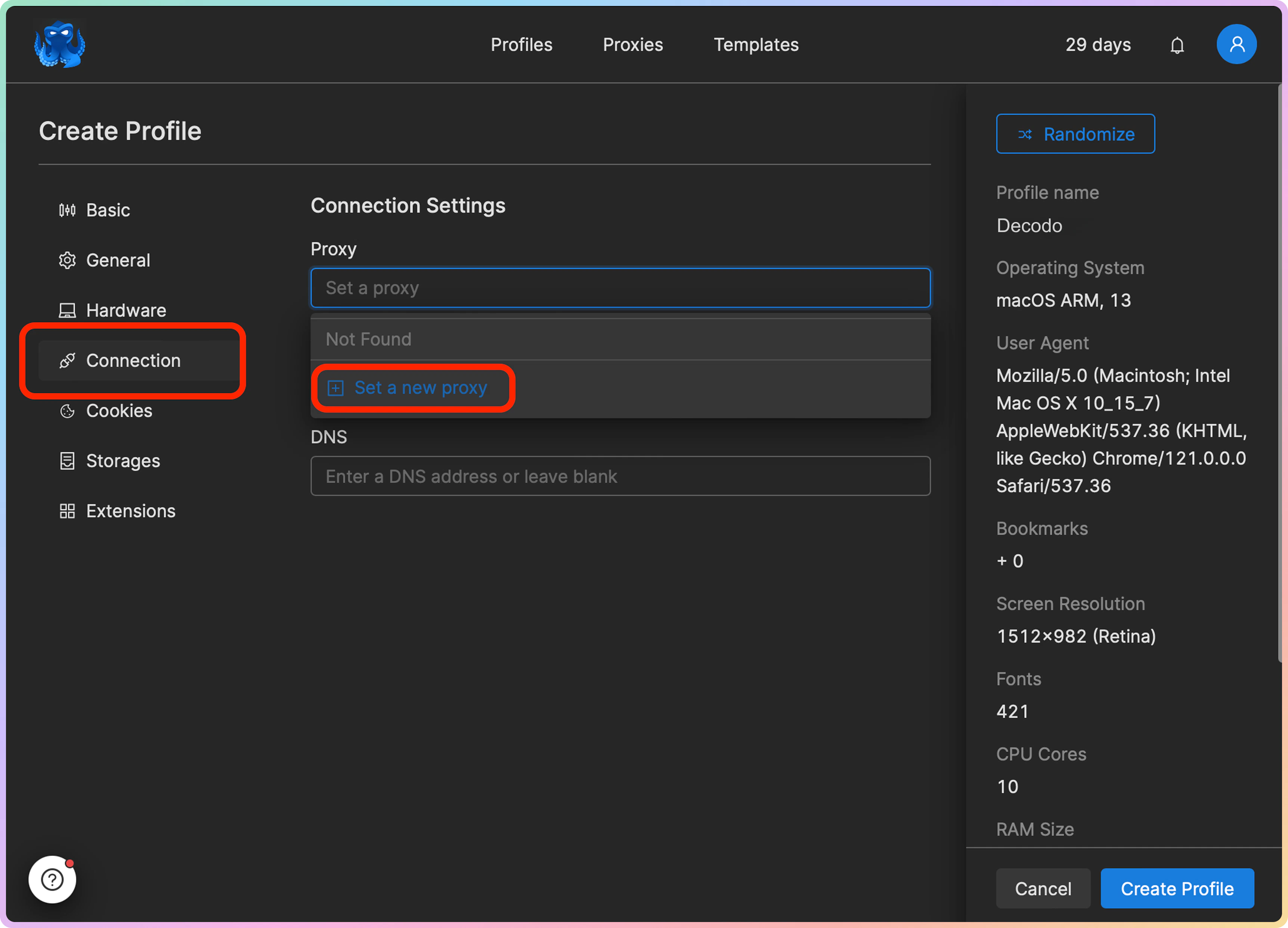
6
In the Set a new proxy pop-up window, select the proxy type and input the proxy details, which can be found on your Decodo dashboard. Here’s an example for residential proxies: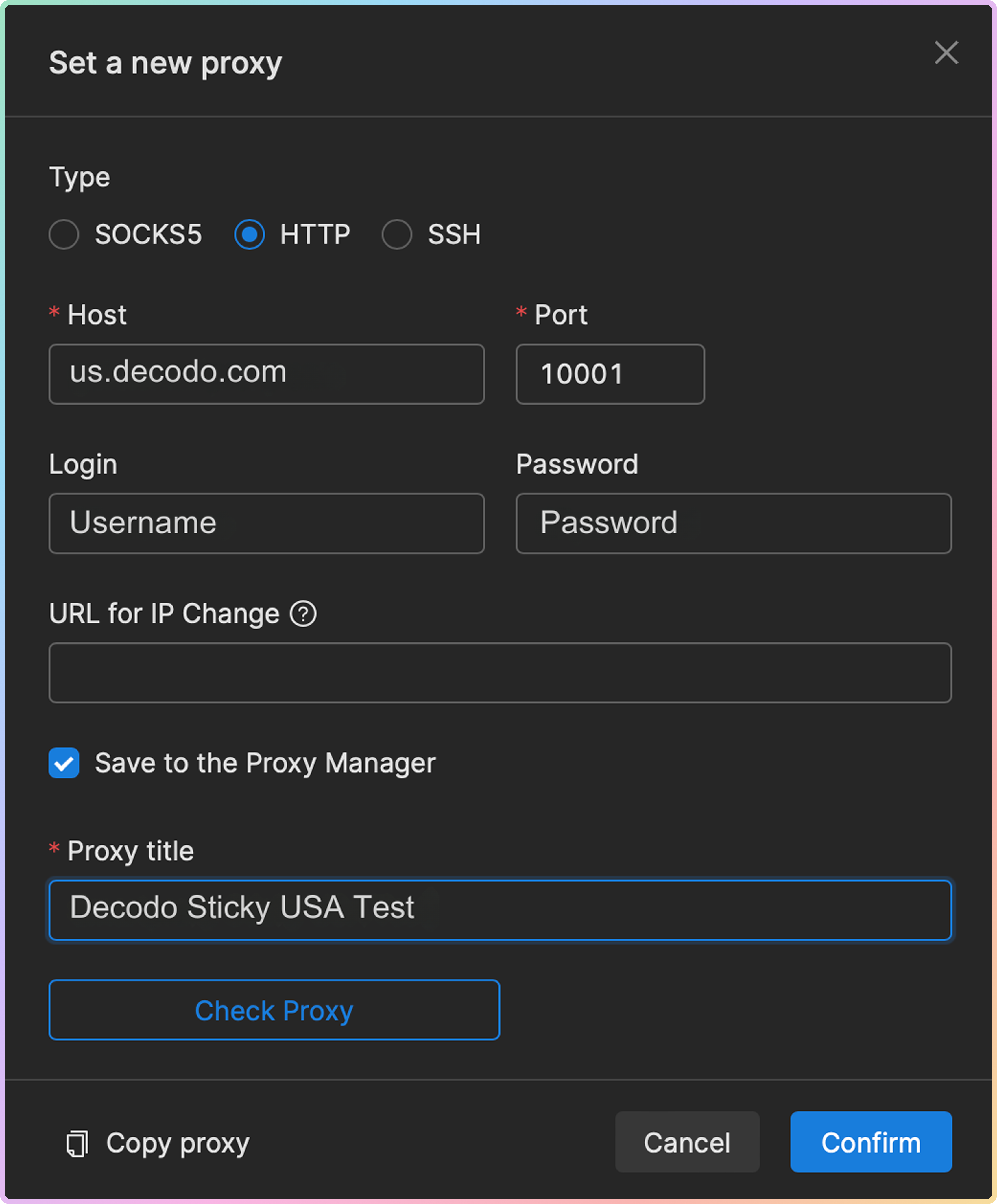
- Host:
gate.decodo.com - Port:
10001 - Login: Input your
proxy username - Password: Input your
proxy password - You can also save this configuration by ticking off the Save to the Proxy Manager checkbox; in this case, in the Proxy title field, you will need to name the particular proxy.
7
You can click on Check proxy button to see if the proxy is available to ensure that the setup is functional. Once done, click Confirm to assign the proxy to the Browser profile.
8
Finally, click on the Create Profile button.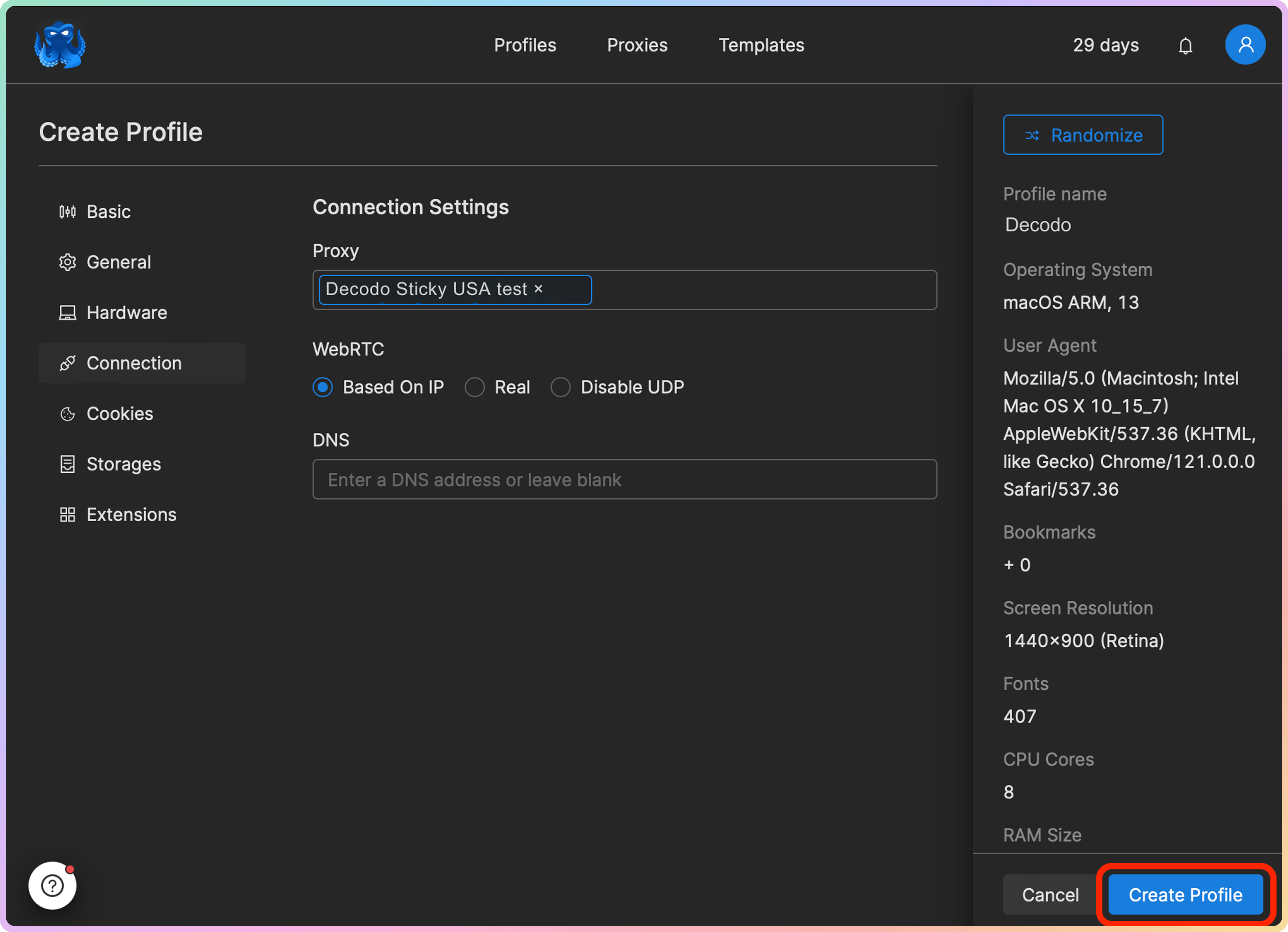
Add Proxies in Bulk or Separately
You can create and link proxy and browser profiles in Octo Browser separately and in any order you find convenient. E.g., you can add proxies in the Proxies section by clicking on the Add Proxy or **Bulk Add **buttons and then later assign them to specific profiles.
Launch a Profile
Once you have created a profile and linked a proxy to it, you can launch it from the Profiles section by clicking Start.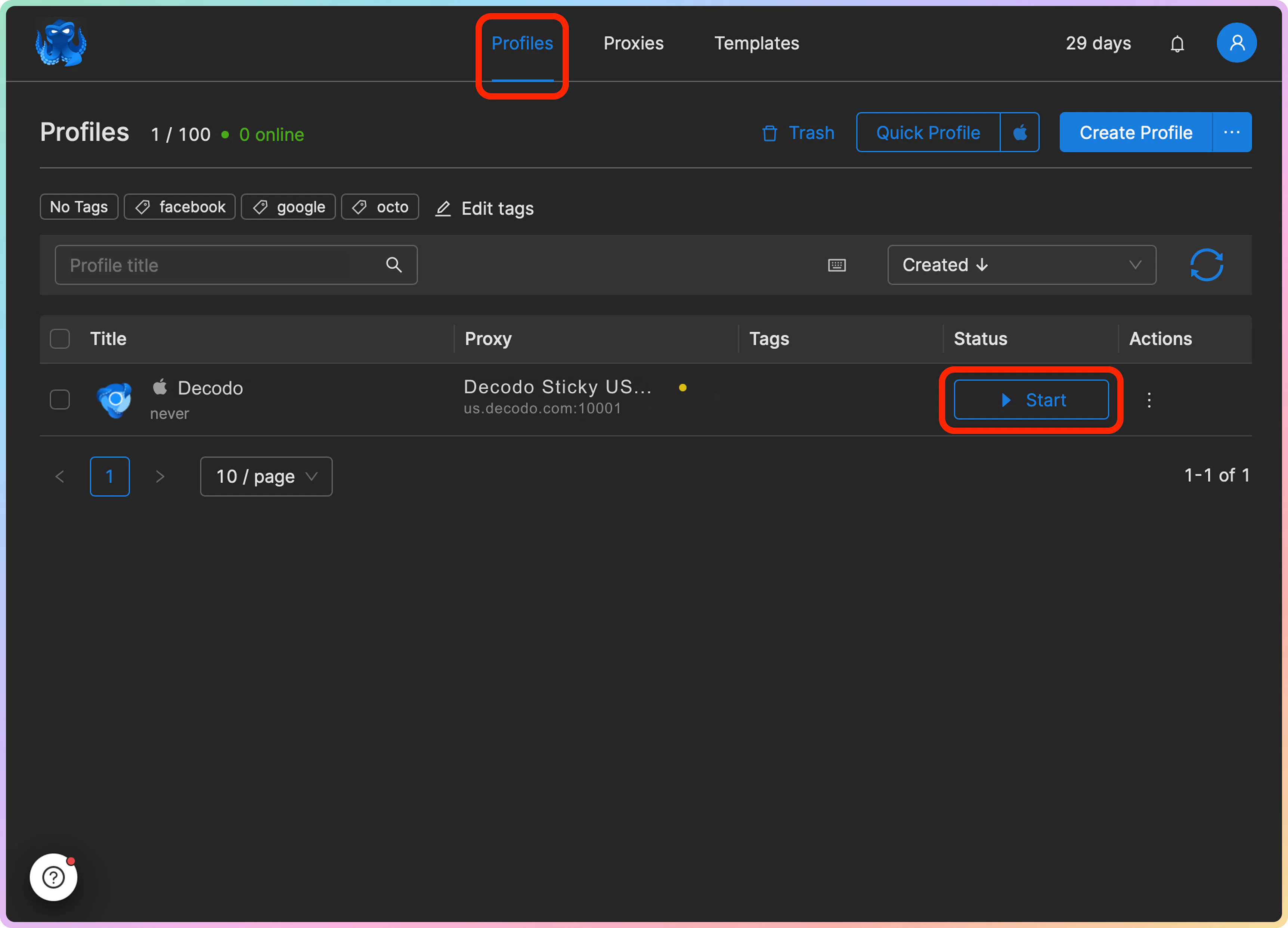
Verify the Connection
- Visit ip.decodo.com. If successful, your IP address will display the location of the proxy.
Common Issues
Blocklist
⚠️ Please be aware that we restrict access to some websites.SOCKS5
Residential and Mobile Proxy Support Limitations
Country Targeting
Country Targeting
The
gate.decodo.com endpoint and the 7000 port must be used to utilize SOCKS5 Residential or Mobile proxies. Country endpoints, such as us.decodo.com, will not function!You can target specific locations instead by specifying the location in your username using advanced parameters:- e.g.:
user-username-country-uswill connect to the USA pool.
Proxy Rotation
Proxy Rotation
To get a sticky
SOCKS5 Residential or Mobile proxy in a tool, you must use a session parameter. Otherwise, the proxy will always rotate even with a set sessionduration parameter.- e.g.:
user-username-session-abc123-sessionduration-30will connect to the same session.- The session ID name can be defined by any string of your choice.
Learn more in our advanced parameter guides for Residential and Mobile proxies.
Direct IP
Direct IP Parameter Support
Direct IP Parameter Support
If you buy an IP list, you can specify which IPs to connect to using the direct
ip parameter in the proxy username: user-username-ip-x.x.x.x- Supported products: DC Pay/IP, Dedicated DC, ISP Pay/IP, Dedicated ISP plans.
- Products that offer access to the full proxy pool, such as residential proxies, do not support this parameter.
IP:PORT Format
IP:PORT Format
- Decodo proxies don’t support an
IP:PORTformat by default. - You must use the endpoint rotator format (e.g.,
us.decodo.com:10101). - If necessary, try the workaround here, but it only works temporarily before requiring another setup update.
Troubleshooting
If you experience any other issues, check out our main troubleshooting section.Support
Need help or just want to say hello? Our support is available 24/7.
You can also reach us anytime via email at support@decodo.com.
You can also reach us anytime via email at support@decodo.com.
Feedback
Can’t find what you’re looking for? Request an article!
Have feedback? Share your thoughts on how we can improve.
Have feedback? Share your thoughts on how we can improve.